DocuSign
Table of Contents
Integration
This integration is currently free of charge however it will change in the future. Leon will charge Clients for this integration and it is due to DocuSign charging policy for using their API. We will notify the Clients using this integration in advance.
DocuSign helps companies and individuals go fully digital. DocuSign is an easy-to-use digital transaction platform that lets users send, sign and manage legally binding documents securely in the cloud.
Integration with Leon allows sending and signing contracts generated using Sales Module via DocuSign.
How to integrate
It is mandatory to have an active account with Docusign.
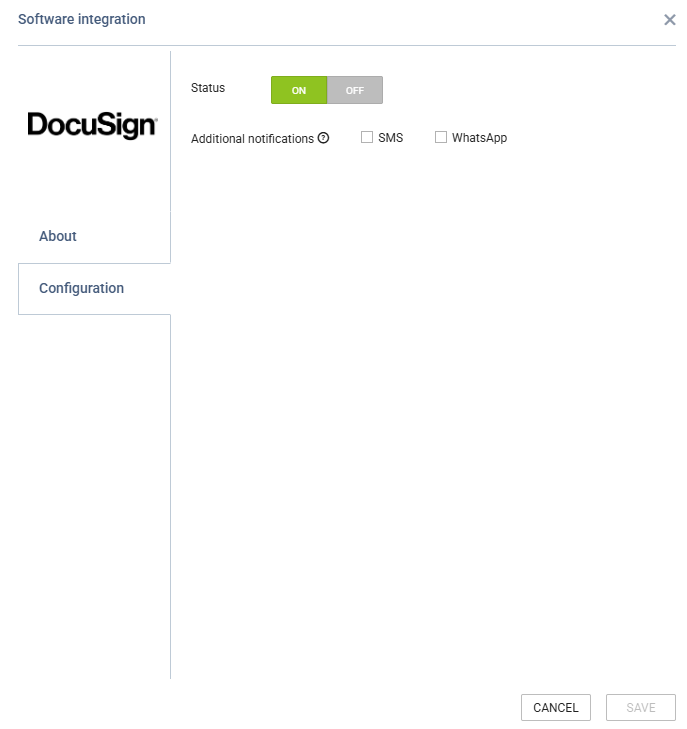
First step is to contact support@leonsoftware.com and we will activate the integration for the operator in the configuration tab.
Once the operator is connected, each User connects ones account to the account in DocuSign via Requests/Quotes Panel.
More information about connecting a user as well as usage of the integration is explained in Requests/Quotes Panel
Additional notifications — in the Configuration tab of the DocuSign integration you can select SMS and/or WhatsApp. When enabled, the signing link can also be sent to the client by SMS or WhatsApp, in addition to email. Changing this setting requires permission to edit system settings.
Connecting Leon account to DocuSign
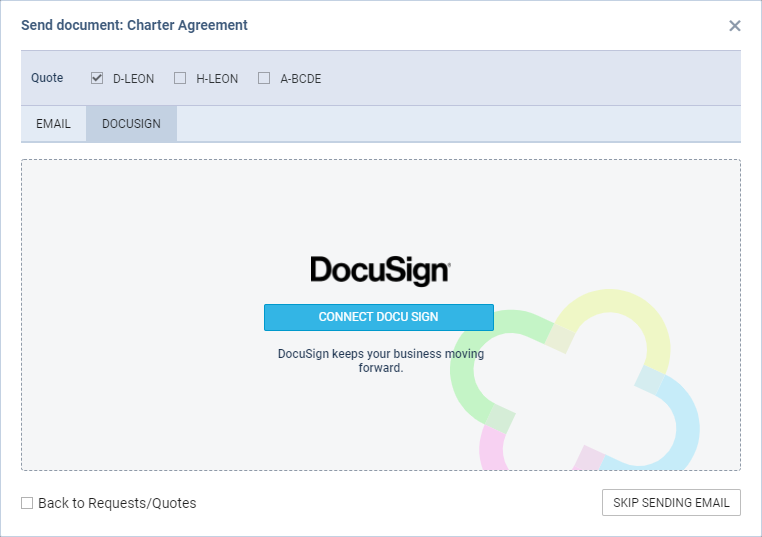
The connection between user Leon account and DocuSign account takes place when the first Contract after activating integration is sent.
In order to connect own account in Leon to DocuSign account, you need to:
-
Click on ‘CONTRACT’ option in the quote edit section
-
In ‘Send document’ pop-up window switch the tab to DOCUSIGN
-
Click on the blue ‘CONNECT DOCUSIGN’ button
-
In the pop-up window, log in to your DocuSign account
Once you signed in, you should see the following message: SUCCESS. Your Leon account has been connected to DocuSign. Please wait for connection in Leon view.
Leon remembers the DocuSign details and this is when you can start using the integration.
Usage
DocuSign integration works only with ‘Charter Agreement’ document and allows reviewing and signing the document in a fast and secure way.
After connecting to DocuSign, each new ‘Charter Agreement’ will require creating a draft in DocuSign.
Once the draft is created, you will be able to send the document to DocuSign.
In ‘Send document’ window you will be able to select the ‘Charter Agreement’ version (based on the number of versions created in the Documents Manager). ‘To’ email is the default email of the Requester or Representative. The ‘To’ email can also be inserted manually.
If additional notifications are enabled, the ‘Send document’ window also shows the Also send signing link by checkbox. When it is selected, choose the channel (the SMS / WhatsApp switch appears only if both are enabled) and enter the phone number of the person who signs the document. The number is pre-filled with the Work phone of the Representative or, if the Representative has no email, of the Requester — the same contact as the ‘To’ email — and can be changed manually. It must be in international format with a space after the country code, for example +48 123456789.
The phone number is saved when the draft is created in DocuSign, and the SMS or WhatsApp message is sent together with the email when the document is sent. While the document is a draft, the number cannot be changed in the ‘Send document’ window — use SHOW DRAFT IN DOCUSIGN to change it in DocuSign. To send the email only, clear the Also send signing link by checkbox.
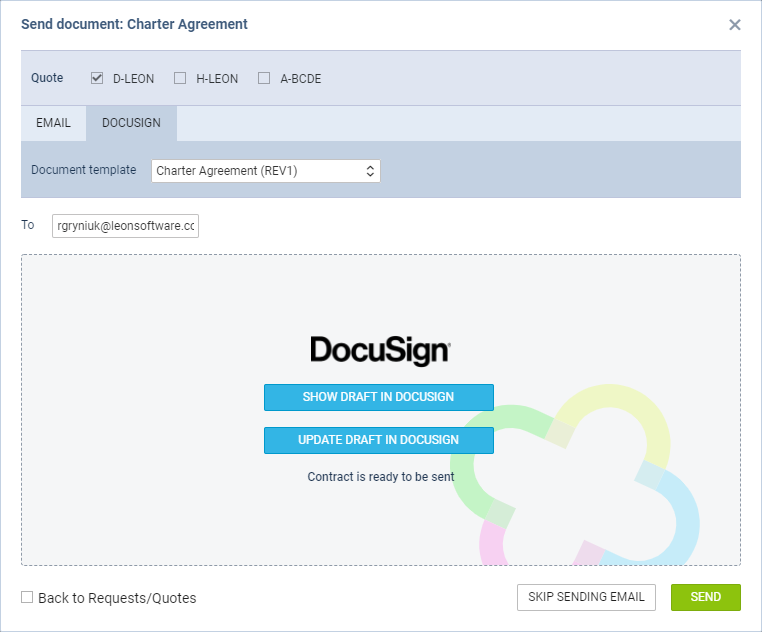
Before sending the ‘Charter Agreement’ to the Client, you can also select one of the available options:
-
SHOW DRAFT IN DOCUSIGN - which will allow you to preview it in DocuSign
-
UPDATE DRAFT IN DOCUSIGN - which will allow you to update the document if there are any changes within the request
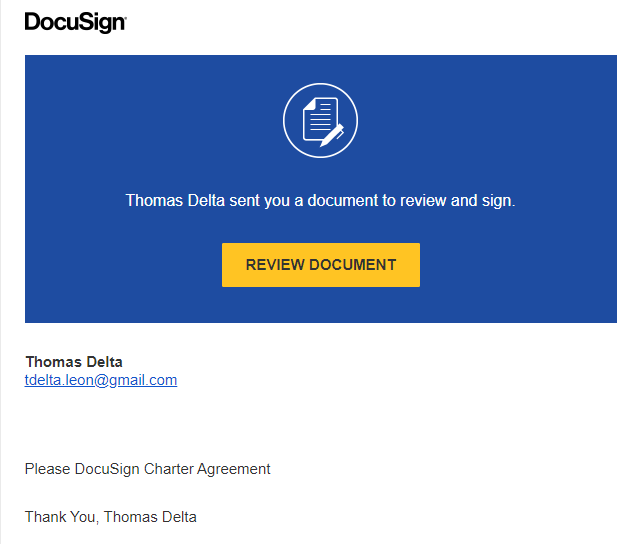
Once the ‘Charter Agreement’ is sent, the Client will receive it to his mailbox titled ‘Agreement from [Airline name]’.
The email will also contain the link to DocuSign which will allow reviewing the document for the Client.
Also, the selections in “Send document’ window will change to SHOW DOCUMENT IN DOCUSIGN and UPDATE DOCUMENT IN DOCUSIGN
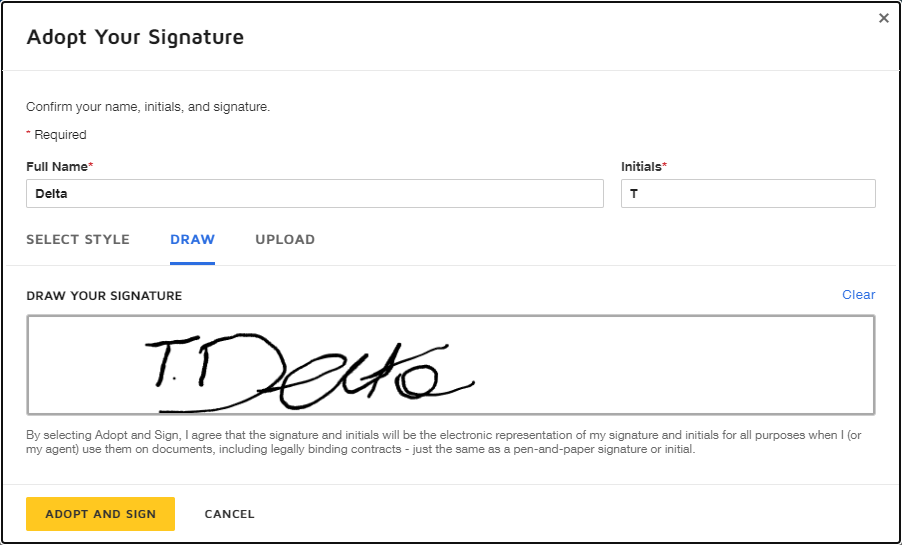
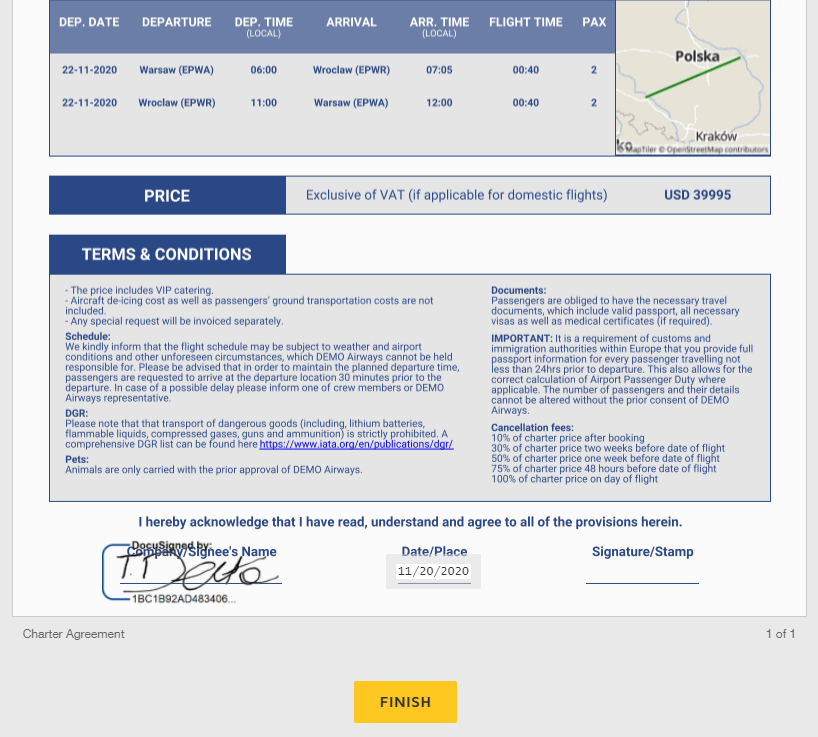
The client will be able to sign, date and stamp the document without having to print it.
It is possible to include the signature tabs in the document so to indicate, where the document should be signed.
The tab icon can be included in HTML in the Documents Manager - ‘Charter Agreement’ by using the below:
-
{% _SellerSignature_ %} - to indicate where the seller should sign
-
{% _BuyerSignature_ %} - to indicate where the buyer should sign
For example, inserting below code HTML

will insert the following tab in ‘Charter Agreement’ in DocuSign:
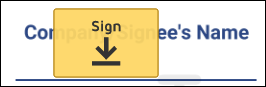
The client can click on the ‘Sign’ tab and insert the signature.
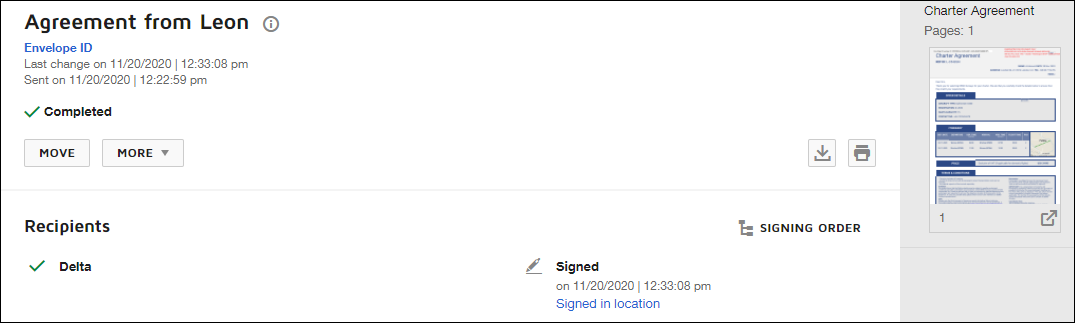
Once Client reviewed it and signed it, Client can press finish which will send a notification to an email that the agreement has been signed and in DocuSign it will be marked as ‘Completed’.