Checklist items Due Dates
Table of Contents
The feature is available on request for testing. To have it activated, please contact Leon Support
It gives the possibility to configure the ‘Request Due Date’ and the ‘Completion Due Date’ for selected checklist items at selected airports.
Configuration
In order to configure ‘Due Dates’ you need to follow the below process:
-
Click on

-
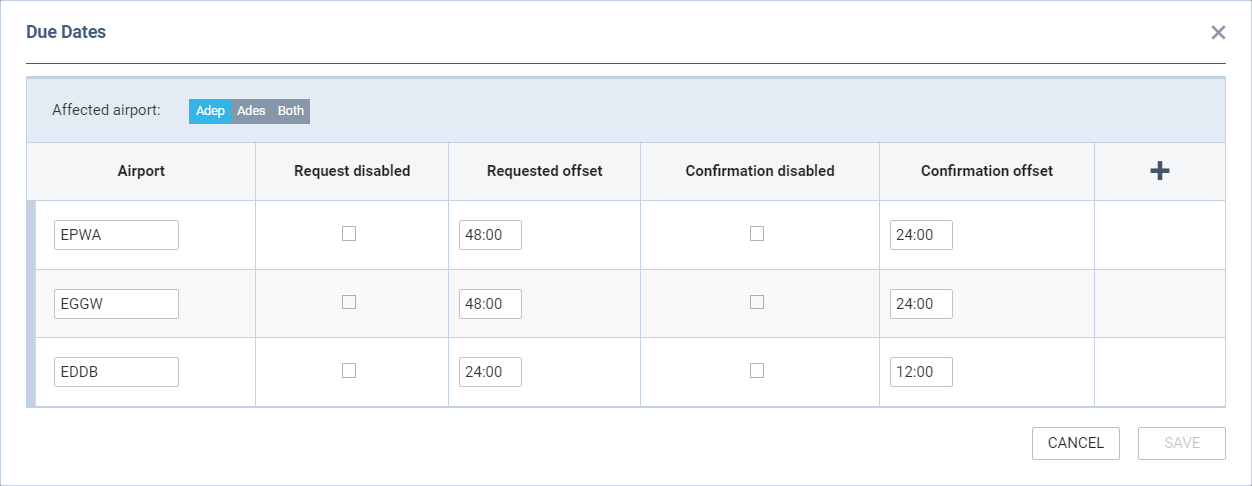
The configuration window contains the following options:
-
Affected airport: ADEP/ADES/Both - indication of whether the configuration should apply to ADEP only, ADES only or both airports on the flight * Airport - airport code of the affected airport * Request disabled - option to disable 'Requested offset' * Requested offset - option to indicate how many hours before the flight, in HH:mm, the item status should be requested * Confirmation disabled - option to disable ''Confirmation offset' * Confirmation offset - option to indicate how many hours before the flight, in HH:mm, the item status should be confirmed * + - clicking on + will add a row on the list of airports * Press 'SAVE' to save the settings * The icon in the 'Due Dates' column will turn blue once the settings are saved - {{:leon:settings:checklist-conf:due_date_-_setup_condirmed.png?nolink|}}
Clicking on the 
How it works
Once the ‘Due Dates’ are configured, the clock icon becomes available in the OPS sections. It is located in the top bar of the OPS section, next to the ‘Message Center’ icon:

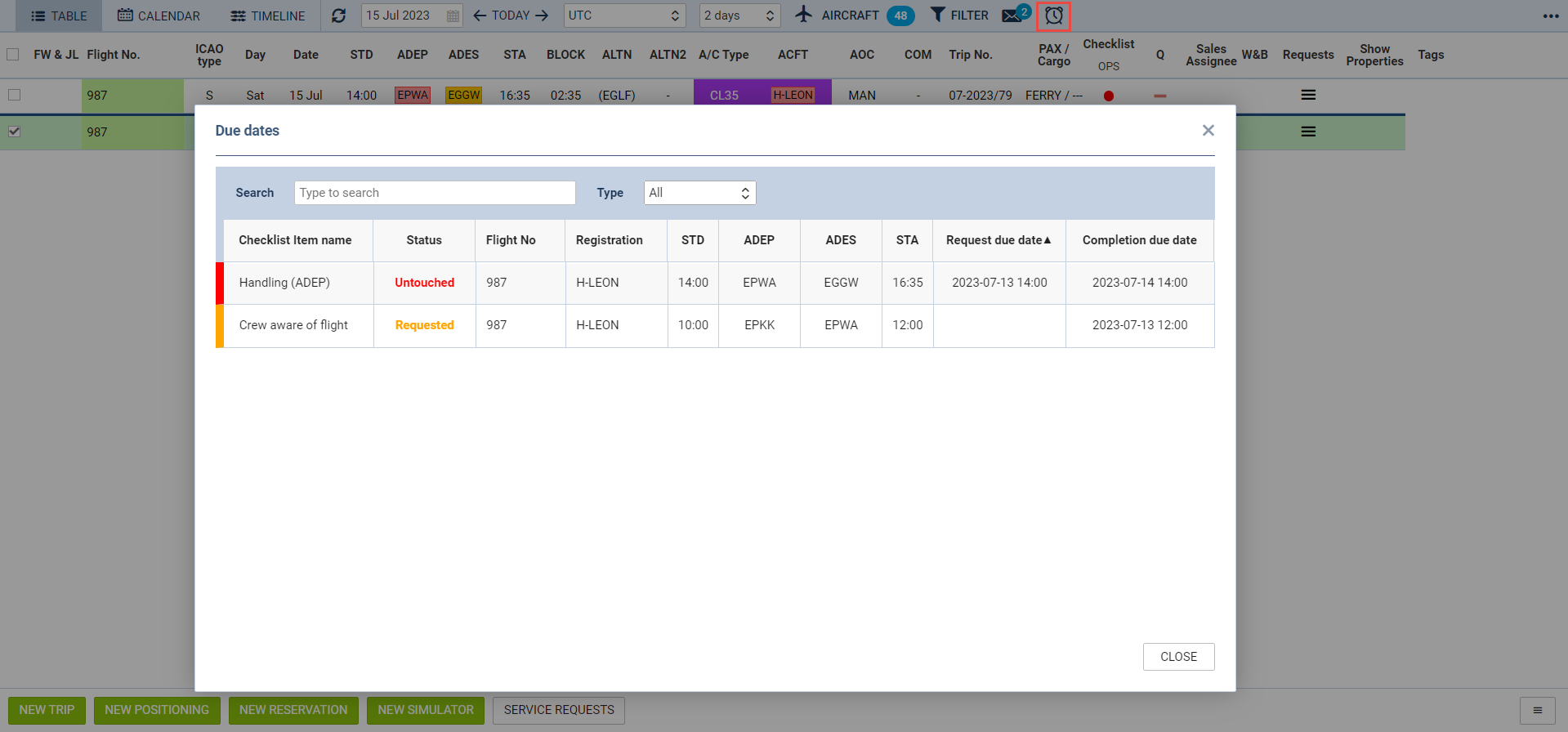
Clicking on this icon opens the ‘Due Dates’ pop-up window that contains:
-
Search - option to search for the specific checklist item
-
Type - option to select the type of the checklist item between OPS and Sales
-
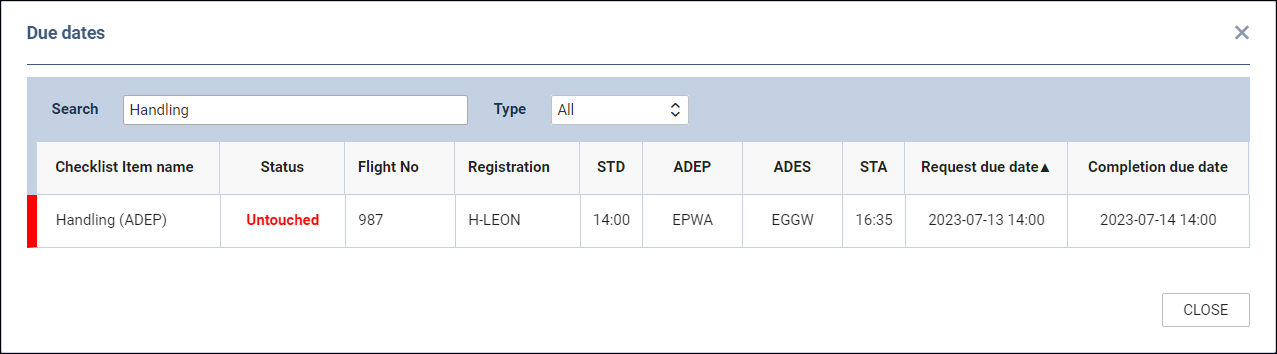
List of items - any items that require action are listed along with the checklist item status, flight details and the Request/Confirmation due dates. The bar color on the right of the item indicates the checklist item status
The items are included in the list based on the ‘Due Dates’ configuration and the status in the checklist.
EXAMPLE
Below there are 2 examples presented:
Item requested
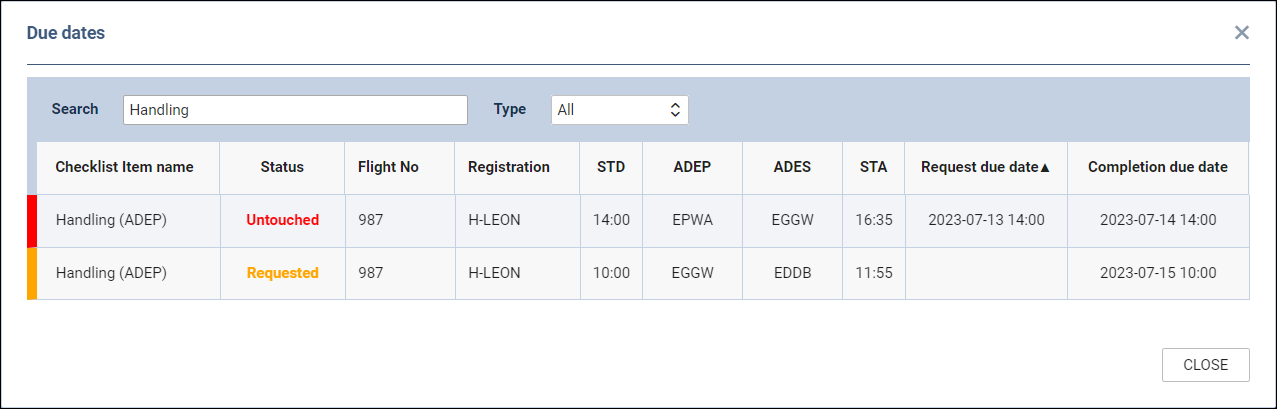
Once the checklist item is requested, the status in the ‘Due date’ pop-up window changes to the relevant status for this item. In case of the ‘Handling (ADEP)’ item the status is ‘Requested’.
Additionally, the ‘Request due date’ is removed.
Item confirmed
Once the checklist item is confirmed, the item is removed from the ‘Due Dates’ pop-up window.