

Table of Contents
New Quote
To add a new quote you need to perform the following steps:
1. Click on NEW QUOTE option in the ‘Requests/Quotes’ screen, or select FROM TRIP (the trip has to be already created in OPS panel).
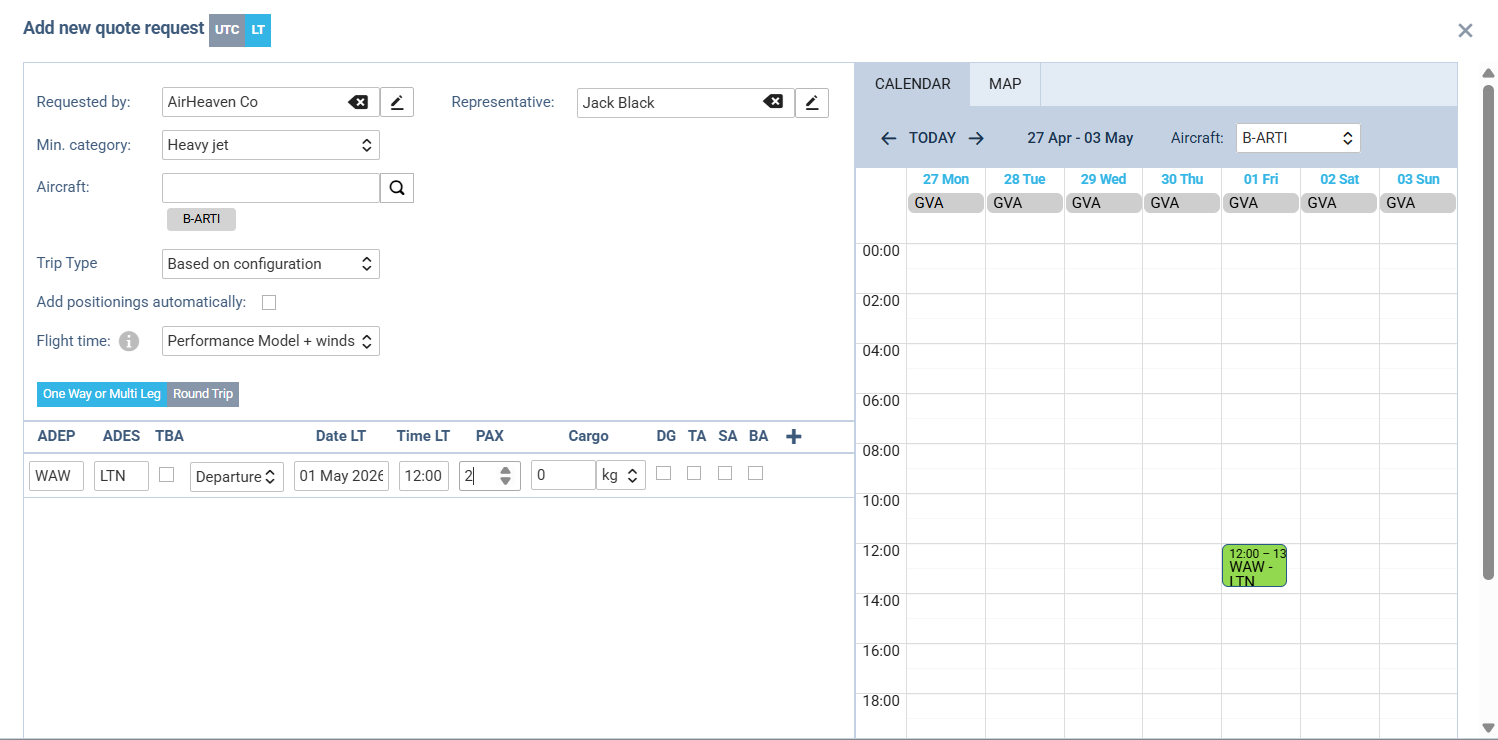
2. Fill in the information in the ‘Add new quote request’ window:
-
Requested by - name of the Client requesting the trip
-
Representative - select client’s representative previously added to the Phonebook.
-
Min. category - a category of the aircraft on which the trip is requested, e.g. Heavy jet, Midsize jet, Piston, etc. This will allow searching for the subcharter flights in Avinode. If the aircraft registration is selected, Leon will automatically select the lowest aircraft category.
-
Aircraft - click to select a tail, or click the loop-icon.
-
Trip Type - select a trip type from the drop-down list.
-
Add positionings automatically - tick the checkbox if you want to add the positioning flights before/after the quote flight.
-
Add the itinerary.
3. Press CREATE to add the request
If you want to add a Subcharter quote - skip selecting a tail and instead of flight times mark TBA.
In the new window click CREATE A SUBCHARTER QUOTE and add data.
The details edit window is divided into 2 tabs:
-
BASIC - you can add subcharter details such as aircraft details, crew details, contact details (email and phone no.) and aircraft photos manually.
-
MESSAGES - possibility to reply to operator.
-
AMENITIES - possibility to select the amenities available on the aircraft as well as the cabin basic measurements and noise levels.
-
SERVICES - possibility to select handling, catering or PAX transport.
-
DOCUMENTS - upload documents into this tab.
Price
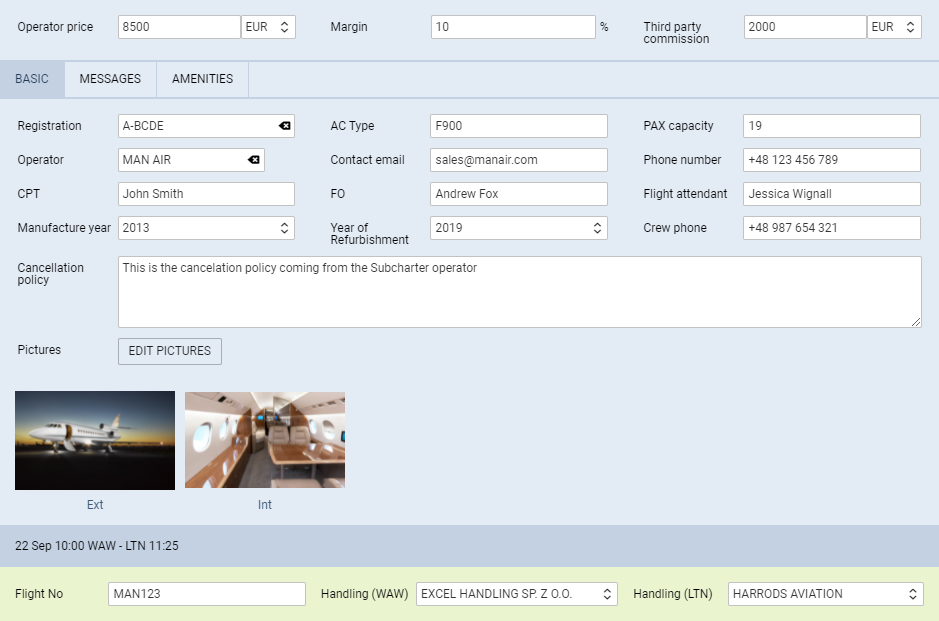
The ‘Price’ section is located above the tabs with the subcharter details.
It allows inserting more detailed price that includes:
-
Operator price - the amount charged by the operator
-
Margin - income margin calculated on top of the total cost
-
Third party commission - commission paid to the third-party
Based on the above elements, the total price is calculated as:
Price = ‘Operator price’ /(100% - ‘Margin’%) + ‘Third Party Commission’
Managing the Quote
QUOTE - a quote proposition details with Flight Quotations document.
CONTRACT - shows a new window for Charter Agreement document sending.
BOOK - after receiving the signed contract from your end customer, you can book a flight.
INVOICE - an option to send an invoice to the client. Before using this option you need to set up in Documents Manager a new template QUOTE INVOICE - you can set up multiple different templates and re-arrange them the way you want (using HTML & CSS).
You can also use Leon default template pdf. You can also configure EMAIL TEMPLATES for the Invoice in a section Settings > Email Templates - click ADD TEMPLATE, select Quote Invoice and set it up.
You can define as many email templates for as necessary. Once it’s all set up, edit the Quote that has already been BOOKED, click button INVOICE and Leon will show a pop-up window where you can select an appropriate Email and Invoice template.
Then Invoice details & items should be defined with their Net price and VAT. Below the items list, Leon will show Total price.
Three fields with dates are available in the document:
Invoice Date - date of invoicing Issue Date - date of issuing the Invoice Due Date - due date of the payment. If this field is left blank, Leon will assume 10 days in advance from the ‘Invoice Date’ Click DOWNLOAD icon to preview the template before sending it out.
-
RECHARGE INVOICE - sent if there was an extra cost for a service not included in an initial price.
-
CREDIT NOTE - sent to a client, if some part of the agreed cost should be returned to client.
First step to issue these documents is adding it in Documents Manager. Click “NEW TEMPLATE” and select Recharge Invoice and/or Credit Note. Added documents need to be published. You can define multiple templates of these documents. Second step is adding these document in the ‘Invoice’ section of the quote‘s edition panel. Click a button + placed right next to the ’Invoice’ button and select documents from the list.
BRIEF - shows a window for Flight Brief document sending.
DONE - closing the transaction.
REJECTED - rejecting the transaction.