

Fuel Prices
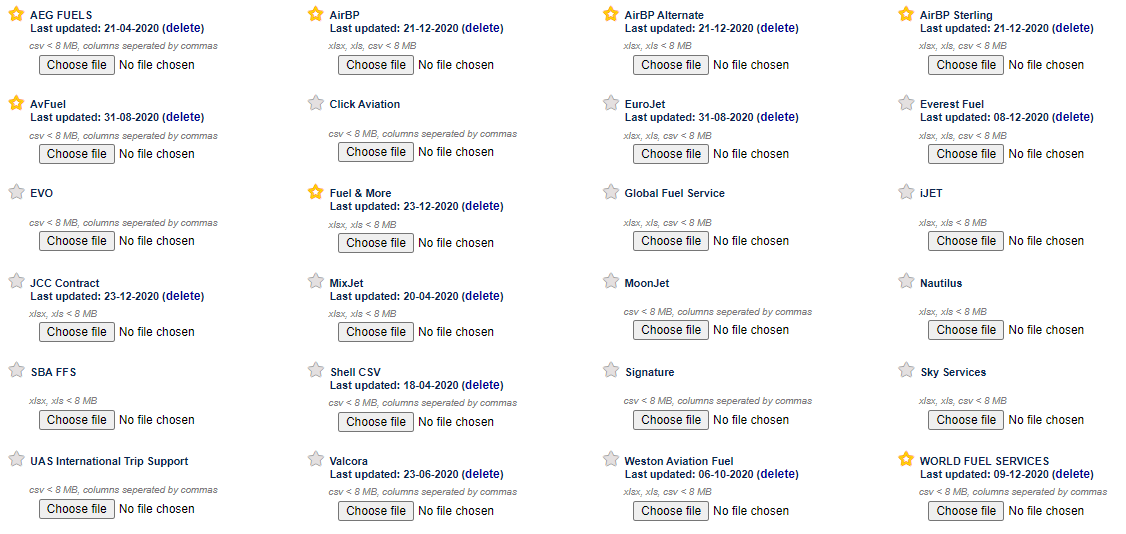
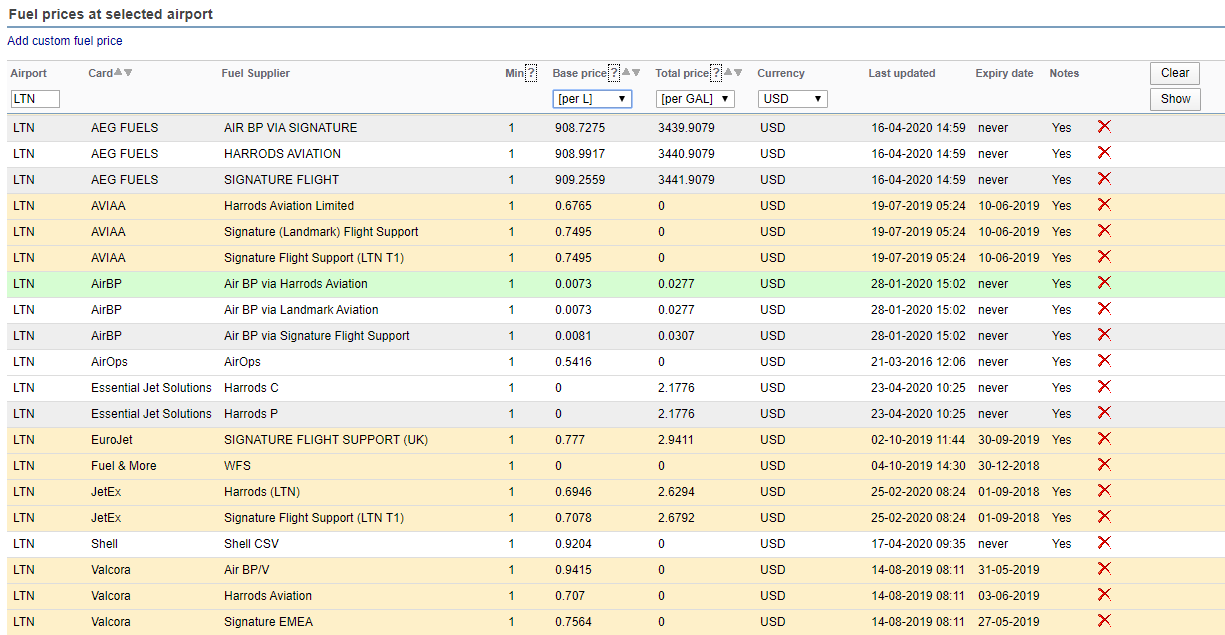
Leon allows uploading fuel prices from various suppliers in your account. When a fuel supplier provides you with the cvs file including the fuel prices, such file can be uploaded in Leon, in menu OPS > Fuel Prices. Find the supplier’s name and upload the file using the “Choose file” button.
Every upload is recorded. Go to Admin Panel > SECURITY > Audit Logs and set the event type filter to Fuel Prices to see who uploaded which file and when. Each entry shows the date and time of the upload, the name of the uploaded file and the user who uploaded it, and you can download the file itself using the icon on the right.
Changes to preferred fuel suppliers are recorded in the same place. Such an entry is described as Preferred fuel supplier ... modified and has a history icon on the right. Click it to open the Preferred Fuel Supplier History window, which lists each change with the date, the user who made it, and the airports and aircraft the supplier was preferred for at that moment. An entry with no airport and no aircraft means the supplier was set as the global favourite. Differences against the previous change are highlighted.

When in OPS, click on a flight, and in the tab FUEL in the panel on the right, you will see a selection of fuel providers for both the airport of departure and the airport of destination (the green one also being the cheapest one). You can include the selected prices on the trip sheet by ticking the box “Show on tripsheet” and clicking SAVE. In this section, it is also possible to add a custom supplier by clicking on the ”+” icon next to the airport code and filling in the necessary details.
It is also possible to send an email with the Fuel Order directly from Leon to suppliers such as: Success Aviation, Fuel & More, Valcora, Eurojet or Jetex.
To order fuel, simply click 
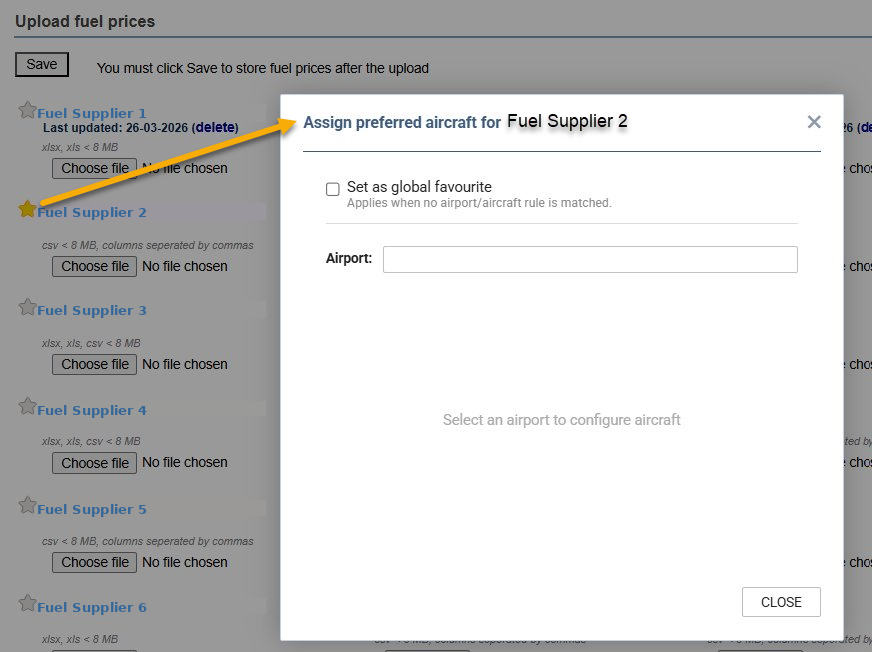
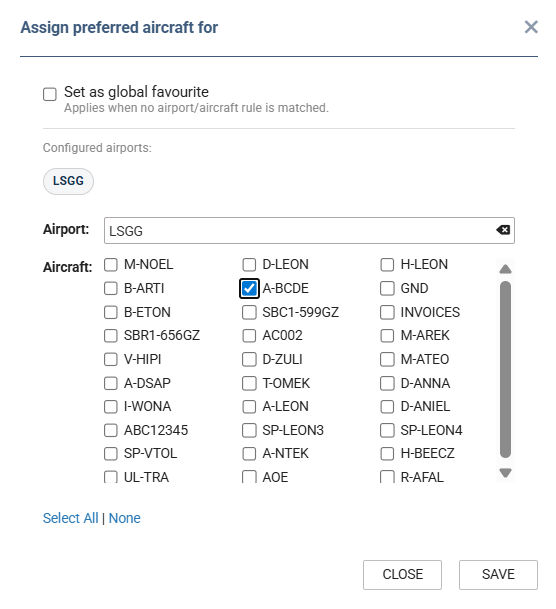
In OPS > Fuel Prices, click the star icon next to a fuel supplier to open the Assign preferred aircraft window. Mark Set as global favourite to have that supplier used whenever no airport or aircraft rule is matched. Alternatively, leave this box unticked to set the supplier as preferred for specific airports and assign preferred aircraft to that supplier. Enter the airport codes; the list of your aircraft will then appear so you can fine‑tune the supplier preferences.
Fuel prices added manually in OPS > Fuel Prices can be marked as preferred. Use the star icon in the price row, or the star in the header of the Add custom fuel price window. A price marked this way is shown with a star in the FUEL tab of the flight, where the star only indicates the choice and cannot be clicked. Marking a manually added price as preferred is not recorded in Audit Logs and does not appear in the Preferred Fuel Supplier History window.
Click below for an overview of the fuel prices feature in Leon: