

New ‘Fleet planning’
Table of Contents
The new ‘Fleet planning’ section is available under SCHED. The old ‘Fleet Planning’ page, currently available under MX, will be disabled soon.
The new version of the ‘Fleet planning’ functionality is now available under MX > Fleet Planning.
The updated version retains all existing features allowing you to:
Plan the Fleet for Scheduled Trips: Assign aircraft to upcoming trips if no aircraft tail has been assigned yet
Modify Assigned Fleet: Change the currently assigned fleet as needed
Main view includes:
-
Date range selection including ‘TODAY’ button
-
‘AIRCRAFT’ filter
-
List of existing trips within selected date range
List of Trips
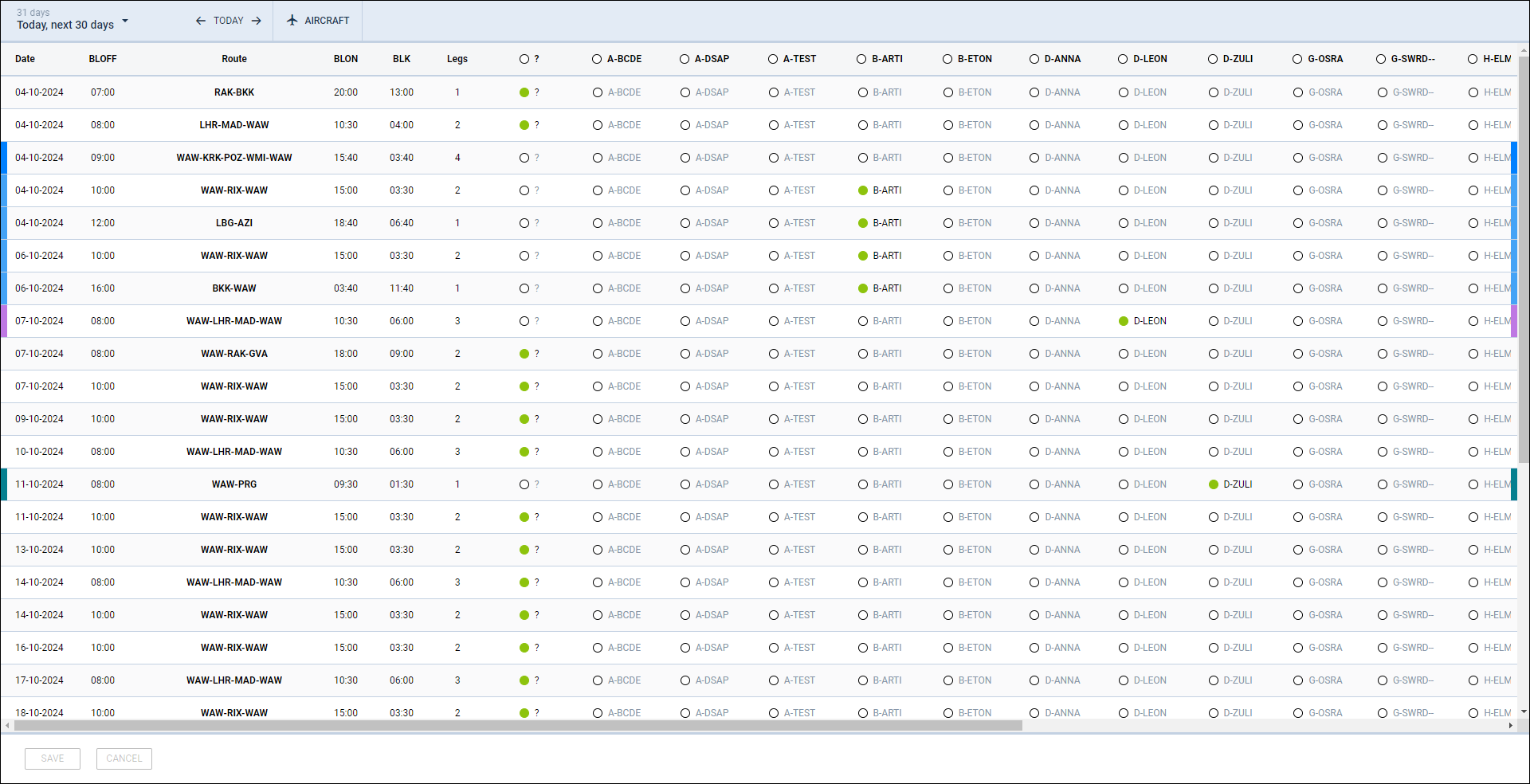
This overview contains the list of scheduled trips within the selected date range.
By default, the view is sorted by ascending date, and aircraft are listed alphabetically. You can adjust the order of aircraft listings using the Aircraft filter option.
Both sides of each schedule display the aircraft colour assigned in the fleet settings, providing a quick visual reference.
How it works
You can assign aircraft to unassigned trips or change the aircraft assigned to existing trips.
Click on the 
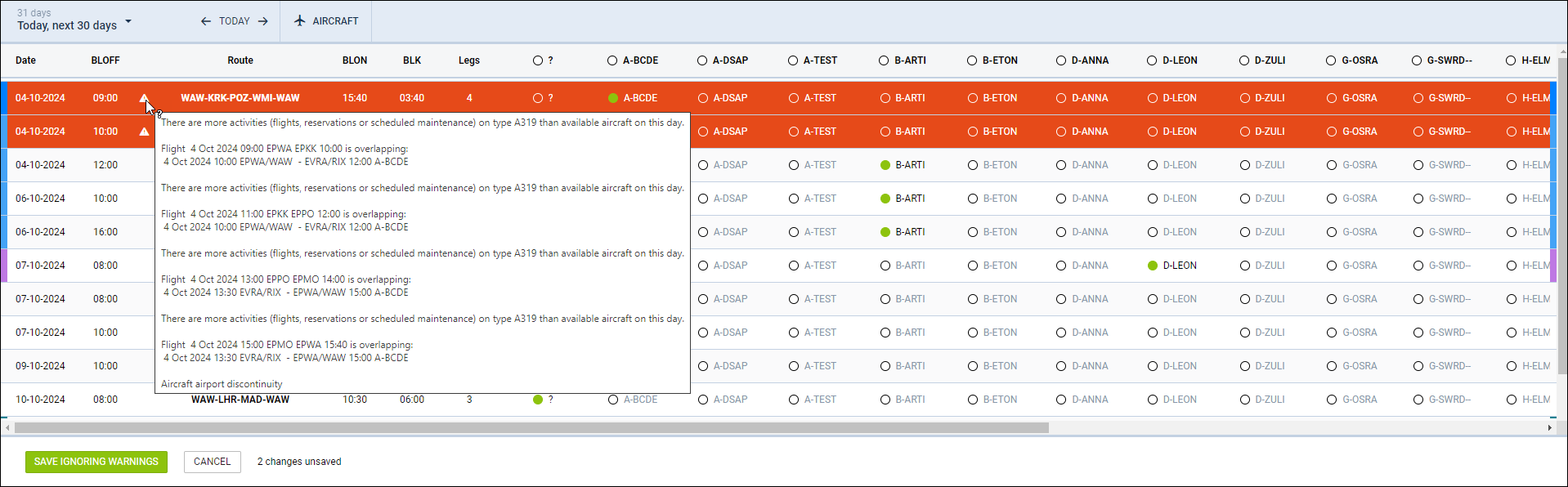
Rescheduling of the aircraft can be done on multiple trips before saving.
When saving the amended schedule, Leon may detect potential problems such as:
-
Overlapping flights
-
Maintenance conflicts
-
Reservation issues
-
Airport discontinuity
-
Crew rating warnings due to aircraft type changes
Hover the mouse over the 
Despite the potential issues, you can save the changes by clicking the ‘SAVE IGNORING WARNINGS’ button.
AIRCRAFT filter
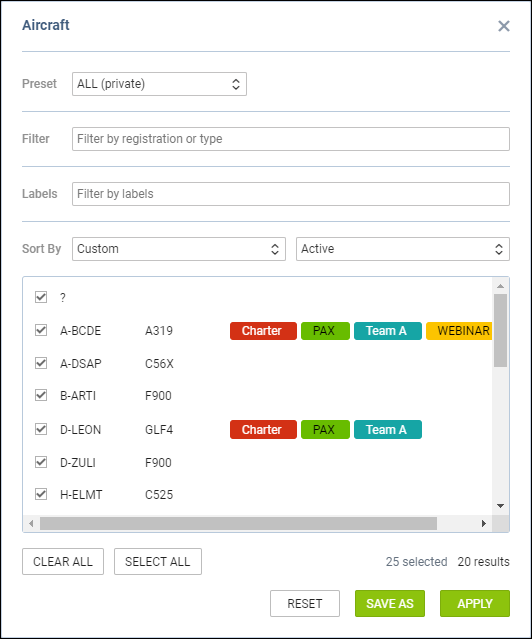
Aircraft filter contains numerous options:
-
Preset - create and use filtering templates. This is explained in detail further down in this subsection
-
Filter - option to type in the aircraft registration or aircraft type to narrow down the list
-
Labels - filter by labels assigned to the aircraft
-
Sort by - sort the aircraft based on different characteristics and display the aircraft based on the status (Active/All)
Within the aircraft list, it is also possible to reorder aircraft by dragging and dropping the aircraft registrations
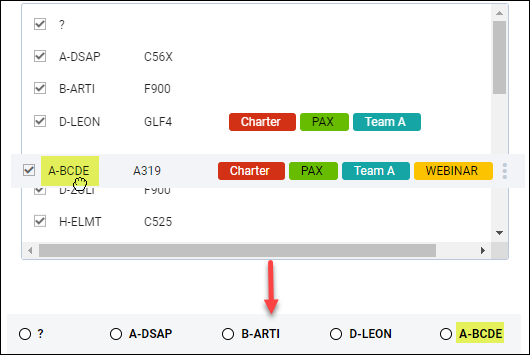
Once applied, the order of the aircraft displayed in the top bar of the list will update accordingly.
‘AIRCRAFT’ filter presets
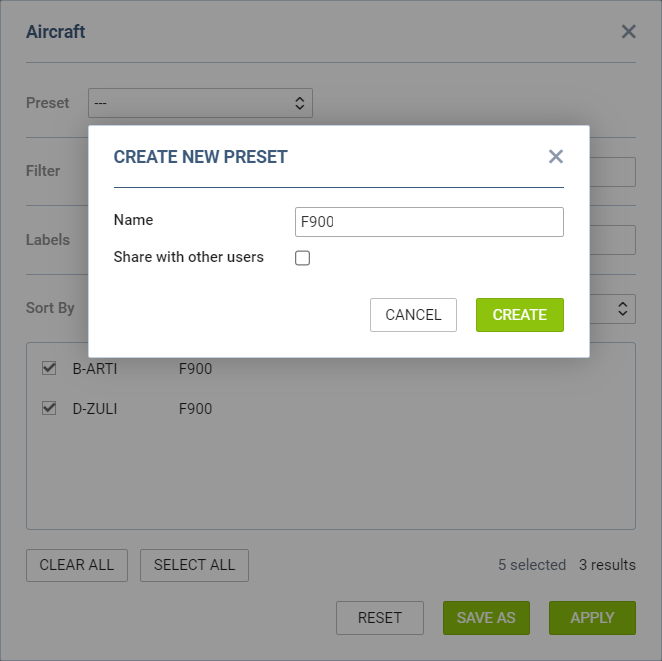
Filter presets allow you to save and quickly apply a set of filtering options based on your requirements.
To create a preset follow the below steps:
-
select a list of aircraft within the ‘AIRCRAFT’ filter
-
click on the ‘SAVE AS’ button located in the bottom-right corner of the ‘AIRCRAFT’ filter pop-up window
-
enter a name for the preset to easily identify it later
-
to make the preset available to all users, select the Share with other users option. If not selected, the preset will remain private to you.
-
press the CREATE button to save the preset
Once saved, the preset will appear in the Select preset dropdown in the ‘Aircraft’ filter.
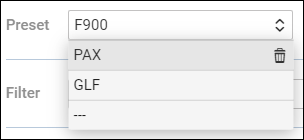
It is possible to delete the preset by clicking on the bin icon available upon hovering the mouse over the preset.