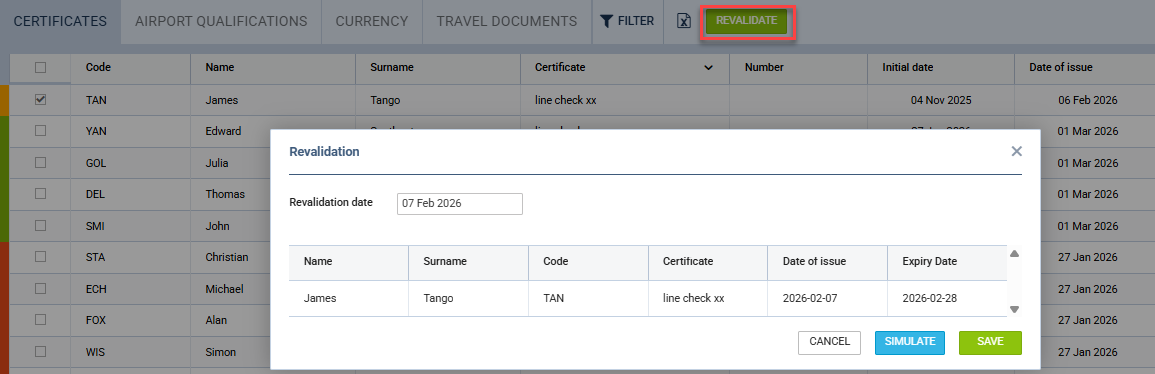
It is now possible to preview the new revalidation date before saving. After selecting the crew members and clicking the green REVALIDATE button, a pop-up window opens. The user can either save the revalidation date or click SIMULATE. When entering or modifying the date in the revalidation window, a preview table is displayed showing the expected results for the selected crew members and certificates. The table includes the certificate code, crew member name and surname, certificate name, date of issue, and expiry date, allowing users to review the impact of the revalidation before saving the changes.