

Adding schedule in LT
It will be possible to add schedules in Local Time (LT) by switching to LT in the ‘New Schedule’ pop-up window.
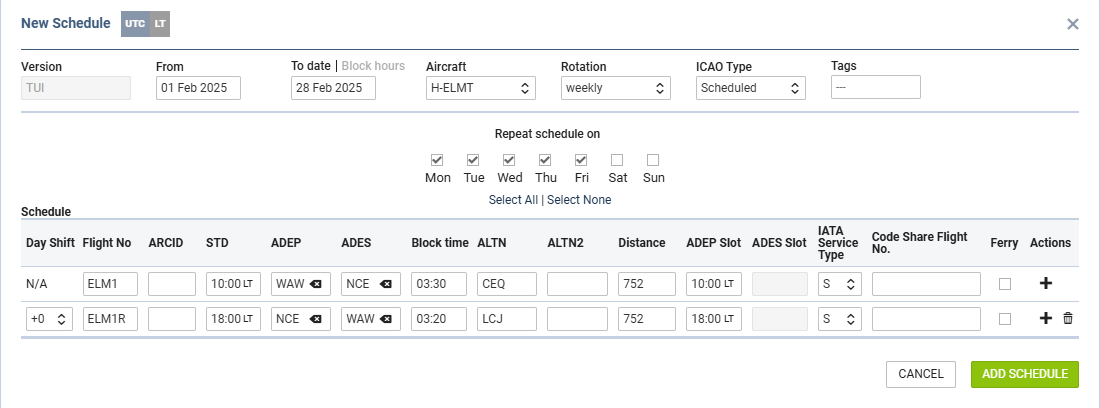
The process of adding such a schedule will be very similar to adding a schedule in UTC with the following exceptions:
-
once the option is switched to ‘LT’ and the details are being inserted, the timezone cannot be switched back to ‘UTC’
-
the ‘STD’ field will be replaced with the ‘Block time’ field
-
‘ADES Slot’ field will be unavailable
-
if the new schedule in LT falls into the Daylight Saving Time change window, adding the schedule will not be possible and the warning will be populated