

Flight time calculations methods
Table of Contents
It is possible to select the flight time calculation method when creating a request (‘Flight time’ option in the ‘NEW QUOTE’ option) or by selecting the CALCULATE FLIGHT TIME option in the quote edit section.
There are following methods of flight time calculations available:
-
Flight time calculations from Aviapages
-
Flight time calculations from RouteFinder
-
Flight time calculations from Avinode
-
Flight time calculations from ForeFlight
-
Flight time calculations based on Historical Flights
-
Flight time calculations based on Aircraft Performance Model
-
Flight time calculations based on Historical Quotes
All of the abovementioned are explained below.
Flight time calculations from Aviapages
It is possible to download the flight time calculations from Aviapages in the ‘Requests/Quotes’ section.
Flight time calculations from Aviapages include factors such as the aircraft type, weather, distance amongst others.
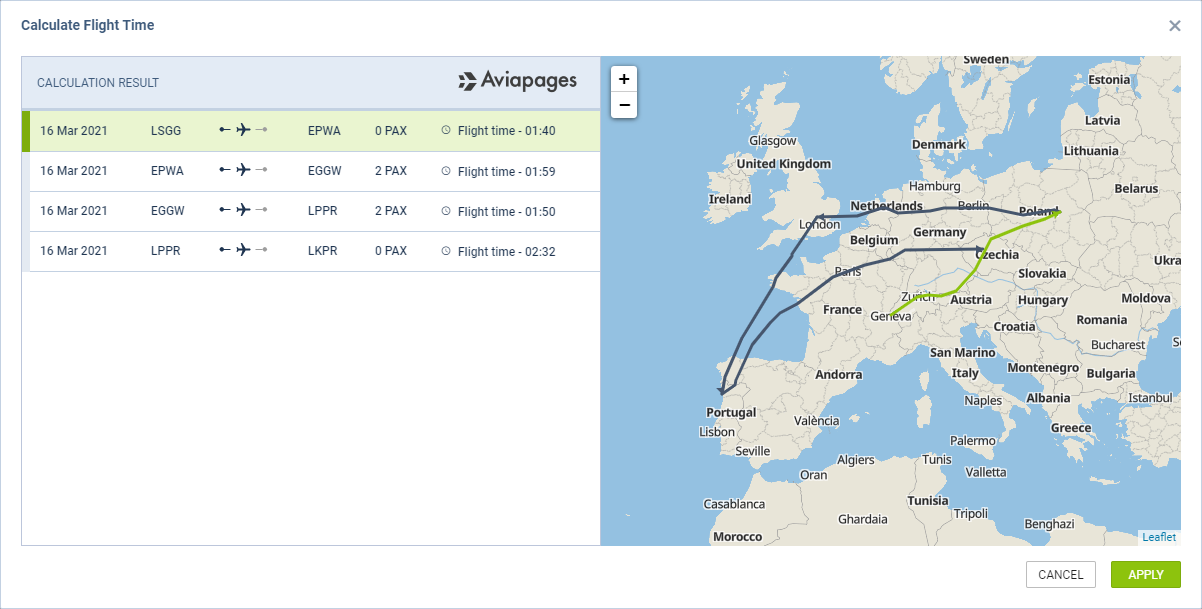
In order to use this functionality, integration with ‘Aviapages’ needs to be activated in the Settings > ‘Add-Ons’ section. For the integration token contact yuri.dzun@aviapages.com or nastya.pocatilova@aviapages.com from Aviapages. Once you have the token, go to the ‘Configuration’ tab in the ‘Aviapages’ integration, switch status to ‘ON’, insert the key and save.
How it works
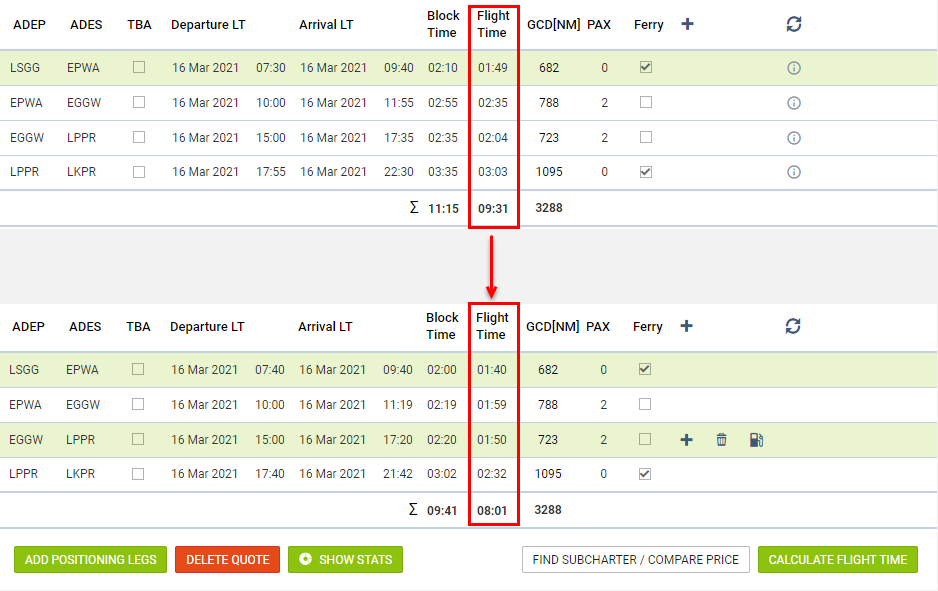
After the integration is activated, 
Clicking on
Additionally, the map of the routing will be available within the same pop-up window. Clicking on a flight within the ‘Calculate Flight Time’ window will highlight this selected flight on the map.
Clicking on 
-
Positioning legs (before and after the requested schedule) - both arrival and departure can be updated since it depends on the rotation time
-
Request added based on the Departure - arrival time will be updated
-
Request added based on the Arrival - departure time will be updated
-
Block time is automatically recalculated
Once the ‘Aviapages’ flight times are implemented, they automatically update the quotation amounts according to new flight times.
Exclusion zones
It is also possible to indicate the exclusion zones - countries over which the aircraft should not be flying.
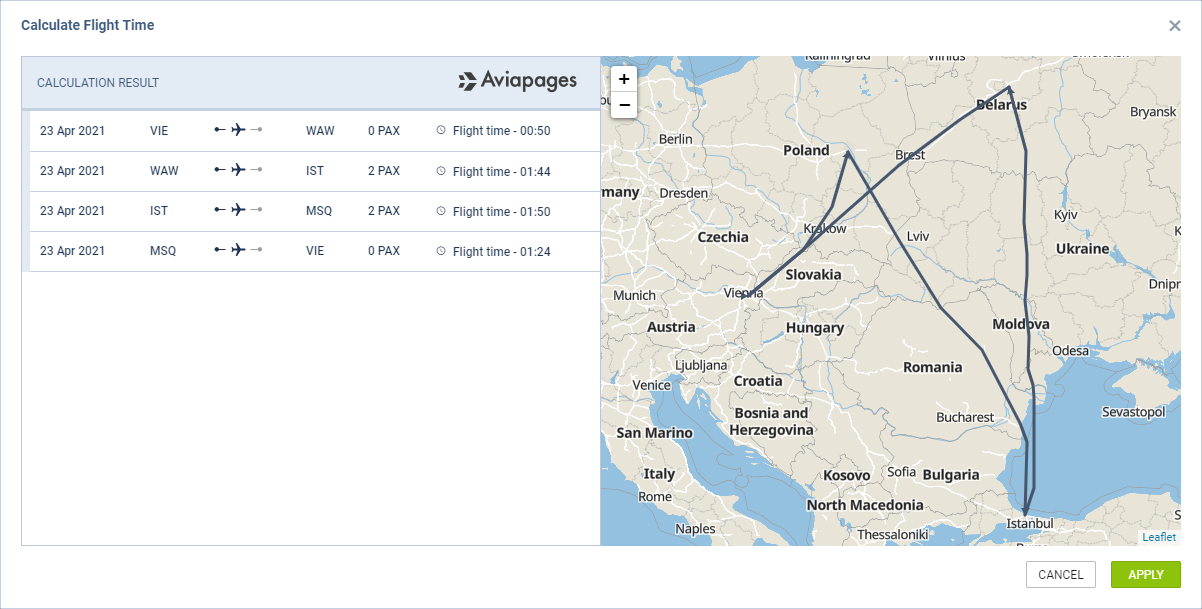
Once the exclusion zones are selected, the flight time calculations in Aviapages (‘Calculate Flight Time’ option) will take these zones into consideration. See the screenshot on the right-hand side.
The exclusion zones can be indicated in 3 sections in Leon:
-
Client profile - ‘Exclusion zones’ box in ‘PERSON’ column. Simply start to insert the country name and select it from the dropdown list

-
Fleet - ‘Exclusion zones’ box in the ‘SALES’ tab of the aircraft edition

-
General Settings - ‘Exclusion zones’ subsection in the ‘Sales’ tab in ‘General Settings’. Click on the ‘Add country to exclude’ button to select the next country

Flight time calculations from RouteFinder
RouteFinder flight times calculations option is available, like the ‘Aviapages’ option, under
‘RouteFinder’ does not require separate integrations and is available by default to every Sales Panel user.
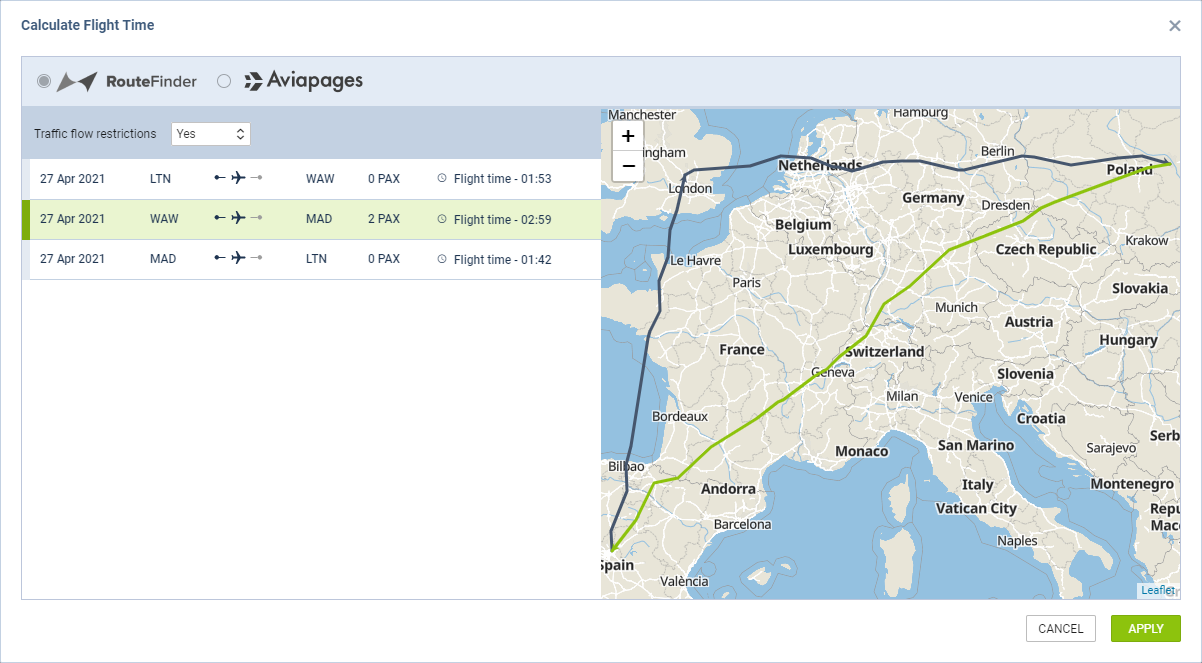
The flight time is calculated automatically when selecting the ‘RouteFinder’ option.
It is possible to calculate based on Trafic flow restrictions. If the Trafic flow restrictions parameter is set to ‘Yes’, ‘RouteFinder’ will search for the route that will validate in the ‘Eurocontrol’, taking into consideration such limitations as no-fly zones, etc.
‘RouteFinder’ also takes into consideration ‘Exclusion zones’ that can be set per Operator, Client, and Fleet.
If an aircraft type is not available in the ‘RouteFinder’, the ‘Aircraft type is not supported’ message will appear.
Once the ‘RouteFinder’ flight times are applied to the itinerary, the prices within the quote will recalculate automatically.
‘RouteFinder’ flight time calculations are not available to subcharter aircraft.
Flight time calculations from Avinode
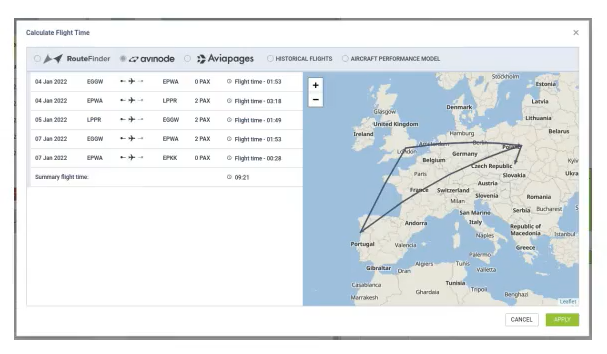
It is possible to download the flight time calculations from Avinode in the ‘Requests/Quotes’ section.
This option require contacting Avinode to enable it.
After the option is activated,
Clicking on the button will open a pop-up ‘Calculate Flight Time’ window with the flight times calculated by ‘Avinode’.
Additionally, the map of the routing will be available within the same pop-up window. Clicking on a flight within the ‘Calculate Flight Time’ window will highlight this selected flight on the map.
Flight time calculations from ForeFlight
It is possible to download the flight time calculations from ForeFlight in the ‘Requests/Quotes’ section.
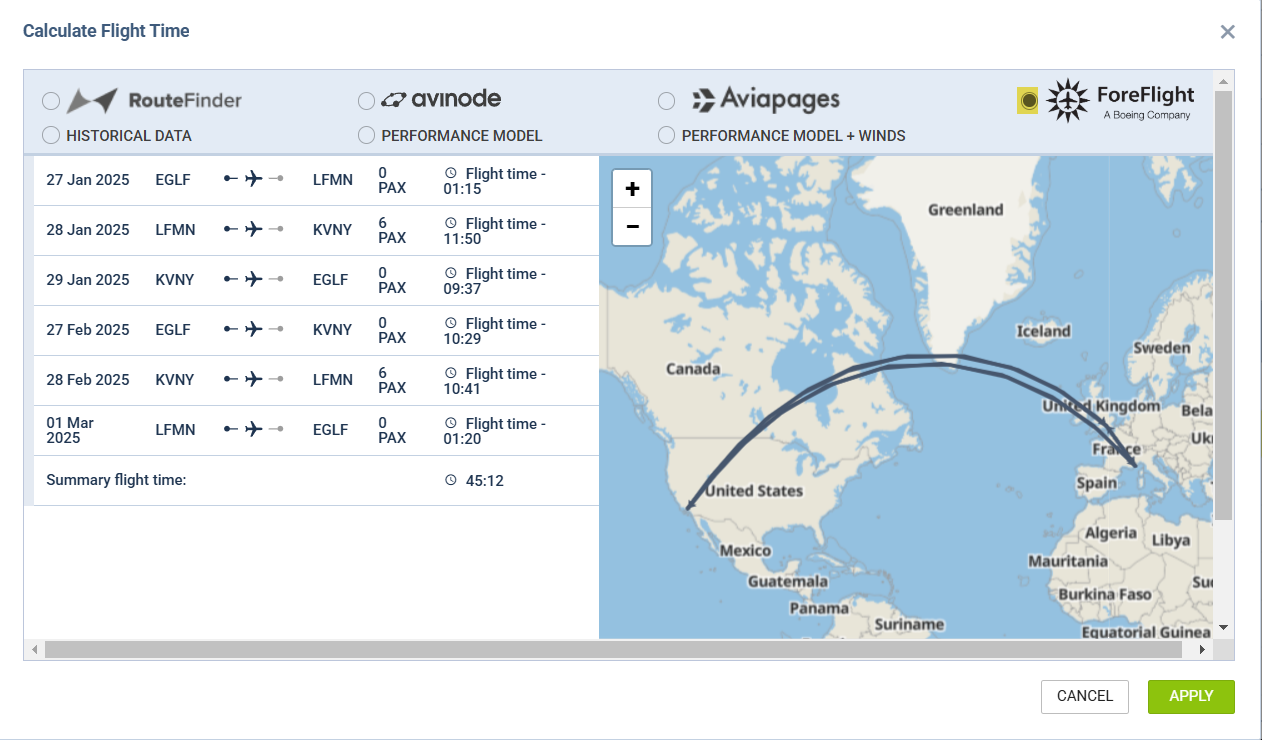
ForeFlight flight times calculations option is available under
Flight times are being imported from ForeFlight through API connection.
Data which Leon sends to ForeFlight on order to get flight time calculated is:
-
ADEP
-
ADES
-
STD
-
ACFT REG NUMBER
-
PAX number
Flight time calculations based on Historical Flights
Flight times calculations based on the Historical flights is available, as a third option, under button:
This option calculates the flight times based on the specific routes performed on selected aircraft types within a specific timeframe.
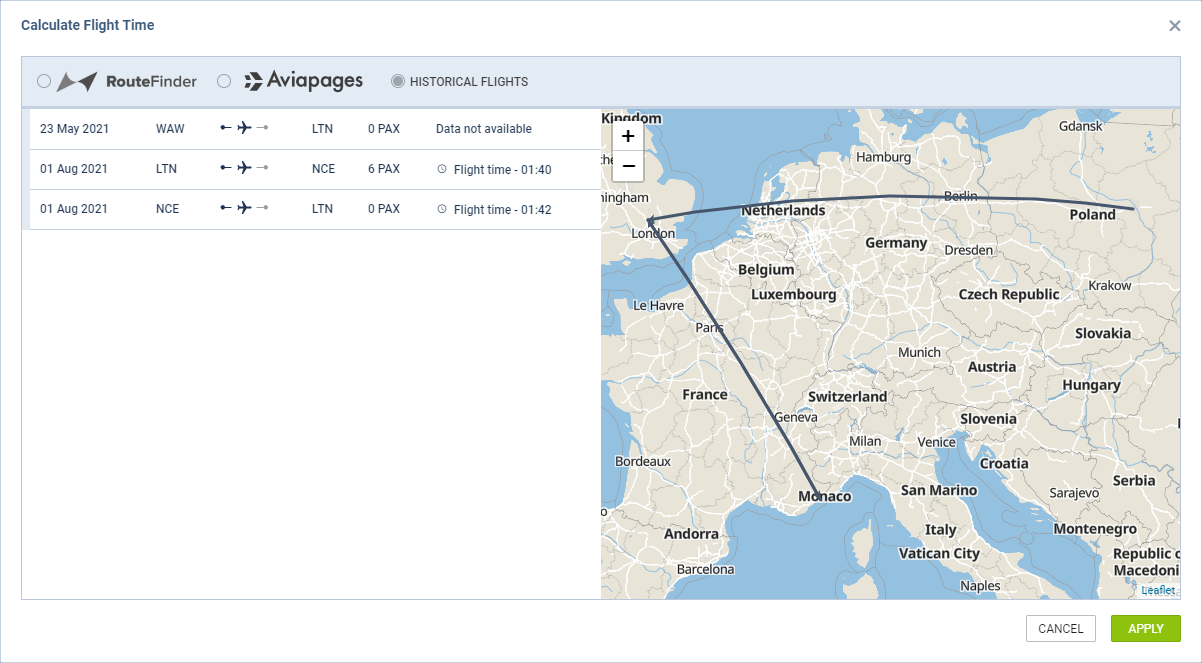
The calculation is based on at least 4 flights on the type scheduled closest to the date of the flight that is being calculated. For example, if the trip is scheduled in the 21st week, Leon searches for a minimum of 4 flights within the weeks surrounding week 21, in the following order: 21, 20, 22, 19, 23, 18, 24, and so on. Until it finds enough data to perform the calculations. Leon takes the last 4 years worth of flights on the type throughout all the operators.
The final value is calculated as the sum of all matching flights divided by the number of flights. Additionally, Leon includes deviation.
Hovering the mouse over the calculated flight time value will display the information on the number of the flights used and the value of deviation in the following format:
Based on X flights, +-hh:mm, i.e. Based on 5 flights, +-00:06
If Leon is unable to calculate the flight time, Data not available information will display.
Once the flight times are applied to the itinerary, the prices within the quote will recalculate automatically.
Fight time calculations based on the Historical flights are not available to subcharter aircraft.
Flight time calculations based on Aircraft Performance Model
Aircraft performance model option is available under
‘Aircraft performance model’ method is based on the aircraft speed profiles set up in the Fleet > aircraft performance section.
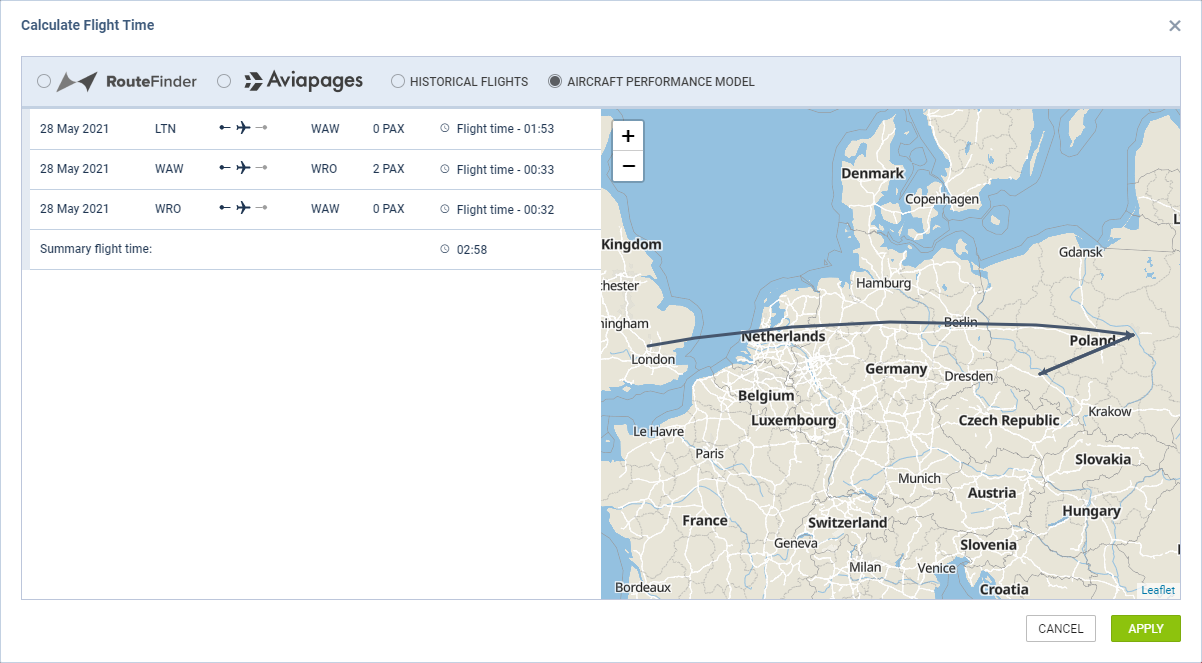
This option can be used to compare three other methods of calculating flight time available in Leon.
It can also be used if the flight times have been amended by editing the itinerary or by using another method and have to be reverted to the original timeframes.
Flight time calculations based on Historical Quotes
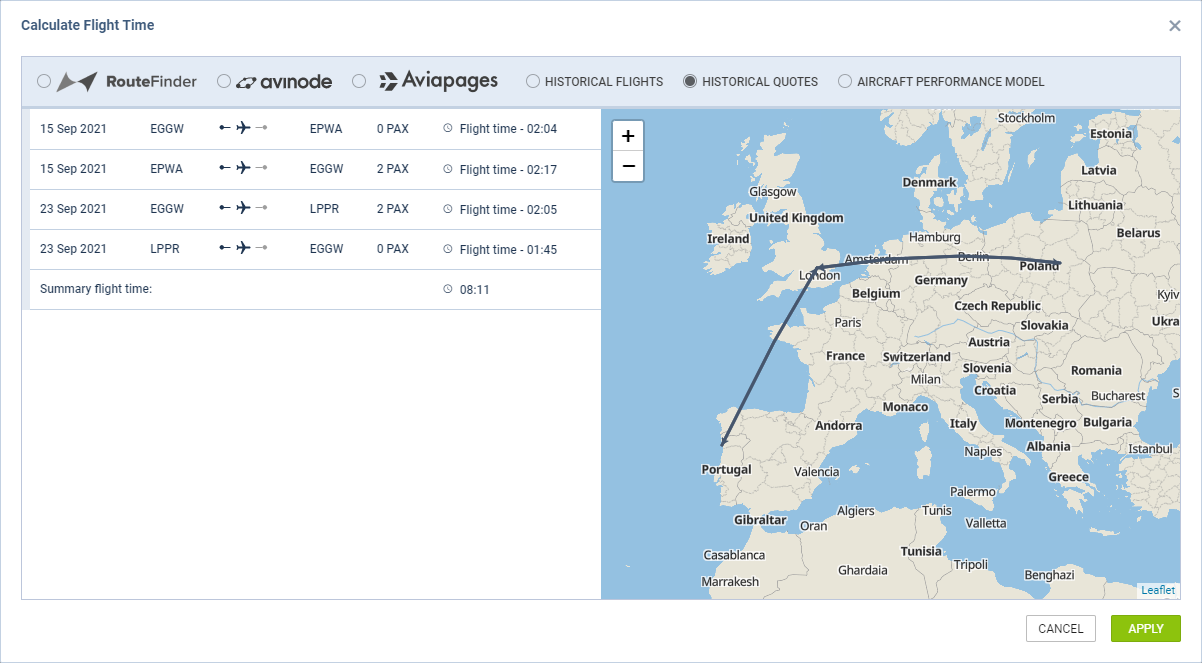
Historical Quotes option is available under
This model of calculations takes into consideration the following:
-
only flights within own quotes
-
last quote on the same aircraft and route as in the calculated quote
-
all statuses apart from ‘NEW’ and ‘REJECTED’
If the flight is with PAX, Leon searches for the flights with the same number of PAX. If Leon is unable to find it, then the flight time is taken from the flight on the same route but with a different number of PAX.