

Avinode integration
Avinode is an online marketplace for buying and selling private air charter. The integration connects Avinode with the Sales module in Leon, so that charter requests reach your sales team without re-typing, and your aircraft availability reaches buyers without manual updates in the marketplace.
It works in both directions: requests for quotes arrive in 'Requests/Quotes', and your fleet schedule, empty legs, options and opportunities are published to Avinode.
What you can do with this integration
-
Receive requests for quotes from Avinode directly in 'Requests/Quotes', including empty-leg requests.
-
Publish aircraft availability, empty legs, options and opportunities to Avinode automatically.
-
Send a priced quote back to Avinode, together with a message and attached documents.
-
Reject requests in Leon and have the status reflected in Avinode.
-
Have seller responses made in Avinode reflected back on the request status in Leon.
-
Search Avinode for subcharter from inside a request, compare prices and import the confirmed subcharter into Leon.
-
Exchange messages with the broker or the subcharter operator without leaving the request.
-
Download a missing request manually using its Avinode ID.
-
Connect more than one Avinode account to a single Leon account.
Where to find it in Leon
-
'Settings' > 'Add-ons' > 'Avinode' — activation, credentials, aircraft selection and all configuration settings.
-
Sales > 'Requests/Quotes' — downloaded requests, the 'QUOTE' and 'REJECT' actions, 'FIND SUBCHARTER/COMPARE THE PRICE', the messages thread and the 'DOWNLOAD REQUEST FROM AVINODE' option at the bottom of the list.
-
Your personal profile > 'User Settings' — the 'Avinode login' field.
Setup and activation
-
Contact
techsupport@avinode.comand ask for an 'Authorization key'. This is a different credential from the one you use to log in to Avinode. -
Make sure the Avinode side is ready. The aircraft must be Fully Active in the marketplace, an API connection must exist for the company marketing the aircraft, the aircraft must be set to receive automatic schedule updates, and Activity Type Mappings must be configured. These steps are performed by Avinode staff.
-
In Leon, go to 'Settings' > 'Add-ons' > 'Avinode', press 'ENABLE', switch the 'Configuration' status to 'ON' and paste the Authorization key.
-
Tick the aircraft whose schedule should be sent to Avinode and save.
Connecting more than one Avinode account
If your company holds several Avinode accounts, they can all be connected to one Leon account:
-
request an additional 'Authorization key' from Avinode for each account,
-
ask Leon Support to enable the function,
-
in 'Settings' > 'Add-ons' > 'Avinode' > 'Configuration', press 'ADD ACCOUNT' and configure the new section in the same way as the first one.
Once connected, requests are downloaded from all accounts, availability and empty legs are sent to the relevant account, and you can choose the account when downloading a request manually or when using 'FIND SUBCHARTER/COMPARE THE PRICE'.
Configuration settings
|
Setting |
What it does |
|---|---|
|
'Download requests for quotes' |
Enables automatic downloading of requests into 'Requests/Quotes' |
|
'Update requests and quotes from Avinode' |
Updates request and quote statuses in Leon when you accept or decline in Avinode as a seller |
|
'Add subcharter quotes automatically' |
Adds accepted Avinode requests as subcharter quotes on matching requests in Leon |
|
'Automatically reject unanswered quotes' |
Rejects in Avinode the quotes you did not send when accepting a request in Leon |
|
'Use Sales module flight time calculation method' |
Suggested flight times follow the method set in 'Admin Panel' > 'Sales Module' |
|
'Send options' |
Adds flights with the status Option to the schedule export |
|
'Send opportunities' |
Adds flights with the status Opportunity to the export; they appear in Avinode as ferry availability |
|
'Send gross total price' |
Sends the gross price including VAT instead of the net price |
|
'Send quote ferry flights' |
Includes ferry legs in the itinerary sent with a quote |
|
'Send services' |
Sends Handler/FBO and PAX transport provider names from the OPS checklist |
|
'Send only continuous availability from aircraft home base' |
Replaces the real schedule with a single availability entry at the home base; no actual activities are sent |
|
'Reposition aircraft to homebase after [h]' |
Adds an artificial one-minute repositioning to the home base when the gap after the last activity exceeds the given number of hours. Disabled when set to 0 |
|
'Update quote when sending contract' |
Sends the contract to Avinode and switches the request status to 'Accepted' in both systems |
|
'Export Aircraft Schedule Automatically' |
Turns on the automatic export, which runs every 20 minutes and covers the next 3 months |
|
'Avinode login' (configuration) |
Default user account used for the API connection |
|
'Recipients' |
Users who receive a message after each schedule export |
Data exchanged between Leon and Avinode
Leon → Avinode
|
Data |
When it is sent |
Notes |
|---|---|---|
|
Aircraft schedule and availability for the ticked aircraft |
Automatically every 20 minutes when 'Export Aircraft Schedule Automatically' is on, covering the next 3 months; on demand with 'EXPORT AIRCRAFT SCHEDULE NOW' |
Saving a flight in Leon does not push it to Avinode immediately — the change is picked up by the next export |
|
Flights, reservations and maintenance |
With each export |
Sent as a continuous timeline; gaps between activities are filled with 'ONGROUND' availability |
|
Options and opportunities |
With each export, only if 'Send options' / 'Send opportunities' are ticked |
Reservations and maintenance with the status Option are never sent |
|
Quote: total price, currency, itinerary, aircraft registration, message and attachments |
When you press 'QUOTE' and send the response |
Times are always sent in UTC. Ferry legs are included only if 'Send quote ferry flights' is ticked |
|
Rejection |
When you press 'REJECT' and choose to update Avinode |
Sends the message only; the request becomes 'Declined' in Avinode |
|
Identity of the person replying |
With every response |
Taken from 'Avinode login' in the user's profile; if empty, the default account from the integration configuration is used |
|
Handler/FBO and PAX transport provider names |
With the schedule export, if 'Send services' is ticked |
Taken from the OPS checklist |
Avinode → Leon
|
Data |
When it is received |
Notes |
|---|---|---|
|
Request for quote: itinerary, airports, dates and times, number of PAX |
Automatically, when Avinode notifies Leon of a new or updated request and 'Download requests for quotes' is on |
Times are read as UTC. Only the number of passengers is exchanged, never passenger names |
|
Buyer company and buyer representative |
With the first import of a request |
Both are created or updated in the Phonebook automatically, including address, e-mail, phone and logo |
|
Avinode request ID and trip ID |
With each import |
Used to link the request back to Avinode and to group related requests |
|
Aircraft type and registration |
With each import |
Matched against your fleet. Aircraft details already present on a quote are refreshed from Avinode on every update |
|
Empty-leg requests |
Automatically |
Leon builds the full routing, adding positioning legs where needed, and prices it from the pricelists assigned in 'Settings' > 'Fleet' > 'Sales' |
|
Broker messages |
When the broker writes in Avinode |
Shown in the messages thread of the request |
|
Seller and buyer responses (accepted / declined) |
When marked in Avinode, if 'Update requests and quotes from Avinode' is on |
Reflected in the main request status and per quote in the 'SUMMARY' tab |
|
Subcharter details |
When a third-party operator confirms in Avinode |
Operator name and contact details, aircraft type and registration, category, PAX capacity, year of make and refurbishment, safety ratings, aircraft photos and amenities |
Exporting your schedule to Avinode
To let buyers search your fleet, Avinode needs a precise aircraft schedule. Leon sends the schedule for the ticked aircraft as a continuous timeline: every gap between real activities is filled with an availability entry, so Avinode always knows where the aircraft is.
Each activity is sent with a type, which Avinode then maps to its own status:
|
Leon activity type |
What it covers |
Shown in Avinode as |
|---|---|---|
|
FLIGHT |
Trip with passengers on board, including ferry trips carrying passengers |
Flight Occupied |
|
EMPTY |
Ferry trip with no passengers |
Empty Leg Availability |
|
MAINT |
Aircraft reservation that is not available for charter, in any status |
Occupied |
|
OPTION |
Any trip with the status Option |
Option Availability |
|
OPPORTUNITY |
Any trip with the status Opportunity |
Ferry Availability |
|
ONGROUND |
Reservation available for charter, and the gaps generated automatically for an idle aircraft |
Onground Availability |
The mapping on the Avinode side can be changed by the operator in the Avinode Marketplace account.
If you want to receive a message after each export, enter your code or the first letters of your name in the 'Recipients' field.
Requests from Avinode
Requests arrive in 'Requests/Quotes' automatically when 'Download requests for quotes' is enabled — Avinode notifies Leon as soon as a request is created or updated, and Leon then downloads the details. A request coming from Avinode is shown on the list as a new request with the 'Avinode' label in the 'Updated' column.
Manually download request from Avinode
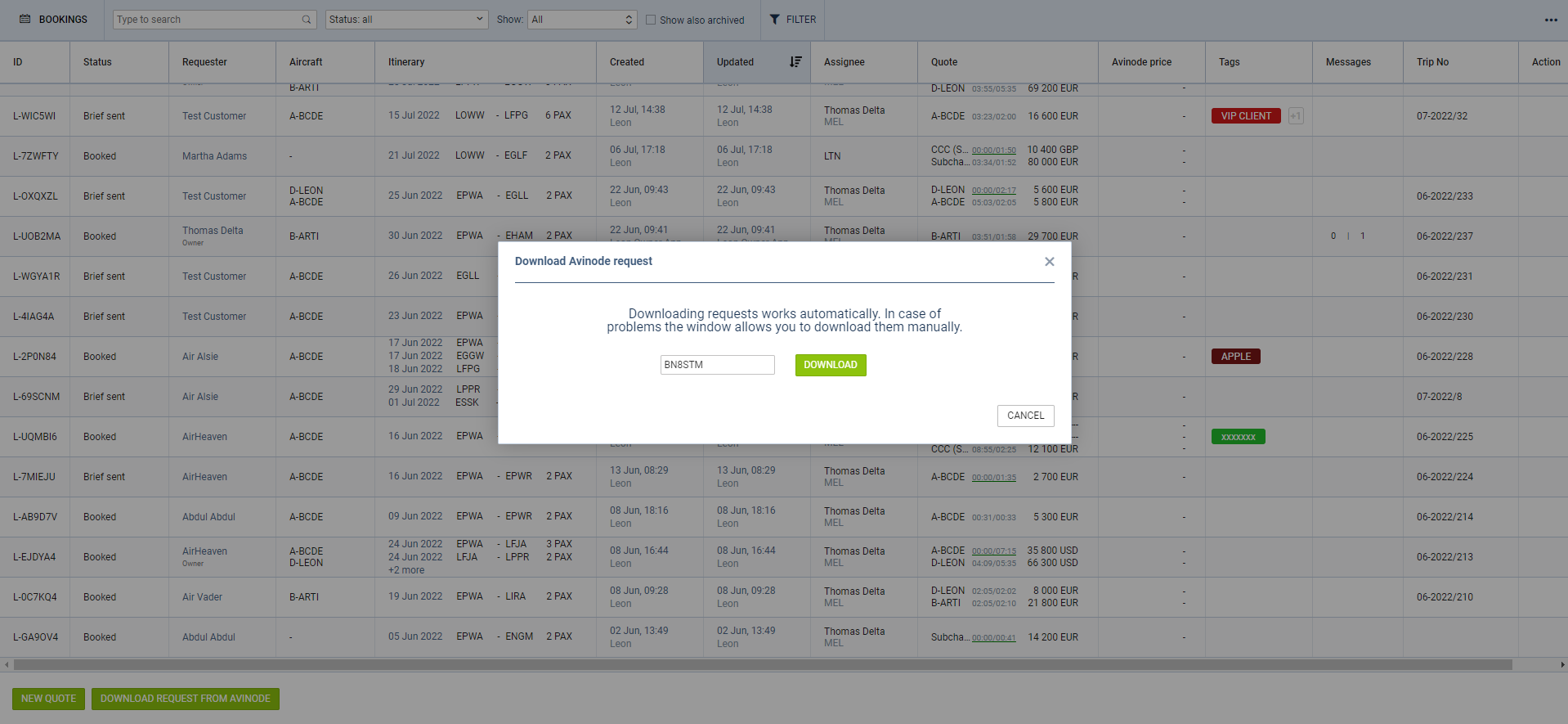
If a request does not appear, you can download it manually.
The process is as follows:
-
Insert the missing Avinode ID number in the 'Download Avinode request' pop-up window.
-
Click the 'DOWNLOAD' button to download the request.
-
The missing request should appear on the main list.
If the request already exists in Leon, the download will update the existing request.
What happens when a request is updated again
The itinerary and passenger figures on the request itself are rebuilt from the Avinode data every time the request is updated or downloaded again, so manual changes made there will be replaced.
Quotes that already exist — including edited prices, added fees and removed ferry legs — are not overwritten. A new quote is created only for an aircraft that was not part of the request before.
Empty legs from Avinode
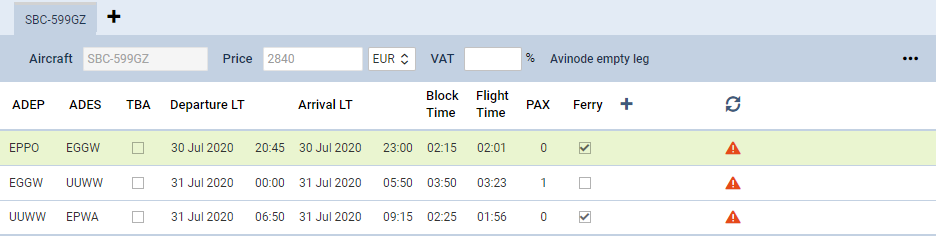
An active integration with Avinode also allows downloading requests for empty legs.
Once the empty-leg request is downloaded, Leon creates the full routing, including positioning legs where necessary. The aircraft is the one sent in the empty-leg request; if that aircraft does not exist in Leon, the request will not be accepted.
Leon also calculates the quotation amount based on the pricelists assigned to the aircraft in 'Settings' > 'Fleet' > 'Sales' tab of the aircraft details.
If the downloaded request covers several empty legs on different aircraft, the routing and the quotation are created separately for each of them.
An edited empty-leg request contains the 'Avinode empty leg' label next to the 'VAT' box. Clicking the label takes you to the request in Avinode.
Responding to requests
Accepting Avinode requests
To accept a quote that comes from Avinode:
-
Edit the Avinode quote.
-
Select the 'QUOTE' button in the request edit window.
-
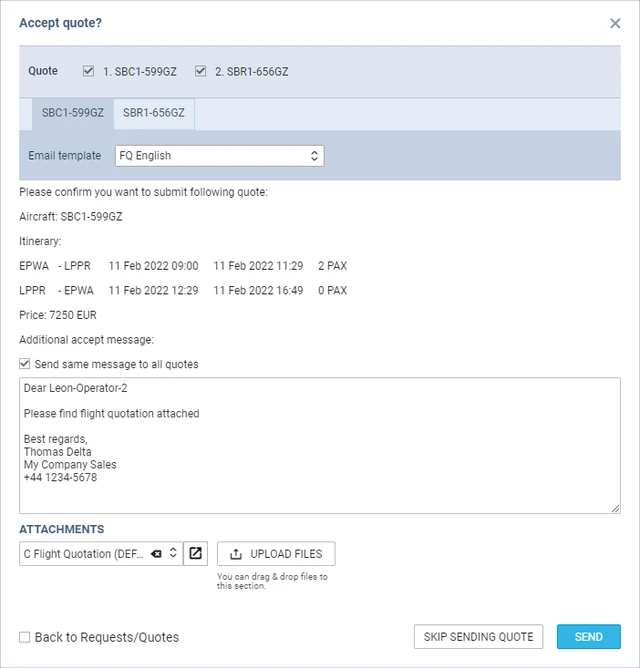
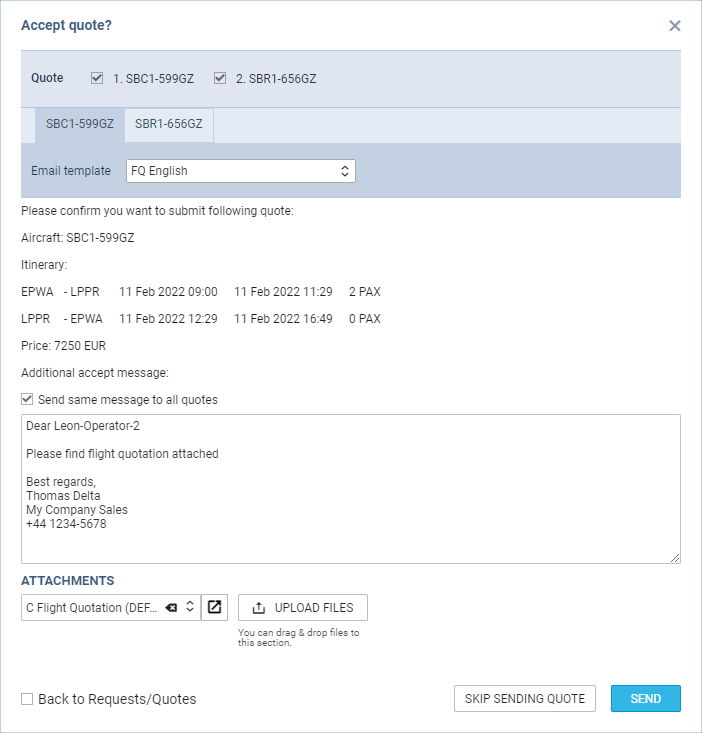
In the 'Accept quote?' window you can:
-
select the aircraft for which you want to send the response back to Avinode,
-
select an email template or type in an additional message, which will appear in Avinode,
-
select 'Send same message to all quotes' — applies only when multiple quotes are selected,
-
select the attachments to send to Avinode: a document template or additional PDF files uploaded to this email,
-
press 'SEND' to accept the quote in Avinode.
-
Once the message is sent, the request status changes to 'Accepted'.
📷 Screenshot (existing): option to send acceptance to Avinode
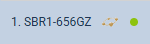
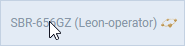
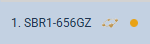
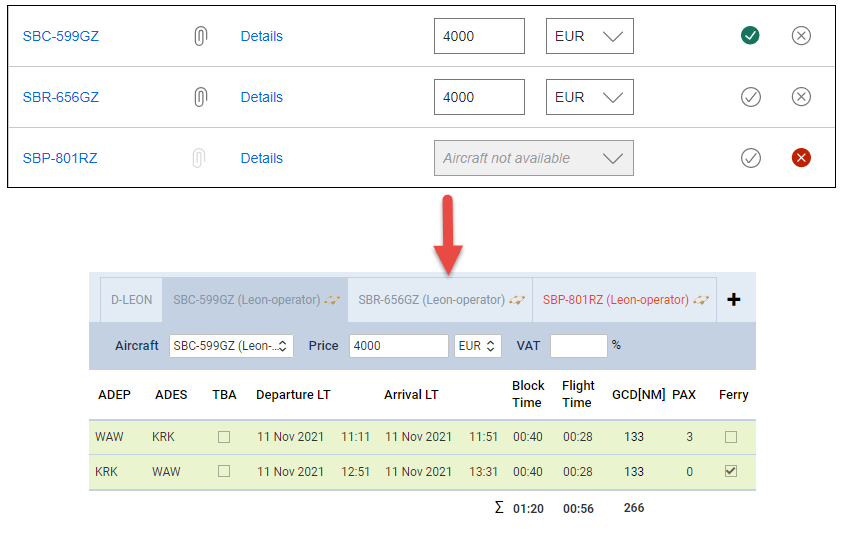
Leon indicates the status of the sent response with a dot in the aircraft registration tab:
A failed response is not resent automatically. Press 'QUOTE' again to retry.
📷 Screenshot (existing): response and correspondence in Avinode
The message and the attached files appear in the Avinode Marketplace.
Quotes that were not sent as accepted can be rejected in Avinode automatically — tick 'Automatically reject unanswered quotes' in 'Settings' > 'Add-ons' > 'Avinode'.
You can also add a Leon quote with the 'ADD QUOTE' button. In this case Leon recalculates the quote based on the pricelists assigned to the aircraft in 'Settings' > 'Fleet' > 'Sales' tab, and the updated amount is sent to Avinode. The original Avinode price stays visible next to the detailed pricelist and cannot be changed.
ℹ️ If the request from Avinode did not specify the aircraft registration but only the aircraft type, Leon will create quotes for all the aircraft of the same type available within the operator fleet.
Rejecting requests from the list
Requests can be rejected directly from the list.
📷 Screenshot (existing): option to reject a request
This applies to requests received via Avinode and the Owner App, as well as those inserted directly in Leon as a new quote.
To reject a request:
-
Right-click the request you want to reject, select 'REJECT REQUEST' and the 'Reject' email window will open. There you can select either:
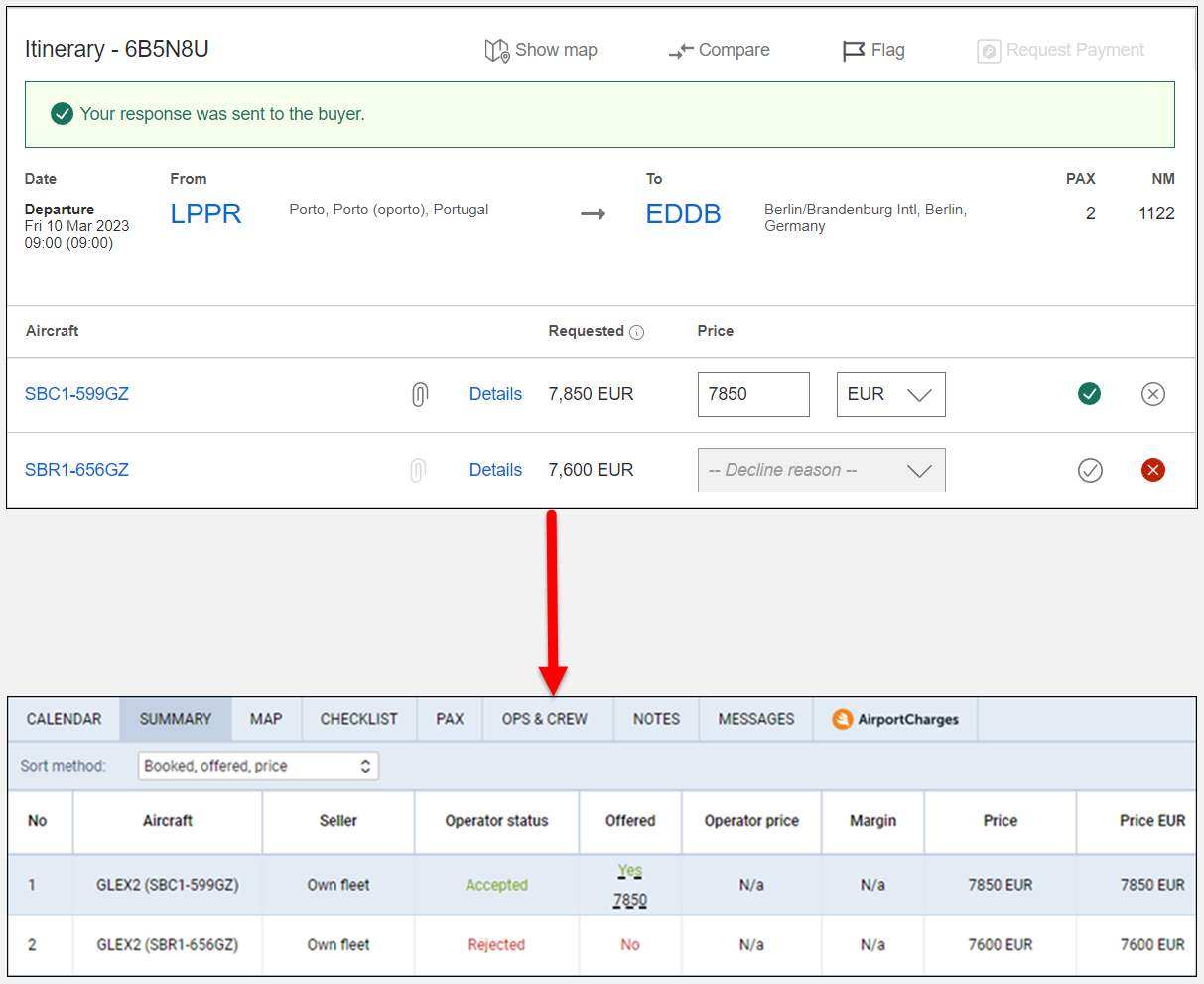
Accepting or rejecting quotes in Avinode as a seller
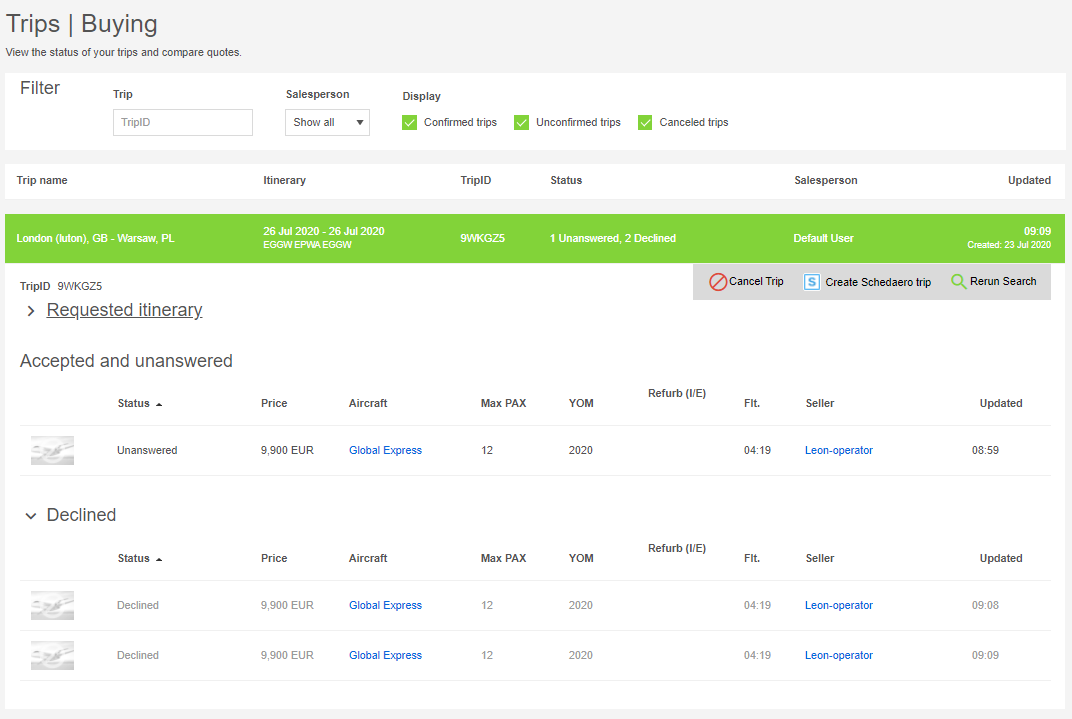
Seller responses marked in Avinode are reflected in Leon.
📷 Screenshot (existing): seller response in Avinode reflected in Leon
This option has to be activated by ticking 'Update requests and quotes from Avinode' in 'Settings' > 'Add-ons' > 'Avinode'. It enables automatic request status updates when you accept or decline quotes in Avinode as a seller.
Once the response is marked in Avinode, the status is reflected:
-
In the main status of the request — if at least one quote from the request is accepted, the main status is set to 'Accepted' and the request status changes to 'QUOTED'.
-
In the 'SUMMARY' tab of the request — the status of each quote is displayed individually.
Subcharter
Find subcharter / compare the price in Avinode
ℹ️ Make sure the API key provided by Avinode has the privilege to create trips in Avinode. Without it, this functionality will not work. You can confirm this with Avinode TechSupport at
techsupport@avinode.com.
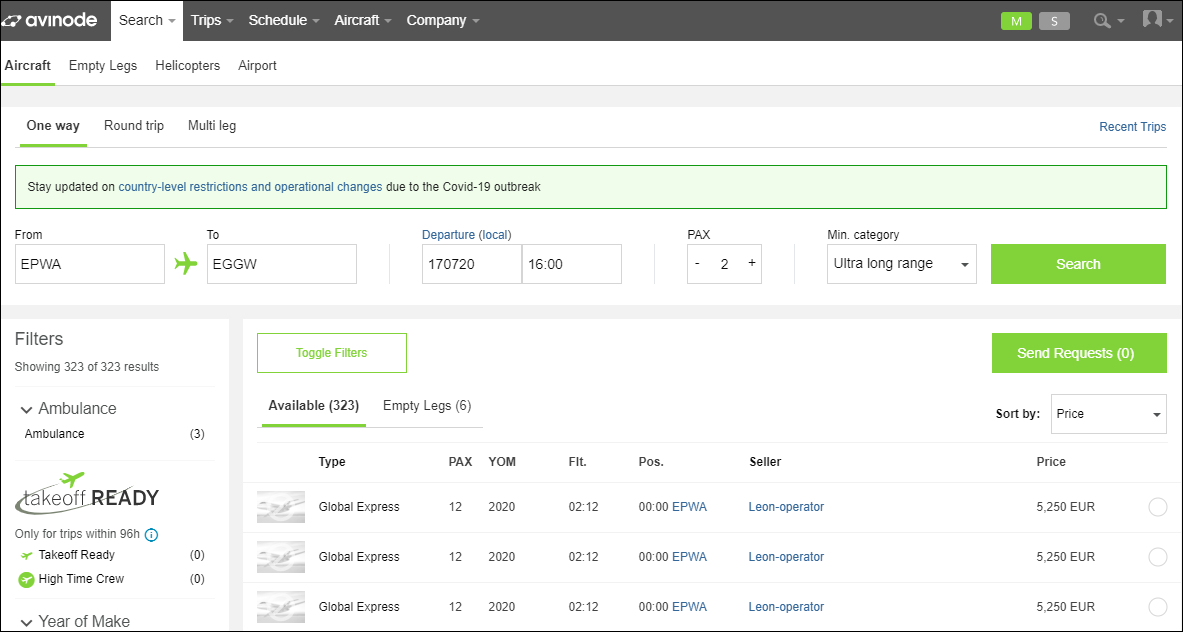
If a request comes from Avinode, you can search and compare offers in Avinode.
📷 Screenshot (existing): search subcharters in Avinode
The process is as follows:
-
Edit the Avinode request in the 'Requests/Quotes' section.
-
You will be redirected to the Avinode search engine, where offers from different sellers are displayed.
ℹ️ This option is available both for requests coming from Avinode and for those added in Leon.
Accepting subcharters from Avinode
Subcharter flights requested in Avinode can be accepted in Leon.
📷 Screenshot (existing): subcharter requested from Avinode
The process is as follows:
-
The client requests a trip, which shows in Leon on the 'Requests/Quotes' list.
-
If you cannot perform the request with your own fleet, search for a subcharter in Avinode using 'FIND SUBCHARTER/COMPARE THE PRICE' in the quote edit section.
-
The request is sent to third-party operators in Avinode.
-
Once a third-party operator confirms the request in Avinode, it appears in Leon as a subcharter.
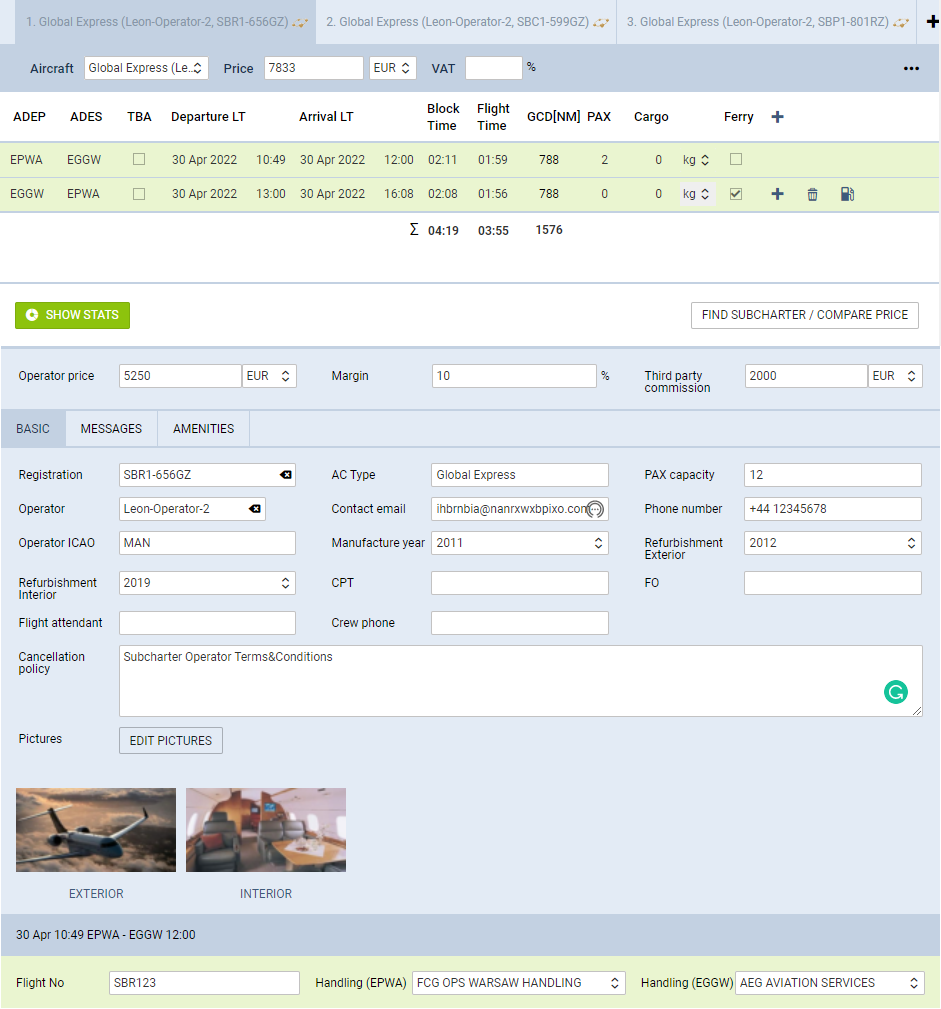
A subcharter requested from Avinode contains the aircraft details and aircraft photos, as long as they are available in Avinode.
The subcharter operator may confirm the request without selecting the aircraft registration. In that case the response still appears in Leon, but without the registration and without the aircraft characteristics tied to it, such as contact details and photos.
The subcharter edit window is divided into five tabs:
-
BASIC — subcharter details such as aircraft details, crew details, contact details and aircraft photos, as long as they are available in Avinode.
-
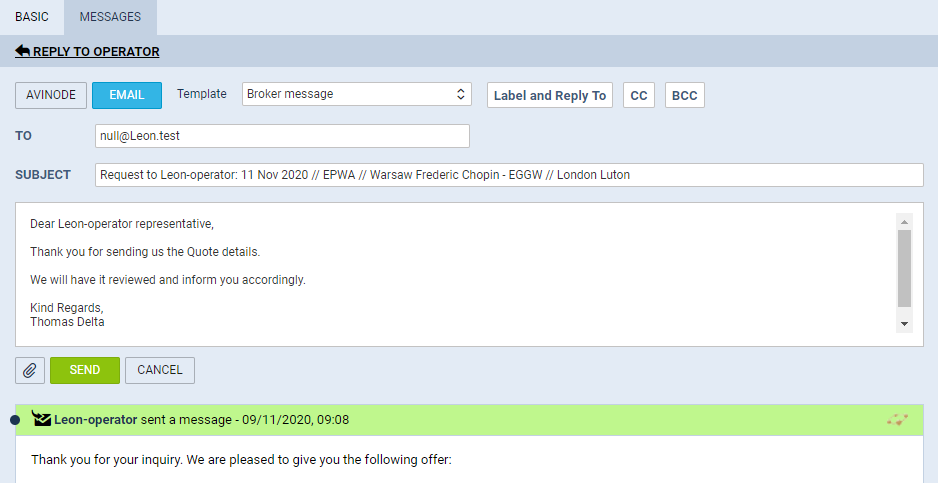
MESSAGES — reply directly to the operator's email, as long as it is available in the 'BASIC' tab, or to Avinode.
-
AMENITIES — amenities available on the aircraft as well as the interior dimensions. Can be used on the Sales documents for the subcharter.
-
SERVICES — where Handling, Catering and PAX Transport can be inserted.
-
DOCUMENTS — where additional aircraft documents can be uploaded.
Request accepted or rejected by the buyer
Buyer responses to a subcharter requested with 'FIND SUBCHARTER/COMPARE THE PRICE' are marked in Leon.
📷 Screenshot (existing): responses from Avinode visible in Leon
The tabs work as follows:
Messages
In this tab you can reply to the broker in Avinode or directly to the operator.
📷 Screenshot (existing): 'Messages' tab in Subcharter
To reply directly to the operator, the operator's email has to be available in Avinode. If it is, Leon imports it into the 'Contact email' box in the 'BASIC' tab and creates the operator as a client in the Phonebook.
To reply to the operator, press 'REPLY TO OPERATOR' and select:
-
AVINODE — replies to the operator or broker in Avinode.
-
EMAIL — replies directly to the operator's email, as long as it is available in the 'BASIC' tab. The 'Subcharter message' email template needs to be created in 'Settings' > 'Email templates'.
Replies from all brokers are displayed in one 'Messages' window.
ℹ️ If a quote comes from Avinode, Leon shows only the messages for sending a flight quotation ('QUOTE') and a rejection ('REJECT'). All other messages are shown only if the 'Mailboxes' panel has been set up.
Leon identifier in Avinode
📷 Screenshot (existing): example of Leon identifier in Avinode
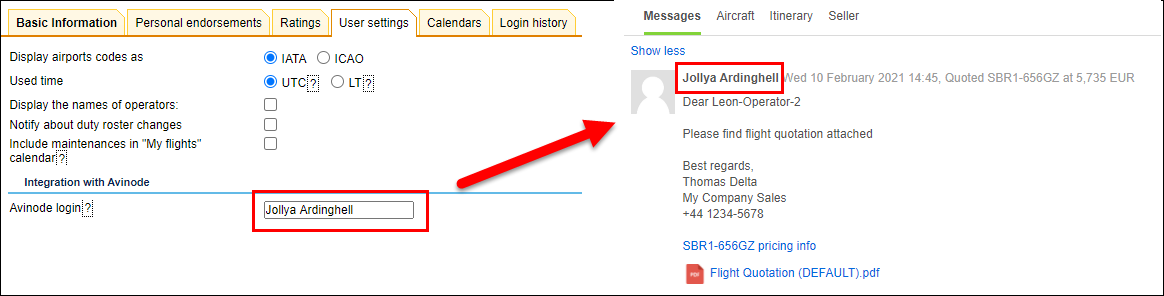
Messaging can be set up so that the name of the person sending the reply is shown correctly in Avinode.
To set it up, edit your personal profile (click your name in the top-right corner of Leon), go to the 'User Settings' tab and insert your personal Avinode login in the 'Avinode login' field. The next time you reply to an Avinode message, your Avinode name will appear.
If the field is empty, the default account from the integration configuration is used instead.
Limitations
-
Several Leon operator accounts cannot sell through one shared Avinode account. The reverse is supported: several Avinode accounts can be connected to one Leon account.
-
The list of ticked aircraft controls the schedule export only. Requests arriving on your Avinode key are saved in Leon even for aircraft that are not ticked, and there is no setting to filter incoming requests by aircraft.
-
Empty-leg requests for an aircraft that does not exist in Leon are not accepted.
-
If a request does not specify a registration, Leon creates quotes for every aircraft of that type in your fleet.
-
Passenger names are not exchanged. Only the number of passengers is passed between the systems.
-
A subcharter confirmed without a registration is imported without the registration and without the aircraft details tied to it.
-
'FIND SUBCHARTER/COMPARE THE PRICE' requires the Avinode key to have the privilege to create trips in Avinode.
-
For requests coming from Avinode, only the quotation and rejection messages are available unless the 'Mailboxes' panel has been set up.
-
The original Avinode price is shown next to the detailed pricelist on an imported quote and cannot be changed.
-
Changes made in Leon to the itinerary of the request itself are replaced when the request is updated from Avinode.
Troubleshooting
-
A response did not reach Avinode. The dot next to the aircraft registration tab shows the state of the last response. A failed response is not resent automatically — press 'QUOTE' or 'REJECT' again.
-
Errors in the schedule export or in downloading requests. These are collected and sent once a day in a summary e-mail covering all integrations. It goes to the address set as the system notification recipient, or to users with administrator rights if no address is set. Typical causes are an aircraft that is not configured for integrated schedule updates in Avinode, and an Authorization key that is no longer valid.
-
A request did not arrive. Use 'DOWNLOAD REQUEST FROM AVINODE' at the bottom of the 'Requests/Quotes' view and enter the Avinode ID.
-
The schedule in Avinode is out of date. Changes are picked up by the next automatic export. Use 'EXPORT AIRCRAFT SCHEDULE NOW' to send them immediately.
Related articles
--Avinode integration
Avinode is an online marketplace for buying and selling private air charter. The integration connects Avinode with the Sales module in Leon, so that charter requests reach your sales team without re-typing, and your aircraft availability reaches buyers without manual updates in the marketplace.
It works in both directions: requests for quotes arrive in 'Requests/Quotes', and your fleet schedule, empty legs, options and opportunities are published to Avinode.
What you can do with this integration
-
Receive requests for quotes from Avinode directly in 'Requests/Quotes', including empty-leg requests.
-
Publish aircraft availability, empty legs, options and opportunities to Avinode automatically.
-
Send a priced quote back to Avinode, together with a message and attached documents.
-
Reject requests in Leon and have the status reflected in Avinode.
-
Have seller responses made in Avinode reflected back on the request status in Leon.
-
Search Avinode for subcharter from inside a request, compare prices and import the confirmed subcharter into Leon.
-
Exchange messages with the broker or the subcharter operator without leaving the request.
-
Download a missing request manually using its Avinode ID.
-
Connect more than one Avinode account to a single Leon account.
Where to find it in Leon
-
'Settings' > 'Add-ons' > 'Avinode' — activation, credentials, aircraft selection and all configuration settings.
-
Sales > 'Requests/Quotes' — downloaded requests, the 'QUOTE' and 'REJECT' actions, 'FIND SUBCHARTER/COMPARE THE PRICE', the messages thread and the 'DOWNLOAD REQUEST FROM AVINODE' option at the bottom of the list.
-
Your personal profile > 'User Settings' — the 'Avinode login' field.
Setup and activation
-
Contact
techsupport@avinode.comand ask for an 'Authorization key'. This is a different credential from the one you use to log in to Avinode. -
Make sure the Avinode side is ready. The aircraft must be Fully Active in the marketplace, an API connection must exist for the company marketing the aircraft, the aircraft must be set to receive automatic schedule updates, and Activity Type Mappings must be configured. These steps are performed by Avinode staff.
-
In Leon, go to 'Settings' > 'Add-ons' > 'Avinode', press 'ENABLE', switch the 'Configuration' status to 'ON' and paste the Authorization key.
-
Tick the aircraft whose schedule should be sent to Avinode and save.
Connecting more than one Avinode account
If your company holds several Avinode accounts, they can all be connected to one Leon account:
-
request an additional 'Authorization key' from Avinode for each account,
-
ask Leon Support to enable the function,
-
in 'Settings' > 'Add-ons' > 'Avinode' > 'Configuration', press 'ADD ACCOUNT' and configure the new section in the same way as the first one.
Once connected, requests are downloaded from all accounts, availability and empty legs are sent to the relevant account, and you can choose the account when downloading a request manually or when using 'FIND SUBCHARTER/COMPARE THE PRICE'.
Configuration settings
|
Setting |
What it does |
|---|---|
|
'Download requests for quotes' |
Enables automatic downloading of requests into 'Requests/Quotes' |
|
'Update requests and quotes from Avinode' |
Updates request and quote statuses in Leon when you accept or decline in Avinode as a seller |
|
'Add subcharter quotes automatically' |
Adds accepted Avinode requests as subcharter quotes on matching requests in Leon |
|
'Automatically reject unanswered quotes' |
Rejects in Avinode the quotes you did not send when accepting a request in Leon |
|
'Use Sales module flight time calculation method' |
Suggested flight times follow the method set in 'Admin Panel' > 'Sales Module' |
|
'Send options' |
Adds flights with the status Option to the schedule export |
|
'Send opportunities' |
Adds flights with the status Opportunity to the export; they appear in Avinode as ferry availability |
|
'Send gross total price' |
Sends the gross price including VAT instead of the net price |
|
'Send quote ferry flights' |
Includes ferry legs in the itinerary sent with a quote |
|
'Send services' |
Sends Handler/FBO and PAX transport provider names from the OPS checklist |
|
'Send only continuous availability from aircraft home base' |
Replaces the real schedule with a single availability entry at the home base; no actual activities are sent |
|
'Reposition aircraft to homebase after [h]' |
Adds an artificial one-minute repositioning to the home base when the gap after the last activity exceeds the given number of hours. Disabled when set to 0 |
|
'Update quote when sending contract' |
Sends the contract to Avinode and switches the request status to 'Accepted' in both systems |
|
'Export Aircraft Schedule Automatically' |
Turns on the automatic export, which runs every 20 minutes and covers the next 3 months |
|
'Avinode login' (configuration) |
Default user account used for the API connection |
|
'Recipients' |
Users who receive a message after each schedule export |
Data exchanged between Leon and Avinode
Leon → Avinode
|
Data |
When it is sent |
Notes |
|---|---|---|
|
Aircraft schedule and availability for the ticked aircraft |
Automatically every 20 minutes when 'Export Aircraft Schedule Automatically' is on, covering the next 3 months; on demand with 'EXPORT AIRCRAFT SCHEDULE NOW' |
Saving a flight in Leon does not push it to Avinode immediately — the change is picked up by the next export |
|
Flights, reservations and maintenance |
With each export |
Sent as a continuous timeline; gaps between activities are filled with 'ONGROUND' availability |
|
Options and opportunities |
With each export, only if 'Send options' / 'Send opportunities' are ticked |
Reservations and maintenance with the status Option are never sent |
|
Quote: total price, currency, itinerary, aircraft registration, message and attachments |
When you press 'QUOTE' and send the response |
Times are always sent in UTC. Ferry legs are included only if 'Send quote ferry flights' is ticked |
|
Rejection |
When you press 'REJECT' and choose to update Avinode |
Sends the message only; the request becomes 'Declined' in Avinode |
|
Identity of the person replying |
With every response |
Taken from 'Avinode login' in the user's profile; if empty, the default account from the integration configuration is used |
|
Handler/FBO and PAX transport provider names |
With the schedule export, if 'Send services' is ticked |
Taken from the OPS checklist |
Avinode → Leon
|
Data |
When it is received |
Notes |
|---|---|---|
|
Request for quote: itinerary, airports, dates and times, number of PAX |
Automatically, when Avinode notifies Leon of a new or updated request and 'Download requests for quotes' is on |
Times are read as UTC. Only the number of passengers is exchanged, never passenger names |
|
Buyer company and buyer representative |
With the first import of a request |
Both are created or updated in the Phonebook automatically, including address, e-mail, phone and logo |
|
Avinode request ID and trip ID |
With each import |
Used to link the request back to Avinode and to group related requests |
|
Aircraft type and registration |
With each import |
Matched against your fleet. Aircraft details already present on a quote are refreshed from Avinode on every update |
|
Empty-leg requests |
Automatically |
Leon builds the full routing, adding positioning legs where needed, and prices it from the pricelists assigned in 'Settings' > 'Fleet' > 'Sales' |
|
Broker messages |
When the broker writes in Avinode |
Shown in the messages thread of the request |
|
Seller and buyer responses (accepted / declined) |
When marked in Avinode, if 'Update requests and quotes from Avinode' is on |
Reflected in the main request status and per quote in the 'SUMMARY' tab |
|
Subcharter details |
When a third-party operator confirms in Avinode |
Operator name and contact details, aircraft type and registration, category, PAX capacity, year of make and refurbishment, safety ratings, aircraft photos and amenities |
Exporting your schedule to Avinode
To let buyers search your fleet, Avinode needs a precise aircraft schedule. Leon sends the schedule for the ticked aircraft as a continuous timeline: every gap between real activities is filled with an availability entry, so Avinode always knows where the aircraft is.
Each activity is sent with a type, which Avinode then maps to its own status:
|
Leon activity type |
What it covers |
Shown in Avinode as |
|---|---|---|
|
FLIGHT |
Trip with passengers on board, including ferry trips carrying passengers |
Flight Occupied |
|
EMPTY |
Ferry trip with no passengers |
Empty Leg Availability |
|
MAINT |
Aircraft reservation that is not available for charter, in any status |
Occupied |
|
OPTION |
Any trip with the status Option |
Option Availability |
|
OPPORTUNITY |
Any trip with the status Opportunity |
Ferry Availability |
|
ONGROUND |
Reservation available for charter, and the gaps generated automatically for an idle aircraft |
Onground Availability |
The mapping on the Avinode side can be changed by the operator in the Avinode Marketplace account.
If you want to receive a message after each export, enter your code or the first letters of your name in the 'Recipients' field.
Requests from Avinode
Requests arrive in 'Requests/Quotes' automatically when 'Download requests for quotes' is enabled — Avinode notifies Leon as soon as a request is created or updated, and Leon then downloads the details. A request coming from Avinode is shown on the list as a new request with the 'Avinode' label in the 'Updated' column.






Manually download request from Avinode
If a request does not appear, you can download it manually.
📷 Screenshot (existing): 'Download Avinode request' pop-up window
The process is as follows:
-
Insert the missing Avinode ID number in the 'Download Avinode request' pop-up window.
-
Click the 'DOWNLOAD' button to download the request.
-
The missing request should appear on the main list.
If the request already exists in Leon, the download will update the existing request.
What happens when a request is updated again
The itinerary and passenger figures on the request itself are rebuilt from the Avinode data every time the request is updated or downloaded again, so manual changes made there will be replaced.
Quotes that already exist — including edited prices, added fees and removed ferry legs — are not overwritten. A new quote is created only for an aircraft that was not part of the request before.
Empty legs from Avinode
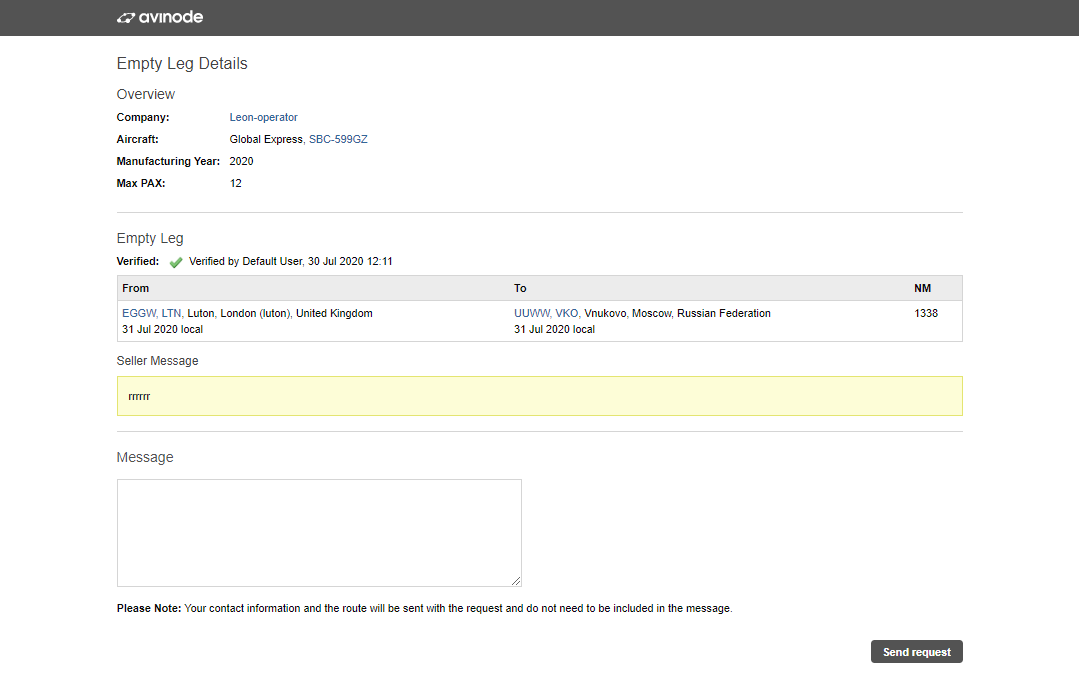
An active integration with Avinode also allows downloading requests for empty legs.
📷 Screenshot (existing): request for empty leg in Avinode
Once the empty-leg request is downloaded, Leon creates the full routing, including positioning legs where necessary. The aircraft is the one sent in the empty-leg request; if that aircraft does not exist in Leon, the request will not be accepted.
Leon also calculates the quotation amount based on the pricelists assigned to the aircraft in 'Settings' > 'Fleet' > 'Sales' tab of the aircraft details.
If the downloaded request covers several empty legs on different aircraft, the routing and the quotation are created separately for each of them.
📷 Screenshot (existing): requested empty leg including positioning flights
An edited empty-leg request contains the 'Avinode empty leg' label next to the 'VAT' box. Clicking the label takes you to the request in Avinode.
Responding to requests
Accepting Avinode requests
To accept a quote that comes from Avinode:
-
Edit the Avinode quote.
-
Select the 'QUOTE' button in the request edit window.
-
In the 'Accept quote?' window you can:
-
select the aircraft for which you want to send the response back to Avinode,
-
select an email template or type in an additional message, which will appear in Avinode,
-
select 'Send same message to all quotes' — applies only when multiple quotes are selected,
-
select the attachments to send to Avinode: a document template or additional PDF files uploaded to this email,
-
press 'SEND' to accept the quote in Avinode.
-
Once the message is sent, the request status changes to 'Accepted'.
📷 Screenshot (existing): option to send acceptance to Avinode
Leon indicates the status of the sent response with a dot in the aircraft registration tab:
A failed response is not resent automatically. Press 'QUOTE' again to retry.
📷 Screenshot (existing): response and correspondence in Avinode
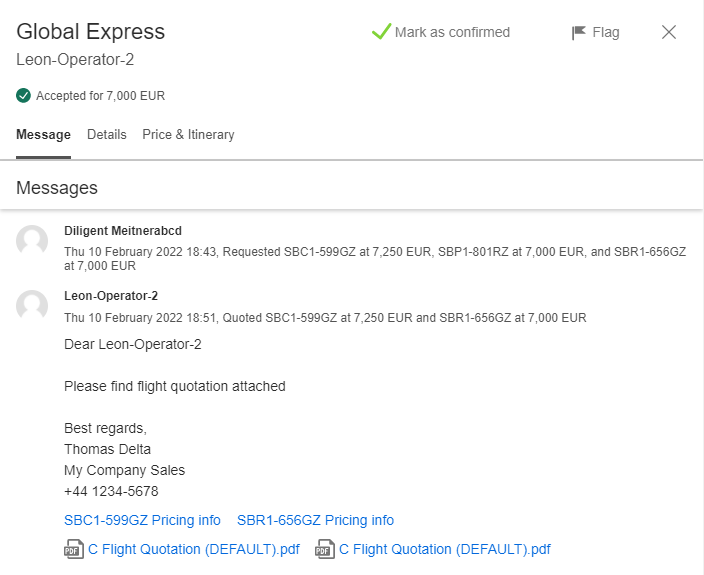
The message and the attached files appear in the Avinode Marketplace.
Quotes that were not sent as accepted can be rejected in Avinode automatically — tick 'Automatically reject unanswered quotes' in 'Settings' > 'Add-ons' > 'Avinode'.
You can also add a Leon quote with the 'ADD QUOTE' button. In this case Leon recalculates the quote based on the pricelists assigned to the aircraft in 'Settings' > 'Fleet' > 'Sales' tab, and the updated amount is sent to Avinode. The original Avinode price stays visible next to the detailed pricelist and cannot be changed.
ℹ️ If the request from Avinode did not specify the aircraft registration but only the aircraft type, Leon will create quotes for all the aircraft of the same type available within the operator fleet.
Rejecting requests from the list
Requests can be rejected directly from the list.
📷 Screenshot (existing): option to reject a request
This applies to requests received via Avinode and the Owner App, as well as those inserted directly in Leon as a new quote.
To reject a request:
-
Right-click the request you want to reject, select 'REJECT REQUEST' and the 'Reject' email window will open. There you can select either:
Accepting or rejecting quotes in Avinode as a seller
Seller responses marked in Avinode are reflected in Leon.
📷 Screenshot (existing): seller response in Avinode reflected in Leon
This option has to be activated by ticking 'Update requests and quotes from Avinode' in 'Settings' > 'Add-ons' > 'Avinode'. It enables automatic request status updates when you accept or decline quotes in Avinode as a seller.
Once the response is marked in Avinode, the status is reflected:
-
In the main status of the request — if at least one quote from the request is accepted, the main status is set to 'Accepted' and the request status changes to 'QUOTED'.
-
In the 'SUMMARY' tab of the request — the status of each quote is displayed individually.
Subcharter
Find subcharter / compare the price in Avinode
ℹ️ Make sure the API key provided by Avinode has the privilege to create trips in Avinode. Without it, this functionality will not work. You can confirm this with Avinode TechSupport at
techsupport@avinode.com.
If a request comes from Avinode, you can search and compare offers in Avinode.
📷 Screenshot (existing): search subcharters in Avinode
The process is as follows:
-
Edit the Avinode request in the 'Requests/Quotes' section.
-
You will be redirected to the Avinode search engine, where offers from different sellers are displayed.
ℹ️ This option is available both for requests coming from Avinode and for those added in Leon.
Accepting subcharters from Avinode
Subcharter flights requested in Avinode can be accepted in Leon.
📷 Screenshot (existing): subcharter requested from Avinode
The process is as follows:
-
The client requests a trip, which shows in Leon on the 'Requests/Quotes' list.
-
If you cannot perform the request with your own fleet, search for a subcharter in Avinode using 'FIND SUBCHARTER/COMPARE THE PRICE' in the quote edit section.
-
The request is sent to third-party operators in Avinode.
-
Once a third-party operator confirms the request in Avinode, it appears in Leon as a subcharter.
A subcharter requested from Avinode contains the aircraft details and aircraft photos, as long as they are available in Avinode.
The subcharter operator may confirm the request without selecting the aircraft registration. In that case the response still appears in Leon, but without the registration and without the aircraft characteristics tied to it, such as contact details and photos.
The subcharter edit window is divided into five tabs:
-
BASIC — subcharter details such as aircraft details, crew details, contact details and aircraft photos, as long as they are available in Avinode.
-
MESSAGES — reply directly to the operator's email, as long as it is available in the 'BASIC' tab, or to Avinode.
-
AMENITIES — amenities available on the aircraft as well as the interior dimensions. Can be used on the Sales documents for the subcharter.
-
SERVICES — where Handling, Catering and PAX Transport can be inserted.
-
DOCUMENTS — where additional aircraft documents can be uploaded.
Request accepted or rejected by the buyer
Buyer responses to a subcharter requested with 'FIND SUBCHARTER/COMPARE THE PRICE' are marked in Leon.
📷 Screenshot (existing): responses from Avinode visible in Leon
The tabs work as follows:
Messages
In this tab you can reply to the broker in Avinode or directly to the operator.
📷 Screenshot (existing): 'Messages' tab in Subcharter
To reply directly to the operator, the operator's email has to be available in Avinode. If it is, Leon imports it into the 'Contact email' box in the 'BASIC' tab and creates the operator as a client in the Phonebook.
To reply to the operator, press 'REPLY TO OPERATOR' and select:
-
AVINODE — replies to the operator or broker in Avinode.
-
EMAIL — replies directly to the operator's email, as long as it is available in the 'BASIC' tab. The 'Subcharter message' email template needs to be created in 'Settings' > 'Email templates'.
Replies from all brokers are displayed in one 'Messages' window.
ℹ️ If a quote comes from Avinode, Leon shows only the messages for sending a flight quotation ('QUOTE') and a rejection ('REJECT'). All other messages are shown only if the 'Mailboxes' panel has been set up.
Leon identifier in Avinode
📷 Screenshot (existing): example of Leon identifier in Avinode
Messaging can be set up so that the name of the person sending the reply is shown correctly in Avinode.
To set it up, edit your personal profile (click your name in the top-right corner of Leon), go to the 'User Settings' tab and insert your personal Avinode login in the 'Avinode login' field. The next time you reply to an Avinode message, your Avinode name will appear.
If the field is empty, the default account from the integration configuration is used instead.
Limitations
-
Several Leon operator accounts cannot sell through one shared Avinode account. The reverse is supported: several Avinode accounts can be connected to one Leon account.
-
The list of ticked aircraft controls the schedule export only. Requests arriving on your Avinode key are saved in Leon even for aircraft that are not ticked, and there is no setting to filter incoming requests by aircraft.
-
Empty-leg requests for an aircraft that does not exist in Leon are not accepted.
-
If a request does not specify a registration, Leon creates quotes for every aircraft of that type in your fleet.
-
Passenger names are not exchanged. Only the number of passengers is passed between the systems.
-
A subcharter confirmed without a registration is imported without the registration and without the aircraft details tied to it.
-
'FIND SUBCHARTER/COMPARE THE PRICE' requires the Avinode key to have the privilege to create trips in Avinode.
-
For requests coming from Avinode, only the quotation and rejection messages are available unless the 'Mailboxes' panel has been set up.
-
The original Avinode price is shown next to the detailed pricelist on an imported quote and cannot be changed.
-
Changes made in Leon to the itinerary of the request itself are replaced when the request is updated from Avinode.
Troubleshooting
-
A response did not reach Avinode. The dot next to the aircraft registration tab shows the state of the last response. A failed response is not resent automatically — press 'QUOTE' or 'REJECT' again.
-
Errors in the schedule export or in downloading requests. These are collected and sent once a day in a summary e-mail covering all integrations. It goes to the address set as the system notification recipient, or to users with administrator rights if no address is set. Typical causes are an aircraft that is not configured for integrated schedule updates in Avinode, and an Authorization key that is no longer valid.
-
A request did not arrive. Use 'DOWNLOAD REQUEST FROM AVINODE' at the bottom of the 'Requests/Quotes' view and enter the Avinode ID.
-
The schedule in Avinode is out of date. Changes are picked up by the next automatic export. Use 'EXPORT AIRCRAFT SCHEDULE NOW' to send them immediately.
Related articles