Fuel
Table of Contents
Getting fuel prices
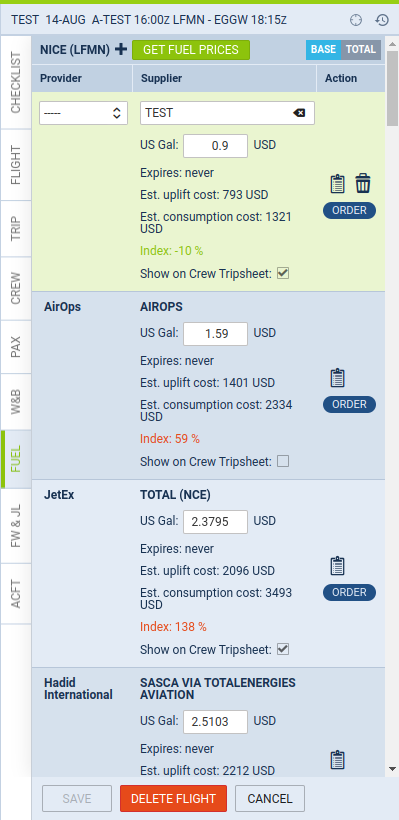
Tab FUEL can show fuel data from uploaded files in the section OPS > Fuel Prices, as well as custom prices added there manually. The section is split into 2 parts: ADEP fuel prices & ADES fuel prices.
By default, the section is empty. To load or reload the prices, click 

For particular prices, each field shows details such as:
-
Fuel supplier
-
Fuel card
-
Price per L JET A1
-
Currency
-
Expiration
-
Est. uplift cost
-
Est. consumption cost
-
Index
Expiration
The expiration date will be marked with colours as below:
-
Orange - when the expiration date is in the future, but is going to expire before the flight’s STD
-
Red - when the price has already expired
Fuel price index
It is possible to define global reference fuel price, to have a fuel price index calculated regardless of the supplier. You can set it up in OPS -> Fuel Prices.
The price set up in OPS -> Fuel Prices will be used to calculate the fuel price index, shown in the Fuel tab on flights in OPS, regardless of the supplier.
The index will show the difference (in percentages) between the price offered by a supplier and the reference price.
The formula is:
PriceIndex = (OfferedPrice - ReferencePrice) / ReferencePrice * 100%
If the index is positive (the price offered is higher than the reference) the indication is red. If the difference is negative (the price offered is lower than the reference), the indication is green.
Estimated fuel cost
Estimated uplift cost
The estimated uplift cost is calculated based on fuel price, and uplift value, which is determined as:
-
‘Uplift’ value in the JL, if entered
-
‘Block fuel’ from the ‘Fuel’ item in the OPS checklist, minus ‘Fuel remaining’ from the previous leg (if available)
-
‘Trip fuel’ from the ‘Fuel’ item in the OPS checklist, if there is no ’Block fuel” entered
Estimated consumption cost
The estimated consumption cost is calculated based on fuel price and ‘Trip fuel’ entered in the ‘Fuel’ item of the OPS checklist
Base / total price
In the top-right corner of the FUEL tab you can find a switcher 
Favourite suppliers
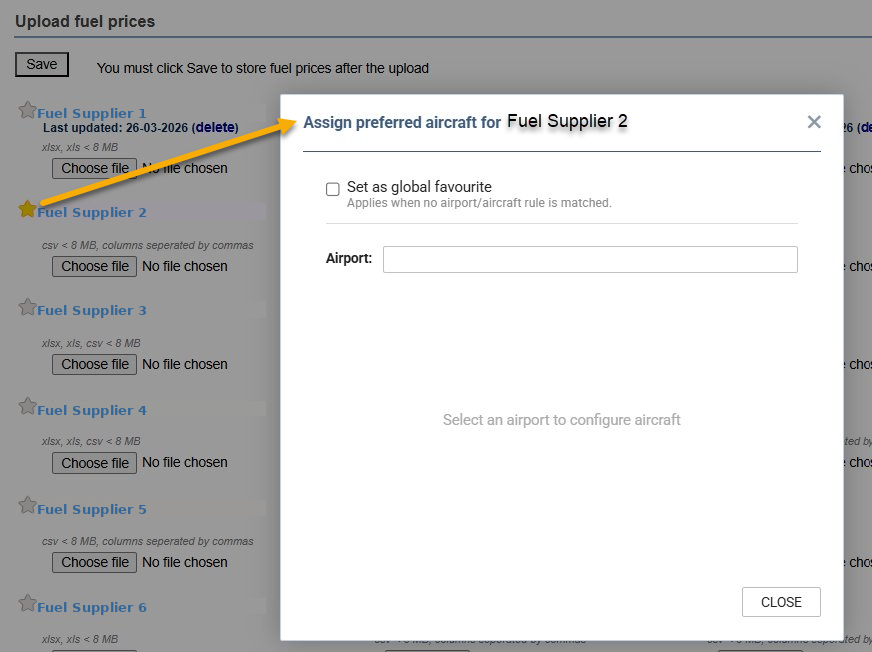
Prices marked with a star indicate a favourite Fuel Supplier selected in the OPS -> Fuel Prices section.
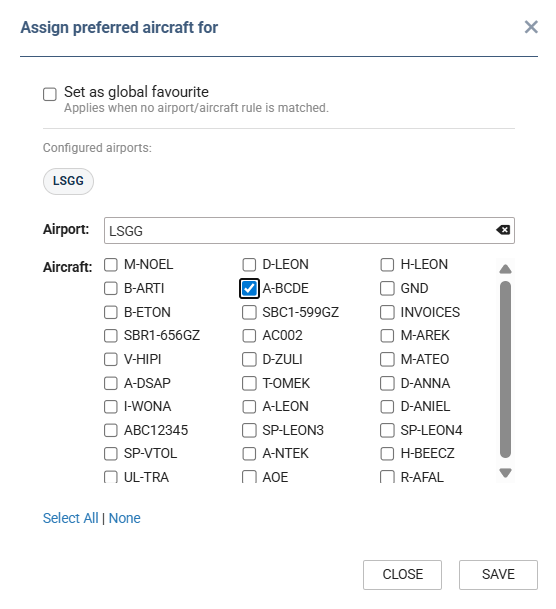
You can mark a supplier as a global favourite by clicking the star icon to open a pop‑up and selecting the Set as global favourite option. Alternatively, leave this box unticked to set the supplier as preferred for specific airports and assign preferred aircraft to that supplier. Enter the airport codes; the list of your aircraft will then appear so you can fine‑tune the supplier preferences.
Showing prices on Crew Trip sheet
Also, in FUEL tab you can select which fuel price should appear on Trip Sheet document by marking a checkbox (the lowest price appears in tab FUEL in green).

Adding custom prices
It is also possible to add a custom fuel price by clicking ‘+’ next to the airport code - this will open a new field where you need to select fuel supplier, a fuel card, add the price and the currency. You can remove the unwanted custom fuel prices by clicking 
Fuel price notes
Notes attached in fuel files can be viewed if you hover the mouse over this icon 
It is possible to edit the Fuel price note in the FUEL tab. Simply click on the notepad icon and edit existing note or add a new one in the ‘Edit note’ pop-up window. This applies only to the notes on the edited leg
How the fuel prices work
-
By default, the ‘Fuel’ tab is empty. Click
to get the prices
-
Clicking
will load all the prices for ADEP and ADES of the flight, which are valid (not expired) at the time of clicking the button
-
The prices have to be saved on the flight, to be kept. Click
to keep the prices on the flight
-
Saved prices freeze. New files with prices uploaded OPS -> Fuel prices do not update the prices on the flight
-
To update the prices, click
-
The price which has been changed manually and saved, will not be changed after clicking
-
If the price is marked as ‘Show on Trip Sheet’ and saved, it will be shown in the Crew Tripsheet
-
If the fuel file is deleted in OPS -> Fuel Prices, the price will be kept on the flight
-
The prices, after they are saved, will not disappear from past flights
Ordering fuel
It is possible to send an email with the Fuel Order directly from Leon to 3 suppliers: Success Aviation, Fuel & More, Valcora, Jetex and more.
The ordering fuel pop-up window contains two tabs:
-
NEW MESSAGE
-
MESSAGES
New message
To order fuel, simply click

next to Leon prices in a tab FUEL and a pop-up window will appear with default content where you only need to insert the ‘Reply to’ email. You can also alter the text within the ‘Request’ and ‘Footer’ windows.
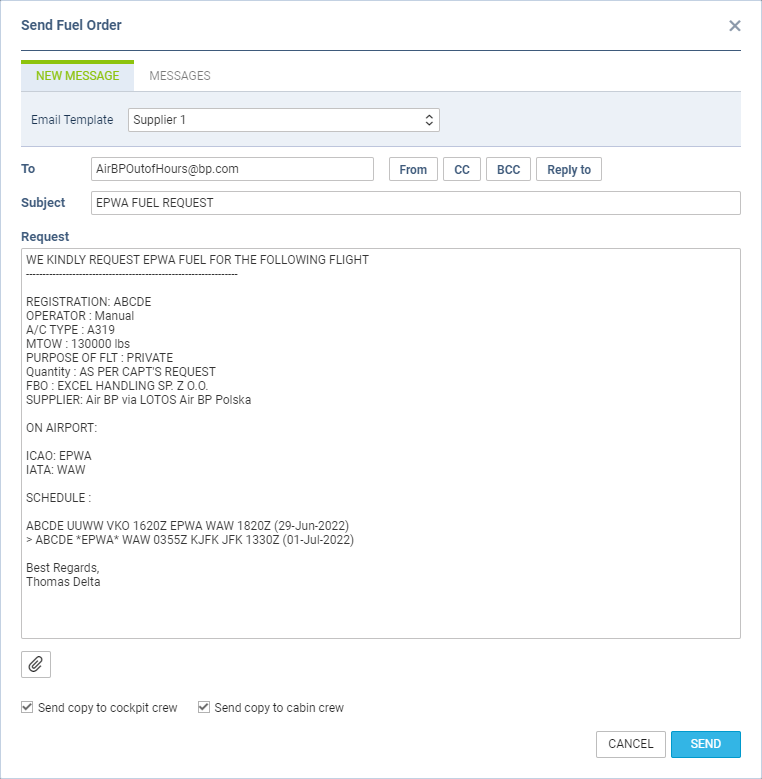
Email addresses to the fuel suppliers are inserted by default and they are:
-
AirBP - AirBPOutofHours@bp.com
-
AML Global fuelteam@amlglobal.net
-
EUROJET - ops@eurojet-service.com
-
FUEL AND MORE - email based on the ‘To’ column in the fuel file
-
Global Fuel Service - ops@globalfuel.eu
-
Jetex - fueldispatch@jetex.com
-
Mixjet - fuel@mixjet.aero
-
Nautilus - Claudia.fucarino@nautilusaviation.com, Linda.leone@nautilusaviation.com, Nautilus24@nautilusaviation.com, and in CC: Barbara.cardella@nautilusaviation.com
-
Skyservices - ops@skyservices.it, fuel@skyservices.it
-
WFS - fuel24@wfscorp.com
-
Valcora - fuel@valcora.ch
-
UAS International Trip Support - fuel@uas.aero
You have to insert the above details only once as the next orders will remember the input.
When ordering fuel through a tab ‘FUEL’ at the particular airport, Leon will show only legs to/from that airport - not all legs of the trip.
Messages
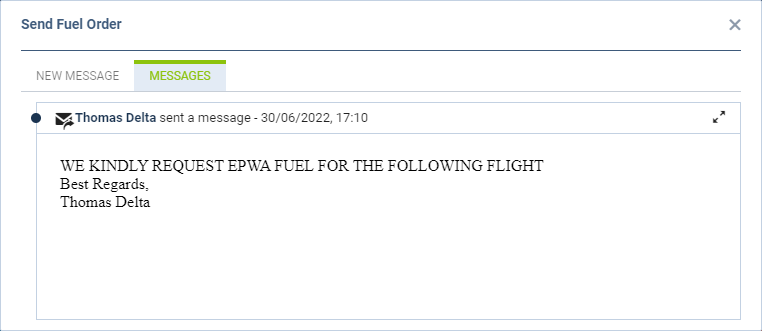
In the ‘MESSAGES’ tab, it is possible to preview the correspondence history.
If the Mailbox is created and the mailbox email is inserted in the ‘Reply to’ field, the emails sent as well as the responses should appear in this tab.