

FW & JL
Table of Contents
In this section you can add Flight Watch and Journey Log data. Inserted post-flight data to Journey Log allows to generate various kinds of reports in Leon (Crew, OPS, Sales, etc…).
Flight Watch and Journey Log can only be added to the confirmed flights. Flight Watch is not available for the Simulator flights.
Flight Watch
By clicking on FW & JL column Leon opens the tab in the right-hand side filter. If there is no Journey Log added Leon opens FW tab. If there is a Journey Log added (even if it is partly filled in) Leon opens JL tab.
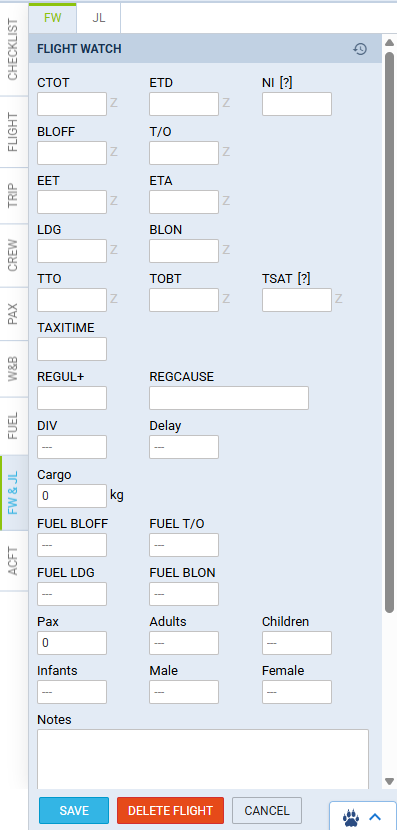
FW contains several fields where you can input details such as:
-

- this button, located in the top-right corner of the FW tab, allows accessing the FW history
-
CTOT - calculated takeoff time - if it is the only detail added to FW in Flights List Leon shows S.
-
ETD - estimated time of departure - if added to FW Leon shows D. ETD will be automatically removed in case STD is changed by more than 1 hour, unless BLOFF or T/O is entered.
-
NI - Next Information - used instead of ETD when a flight is delayed with new ETD unknown.
-
BLOFF - block off time - if added to FW Leon shows A.
-
T/O - take off time - if added to FW Leon shows A.
-
EET - estimated enroute time (T/O + EET should equal ETA. i.e. T/O 12:00, EET 02:30, so ETA should be 14:30). The value is displayed in the format HH:MM, i.e. 02:15.
-
ETA - estimated time of arrival.
-
LDG - landing - if added to FW Leon shows +.
-
BLON - block on time - if added to FW Leon shows +.
-
TTO - Target Time Over an aerodrome or a point on the route of flight.
-
TOBT - Target Off-Block Time - the time that an aircraft operator / handling agent estimates that an aircraft will be ready to start up / push back immediately after receiving ATC clearance.
-
TSAT - Target Start-Up Approval Time. Included in the automatic download of MVT from the Eurocontrol
-
TAXITIME - The average taxiing time for the runway in use at the airport of departure, used to calculate take-off times from the off-block times.
-
REGUL+ - the identifier of the most penalising regulation imposed on the flight.
-
REGCAUSE - the reason for the most penalizing regulation imposed on the flight.
-
Pax - number of passengers.
-
DIV - diversion - insert the code of the airport to which the flight was diverted.
-
Cargo - cargo weight [units as configured under Load Weight in aircraft setup]
-
Baggage - baggage weight [units as configured under Load Weight in aircraft setup]
-
Mail - mail weight [units as configured under Load Weight in aircraft setup]
-
Delay - delay code and the delay time can be inserted (the format: code/delay i.e. 14/0010 where 0010 means 00:10 minutes) - if added to FW Leon shows D.
-
Confirmation of data correctness - with Cew App in mind, this checkbox can only be selected by the CPT who certifies that all above details are inserted correctly
-
Notes - add notes which can be read by OPS or crew.
-
Internal notes - additional notes for internal use that are not included in the MVT Messages. The ‘Internal notes [FW]’ column is available in the Report Wizard > scope ‘Flight’
Date of the time input can be selected for each individual box apart from EET. As soon as you click inside the applicable box Leon will display the date underneath the box in the “ddMMM” format. If there is a need to change the date, simply click on the date displayed below the box and choose the new date from the calendar.
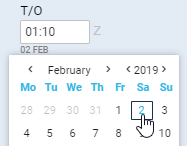
At the bottom of the panel Leon will show information “Last modified by” showing Eurocontrol or SITA and UTC time of the change. For manual changes Leon will show user’s name/surname and UTC time of the change.
If CTOT is removed either manually or by the Eurocontrol message - Leon will show additionally the SLC code, i.e. SLC, DSLC, SLCA, DLSLCA.
Additionally, the following Flight Watch progress indicators are displayed in the ‘Table’ view:
-

- BLOFF inserted
-

- T/O inserted
-

- LDG inserted
-

- BLON inserted
Details such as BLOFF, T/O, LDG and BLON can be copied to Journey Log by clicking 
Manual MVT Messages
It is possible to send MVT messages manually using selected movement rule as the template source.
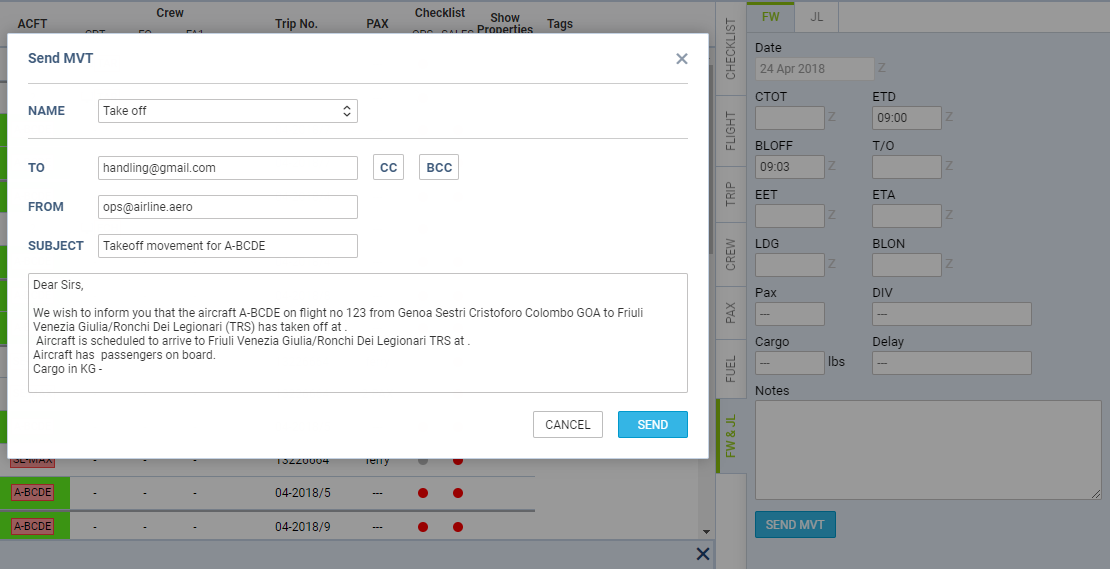
To send MVT message manually you have to follow the below steps:
-
Fill in FW and save it.
-
Click on ‘SEND MVT’ button to populate a ‘Send MVT’ pop-up window where you can select Movement rule as the template source. This is a template assigned as an ‘MVT rule’ in a section Settings > MVT Messages to an aircraft you‘re sending the MVT for. - Once you chose a template the system prepopulates message and recipients according to selected ’MVT rule’. You can now customize every part of final message and recipients.
-
If everything is ready, press ‘SEND’.
If there are no ‘MVT rules’ assigned to an aircraft in Settings > MVT Messages’ section, the template source in step 2 will not populate any choice.
Importing MVT Messages
Movement messages can be imported to Leon if they are being sent to email address mvt@leon.aero and if they are in one of the below formats:
SITA format
Departure message format
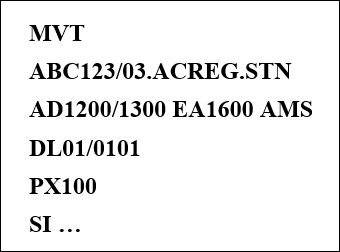
Example of SITA departure message is showed in the screen.
The data included is as follow:
-
ABC123/03 - flight number and day of the month
-
ACREG - aircraft registration number
-
STN - departure airport (in this case it is London Stansted)
-
AD1200/1300 - actual departure. BLOFF at 1200, airborne at 1300
-
EA1600 - estimated arrival time. There have to be spaces before EA and after 1600
-
AMS - arrival airport (in this case it is Amsterdam)
-
DL01/0101 - delay information including delay reason and time of delay in hhmm, i.e. 01/0101 means that the reason is a custom 01 and the flight is delayed by 1h1min. If there are more than one delay codes, the format should look as follow rr/rr/hhmm/hhmm, ie 01/02/0101/0202
-
PAX100 - number of PAX on board
-
SI… - space for supplementary information inserted after SI which will be populated in FW Notes section in Leon
Arrival message format
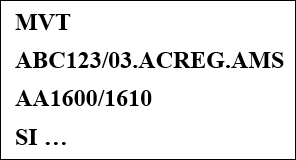
The data included in SITA arrival message include:
-
ABC123/03 - flight number and day of the month
-
ACREG - aircraft registration number
-
AMS - arrival airport
-
AA1600/1610 - Arrival identifier including touch-down time (1600) and BLON time (1610)
-
SI… - space for supplementary information inserted after SI which will be populated in FW Notes section in Leon
Satcom Direct - 1-st format
Takeoff Report and Landing Report messages imported to Leon need to be in specific formats. Once such messages are received they will be automatically added to ‘Flight Watch’ in Leon (BLOFF when Takeoff Report sent and BLON when Landing Report sent). See the example of the flight below.
Takeoff Report format
Subject: Takeoff Report for AC-REG
Message:
Takeoff Report Off Time: 11-Jun-2013 0700 UTC / 11-Jun-2013 0900 LCL Departure Airport: LIML - LINATE Destination Airport: LIRA - CIAMPINO ETA 11-Jun-2013 0800 UTC / 11-Jun-2013 1000 LCL
Landing Report format
Subject: Landing Report for AC-REG
Message:
Landing Report On Time: 11-Jun-2013 1000 UTC / 11-Jun-2013 1200 LCL Departure Airport: LIML - LINATE Destination Airport: LIRA - CIAMPINO
Satcom Direct - 2-nd format
The second format of the Satcom Direct MVT message is an updated version of the first one, with a slightly changed layout and graphical content added. The [ and ] brackets represents graphical elements of a message (images) added automatically by the service.
Takeoff Report format:
Subject: Takeoff Report for AC-REG
Message:
[Satcom Direct Logo] [Title Image] Takeoff Report for AC-REG [Tracker Image] [Flight Progress] ETA: 10-Feb-2021 23:31 UTC Off Time: 10-Feb-2021 1503 UTC / 10-Feb-2021 1603 LCL Departure Airport: LZIB - M.R. STEFANIK Destination Airport: VRMM - VELANA INTL ETA: 10-Feb-2021 2331 UTC / 11-Feb-2021 0431 LCL [SD Pro (logo)]
Landing Report format:
Subject: Landing Report for AC-REG
Message:
[Satcom Direct Logo] [Title Image] Landing Report for AC-REG [Tracker Image] [Flight Progress] ETA: 20-Feb-2021 15:14 UTC On Time: 20-Feb-2021 1508 UTC / 20-Feb-2021 2008 LCL Departure Airport: UAKK - KARAGANDA Destination Airport: VRMM - VELANA INTL [SD Pro (logo)]
Satcom Direct - 3-rd format
Takeoff Report format:
Subject: ACREG OFF LSGG 02/25 1010Z 1110LCL
Message:
ACREG OFF LSGG 02/15 1010Z 1110LCL OFF RPT DEP:: LSGG - GENEVA DEST:: LEST - ROSALIA DE CASTRO ETA: 02/15 1201Z 1401LCL FUEL: 10000
Landing Report format:
Subject: ACREG ON LEST 02/15 1202Z 1402LCL
ACREG ON LEST 02/15 1202Z 1402LCL ON RPT DEP: LSGG - GENEVA DEST: LEST - ROSALIA DE CASTRO FUEL: 5600
ACARS format
ACARS movement emails can be sent out in the same way as SATCOM or SITA - to the email address mvt@leon.aero and Leon will update Flight Watch with details input in the mvt email.
Below you can find appropriate formats which should be used.
OFF REPORT extended version
Subject: A-BCDE OFFRP (where A-BCDE is acft reg number)
To: mvt@leon.aero
Content:
10-JUN-2015 15:00:00 OFF EVENT REPORT ORIGIN: WAW DESTINATION: AMS OUT TIME: 1456 OFF TIME: 1500 FUEL ON BOARD: 0430 ETA: 1554
OFF REPORT simplified version
Subject: A-BCDE OFFRP (where A-BCDE is acft reg number)
To: mvt@leon.aero
Content:
A-BCDE OFF REPORT ORIG: WAW DEST: AMS TIME: 1456
IN REPORT extended version
Subject: A-BCDE INRP (where A-BCDE is acft reg number)
To: mvt@leon.aero
Content
10-JUN-2015 16:00:00 IN EVENT REPORT ORIGIN: WAW DESTINATION: AMS ON TIME: 1600 IN TIME: 1610 FUEL ON BOARD: 0470
IN REPORT simplified version
Subject: A-BCDE INRP (where A-BCDE is acft reg number)
To: mvt@leon.aero
Content
A-BCDE IN REPORT ORIG: WAW DEST: AMS TIME: 1600 FOB: 0470
Honeywell GDC format
Takeoff Report format:
Subject: [Departed]: ACREG OFF at 12:22Z, VRDA > OMDW
Message:
Departure Report
Tail Number ACREG
Status Departed Departure Airport VRDA - MAAFARU INTL Departed at 07-Feb-2021 12:22 UTC
07-Feb-2021 17:22 (05:22 PM) Local
Arrival Airport OMDW - DUBAI/AL MAKTOUM INTL ETA 07-Feb-2021 15:59 UTC
07-Feb-2021 19:59 (07:59 PM) Local
Fuel on board 18730 lbs
8494 kgs
Reported Time 07-Feb-2021 12:22 UTC
Landing Report format:
Subject: [Landed]: ACREG ON at 16:01Z,VRDA > OMDW
Message:
Landing Report
Tail Number ACREG
Status Landed Departure Airport VRDA - MAAFARU INTL Departed at 07-Feb-2021 12:22 UTC
07-Feb-2021 17:22 (05:22 PM) Local
Arrival Airport OMDW - DUBAI/AL MAKTOUM INTL Arrived at 07-Feb-2021 16:01 UTC
07-Feb-2021 20:01 (08:01 PM) Local
Fuel on board 9070 lbs
4113 kgs
Reported Time 07-Feb-2021 16:02 UTC
The format of the ‘subject’ & ‘message’ MUST be always the same, which means, that if you add anything to the text in either ‘subject’ or ‘message’ format, the message WILL NOT get imported into the ‘Flight Watch’.
Eurocontrol
It is possible to receive Flight Watch times automatically to Leon from Eurocontrol servers.
Eurocontrol is an international organisation working to achieve safe and seamless air traffic management across Europe. Eurocontrol works with national authorities, air navigation service providers, civil and military airspace users, airports, and other organisations. Its activities involve all gate-to-gate air navigation service operations: strategic and tactical flow management, controller training, regional control of airspace, safety-proofed technologies and procedures, and collection of air navigation charges. For more information, please visit Eurocontrol website.
In order to integrate with Eurocontrol, you have to open a section Integrations, click ENABLE button, then switch the Status to ON and save changes.
If the Operator ICAO code in the section Settings > General Settings tab is the same as registered with Eurocontrol, the integration will be completed upon saving changes. If the ICAO code in Leon doesn’t match the one registered with Eurocontrol, you will see an error message saying “Operator ICAO not recognized by Eurocontrol”.
Operator’s ICAO designator must be included in the flight plan’s item 7 (Aircraft Identifier), or item 18 (Other Information), sub-field OPR/. In the second case, no other remarks should be added in the OPR/ sub-field, besides ICAO designator.
If your flight numbers in Leon are based on IATA codes instead of ICAO codes, fill the IATA code field in General Settings.
When the integration is completed, Flight Watch in Leon will start receiving flight times from Eurocontrol servers. You will recognise them by opening a Flight Watch and hovering the mouse over the time value, as shown in the screenshot above. Eurocontrol will only send CTOT, ATD, EET, ETA, ATA times and REGCAUSE plus PAX number.
Editing FW data
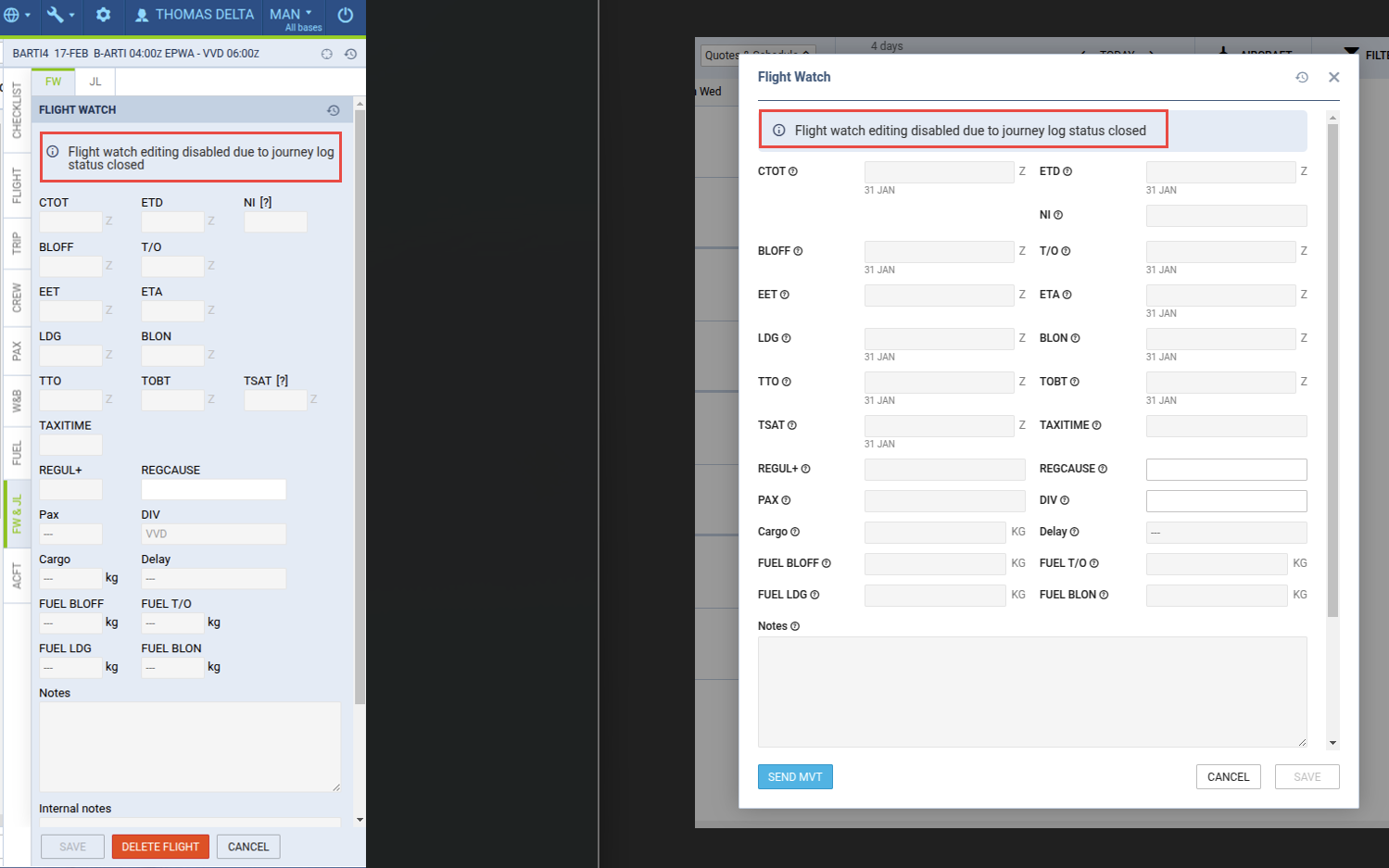
Closing the Journey Log via the Status item will also block the ability to edit flight data in the Flight Watch section, both in the web and mobile applications.
Editing Flight Watch data will also be restricted for related functionalities, such as integration with Eurocontrol and MVT Messages sent via email.
Once the Journey Log is closed, it can only be reopened from the web application, provided the user has the appropriate permission Allow editing of closed Journey Logs.
Return to Ramp
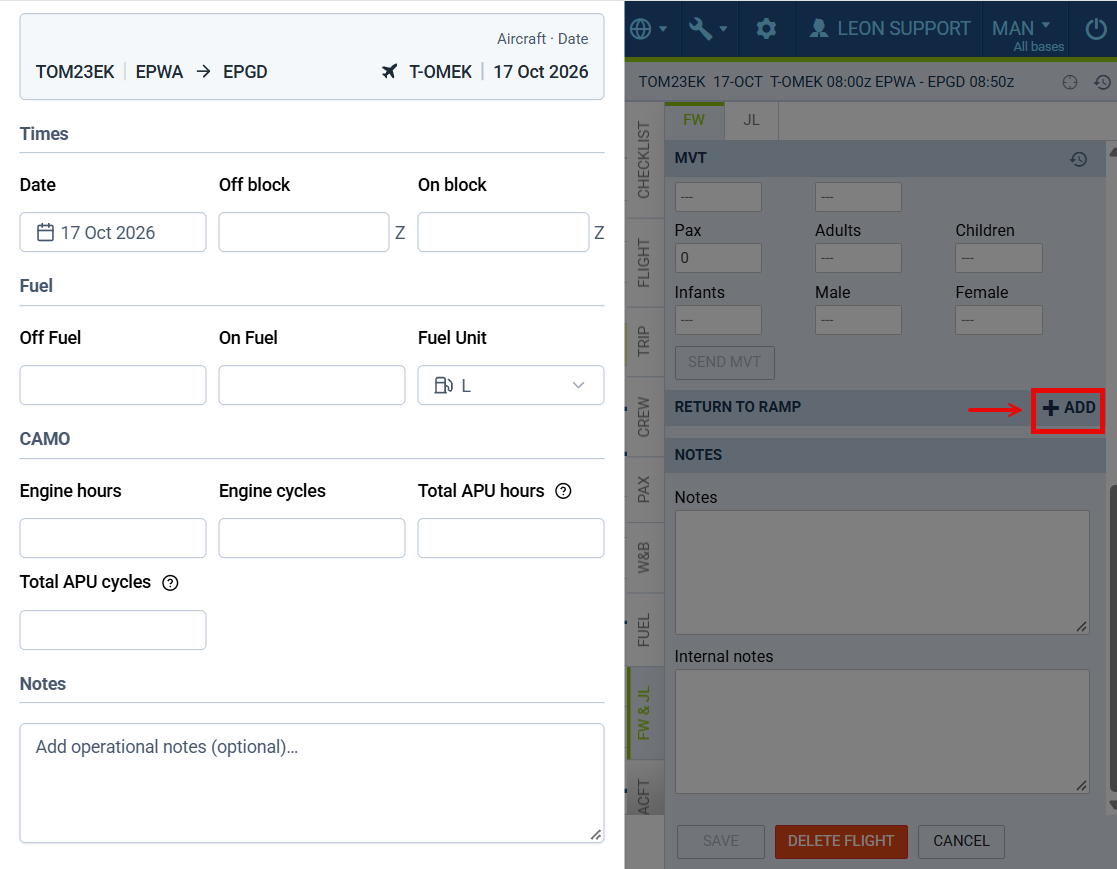
The FW tab is divided into three sections: MVT (all the movement fields listed above), RETURN TO RAMP, and NOTES (the Notes and Internal notes fields).
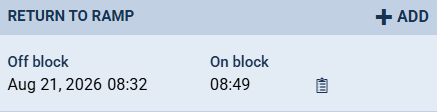
The RETURN TO RAMP section records return-to-ramp events — cases where the aircraft left the gate but came back to the ramp without operating the flight. Click + ADD in the section header to add one, or click an existing row to open it for editing. An entry can also be deleted, for example when it was added by mistake.
Each entry contains:
-
Date, Off block and On block times — required. Times are in UTC.
-
Off block fuel and On block fuel, with a unit — optional
-
Notes — optional; shown on the list as a notepad icon, with the note text visible on hover
-
Engine hours, Engine cycles, APU hours and APU cycles in the CAMO section — optional. Hours are entered as HH:MM. Fill them in only if the engines or the APU actually ran.
The list shows the Off block – On block times of each recorded event. On block cannot be earlier than Off block. Airport codes follow your IATA/ICAO setting and the date format follows your regional setting. Users with view-only access to the flight can open the window but cannot save changes.
A recorded return to ramp is also shown in the FTL data. In the Crew tab of the flight it appears as a separate sector with its own Off block and On block times, and hovering over the aircraft icon of that sector shows Return to ramp. FTL data is refreshed when the Crew tab is opened again after a return to ramp has been added or edited.
Values entered in the CAMO section are added to the aircraft's engine and APU hours and cycles counters and are sent as actuals to the CAMO integration. Return-to-ramp cycles count only towards the engines and the APU, not towards the airframe, because the aircraft did not take off.
Journey Log
You can add flight times to the Journey Log from scratch or copy them from FW or Plan (by clicking the blue button).
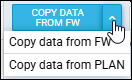
The following data is copied from FW: BLOFF, T/O, LDG, BLON, Delay codes, PAX number, Cargo value.
The following data is copied from Plan: BLOFF (from STD), T/O (from STD), LDG (from STA), BLON (from STA), PAX number, Cargo value.
All data inserted into JL is then used in reports.
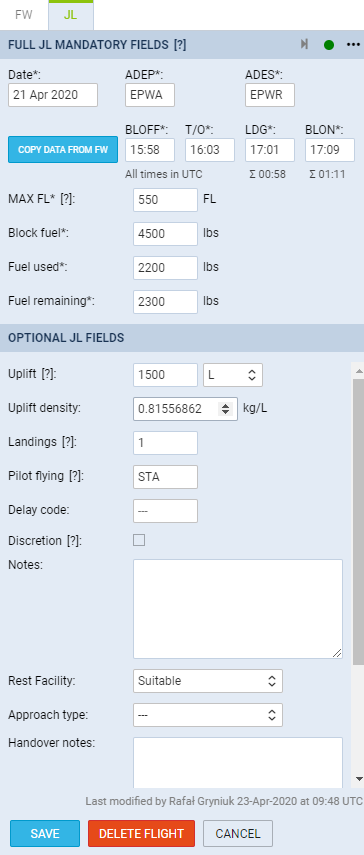
Apart from the obvious fields in JL such as Date, ADEP, ADES, BLOFF, T/O, LDG and BLON - there are also other available fields split into 2 sections:
-
Full JL mandatory fields - these fields can be indicated in the Journey Log configuration section by ticking the checkbox in the ‘Required’ column
-
Optional JL fields - any other enabled fields that are not marked as required
For a complete and up-to-date list of all available Journey Log fields with descriptions, see the dedicated page:
👉 Journey Log - available fields
All enabled fields in the Journey Log are also available when adding JL in the Leon mobile app. Pilots can also add JL when offline.
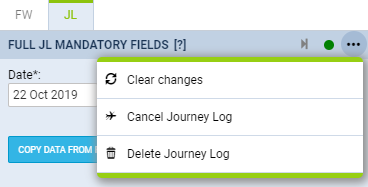
If the JL is inserted by mistake, for example for a future flight, it is possible to delete it. To delete JL you need to click on 
-
Clear changes - clears data inserted in JL before it is saved. Useful when incorrect data is inserted in the JL and has to be cleared. Rather than clearing it from each individual field
-
Cancel Journey Log - cancels saved Journey Log. Cancelling the JL will clear the data as well as display the flight in CALENDAR view as cancelled
-
Delete Journey Log - allows deleting JL. Useful when the JL is inserted by mistake, for example, on a future flight. Deleting JL clears mistakenly inserted data as well as keeps the flight active
At the bottom of the Journey Log panel you can find information Last modified by showing the name & surname of the user who made changes in JL as the last one as well as UTC time of those changes.
Fuel in litres & US gallons
It is now possible to add Fuel data in litres or US gallons in the Journey Log panel.
In a section Settings > Fleet, edit the aircraft and set up a default fuel unit as L or US Gal
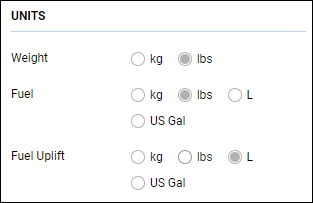
Once the default fuel unit is set up, you can add fuel in litres or US gallons in the Journey Log panel (as on screenshot below) - the default fuel unit applies to: Block fuel, Used fuel, Remaining fuel and Uplift.
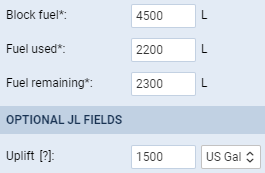
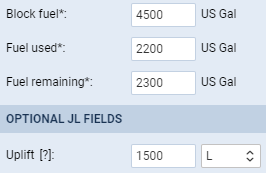
The same defined fuel unit shows in the 
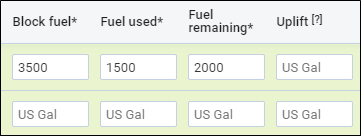
We also added Fuel density (kg/L) in the JL section. This field is optional and can be activated in Settings > Flight Editing > Journey Log section.
The default Fuel density values are as per below:
-
JET A-1 - 0.81556862 kg/L
-
AVGAS - 0.69559241 kg/L
The value is selected by default in the JL based on fuel type set in Settings > Fleet > OPS tab. This field allows amending the density of the fuel with the values between 0 and 1.
The density value is automatically added when creating new refueling. The density value reacts to the ‘Fuel type’ changes in the ‘New Refueling’.
All the reports that take fuel into consideration such as: CO2 emission, Aircraft Flights, Network Departures, columns in Report Wizard will recalculate with accordance to this density value.
Adding JL to multiple sectors
If you want to add Journey Log to multiple sectors on one screen, click
button at the bottom of OPS panel and fill in a new open window (see screenshot on the right).
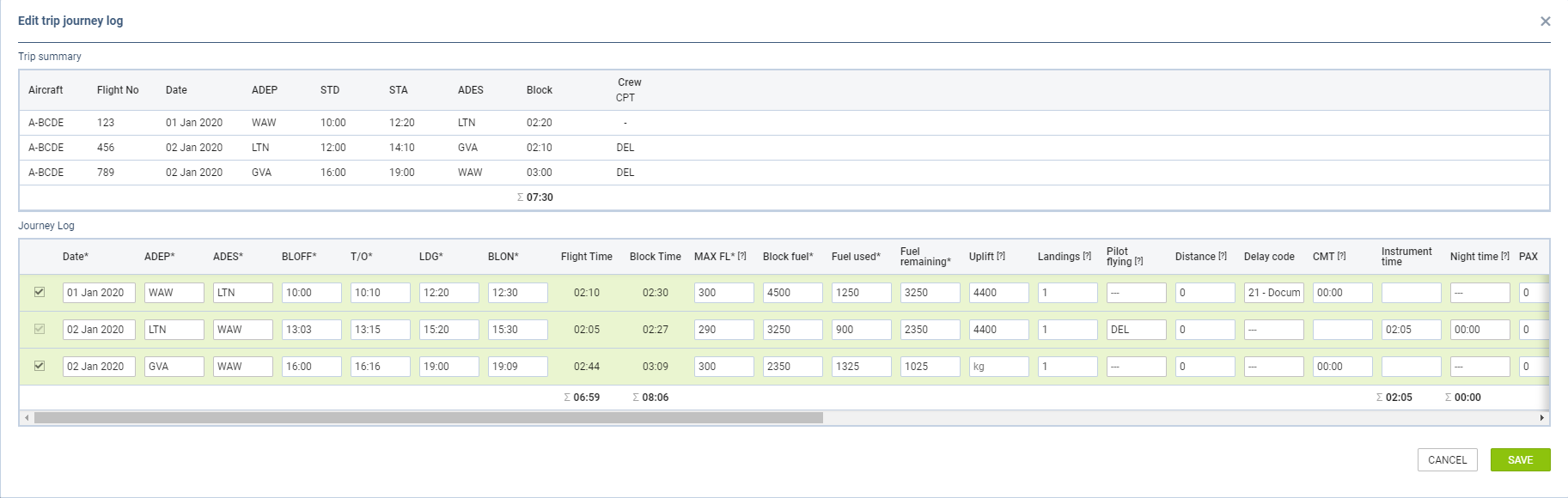
The ‘Edit trip JL’ window is split into 2 sections”
-
Trip summary - showing an aircraft reg number, flight number, date, ADEP, STD, STA, ADES, Block time and assigned crew (codes).
-
Journey Log - showing all default fields (defined in Settings > Flight Editing) to be filled in.
Leon will NOT show a button
Deleting Journey Log
To delete a journey log click X icon (between the trash icon and the status dot). Leon will show a blank JL page. Once it‘s saved, in a column FW & JL instead of a dot Leon will show ’X’. To bring a journey log page back click 