

Leon Marketplace - functionality explained
Table of Contents
Leon Marketplace allows flights to be sold and purchased within Leon.
By enabling this module, Operators allow specified aircraft to be visible for charter sales to other Leon operators and brokers.
HOW TO INTEGRATE
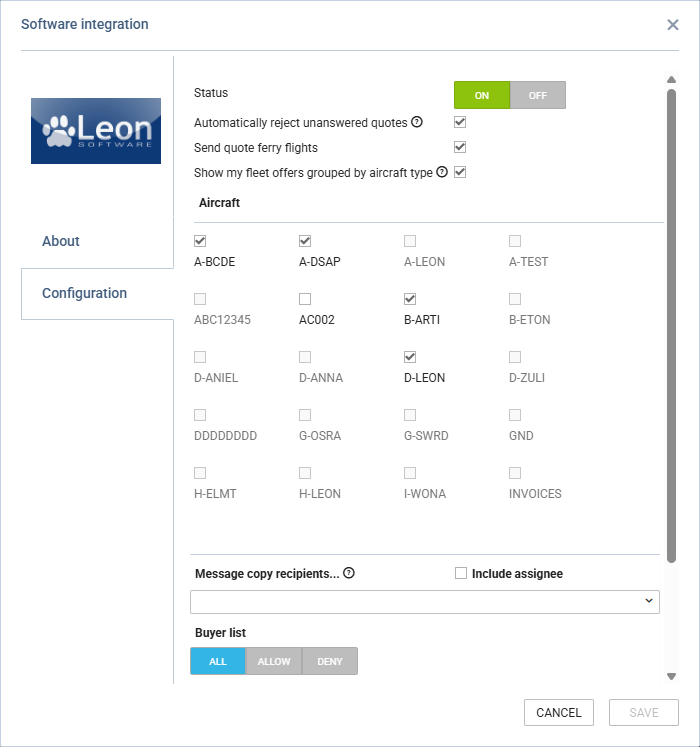
To integrate with Leon Marketplace, switch the integration to ON in the configuration Panel and select any of the additional options:
-
Automatically reject unanswered quotes - accepting requests in Leon will automatically reject unanswered quotes in Marketplace
-
Send quote ferry flights - depending on the setting, ferry legs are sent (ticked) or not sent (unticked) to Marketplace when accepting the quote from Leon
-
Show my fleet offers grouped by aircraft type - This feature is ideal when the Operator would like to promote an aircraft type rather than a specific tail number:
-
In Leon Marketplace - Clients will see the lowest available price for the aircraft type, along with the corresponding aircraft registration.
-
In the Leon Sales Panel - Once a client submits a quote request, quotes will be automatically generated for the registrations of the lowest-priced aircraft of each selected type. During the quoting process, you can manually offer a different aircraft if it is more suitable.
-
-
Aircraft - selection of aircraft included in the Marketplace
-
Dimmed registration indicates that no default Aircraft/Airport Fees were connected to the aircraft in the Fleet setup
-
-
Message copy recipients - Select internal email addresses to receive copies of all messages sent and received to and from buyers and operators from the sales module. Only mailboxes previously added to the system can be used.
-
Include assignee - possibility to include the request assignee in the message recipients list
-
-
Buyer list - configuration of the list of buyers that can see your operator aircraft. It gives a possibility to include all the buyers (ALL), certain selected buyers (ALLOW), or exclude selected buyers (DENY) from the requester list
HOW IT WORKS
Leon Marketplace is located under the ‘SALES’ > ‘Requests/Quotes’ section.
It allows flights to be sold and purchased within Leon.
To use Leon Marketplace, it has to be activated in the Add-ons section. The integration process is explained in the Add-ons section > ‘Leon Marketplace’ subsection.
By enabling this module, Operators allow specified aircraft to be visible for charter sales to other Leon operators and brokers.
REQUESTING
It is possible to search and request both flights and empty legs in Leon Marketplace within the Operators who activated the feature.
Both options are located in the bottom-left corner of the ‘Requests/Quotes’ overview:
-
-

FIND CHARTER
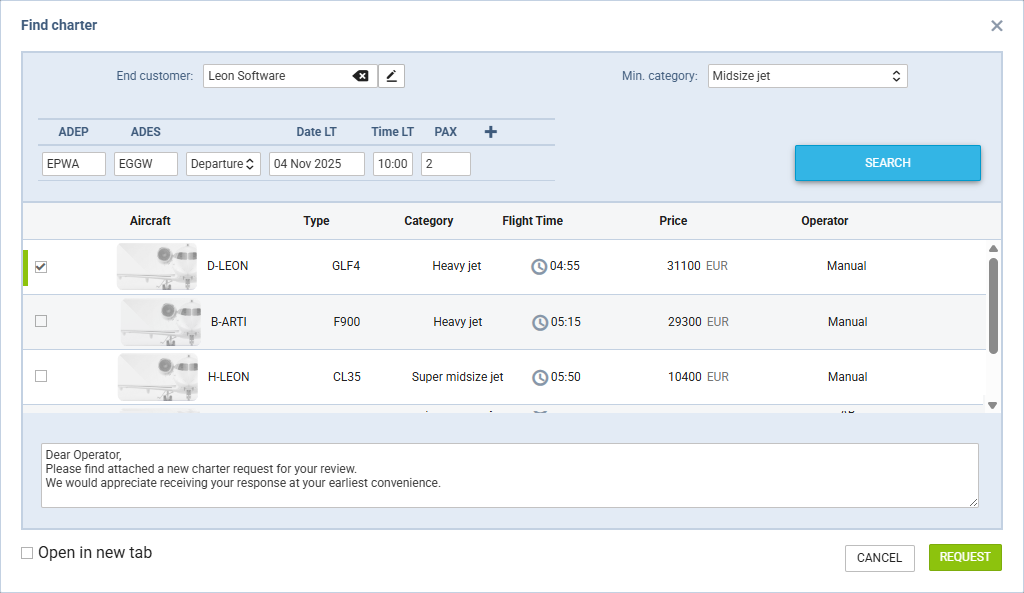
To find a charter in Leon Marketplace, click on the FIND CHARTER button and follow the steps below:
-
Fill in the initial data:
-
End customer - flight requester or end Client that requested the flight
-
Min. category - a category of the aircraft on which the flight is requested, e.g. Heavy jet, Midsize jet, Piston, etc
-
Itinerary - basic requested itinerary. Clicking on the + allows adding extra legs to the request
-
-
Press the ‘SEARCH’ button to search for flights in the Marketplace
-
Select the aircraft and Operator you would like to request from
-
Optionally, insert/modify the message to the Operator
-
Press ‘REQUEST’ to send the requests to the selected Operators
FIND EMPTY LEG
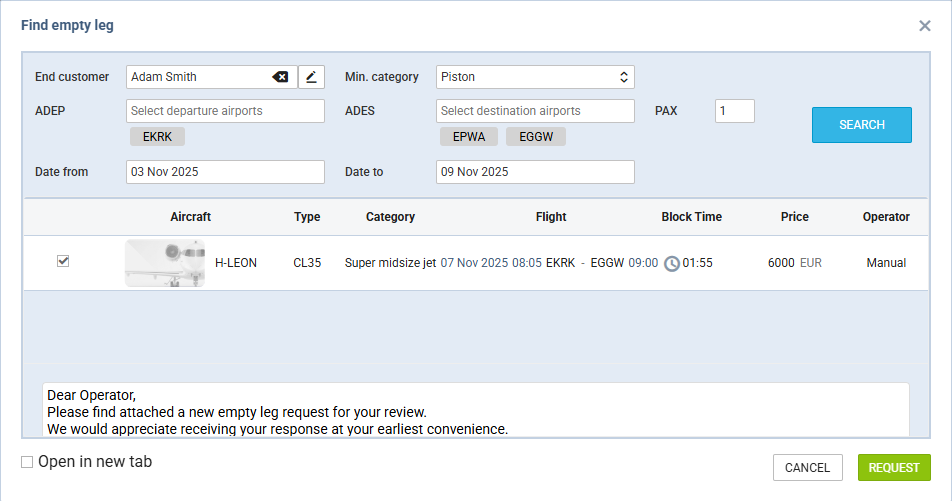
To find an empty leg in Leon Marketplace, click on the ‘FIND EMPTY LEG’ button and follow the steps below:
-
Fill in the initial data:
-
End customer - flight requester or end Client that requested the flight
-
Min. category - a category of the aircraft on which the flight is requested, e.g. Heavy jet, Midsize jet, Piston, etc
-
ADEP and ADES - it is possible to select multiple airports in each of the fields
-
PAX - number of passengers on the request
-
Date from and Date to - empty legs will be searched within this date range
-
-
Press the ‘SEARCH’ button. After pressing the ‘SEARCH’ button, the Marketplace searches for empty legs based on the following criteria:
-
only flights with the future date are included
-
the flights must be a part of the booked trip with at least one leg where the PAX no is greater than 0
-
flights that depart from one of the selected airports and arrive at one of the selected airports.
-
the aircraft that has a category equal to or higher than the one selected,
-
the empty leg departure date falls between the selected dates (UTC),
-
the aircraft with sufficient passenger capacity,
-
the Price of an empty leg is fed from the price set in the ‘SALES’ > ‘Ferry flights’ section. If the price is not set, it is calculated based on the default pricelists assigned to the aircraft
-
-
Select the aircraft and Operator you would like to request from
-
Optionally, insert/modify the message to the Operator
-
Press ‘REQUEST’ to send the requests to the selected Operators
PROCESS
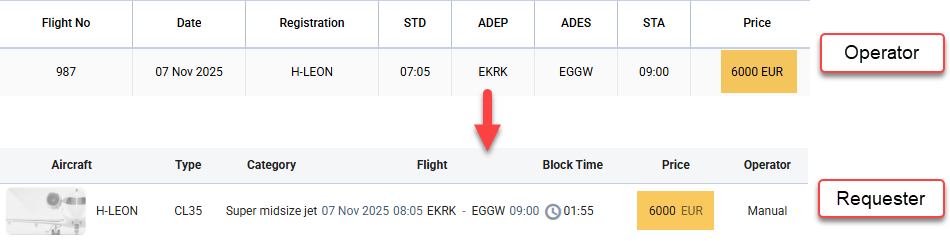
Once flights are requested, the Operator will receive a Marketplace Request for Quote (M-RFQ) in its Leon Sales Panel with the prefix M-. The requester/buyer will still see created RFQs with the L- prefix.

The whole process is similar to requesting the subcharter:
-
End Client requests a trip
-
If we, as an operator, are unable to perform the request with our own fleet, we can search for a subcharter in Leon Marketplace, either by selecting the ‘FIND CHARTER’ option, or if we‘re looking for an empty leg, the ’FIND EMPTY LEG’ option
-
The request is sent to the 3rd party Operators/Sellers in Leon
-
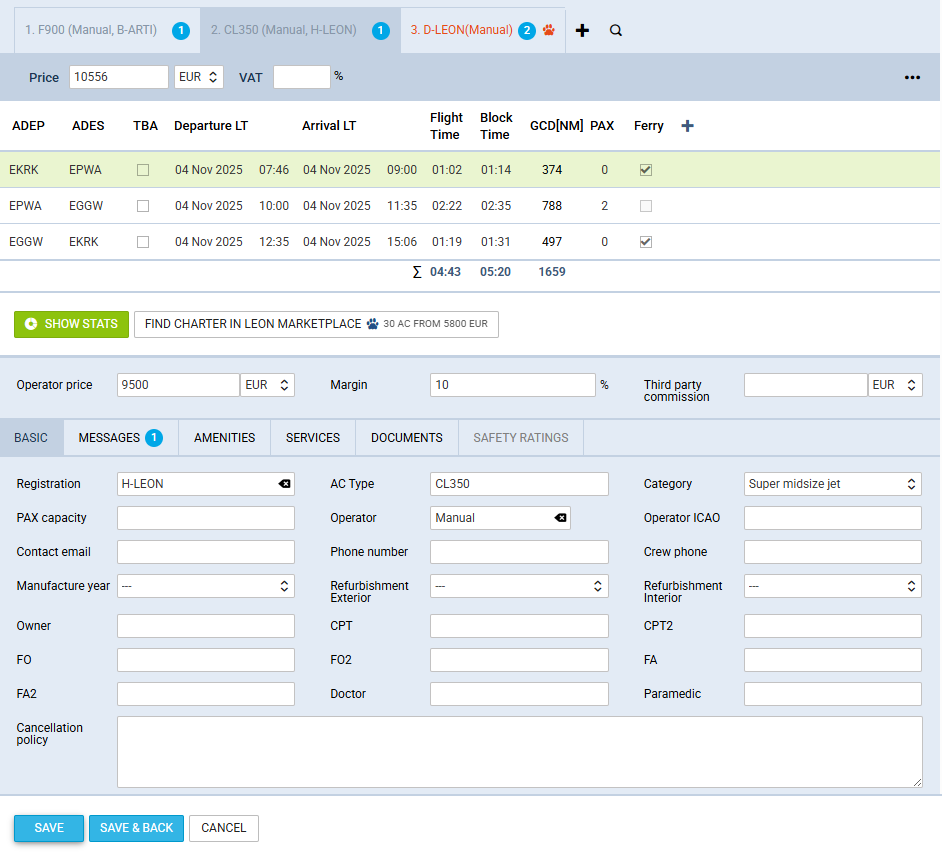
Once the Operator/Seller responds to the M-RFQ, the buyer will see the ststus indication and the details in the tabs (screenshot on the right), as well as the SUMMARY tab on the right-hand side:
-
Accepted - Operator/Seller accepted the quote and the buyer will receive the itinerary details, Operator price, as well as the Aircraft and the Operator details in the section below the Price
-
Not responded - no response from the Operator/Seller. The following information will appear: ‘This quote has not been accepted by operator yet’
-
Rejected - Operator/Seller rejected the quote. Font on the tab will highlight red, and the following information will appear: ‘This quote has been rejected by operator’
-
The layout is the same as with subcharter quotes:
-
Subcharter section - contains the Operator price, margin and third-party commission, as well as the subsection divided into 6 tabs and used to:
-
Insert missing Subcharter Operator details in the ‘BASIC’ tab. Majority of the details are fed from the Subcharter Operator aircraft setup
-
Exchange messages with the Subcharter Operator in the tab ‘MESSAGES’. This includes receiving contracts, invoices, and Flight Briefs sent by the Subcharter Operator
-
Select amenities and service providers in the respective tabs
-
-
Additional details section - contains the tabs to overview and service the trips, such as the CALENDAR, SUMMARY, MAP, CHECKLIST, OPS&CREW, NOTES, and MESSAGES
The Leon Marketplace request will contain the details of the aircraft and aircraft photos, as long as they are available in the Seller Operator fleet setup.
ADDITIONAL FEATURES
There are some additional features within the servicing process which can make the communication and data exchange between the Buyer and the Seller easier.
Sharing PAX Data
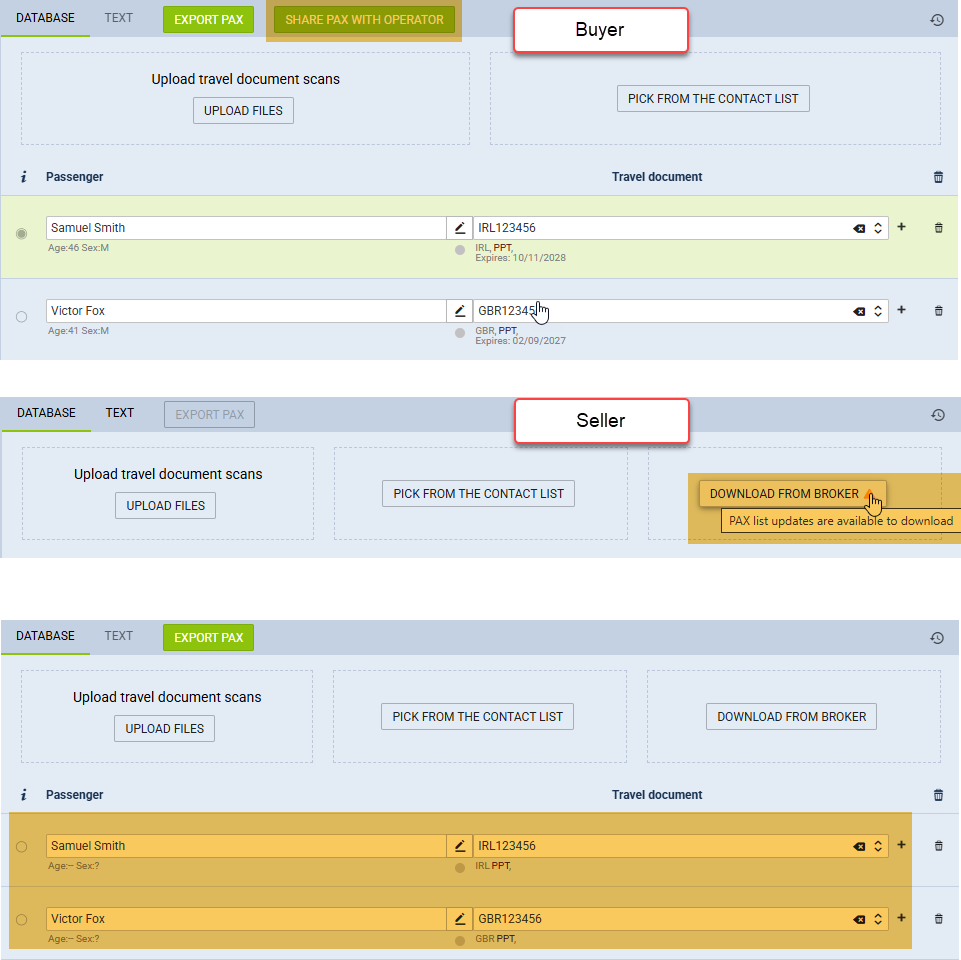
Once the passengers are assigned to the flights and the trip is booked, it is possible to share PAX details with the Operator/Seller. Rather than sending the PAX list through email or sharing files, this process can be sped up by sharing the PAX list safely within Leon.
The process to share PAX data is as follows:
-
Go to the PAX tab on the booked quote
-
On the flights with assigned passengers, click on the ‘SHARE PAX WITH OPERATOR’ button located at the top of this section. Once the PAX list is sent to the Operator, the green ‘SHARE PAX WITH OPERATOR’ button will change to the red ‘DISABLE PAX SHARING’ button
-
The Operator will be notified about the shared PAX List by:
-
an orange triangle by the ‘PAX’ tab label as an indication of PAX List download availability
-
an orange triangle by the ‘DOWNLOAD FROM BROKER’ option in the PAX tab
-
automated message which contains the information on submission of the PAX list by the Buyer, and short instructions on how to download the PAX list
-
-
Clicking on the ‘DOWNLOAD FROM BROKER’ option will open an additional pop-up window where the PAX List will be displayed. Pressing the ‘REPLACE’ button will add the passengers to the Operator’s flights.
The sharing process can be disabled by clicking on the red ‘DISABLE PAX SHARING’ button. PAX list already downloaded by the Operator will not be removed after changing the PAX sharing status.

Sharing booked trip information with the Buyer
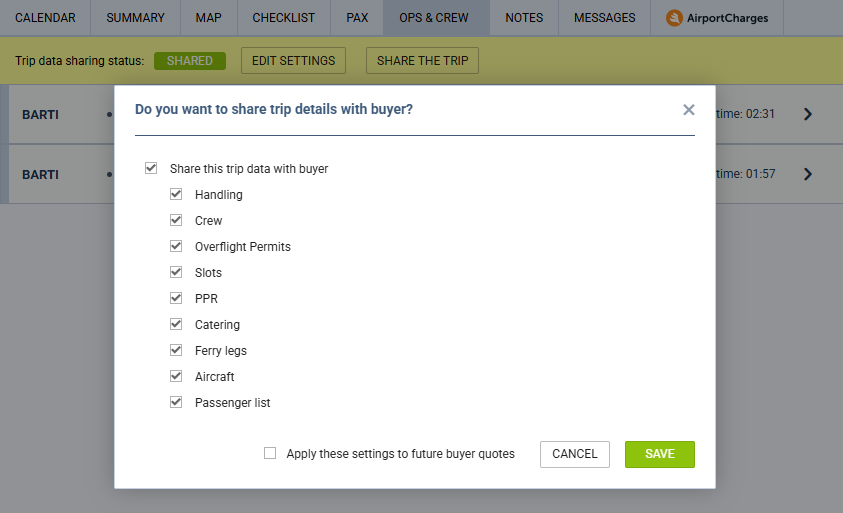
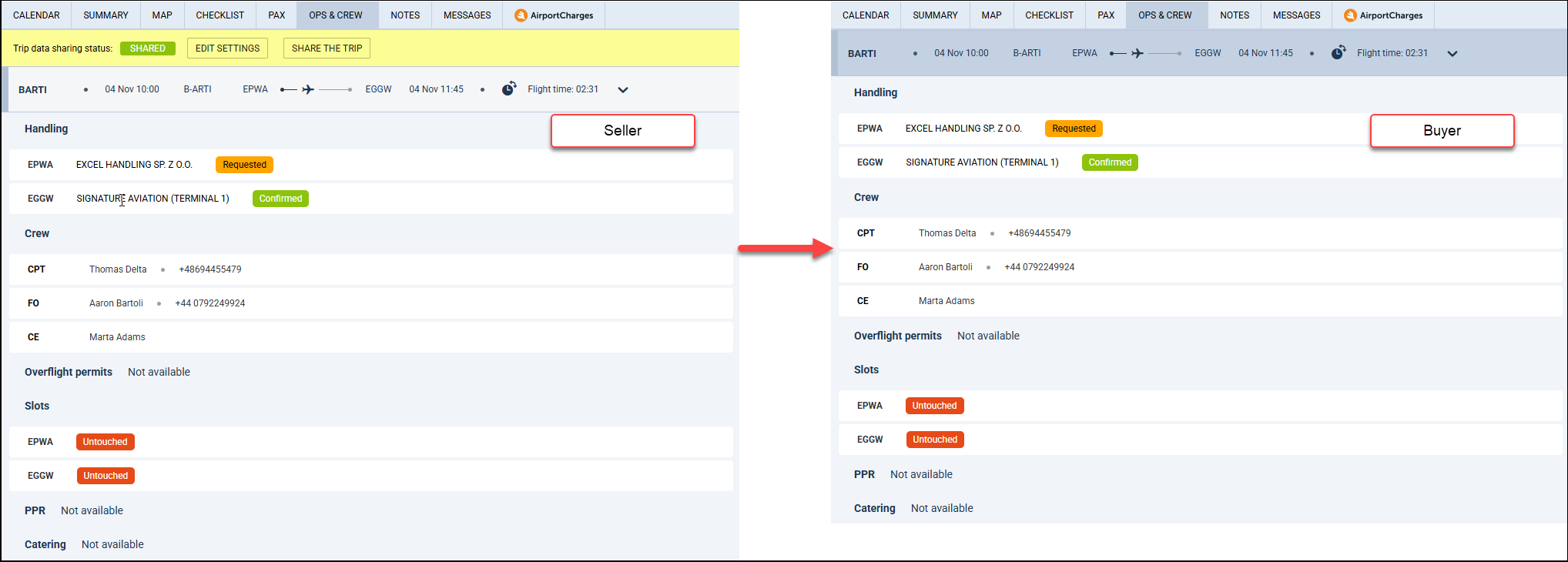
Once the trip is booked at the Subcharter Operator’s side, apart from sending a message to the Buyer, the Subcharter Operator can share some booked trip data.
This data can be selected and shared in the ‘OPS & CREW’ tab.
The scope of shared information depends on the details selected in the ‘EDIT SETTINGS’ option.
Clicking on the ‘EDIT SETTINGS’ will open a pop-up window where the Operator can select the following to be shared with the Buyer:
-
OPS Checklist statuses and information, ferry flights, and the Crew details, amongst others
-
Possibility to apply these settings to the future quotes of the same buyer
After saving the selected details, the Operator can share these by selecting the ‘SHARE TRIP’ option.
‘SHARE TRIP’ will send an email to the Buyer containing the link to the trip details. Clicking on the link will open the trip details in the Customer Portal.
Additionally, the selected crew and OPS data will be available to the Buyer in the ‘OPS & CREW’ tab within the quote, as presented in the screenshot on the right-hand side.