


The Cargo module in Leon enables automatic import of LDM (Load Message) contents and saves the extracted data directly to the relevant flight. It reads, parses, and maps key fields (e.g., total cargo weight, ULD, number of pieces, C/B/M codes, notes) into the Flight Watch.
LDM import fills operational data without manual editing, improving cargo data consistency and speeding up flight preparation.
Key benefits
-
Automatic completion of Cargo and Load Distribution fields in a flight based on the LDM standard.
-
Fewer manual transcription errors and faster OPS checklist completion.
-
Audit trail in message history and integration logs.
-
Flights are matched even when the message and your schedule use different airline designators, because Leon checks both the ICAO and the IATA form of the flight number.
Configuration
1) Mailbox - LDM intake channel
-
Configure the LDM message Mailbox in the Settings → Mailboxes .
-
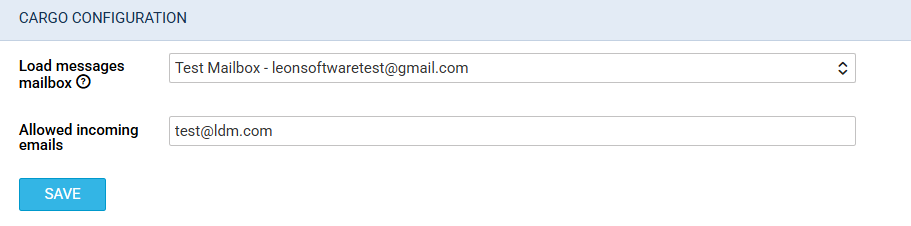
Use the LDM Mailbox in the CARGO CONFIGURATION:
2) Fleet and Cargo configuration
Ensure that in Settings → Fleet for the given registration you have defined the weight units, Cargo mass limits (BASIC tab of the aircraft configuration window), and — optionally — loading points in the ULD Bay column (opens the ULD bay configuration window), where you can configure the loading points:

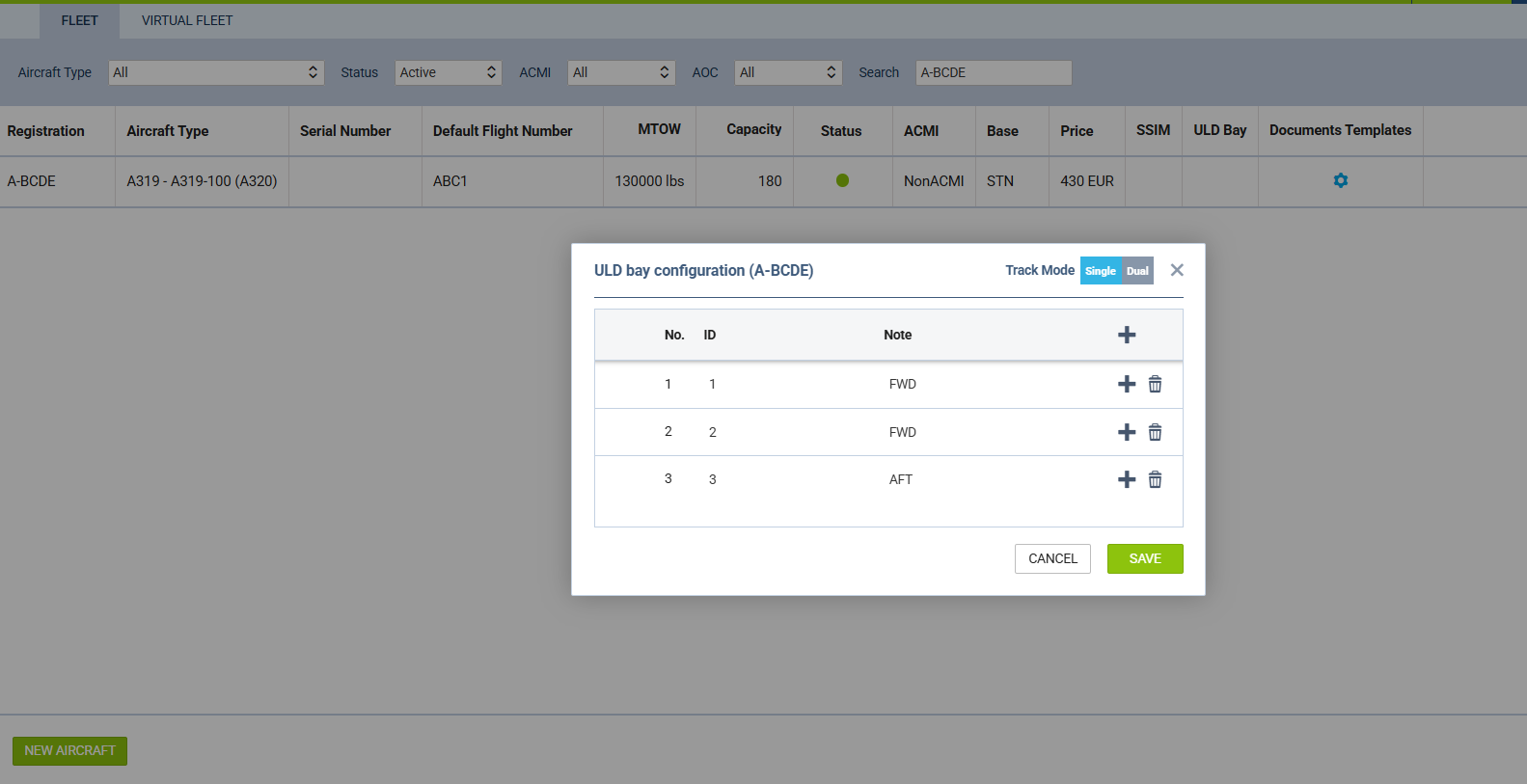
LDM message import can fill Cargo fields and, when the message contains suitable data, reflect the distribution by loading points.
Important: If you want to record load distribution in the OPS Checklist, go to Checklist Configuration, enable the “Load distribution” item, and set it to “Auto add to leg”.
How it works — LDM processing
Leon scans the mailbox every 10 minutes, parses Load messages, and saves cargo, mail, baggage, and passenger data directly in Flight Watch for matching flights.
-
Leon receives an LDM message from the configured Mailbox.
-
Leon identifies the flight based on flight number, registration, date, and airports (ADEP/ADES). When it compares flight numbers, Leon accepts both the ICAO and the IATA form of the airline designator, see Flight number matching below.
-
Cargo mass, ULD (identifier and weight), C/B/M codes, and notes are extracted from the LDM structure.
-
Cargo summary (total cargo mass in the fleet unit) is displayed in Flight Watch.
-
When the LDM includes a breakdown and loading points are configured in Fleet → ULD Bay, ULD-level items are populated in Load Distribution.
-
In OPS → Flight details and in the “Load distribution” checklist item (EDIT button) you can review the imported fields.
Flight number matching
Handling agents do not always use the same airline designator that you use in your schedule. The same flight may arrive as an ICAO number in one message and as an IATA number in another, while in Leon it is planned under only one of them.
Leon therefore looks for the flight using each of the following forms of the number from the message:
-
the ICAO airline designator together with the flight number,
-
the IATA airline designator together with the flight number,
-
the flight number on its own, without any designator.
In practice, a Load message addressed to a flight as AB123 is also matched to that flight when it is planned in Leon as ABC123, and the other way round. You do not have to rename your flights or ask the sender to change the format of the message.
For the two forms to be treated as the same operator, Leon needs to know that the designators belong together. If Load messages for a particular designator are still not matched to your flights, contact Leon Support so that the pair can be checked.
Load distribution from LDM (non-standard usage)
Normally, load distribution across an aircraft's loading points/compartments is sent via a CPM message. Some operators, however, send this breakdown through the LDM message instead — providing the mass per loading point rather than a ULD identifier. Leon now reads this distribution from the LDM and saves it to the flight's ULD model, matched against the loading points (ULD Bays) configured for the aircraft.
Leon matches each entry from the message to a loading point using two methods, in order of priority:
-
By track and point ID — the letter in the message (e.g. P, L, R) is treated as the track identifier and the remaining part as the loading point ID. For example, both
P10and10Pare matched to the point on track P with ID 10. -
By point ID only — if no match is found by the first method, Leon takes the whole identifier from the message and looks for a loading point with that ID on the aircraft, ignoring the track.
Validations
-
No flight match: the message goes to the error queue; verify the flight number, airports and dates, or link the message manually. Before reporting a mismatch, remember that Leon already tries the ICAO form, the IATA form and the bare flight number, so a difference between designators alone is no longer a reason for a flight not to be found.
-
Inconsistent units: Leon uses the weight unit defined in Fleet. When they differ, the parser performs conversion.
-
Duplicate LDMs: a subsequent message may overwrite/supplement items according to the channel rules (recommended: "last write wins" or merge by ULD ID).
-
Limit exceedance: if the total load violates limits (e.g., max Cargo, MZFW), OPS will display warnings according to fleet policy.
-
Incomplete ULD data: items without mass/ID may be flagged for manual correction in Load Distribution.
-
Load distribution present in LDM but no ULD Bays configured: the distribution part is skipped; only the Flight Watch data is saved.
-
Configured ULD Bays don't match the message: unrecognized points are not saved, but the rest of the import (Flight Watch data and any recognized points) still completes.