

QUALIFICATIONS
Table of Contents
Access to the ‘Qualifications’ section is subject to the status of the ‘Crew Qualifications’ privilege in Admin Panel > ‘Privileges’
QUALIFICATIONS section allows quick overview of Crew Endorsements, Airport Recency, Online Familiarization & Currency requirements.
The panel is split into 4 sections:
-
Certificates
-
Airport recency & familiarization
-
Currency
-
Travel Documents
OPERATOR BASES
If more than one operator base is defined, the base selector in the top-right corner of the screen, next to Log out, applies to this section as well. Select all bases to see all crew, or a specific base to narrow the list down to the crew assigned to that base. It works on all tabs: CERTIFICATES, AIRPORT QUALIFICATIONS, CURRENCY and TRAVEL DOCUMENTS.
CERTIFICATES
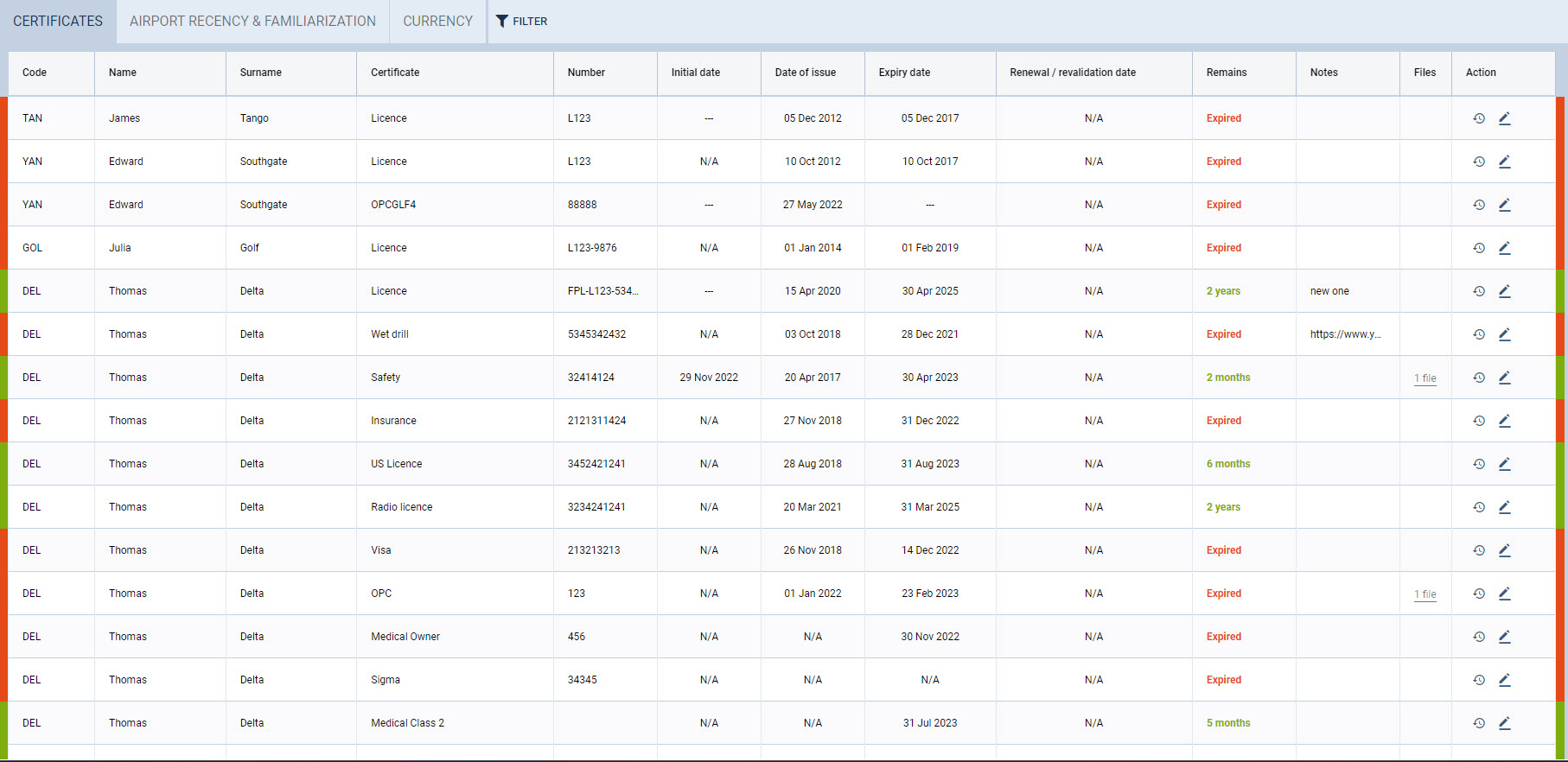
In this section, Leon shows crew Endorsements: Licences, Visas, Insurance, Medicals, etc…
On both sides of the page, Leon shows colour indications:


The page shows a sequence of columns with crew details such as crew code, crew name & surname, endorsement type, date of issue, expiry date, remains (number of days left to expire), notes, files and action.
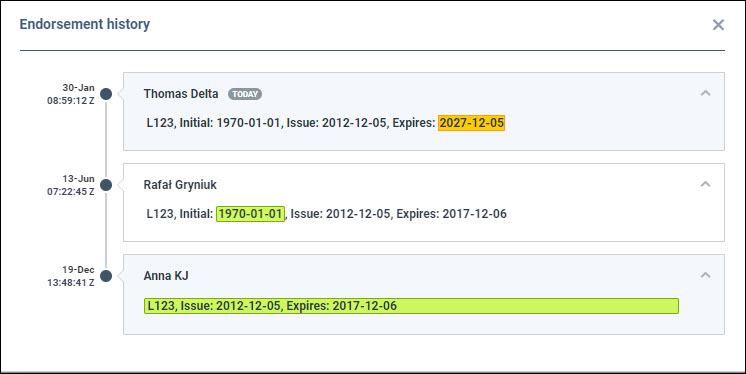
A column Action allows checking the history of changes made to the endorsement.
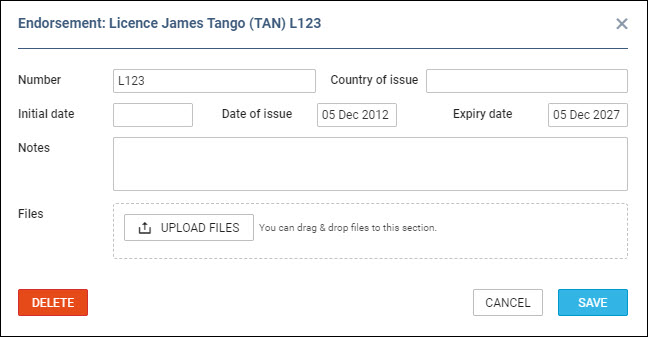
It also allows editing the endorsement to add/delete/change its details such as number, country of issue, initial date, date of issue, expiry date, adding notes, and uploading a file.
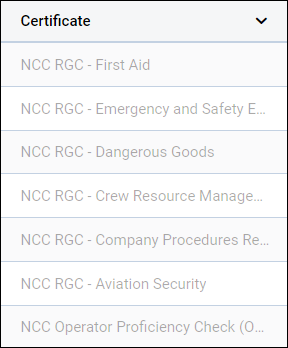
If you come across a situation where crew certificates are greyed out, the reason for this can be that the certificate is set up for a certain aircraft type, for which a crew member does not have ratings. Or, that aircraft is assigned to AOC for which certificates are not.
CERTIFICATES FILTER

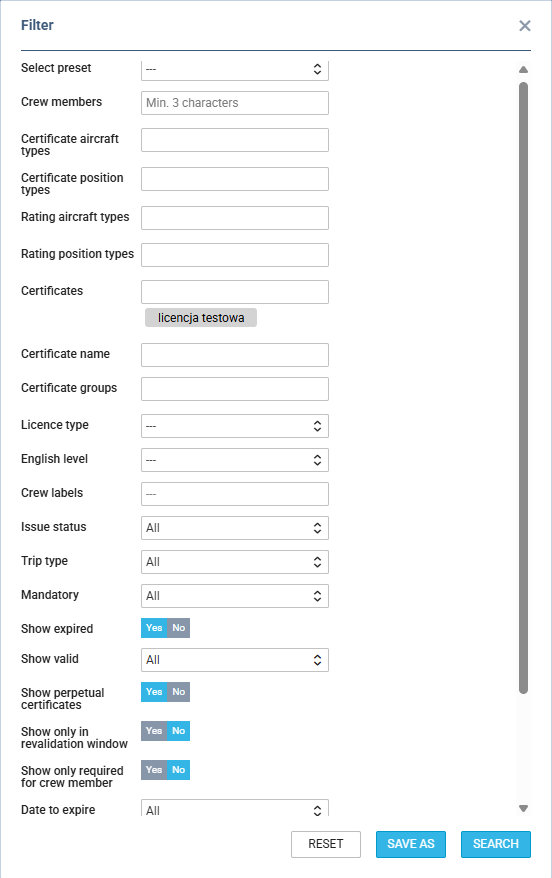
The FILTER option available on the menu bar allows quick filtering of the page by details such as:
-
Crew members - type 3 letters of crew name, surname or code and select him/her from the list. It‘s possible to select multiple crew members.
-
Certificate aircraft types - filtering by aircraft type to which a certificate applies by definition.
-
Certificate position types - filtering by position type to which the certificate applies by definition: Cockpit, Cabin, Ground, Maintenance, Not Active.
-
Rating aircraft type - filtering by aircraft type based on crew ratings.
-
Rating position - filtering by aircraft position based on crew ratings: Cockpit, Cabin, Ground, Maintenance, Not Active.
-
Certificates - the list of all pre-defined endorsements in a section Admin > .
-
Certificate name - option to search by inserting the certificate name.
-
Certification groups - the list of endorsement groups (also pre-defined in the above section).
-
Licence type - select between types: ATPL, CPL, PPL, FAA AATPL, FAA CPL, and FAA PPL.
-
English level - choose between levels 4, 5, or 6.
-
Crew labels - the list of all crew labels pre-defined in the crew profile.
-
Show not issues - when YES is selected, Leon will also show endorsements with no issue and an expiry date inserted.
-
Show expired - when NO is selected, Leon will hide all expired endorsements.
-
Show valid - when No is selected, all Not issued and Expired certificates will be visible. In case of Yes, valid certificates will be shown.
-
Show perpetual certificates - when set to YES, the endorsements with the date of expiry set to ’Never’ will display (N/A in the ‘Expiry date’ column).
-
Show only in revalidation window - filter with YES/NO options
-
Date to expire - an option to select a different time range to expire: next month, next 2 months, next 3 months, next 6 months, next year.
-
Crew Status - filtering by the status of the crew:
-
All - filtering regardless of the status
-
Active - filtering by active users only
-
Inactive - filtering by inactive users only
-
-
Revalidation - filtering option based on the planned revalidation date of the endorsement. This date is based on the ‘Renewal’ date within the Simulator planning:
-
All - filtering regardless of the revalidation window date
-
Planned - filtering by the certificates that have the revalidation date planned
-
Not Planned - filtering by the certificates without the revalidation date
-
-
AOC - filtering by AOC to which, by definition, the Certificate is assigned
CERTIFICATE REVALIDATION AND EXPIRY POLICY
Revalidating a certificate is possible through the dedicated revalidation function.
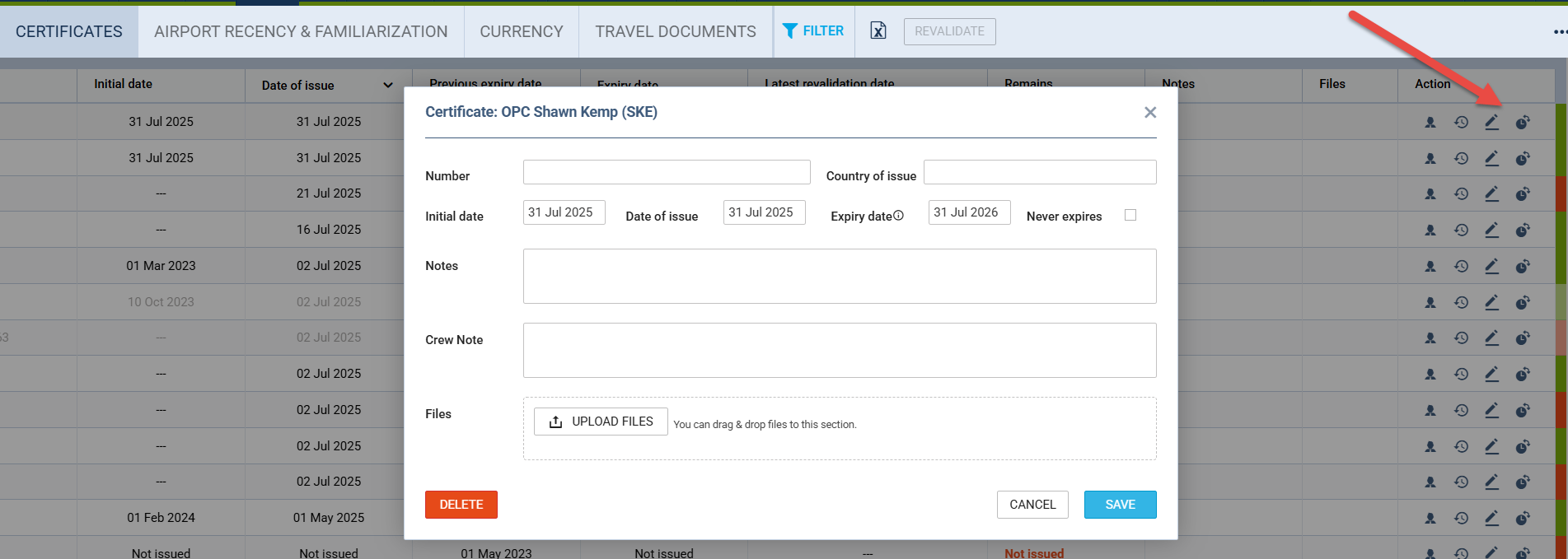
The “Revalidation” icon in the Action column is used to revalidate a certificate that has not yet been issued; in such a case, the initial expiry date will be set according to the certificate revalidation policy.
3-DOT FILTER
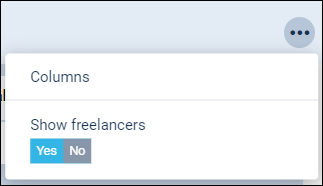
The 3-dot filter is located in the top-right corner of the ‘CERTIFICATES’ view and contains the following options:
-
Columns - option to select the columns that a user would like to preview in the main list
-
Show Freelancers - option to include/exclude the Freelancers from the list
The filtering options apply per individual user.
How to revalidate certificates in the UI
Revalidating crew certificates can be done directly from the Qualifications > Certificates view based on the certificate revalidation policy and the configuration of the endorsement.
Revalidating multiple certificates (bulk revalidation)
-
Go to Qualifications > Certificates.
-
Use the FILTER options if needed (e.g. crew member, certificate, aircraft type, AOC) to narrow down the list.
-
Select the crew members whose certificates you want to revalidate.
-
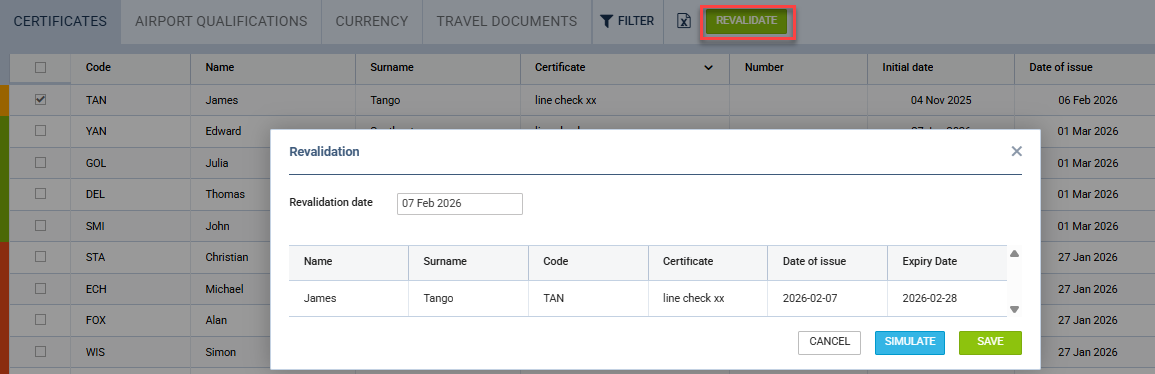
Click the green REVALIDATE button at the top of the list.
-
In the revalidation pop-up window:
-
Enter or adjust the revalidation / expiry date according to your operational needs and the applicable certificate policy.
-
Optionally, click SIMULATE to preview the impact of the selected date before saving (the preview table will show the certificate code, crew member name and surname, certificate name, date of issue and expiry date for all selected items).
-
-
If the preview is correct, confirm and save the revalidation so that new dates are applied to all selected crew certificates.
This workflow is recommended when the same revalidation date should be applied to multiple crew members and/or certificates at once.
Revalidating a single certificate that has not yet been issued
-
In Qualifications > Certificates, locate the relevant crew member and certificate.
-
In the Actions column, click the Revalidation icon.
-
In the pop-up window, enter the required date(s). For certificates that have not yet been issued, the initial expiry date will be set automatically according to the certificate’s revalidation policy.
-
Confirm and save the changes.
Using the Revalidation icon in the Actions column is useful when you need to handle individual cases or certificates that have not yet been issued, while still complying with the configured revalidation rules.
Revalidation Preview Before Save
It is possible to preview the new revalidation date before saving. After selecting the crew members and clicking the green REVALIDATE button, a pop-up window opens. The user can either save the revalidation date or click SIMULATE. When entering or modifying the date in the revalidation window, a preview table is displayed showing the expected results for the selected crew members and certificates. The table includes the certificate code, crew member name and surname, certificate name, date of issue, and expiry date, allowing users to review the impact of the revalidation before saving the changes.
Action buttons in the ‘Actions’ column
The following action buttons are available:
-

- allows editing user profile
-

- allows accessing the history of changes
-

- allows editing certificate details
-

- allows for quick certificate revalidation depending on the selected date in the revalidation pop-up window and the certificate configuration
AIRPORT QUALIFICATIONS
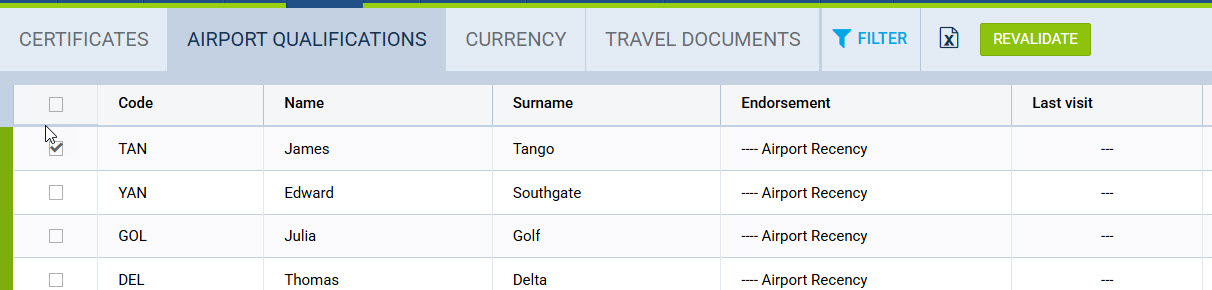
The page shows crew Airport Brief, Airport Recency, and Online Familiarizations assigned in Leon (for more information on how to assign them to crew, please check THIS LINK).
The sequence of columns is almost the same as with ‘CERTIFICATES’. The only difference is the column Last visit showing the date of the last crew visit at the airport, which requires either ‘Airport Brief’, ‘Airport Recency’ or ‘Online Familiarization’.
AIRPORT QUALIFICATIONS REVALIDATION
Records of the type Airport Recency can be revalidated in the same way as certificates. Tick the checkbox next to the records you want to revalidate, or the checkbox in the header to select all, and the REVALIDATE button in the top bar becomes active. Records of the type Airport Brief and Online Familiarization cannot be selected, as there are no revalidation rules for them.
The Revalidation window contains the Revalidation date, the Upload files option with the Overwrite files switch, and a table of the selected records showing the crew name, surname, code, airport, current expiry date, and the new date of issue and expiry date. The new expiry date is based on the Airport Recency validity settings defined in the Airport Directory. Click SAVE CHANGES to apply. Revalidating a single record from the Action column is not available in this view.
AIRPORT QUALIFICATIONS FILTER
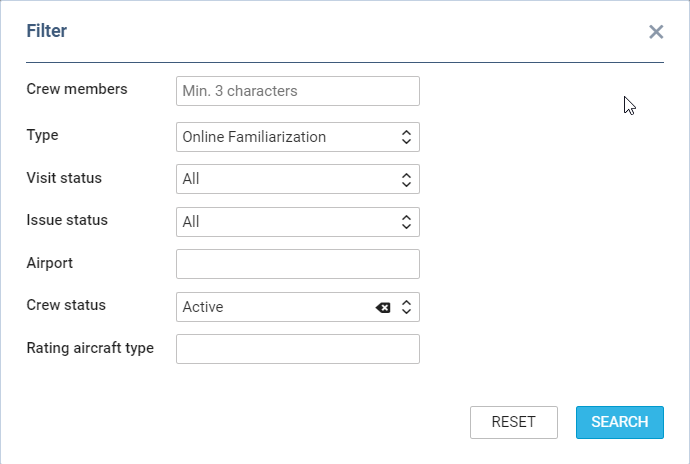
The FILTER option available on the menu bar allows quick filtering of the page by details such as:
-
Crew members - type 3 letters of crew name, surname, or code and select him/her from the list. It‘s possible to select multiple crew members.
-
Type - dropdown option allowing to select either Airport Brief, Airport Recency only, Online Familiarization only, or All.
-
Visit status - three options to select from:.
-
Visited - any airport that requires either Airport Recency or Online Familiarization.
-
Ever Visited - any airport that requires either Airport Recency or Online Familiarization that was ever visited by a crew member or the crew member is scheduled to visit.
-
To be visited - all the airports that require either Airport Recency or Online Familiarization to which the flights are scheduled.
-
Issue status - option to filter by the issue status: ’All’, ‘Issued’, and ‘Not issued’.
-
Airport - filtering by airport. Only one airport can be selected
-
Crew Status - filtering by the status of the crew:
-
All - filtering regardless of the status
-
Active - filtering by active users only
-
Inactive - filtering by inactive users only
-
-
Rating aircraft type - filtering option by the crew with the rating assigned to the specific aircraft type
3-DOT FILTER
The 3-dot filter is located in the top-right corner of the ‘AIRPORT QUALIFICATIONS’ view and contains the following options:
-
Columns - option to select the columns that a user would like to preview in the main list
-
Show Freelancers - option to include/exclude the Freelancers from the list
The filtering options apply per individual user.
CURRENCY
Leon shows here the state of the Crew Currency.
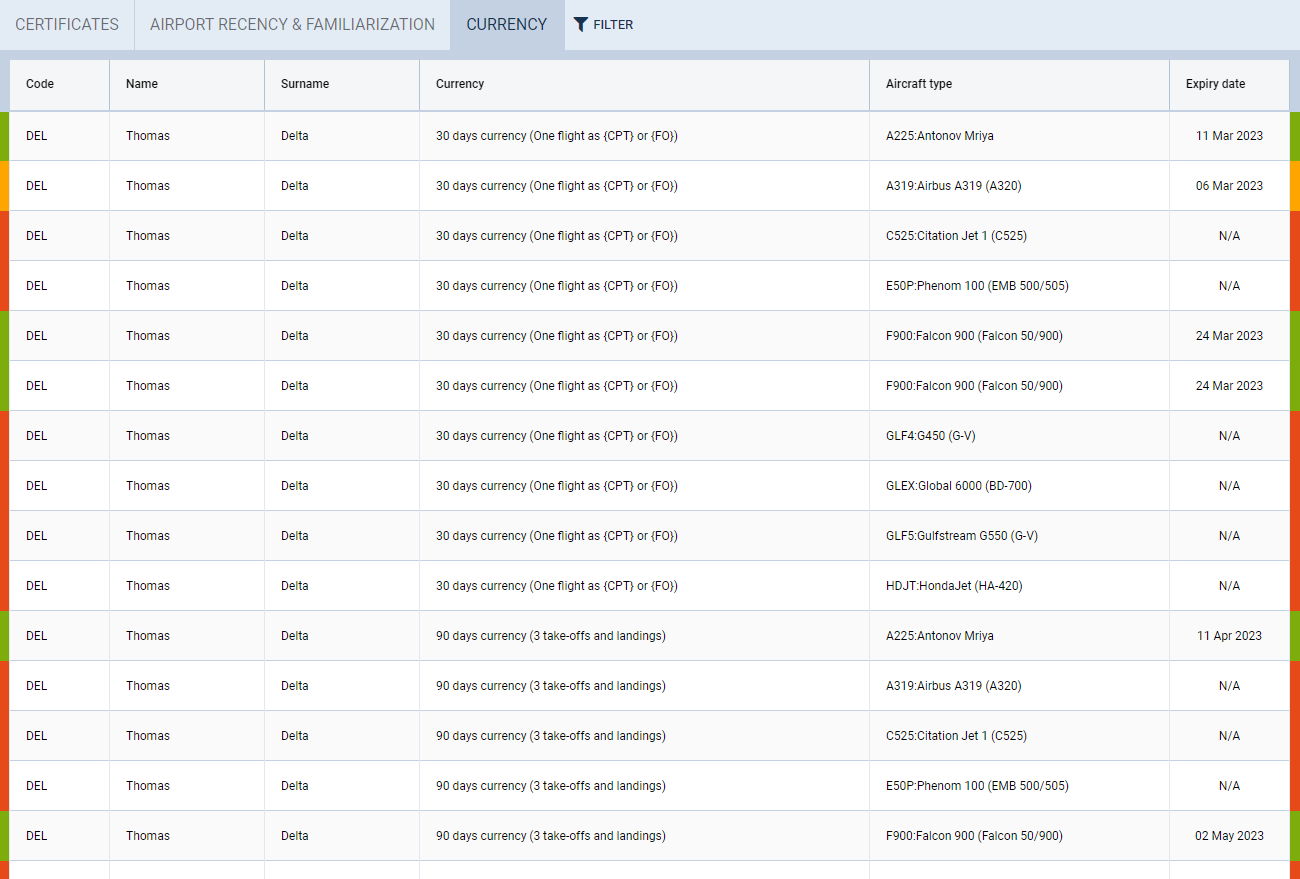
The page shows all crew members and columns show information such as:
-
Crew CODE.
-
Crew name & surname.
-
Currency type.
-
Aircraft type.
-
Expiry date.
Bars on both sides show color indication: red - currency expired; yellow - currency will expire in less than a month; green - currency valid for over a month.
CURRENCY FILTER
The FILTER allows filtering the page by:
-
Crew members - type crew name or surname to select. Multiple crew selection is possible.
-
Crew label - type the crew label to select. The labels are being defined in the crew profile window.
-
Currency - click on the field and Leon will show all currency types pre-defined in a section Admin > Crew Currency.
-
Aircraft types - filtering by the aircraft type on which crew have the ratings assigned
-
Crew Status - filtering by the status of the crew:
-
All - filtering regardless of the status
-
Active - filtering by active users only
-
Inactive - filtering by inactive users only
-
3-DOT FILTER
The 3-dot filter is located in the top-right corner of the ‘CURRENCY’ view and contains the following options:
-
Columns - option to select the columns that a user would like to preview in the main list
-
Show Freelancers - option to include/exclude the Freelancers from the list
The filtering options apply per individual user.
TRAVEL DOCUMENTS
In this section it is possible to view all crew travel documents, such as: Passport, Visa, ID Card, Driving Licence, Alien Card, Residence Card, Facilitation Documents, Military Card & Nexus Card.
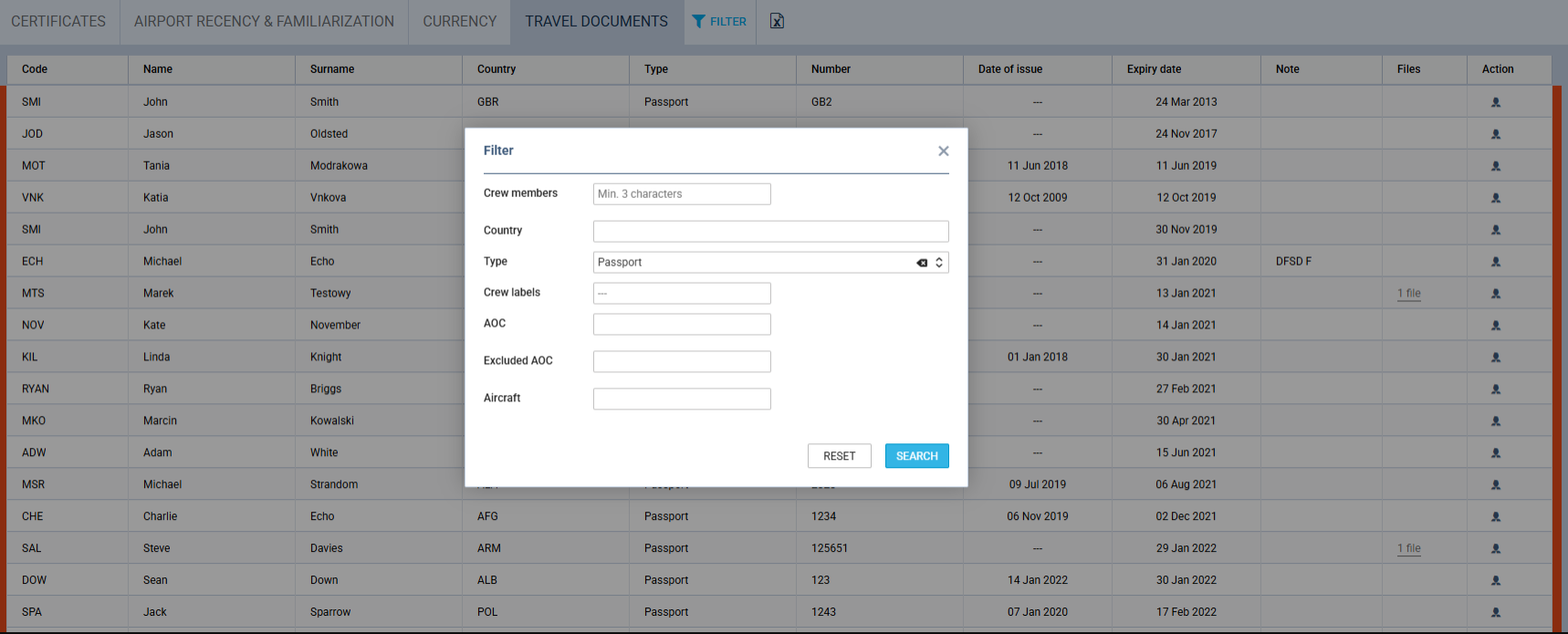
The validity of Travel Documents can depend on the Visa’s expiry date, as long as the Visa is connected to the crew passport.
Is it possible to edit the crew profile and add/change crew certificates (in the Full Profile) by clicking the icon in the column Action.

There are following filtering options are available in the Filter:
-
Crew member - filtering by specific Crew member
-
Country - filtering by the document issuing country
-
Type - filtering by the type of the document
-
Crew labels - filtering by Crew labels
-
AOC - filtering by crew’s Allowed AOC
-
Excluded AOC - excluding crew with specific Allowed AOC
-
Aircraft - filtering by the crew assigned as the preferred crew to an aircraft