

CREW CALENDAR
Overview
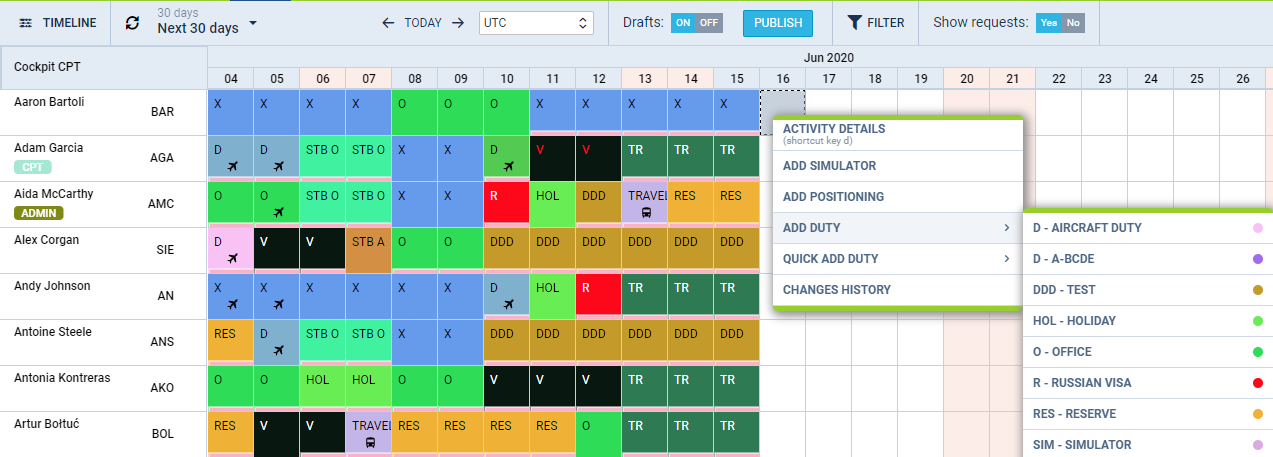
In this calendar-like section of CREW, you can schedule crew duties for a selected period, for the most part, exactly like in the old Crew Duties page; however, the interface has been changed to correspond more with the Crew Timeline page. Right-clicking on a given day opens up a pop-up window with a menu allowing to select an action to do. It is possible to see Activity Details - information on duties performed on a particular day, you can add Simulator, Positioning or Duty. You can also see the Change History or Delete duty. Unlike in the old Crew Duties panel, here you can add a duty crossing midnight.
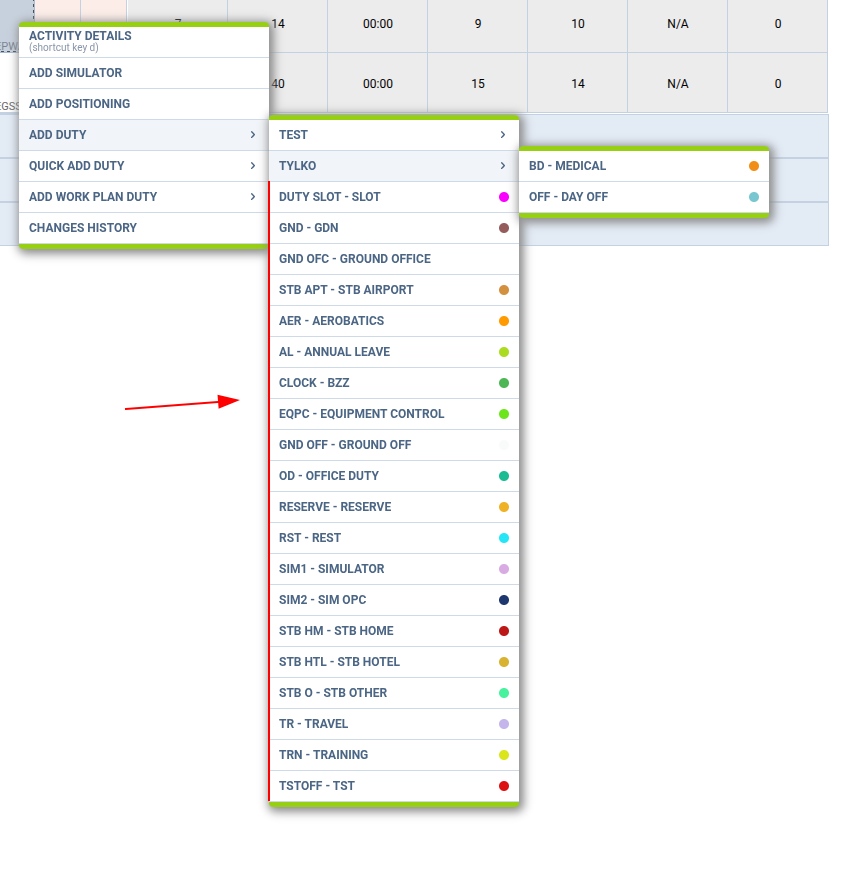
If duty categories are defined in Duties Setup, the list of duties is grouped by category — select a category to expand the duties assigned to it.
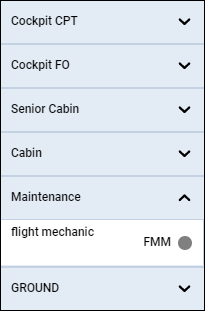
Groups of crew (Cockpit CPT, Cockpit FO, Cabin, Maintenance, etc…) are rolled up by default - click the group and it will expand. Leon remembers which groups have been rolled down or rolled up.
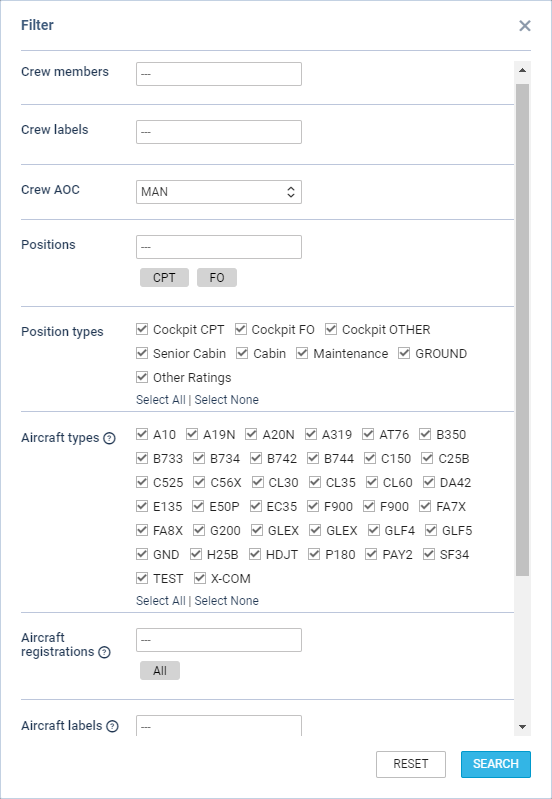
The FILTER is located in the top bar section of the interface, similar to the Crew Timeline view.
It allows filtering the crew by:
-
Crew members - filtering by Crew Names
-
Crew labels - filtering by labels assigned to Crew
-
Excluded crew members - option to exclude crew members from the view
-
Excluded crew labels - option to exclude crew labels from the view
-
Crew AOC - AOC assigned to the Crew in the Ratings tab of the full user profile
-
Positions - filtering by the positions on aircraft. It is possible to select multiple positions in which case, the filtering is based on or method
-
Position types - filtering by position types on the aircraft
-
Aircraft types - filtering by crew ratings
-
Aircraft registration - filtering by crew assigned to specific aircraft registration in ‘Settings’ > ‘Fleet’ > tab ‘CREW’ in aircraft details
-
Aircraft labels - filtering by crew assigned to the aircraft with a specific label
-
Aircraft AOC - filtering by the AOC assigned to the aircraft in the ‘FTL Settings’ section
-
Crew homebase - filtering by the homebase to which the crew are assigned
-
Aircraft homebase Leon - filtering by Leon aircraft homebase. The crew assigned to the specific aircraft will display
-
Aircraft homebase ICAO - filtering by ICAO homebase assigned to the aircraft
You can select more than one crew member or label.
Aircraft registration and Aircraft labels filters
Both abovementioned options are most useful when the grouping in the 3-dot filter is set to ’Aircraft.
Both filtering options are located under the 
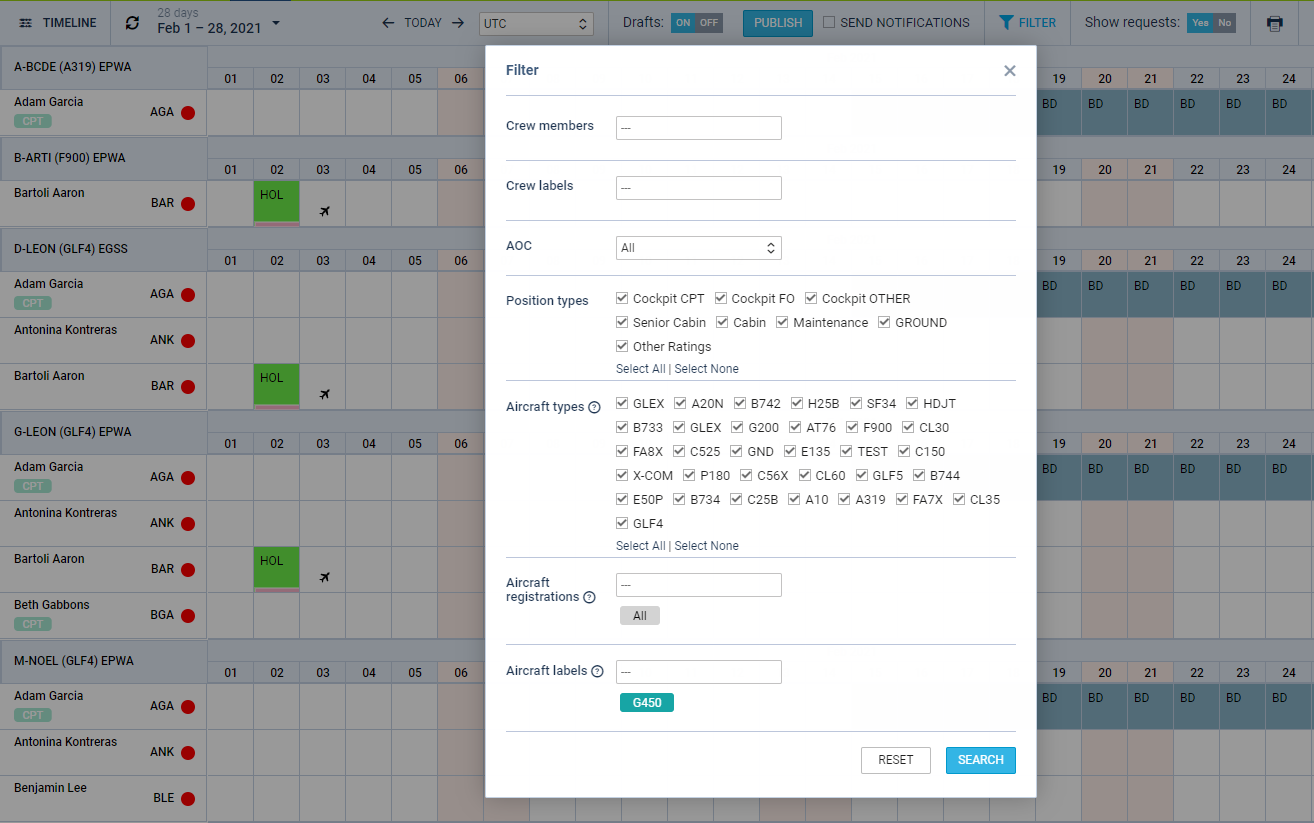
For these options to work, go to ‘Settings’ > ‘Fleet’ section, edit the aircraft profile and assign labels in the ’ Basic ’ tab.
In the tab ‘Crew’, assign specific crew members who have ratings for this particular type.
Once it’s done, you can start using the abovementioned filters.
Aircraft Registration allows filtering by crew assigned to specific aircraft registration in ‘Settings’ > ‘Fleet’ > tab ‘CREW’ in aircraft details.
Aircraft labels allow filtering by crew assigned to the aircraft with a specific label. Since this filtering option applies to the crew, it means that if the crew member is assigned to another aircraft with a different label, this other aircraft will also appear in the Crew Calendar. In the screenshot, Crew are filtered by G450 label assigned to GLF4 fleet, but since some crew are also assigned to F900 and A319, these aircraft will also display.
This is especially useful for operators with a larger fleet, as the same label can be assigned to more than one aircraft tail; hence, it is not necessary to select all aircraft registrations in the filter.
From the same top bar, it is possible to switch between the Crew Calendar and Crew Timeline view, select the time frame, timezone (old Crew Duties were only available in UTC), switch on or off the draft mode, as well as crew requests. Crew Requests, just like in the old Crew Duties and Crew Timeline page, appear with the red duty letter code. When you right-click on the duty, you can either accept or decline the request.
The duty acknowledgement status is indicated by the colour of the lower bar:
-

- acknowledgement not sent to crew
-

- acknowledgement sent but not familiarized with
-

- acknowledgement familiarized with by the crew
More information about the duty familiarization can be found here.
If the Drafts toggle is switched to ON the unpublished draft is indicated by a pink line at the bottom of the duty squares.
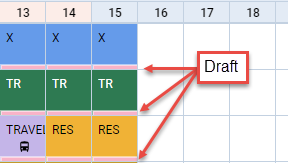
Once the roster draft is ready, you can publish it by clicking the 
To enable the PUBLISH button, in the panel ‘General Settings’, switch ‘Crew Timeline’ from ‘Auto publish’ to ‘Manual publish’. Leon will show this button within 24h, as FTLs need to be recalculated.
If you want to get rid of draft changes for multiple crew members, click the 
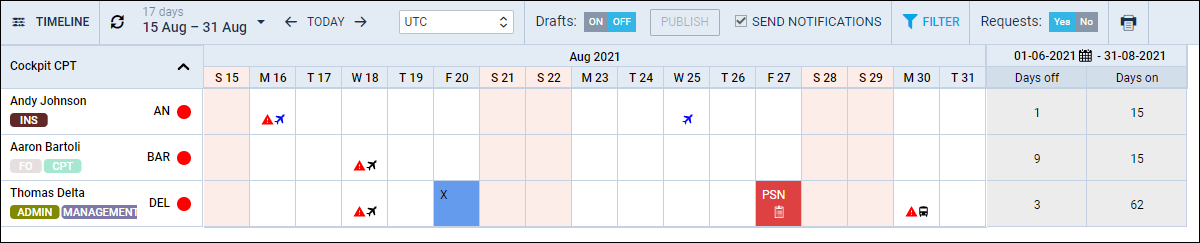
Columns DAYS ON /DAYS OFF in the selected time zone (UTC/BT/LT)
The values shown in the Days Off and Days On columns — and in their tooltips — are now calculated according to the time zone selected on the Crew Calendar view (UTC, BT – Base Time, or LT – Local Time), rather than in UTC only. Operators planning in base or local time now see the correct day counts directly on the calendar, without converting from UTC. When BT or LT is selected, a duty falling around midnight is attributed to the correct calendar day for that zone.
💡 The time zone is the one chosen in the view (next to the date selector). Switching between UTC / BT / LT updates both the column totals and the tooltip values accordingly.
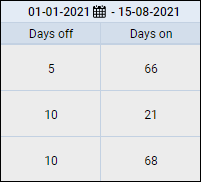
By default, Leon shows these values from the 1st of January of the current year. The end date is always the one selected in the main calendar (next to the refresh icon).
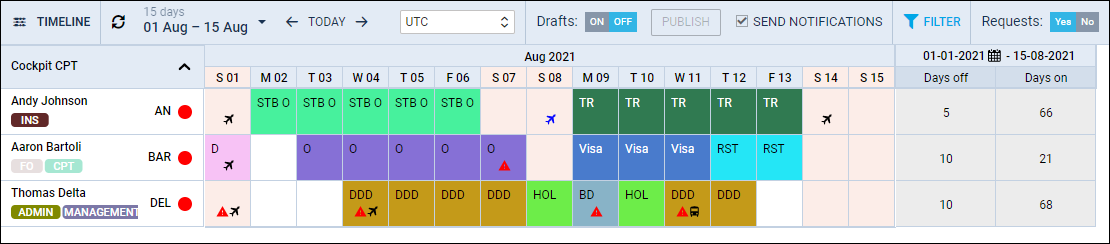
To change the start date, click the 
The screenshot below shows a new start date changed from 01 JAN 2021 to 01 JUN 2021; hence, values differ in comparison to the previous start date.
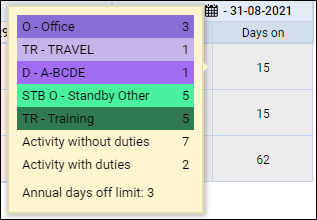
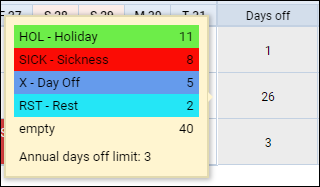
Hover the mouse over either ‘Days Off’ or ‘Days On’ value to check details:
Column Total Block Hours summary
A new Summary columns section is now available in the Crew Calendar. It can be accessed via the three-dot (⋮) menu > Settings.
It allows displaying an additional summary column on the right side of the calendar for the selected date range. The following modes are available:
-
Duty accounts balance — displays the duty account balance per crew member
-
Total Block Hours — displays the total block hours accumulated within the selected date range
-
Off & On days — displays the number of off and working days
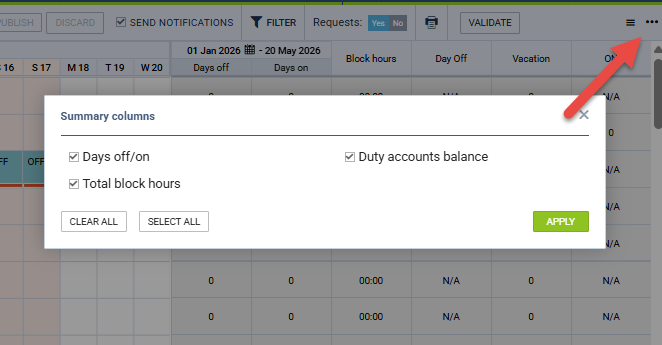
The selected mode is calculated and displayed as a column on the right side of the Crew Calendar, based on the date range currently set in the filter.
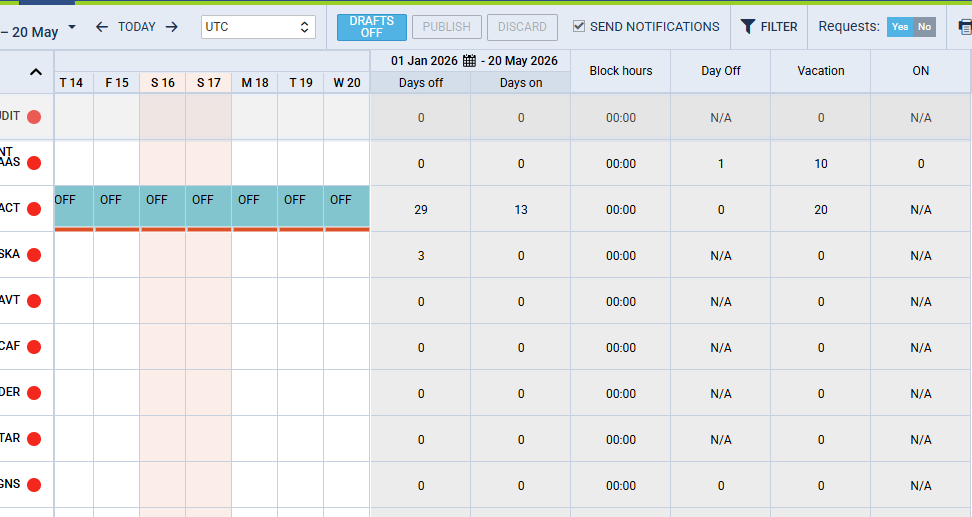
This allows planners to monitor crew flight hours directly on the calendar view, without the need to generate separate reports.
Timezone selection
It is possible to display the duties in a specific Base time.
By default, the view displays the SELECT TIMEZONE option, which means that all duties are displayed in the default UTC zone.
To be able to switch between different bases, i.e., different time zones, the following steps need to be performed:
-
Click on the 'SELECT TIMEZONE' option, which will redirect to the 'General Settings' section. Alternatively, the 'General Settings' section can be accessed through the Admin Panel
-
In the 'General Settings' section, scroll down to the 'Bases' subsection
-
In the 'Bases' subsection, either add an extra base with a different timezone than UTC, or modify the existing default UTC timezone
-
Save the settings
-
Re-log in to Leon
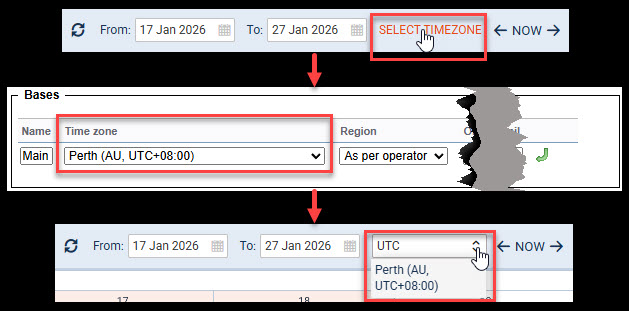
Once the settings are saved and the user re-logs into Leon, the crew planning section will allow displaying the view in different time zones by switching between bases.
3-dot filter
Click the 3 dots in the top-right corner of the page, and Leon will show several options:
-
Settings:
-
Show freelancers - crew with the ‘Freelancer’ checkbox marked in the user's full profile.
-
Show days off violations - switch to ‘YES,’ and if there is a case where FTLs have been violated, Leon will show an icon

-
Show Non-Active Users - displays crew with ’Not Active’ status.
-
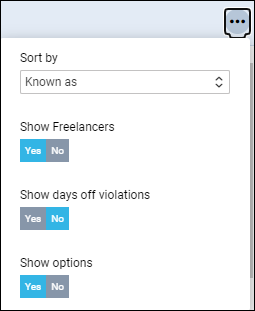
Show options - Leon will also show flights with the status ‘Option’
-
Show crew qualification badges - displays an additional label next to the crew member’s name indicating whether the crew member is on Line Training
[L], is an Instructor[I](i.e. holds a rating such as TRI, TRE, or LTC), or is a Senior Flight Attendant[S]. Line Training badge is visible regardless of the sorting type, while the Instructor and SFA badges are displayed only when sorting by aircraft type, and only for the aircraft types for which the crew member holds the rating.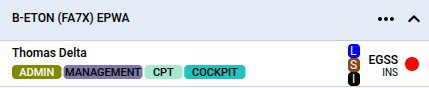
-
Show non mandatory qualifications - decides which certificates are taken into account in the dot validation next to the crew member's name. When switched off, only certificates marked as ‘Warn if expired when adding a flight’ are validated. When switched on, all certificates are taken into account. More details in the section Checking crew certificates and currency below.
-
-
Show crosshair - enables a blue crosshair that follows your mouse movement in the view, helping you identify the date and crew member or aircraft you are currently working on.
-
Show crew member's last location - option to see the current location of the crew member in the empty cells of the Crew Calendar.
-
The system evaluates the following activity types and selects the one with the latest end time:
Flights: The crew member's location is set to the arrival airport of their most recent flight. Only active, non-cancelled flights are considered, and simulator sessions are excluded.
Positioning: The crew member's location is set to the destination airport of the most recent positioning. Cancelled positionings are not taken into account.
Duties: The crew member's location is taken from the duty's assigned location. Only AOC duties are considered.
-
When activity is found across multiple activity types, the system selects the one with the latest end time, regardless of the activity type.
-
If no qualifying activity is found within the 20-day window, the system falls back to the crew member's homebase (primary or secondary).
-
The feature supports a draft mode — when enabled, unconfirmed (draft) changes are also taken into account when determining the last location.
-
-
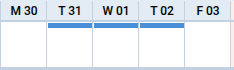
Show weekly rest - switch to 'YES' to display the required 36-hour weekly rest periods directly in the calendar. When enabled, a blue horizontal bar appears at the top of the day tiles to indicate the rest period for each crew member. If the rest covers the entire day, the bar spans the full tile; if it covers only part of the day, a half-bar is displayed.
-
Summary columns:
-
Days off/on - displays ‘Days off’ and ‘Days on’ columns
-
Total block hours - displays ‘Block hours’ column
-
Duty accounts balance - displays the ‘Duty account’ columns
-
-
Group by:
-
Aircraft (based on preferred crew) - Leon will show crew per aircraft registration, based on the assignment of a particular tail (section Fleet, tab CREW > Preferred Crew);
-
Aircraft (based on ratings) - Leon will show crew per aircraft registration, based on the rating of the crew;
-
Aircraft type - Leon will show crew per aircraft type, based on the rating of the crew;
-
Position type: showing Cockpit CPT first, then Cockpit FO, Senior cabin, Cabin, Maintenance, Other ratings and Ground staff.
-
-
Sort by - select between ‘Know as’, ‘Surname & Name’, ‘Name & Surname’, ‘Code’, ‘Highest rank’, and ‘Start of Employment’. ‘Highest rank’ sorting works with group by ‘Aircraft’ option
-
Show - allows switching the codes, located by the Crew name, between ‘Crew code’ and ‘Crew Homebase’
-
Preferred airport code - option to switch between IATA and ICAO codes
Filtering Crew by User base & Crew base timezone
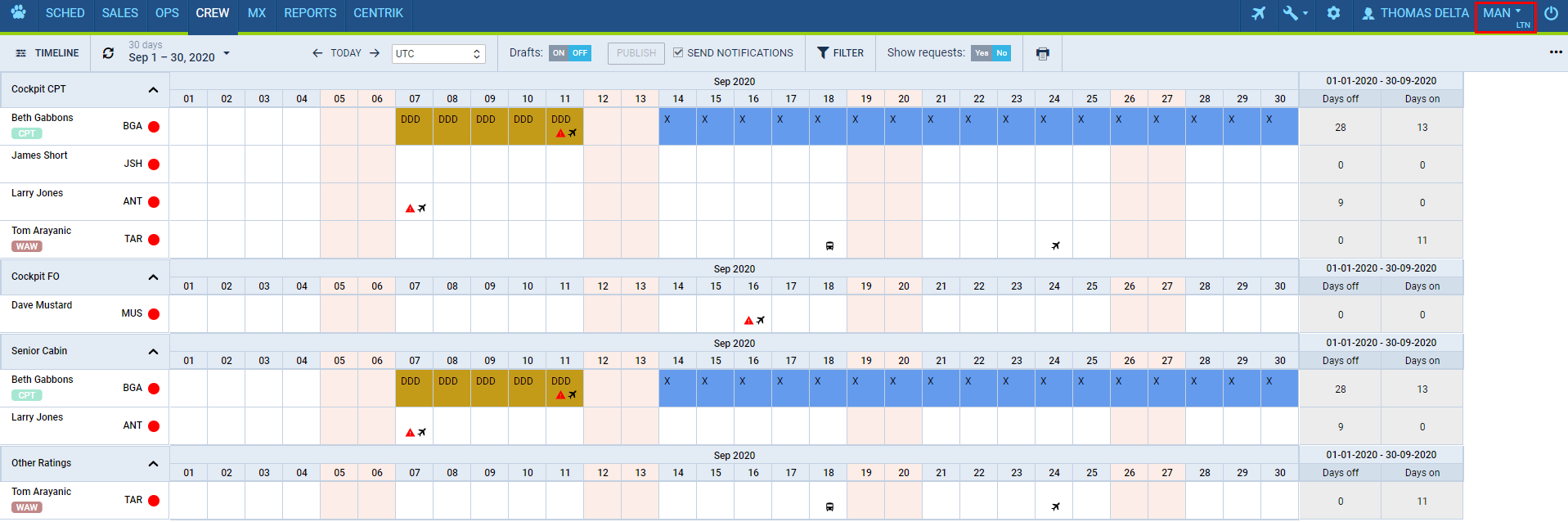
It is possible to filter crew by ‘User Base’.
This applies to the Operators that have more than one Home Base defined in the ‘Settings’ > ‘General Settings’ section. If there are many Bases, they will appear in the Operator code selection, next to the User name in the top-right corner of Leon.
If the defined Operator Home Base is assigned to a user as a ‘User Base’ in the profile, selecting a Home Base in the Operator code selection (as per below - LTN) will filter the crew in the ‘Crew Calendar’ view. The ‘Crew Calendar’ view will only display the crew based in this particular Base (screen on the right).

Filtering duties by crew base time zone is possible by switching to option Crew member base timezone. Once it’s done, Leon will show duties according to timezone of the base to which crew is assigned.
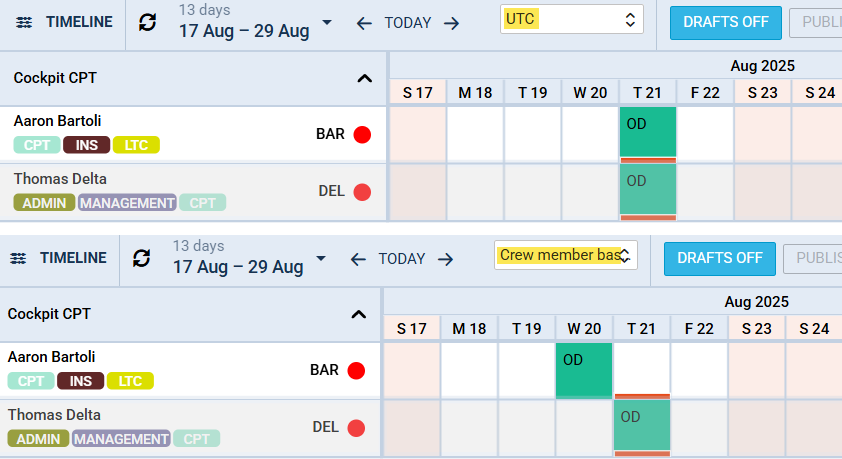
Example:
Crew BAR is assigned to the base with timezone -09:00 UTC. Crew DEL is assigned to the base with timezone +02:00 UTC. Duty OD has been added from 0600 to 1400 UTC. Leon shows duties according to the crew base timezone - BAR duty moved to an earlier day due to the timezone difference.
Assigning Crew
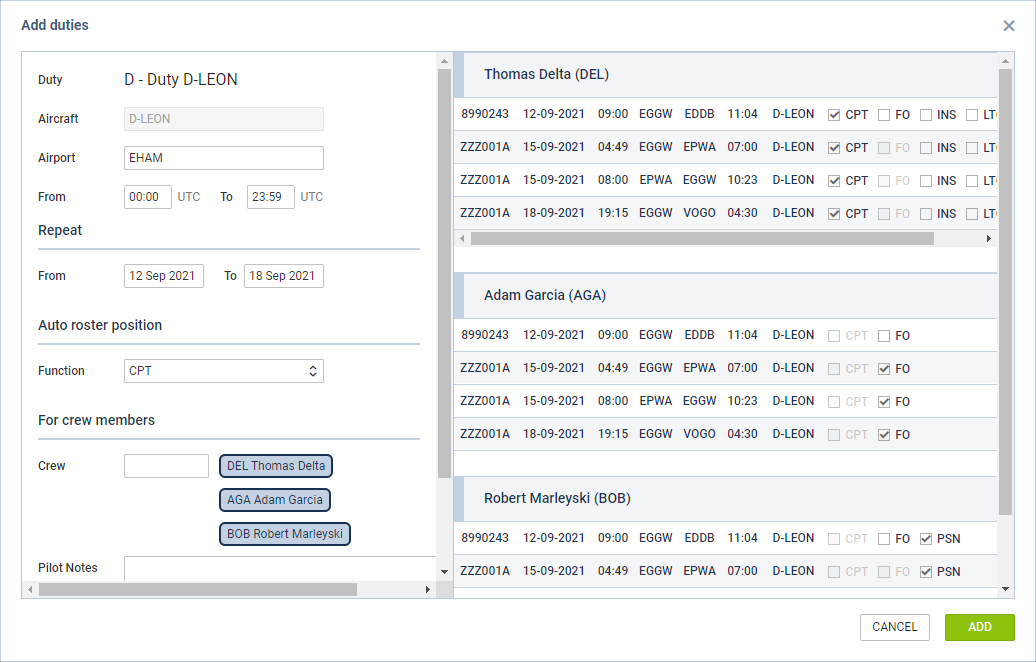
Assigning Crew to flights is done in a few quick steps. First of all, in Duties Setup, duties on aircraft need to be configured, just like in the old Crew Duties page. If this is done and the flights have been added to the schedule when adding duties on a particular aircraft registration, a pop-up window will appear with duty info on the left and a list of available flights on the right. In this window, it is possible to select more than one crew member to be assigned to the flights with corresponding crew positions as per crew ratings assigned in the Crew Profile page.
If a checkbox 
Assigning crew to positions and duties on aircraft
It is now possible to assign crew to positions and duties on aircraft. When a crew member is assigned to duty on an aircraft, on a particular position, on a selected day - if a flight is added on the same day, that crew member will be automatically assigned to the flight in the OPS panel.
If flights have already been added (without a crew assigned), Leon will show those flights, and it will be possible to assign pilots on selected positions.
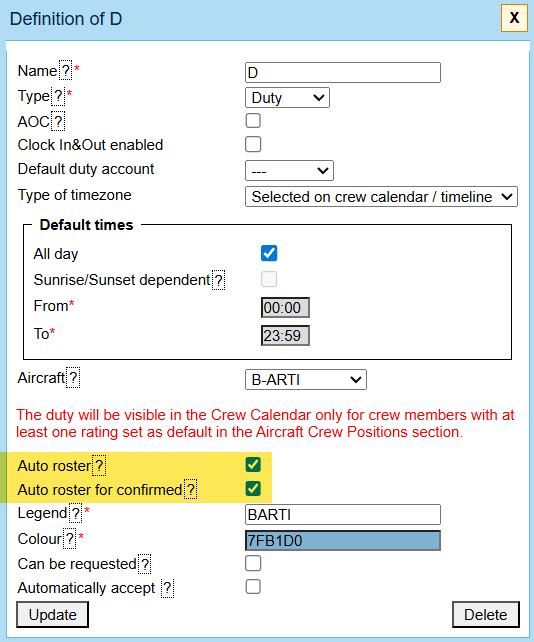
It is possible to disable duty auto-rostering for OPTIONS - in the duty definition, mark the checkbox ‘Auto-roster for confirmed’ and update.
To do that, first, you need to define duties on aircraft in the section Settings > Duties Setup, which has been described in THIS MANUAL CHAPTER - the screenshot on the right shows how such duty should be defined.
Once duties on aircraft have been set up, in Crew Calendar, right-click on a selected day/days and choose the duty on a particular aircraft (usually such duties are defined as D - Aircraft registration, i.e. D-ABCDE).

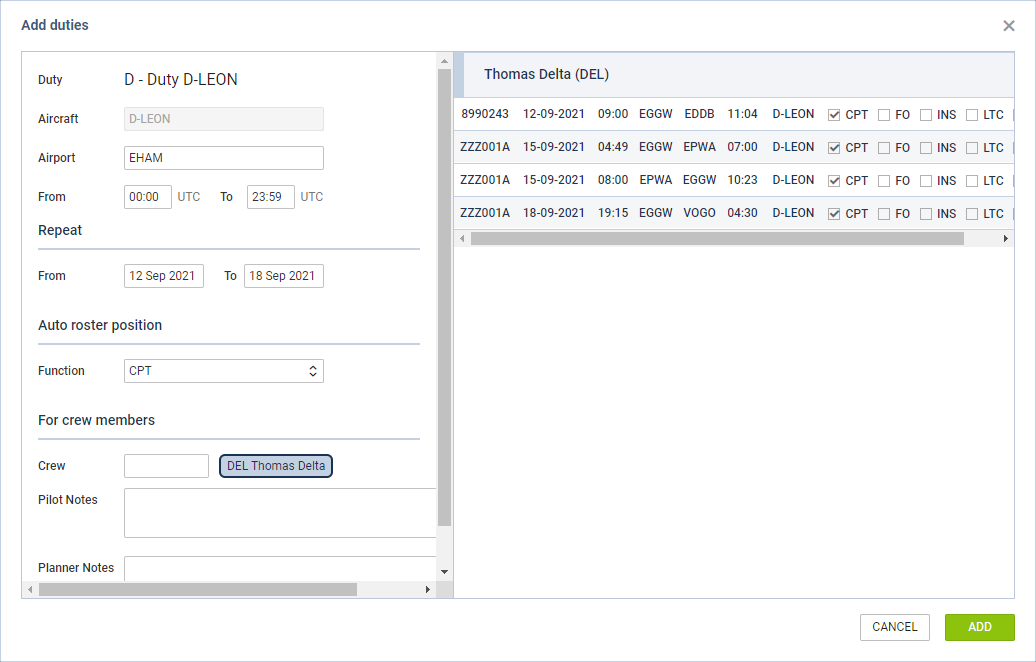
The new pop-up window is divided into 2 sections (see screenshot on the right):
-
The left part - showing details such as aircraft registration, an airport code, default ‘From-To’ times, date range, auto roster position (showing a drop-down list with all crew members’ ratings), selected crew code & name/surname and a field for assigning more crew, assigning tags and a notes field.
-
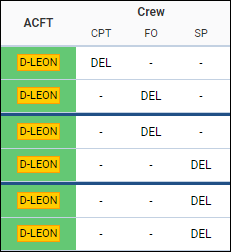
The right part - showing all flights on the selected aircraft, within the selected period, as well as 3 positions to which you can assign a crew member: CPT, FO & SP.
The airport code assignment is automated and works as follows:
-
Duty on aircraft - the airport code is taken from the aircraft Home Base of the aircraft to which the duty is assigned
-
Other duty types - last known location of the crew member
Once the duties have been added, you might need to publish changes, unless in ‘General Settings’ it is defined that all added duties should be auto-published.
All added duties ‘D’ will show in the Crew Calendar with the aircraft icon.

In the panel OPS, the assigned crew will show on the previously selected positions.
It is possible to create drafts and publish them. More information about the process is available here.
New way of defining and assigning duties on aircraft
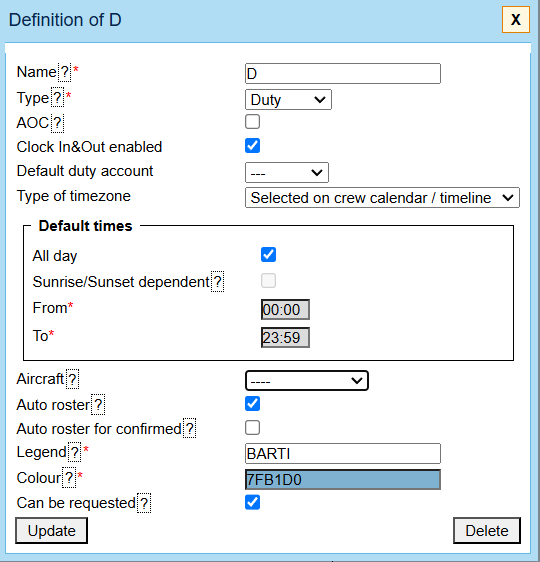
In the Duties Setup page, it is now possible to define a duty on an aircraft without assigning any particular aircraft tail to the duty.
This type of duty works similarly to those defined on a particular aircraft tail; however, it is especially useful for operators with a bigger fleet size as it saves creating many duties on each aircraft tail separately. For the crew to get assigned to the flight automatically Auto Roster needs to be selected when defining the duty. Auto Roster feature is available only for aircraft crew positions, which are set as the default for the aircraft type used.
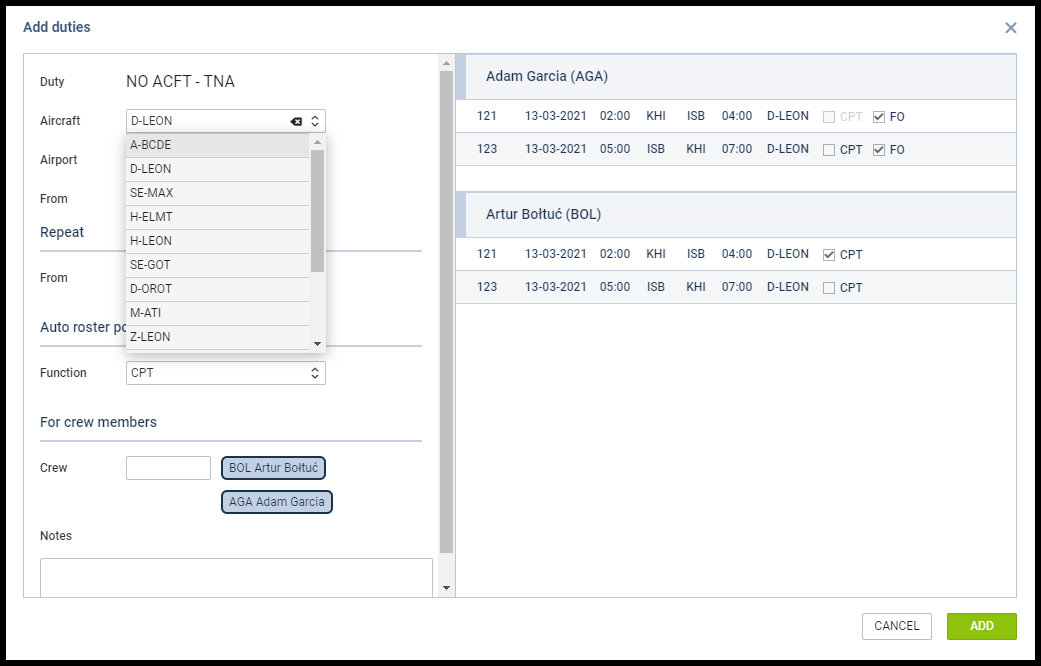
Once the duty is defined, in the Crew Calendar view, adding such duty will open up the Add duties pop-up window.
In a case where Aircraft grouping is selected, the aircraft tail will be filled in by default based on the group from which it was selected.
In a case where Position Type grouping is selected Aircraft field will be empty, and it will be possible to manually select the Aircraft tail based on the crew that has been selected and his/her ratings.
Once the aircraft is selected, Leon will show a list of possible flights on a given day or a selected day-range period. If there are no flights in the OPS module, Leon will show There are no flights message on the right side of the window. In the pop-up window, it is also possible to select other crew members to be added to the duty.
When adding/modifying OFF shifts, Leon will remove the person who goes OFF and suggest a replacement. When shortening ON's duty, it will be suggested to replace the person on flights with other people with the same duty on the auto roster. ——————– ==== ’Hide people not assigned to duty on that aircraft’ ====
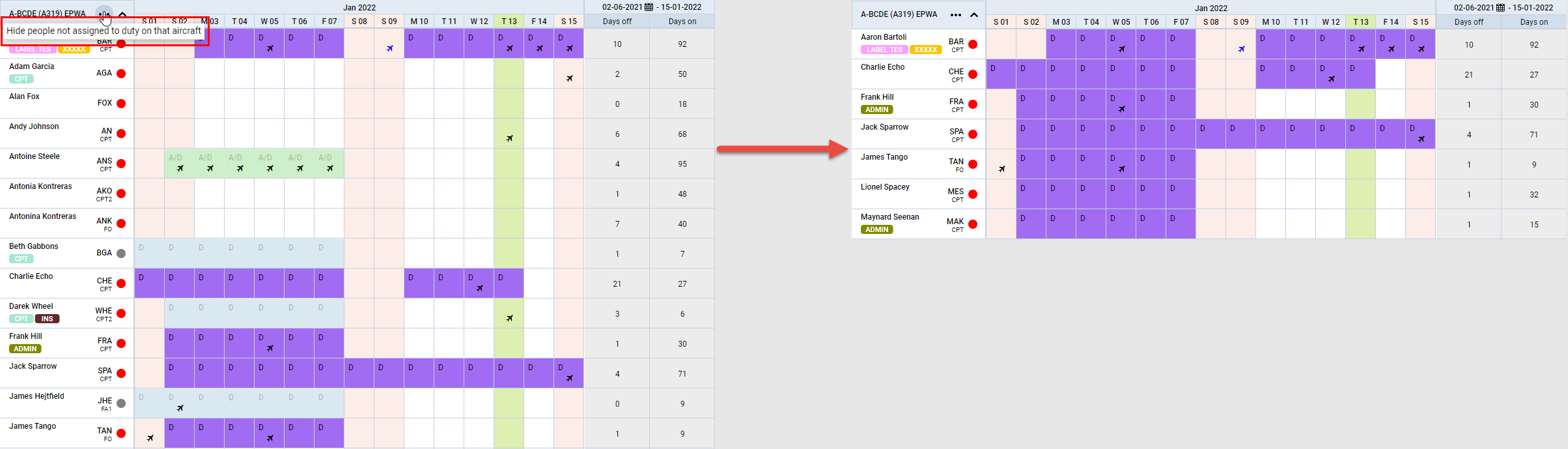
The ‘Hide people not assigned to duty on that aircraft’ functionality allows the preview of the crew assigned to the duty on the aircraft only.
This option works only in the ‘Aircraft (based on rating)’ grouping type (‘Group by’ in the 3-dot filter).
The ‘Hide people not assigned to duty on that aircraft’ option is located in the 3-dots located next to the aircraft registration:
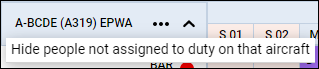
Once the option is used, clicking on the same 3-dots will display the ‘Show people not assigned to duty on that aircraft’ option, which will allow reinstating the crew with no ‘on-aircraft’ type duty assigned.
Crew auto-rostering by position type
It is now possible to auto-roster crew by the position type.
First step is defining position types in a section Aircraft Crew Positions
In a new column ‘Position type’ select the appropriate position from the list:
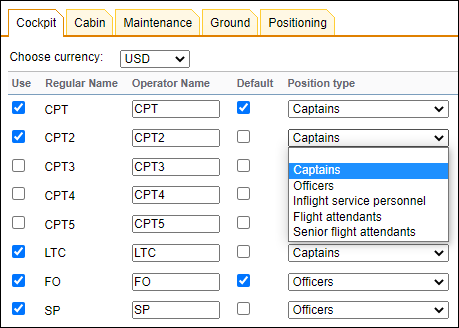
Once it's defined when adding a duty on an aircraft (pre-defined in the section Duties Setup of the Settings panel.) Leon will show the Function based on crew ratings. So if a pilot has a CPT rating, Leon will show by default as ’ Captains’, and if a pilot has a rating of FO then by default they will appear as ’ Officers’. If a pilot has both ratings CPT & FO, then both positions ‘Captains’ & ‘Officers’ will show. The same logic applies to cabin crew.
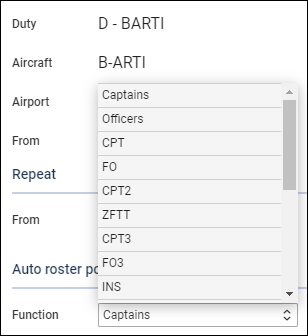
It is still possible to select a particular crew position, such as CPT or FO, and it will work as before.
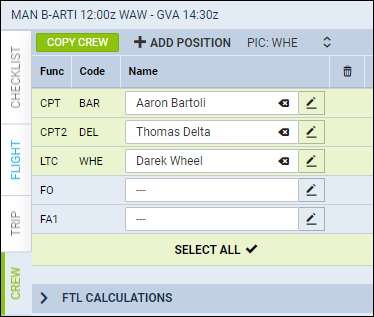
The example below shows how this works if 3 pilots are assigned when the position type ‘Captains’ is selected.
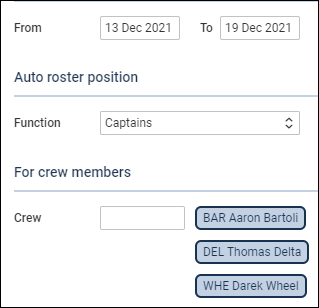
When a flight is added in the time range selected (13-19 DEC), all 3 pilots are assigned to the flight automatically.
Assigning Crew Provisionally
This functionality is designed for easier planning of crew that are not flying regularly on one specific aircraft as well as servicing the freelance crew.
When grouping crew by the aircraft in the 3-dot filter 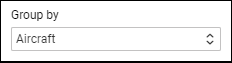
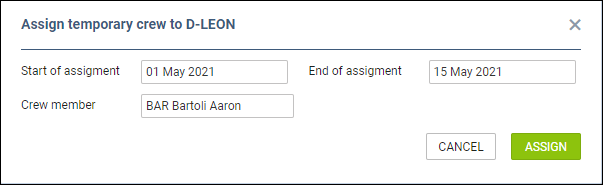
Right next to aircraft registration, click 3 dots and click ‘Assign temporary crew’.
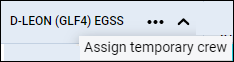
In a pop-up window insert: Start of assignment, End of assignment and select crew member/members.
On the ‘Crew Calendar’ page, when the date range selected in the calendar covers dates of assignment (either start or end date), Leon will show the crew assigned provisionally in italic.
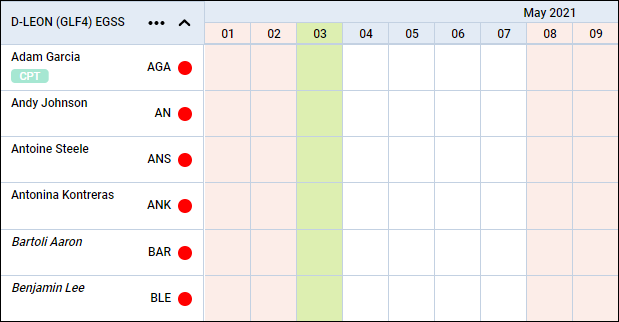
Adding duties for crew assigned provisionally works in the same way as for regular crew.
To remove a provisionally assigned crew, you need to right-click with the mouse on the crew name, select the ‘REMOVE TEMPORARY ASSIGNMENT’ option and confirm. If a crew has more than one temporary duty assigned, it is possible to select which duty should be removed.

Freelancers contracts
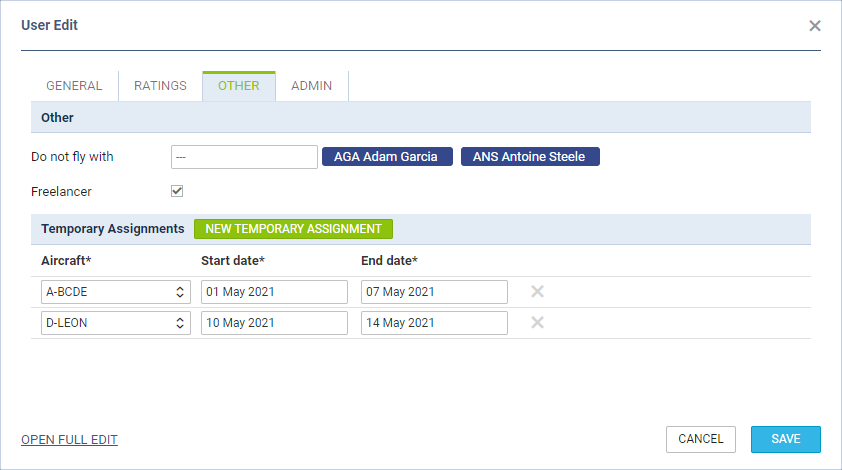
It is possible to define the default timeframes for the freelancers' contracts.
The process is as follows:
-
Go to ‘Settings’ > ‘Users’
-
Edit a Freelancer pilot from the list of Users
-
Go to the tab ‘OTHER’ and make sure that the ‘Freelancer’ tickbox is checked
-
Click on the ‘NEW TEMPORARY ASSIGNMENT’ option
-
Insert the aircraft details and the timeframes, as per the screenshot on the right, and save changes
Once the details are defined, the freelance crew will appear in the ‘Crew Calendar’ view in a similar way to the provisionally assigned crew (as per below). The Calendar view has to be grouped by ‘Aircraft’ and the ‘Show Freelance’ filter set to ‘YES’.
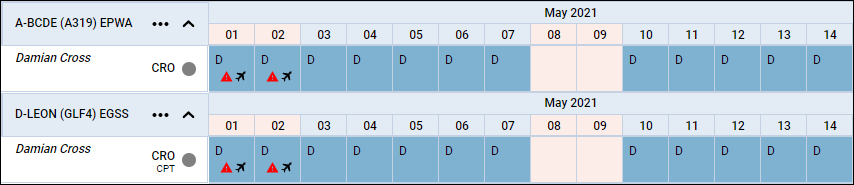
Right-click options
There are additional options when right-clicking with the mouse over the crew name.
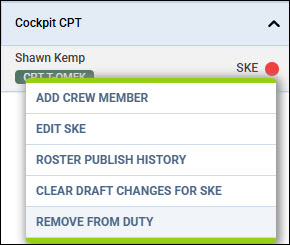
-
ADD CREW MEMBER - click to add a new crew account to Leon (contact details, passports, visas, ID cards, ratings and more.
-
EDIT CREW - click to edit a particular crew profile.
-
ROSTER PUBLISHING HISTORY - click to view all roster publishing history: Leon will show all changes made, along with the date & time of the change and the user who made the change.
-
CLEAR DRAFT CHANGES FOR CREW - click to clear the draft for the selected crew.
-
REMOVE FROM DUTY - allows removing crew from duties within the selected date range. More information below
Remove from duty functionality
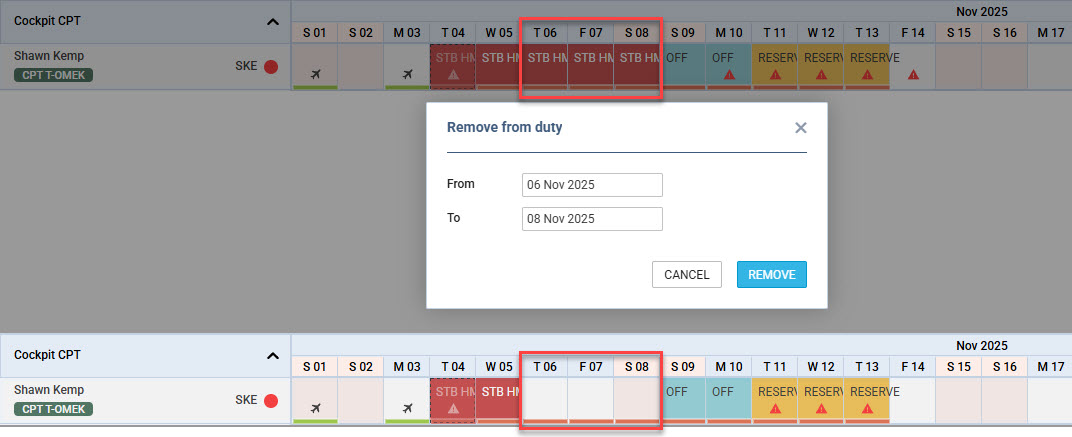
Clicking on the ‘REMOVE FROM DUTY’ option opens the ‘Remove from duty’ pop-up window, where the date range for the duty removal can be selected.
Pressing the ‘REMOVE’ button will remove the duties within this date range.
If the ‘To’ date is left empty, all the duties planned after the ‘From’ date will be removed.
An example of the functionality is presented in the screen on the right.
Duty details
Once the crew is assigned to a flight duty/option, the flight aircraft icon will appear 
If the activity to which the crew is assigned overlaps midnight, it is indicated by an arrow next to the activity icon. This applies to FDP duties (those including at least one flight) as well as to positionings.
For positionings, the arrow is determined as follows: if the positioning is part of a duty, the duty times decide whether the arrow is shown; if it is not part of a duty, the positioning times decide. Positionings in draft mode are taken into account as well.
If the crew is assigned to a simulator, the aircraft icon will display in blue - 
Assigned positioning appears as a bus icon 
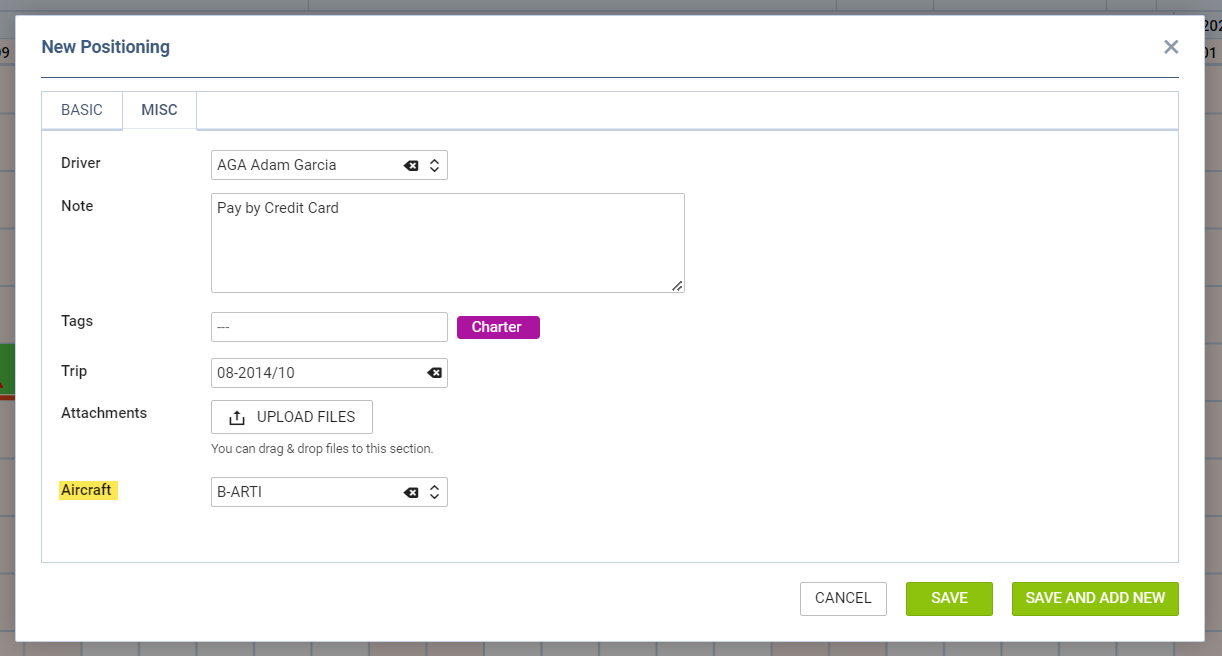
When adding a positioning duty, it is possible to select a Driver, add a Note, assign Tags, select a Trip number to which it should be connected and also select an Aircraft to which the positioning duty should be connected.
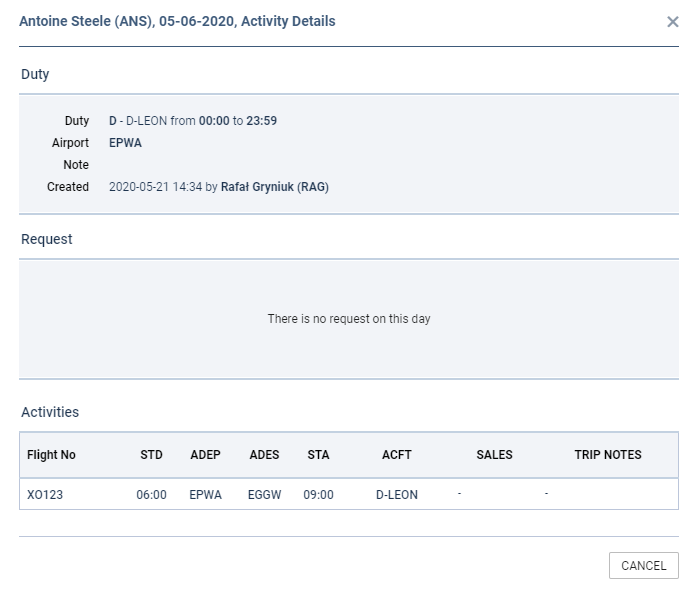
Multiple activities can be assigned on one day to a crew member. To see the details of all duties on a particular day, right-click on a given day cell and select Activity Details. This opens up a pop-up window in which all activities, including duties assigned, requests and flights, are listed.
If there is more than one duty assigned during one day, Leon will display the number of additional duties next to the duty label - 
Leon will not allow adding duties overlapping each other - a message ‘Colliding duties detected. Save will remove them, continue?’ will show. When selecting ‘YES’, Leon will remove duty added as the first one.
Notes on a duty
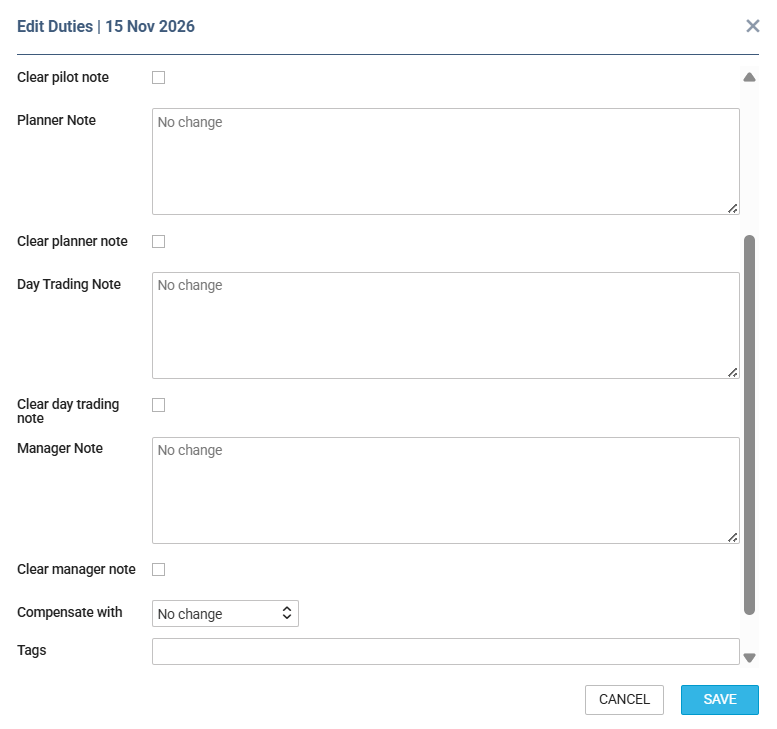
A duty can carry three separate notes, each edited in the Edit duty window:
-
Planner note
-
Pilot note
-
Day trading note
Each note has its own Clear note checkbox underneath it. Tick the checkbox next to the note you want to remove and save — the remaining notes are left untouched.
Copying duties
It is possible to copy duties from one user to another.
When adding duties for a particular crew member, mark them (you can use Shift or Ctrl keys to mark multiple duties), right-click and select Copy Duties. Then right-click on the day from which duties should be added and select Paste Duties.
Then right-click on the day from which duties should be added and select Paste Duties.
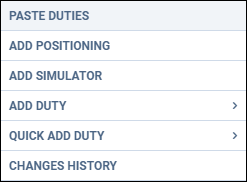
This functionality excludes copying duties on the aircraft and will not work if a new duty overlaps an existing duty.
Cloning duties using resize feature
It is possible to clone duties in the Crew Calendar by simply resizing the selected duty.
To do that, simply left-click on the duty until you see the ‘resize’ icon. Still holding the left key of the mouse, move it to the left/right and cover the calendar tiles to which the duty should be cloned. Once the mouse button is released, the duty should clone to the marked calendar tiles.

If the cloned duty overlaps an already-existing duty, this duty will be overwritten with the new duty.
This feature works both in draft mode and in the actual mode.
Day off after Vacation
It is now possible to automatically plan a day off after vacation.
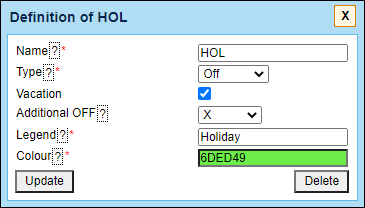
Vacation is a duty type with the ‘Vacation’ checkbox ticked in the duty definition setup.
To schedule a day off after vacation, in the duty definition, you need to make sure that the ‘Vacation’ checkbox is ticked and ‘Additional OFF’ is selected as per the screen on the right. ‘Additional OFF’ is a day-off definition selected to follow the scheduled vacation period.
Once the definition is created, you can then schedule the vacation period either in the Crew Calendar or a Crew Timeline, and the additional day off will automatically be added, as per the definition (example below).

Grouping crew by aircraft
It is possible to group the crew by aircraft in the following ways:
-
Aircraft (based on preferred crew)
-
Aircraft (based on ratings)
Aircraft (based on preferred crew)
In the section Fleet, edit aircraft profile, go to the tab Crew and in the field Preferred crew choose crew members who have ratings on this particular type and can be assigned to it.

The selected crew members will be shown in the ‘Crew Calendar’ panel if the 3-dot filter grouping is switched to by Aircraft.
Additionally to this option, you can also sort crew by ‘Highest rank’.
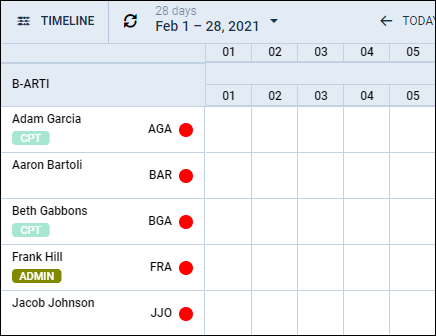
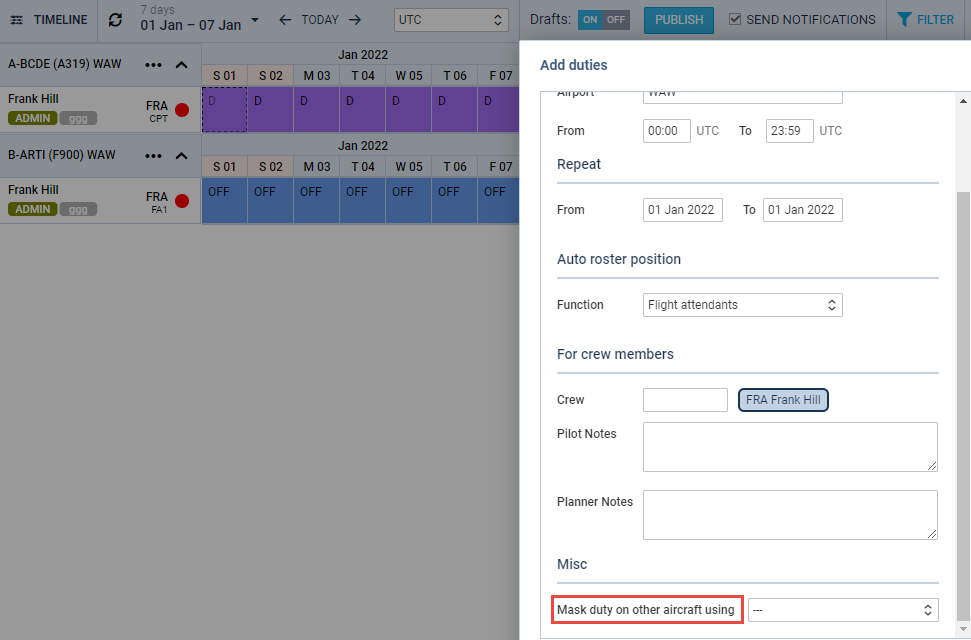
With this sort of roster grouping display, it is also possible to use the function Mask duty on other aircraft, which allows the crew planner to choose how the crew members, who are assigned to more than one tail in the fleet section, should be displayed in the roster on other tails when the On Aircraft duty is assigned to one of them.
So, for example, if a crew member is On Aircraft duty on tail X in a given day, the planner can choose to show the crew on tail Y as OFF Duty on the same date.
In the Crew Calendar, the actual and the masked duty will show simultaneously during the selected period on multiple aircraft tails. The actual duty will allow displaying Activity details, while the masked one will have the Activity details greyed out.
The crew will see the actual duty they are assigned to in the roster.
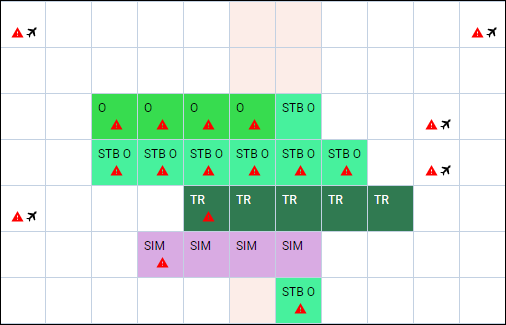
FTL Violations
It is possible to view Days off violations as well as other FTL violations in the Crew Calendar section.
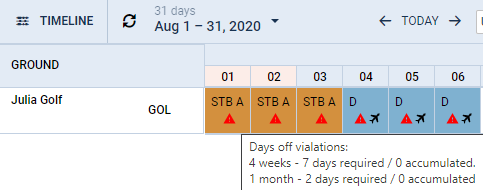
You can enable Days off violations in the 3-dot icon located in the top-right corner.
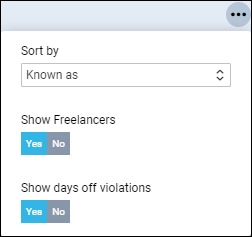
The Days off violation is indicated by the red exclamation mark
Hovering the mouse over the mark will trigger a tooltip with the details regarding the violation.
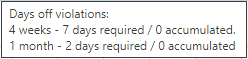
Leon will show a warning icon for any FTL Violation (not only Days Off violation). The warning will be displayed with the icon 
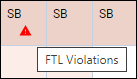
When hovering the mouse over the FTL violation icon, Leon will show a little tooltip with the information
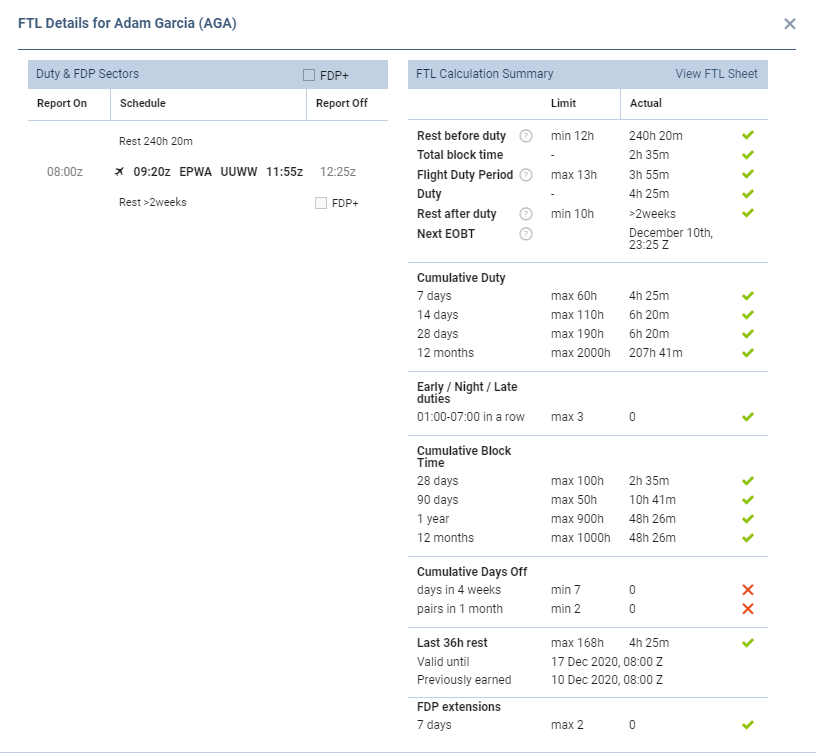
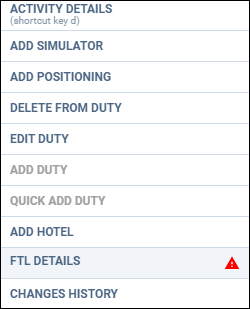
Right-click with the mouse, and on the list of options, there will be an FTL violations icon as well (next to the FTL DETAILS section), to highlight the warning.
After clicking FTL DETAILS, Leon will show details of the most important FTL regulations monitored by the application.
Checking crew certificates and currency
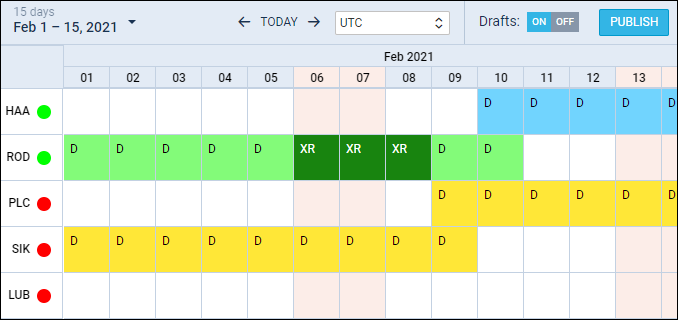
In the Crew Calendar view, the coloured dot displayed next to the crew member’s name provides a quick summary of the crew member’s certificates, currency and endorsements. When you hover the mouse over the dot, a tooltip appears with detailed information about: The validation also takes into account draft duties, as long as the Drafts toggle is switched ON.
-
which certificates and currency items are currently valid
-
which items are expired or missing
-
the relevant aircraft types or AOCs taken into account
Validation based on aircraft context (grouping-aware)
When the Crew Calendar view is grouped by Aircraft (based on preferred crew or based on ratings), the dot validation takes the specific aircraft of the group into account:
-
Certificates and endorsements are checked for that aircraft, along with that aircraft's default AOC.
-
Crew currency is checked only for the currencies that apply to that aircraft's type.
This means the certificate check result for the same crew member may differ depending on which aircraft group they appear in — for example, if a crew member is assigned to multiple tails, the dot shown in each group reflects the requirements specific to that particular aircraft.
This is especially useful when one type rating covers several aircraft types. For example, if a rating covers the Challenger 300, 350 and 3500 and the crew member is current on the Challenger 300, the dot in the Challenger 300 group reflects only the currency required for that type. It no longer turns red because of currencies configured for the other types covered by the same rating.
When the view is not grouped by aircraft (e.g. grouped by Position Type), or when the crew member appears in the Other section, the validation falls back to the general mode: the system checks certificates based on the aircraft types and AOCs for which the crew member is listed as Preferred Crew. If the crew member is not listed as preferred crew on any aircraft, the previous logic applies (all allowed AOCs from the crew member's ratings are taken into account). In this mode, crew currency is checked for all aircraft types.
Hover the mouse over the dot to view details.
Mandatory and non-mandatory certificates
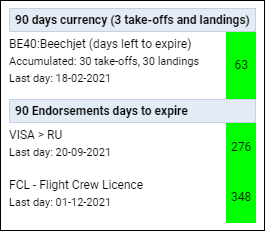
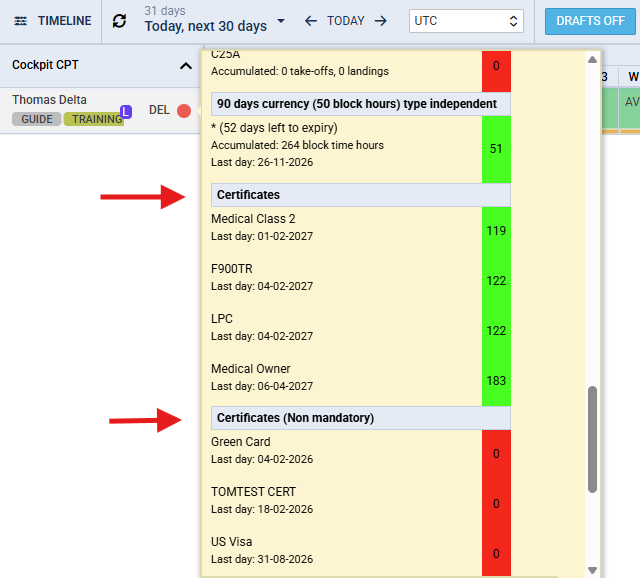
By default, the dot validation includes only the certificates marked as ‘Warn if expired when adding a flight’ in Certificates Configuration.
To include all certificates, go to the three-dot (⋮) menu > Settings and switch on Show non mandatory qualifications. The certificates without the ‘Warn if expired’ checkbox are then shown in the dot tooltip in a separate section, Certificates (non mandatory), so they can be told apart from the mandatory ones.
Options
Leon will now show in the Crew Calendar flights with the status Option. It is possible to turn it on in a 3-dot filter.
Displaying options in the Crew Calendar will not be any different from confirmed flights, but if you right-click with the mouse and select ‘Activity details’, Leon will show an indication that the flight has a status ‘Option’.
