

It is possible to print the roster in either Black & White or Colour.

There are 2 modes available:
-
GENERAL - contains the data based on the timeframe selected in the Crew Calendar filter
-
HISTORICAL DUTIES - possibility to print the duties from the specified timeframe in the past
GENERAL tab
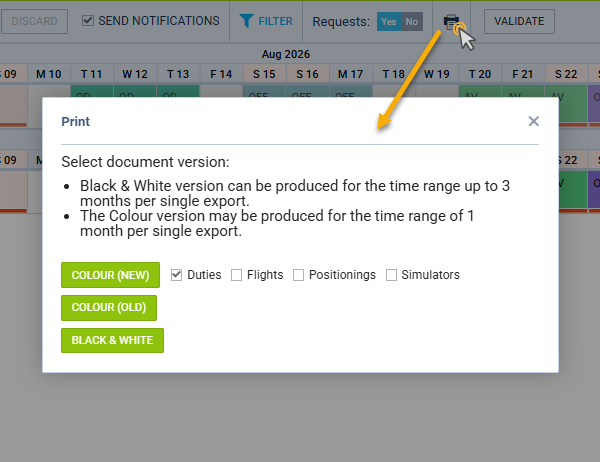
There are 3 print-out versions available:
-
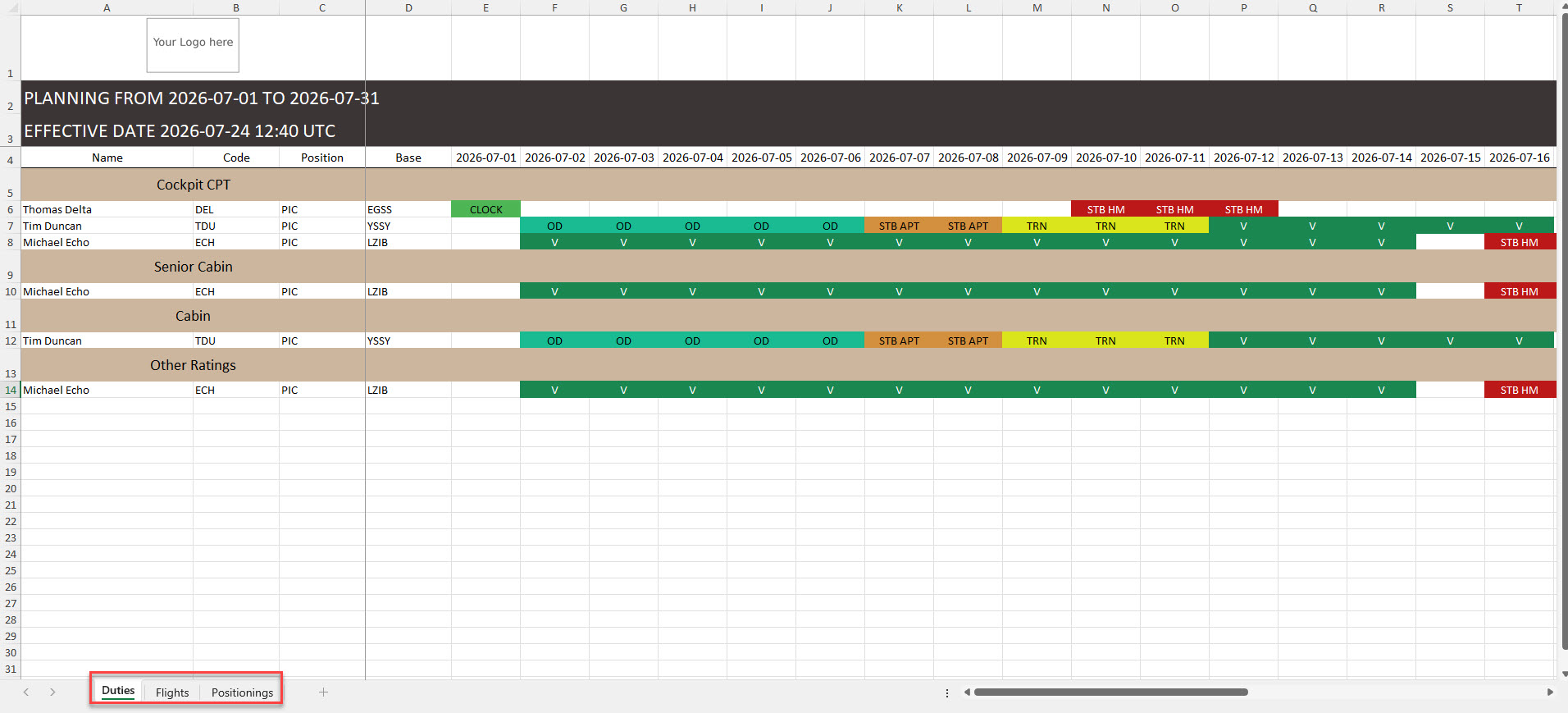
COLOUR (NEW)
-
allows including Duties, Flights, Positionings and Simulators in the printout
-
all of the abovementioned are presented in different tabs
-
-
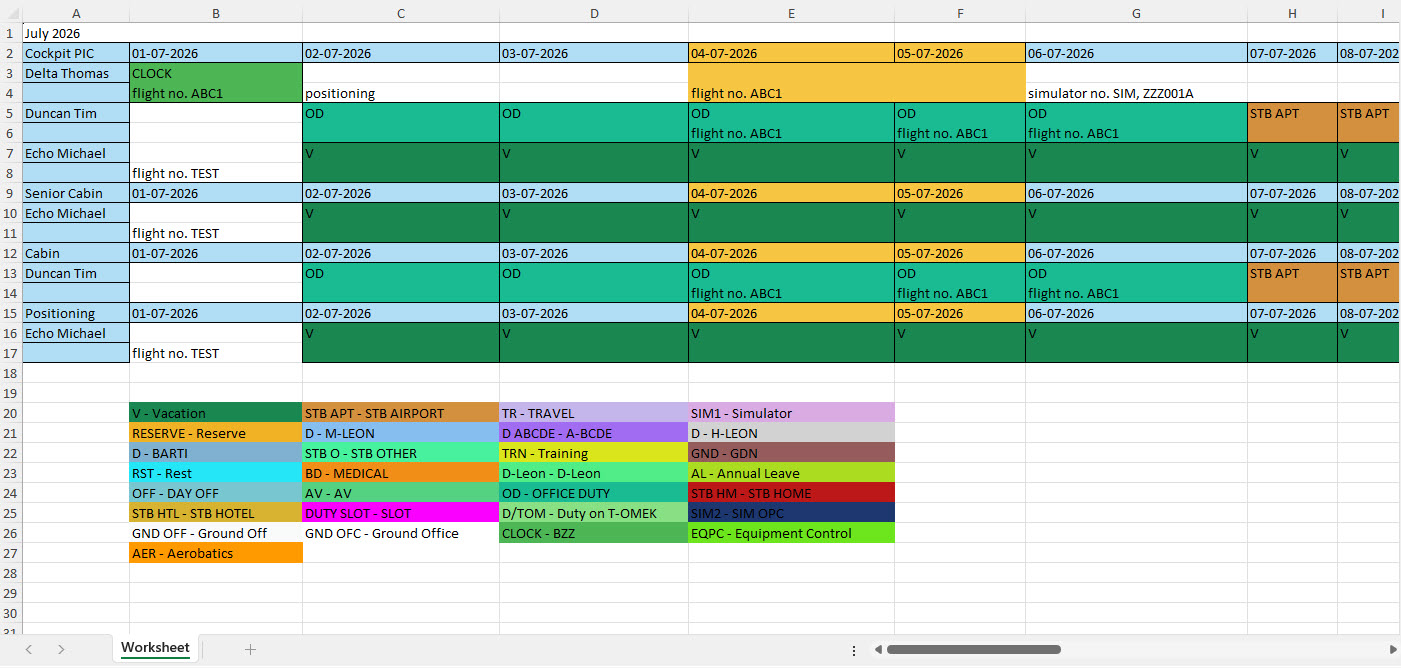
COLOUR (OLD)
-
includes only planned duties within the selected timeframe
-
The Flight Number indicates flights, but no further details are provided on the flight
-
Simulator and the number are also included in the exported file
-
-
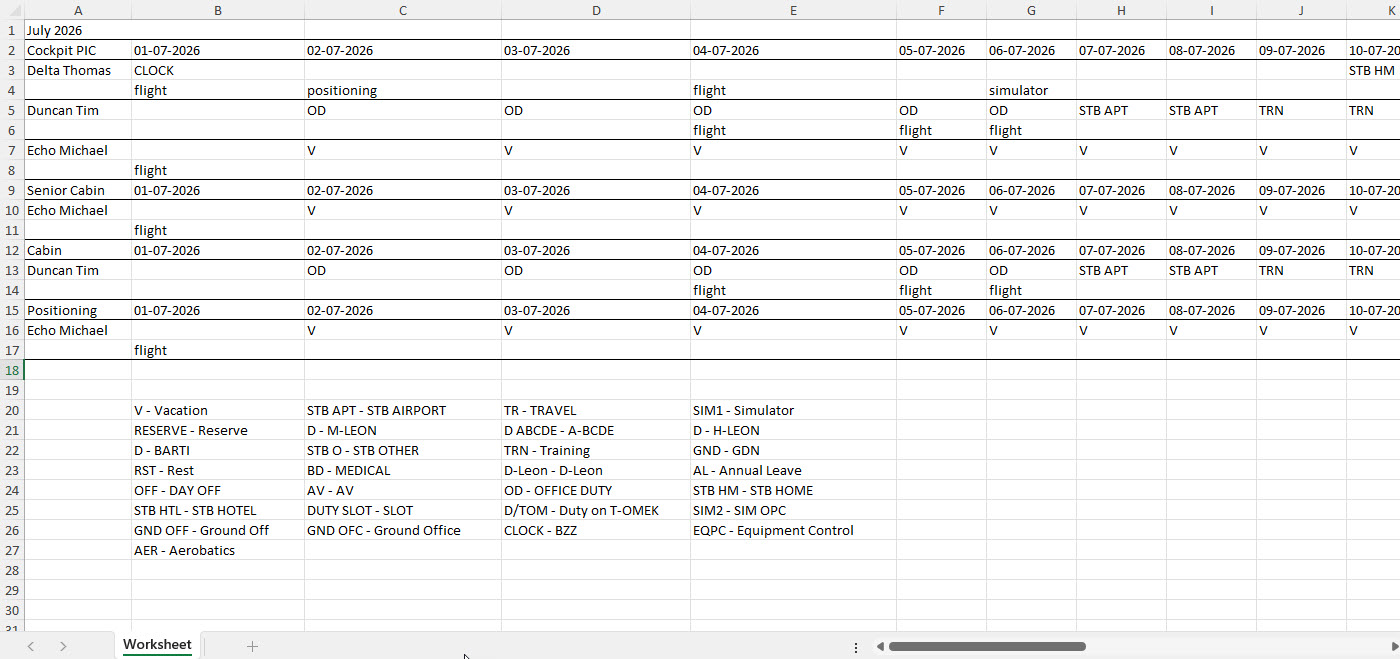
BLACK & WHITE
-
contains the came data as COLOUR (OLD) but in black &white
-
HISTORICAL DUTIES tab
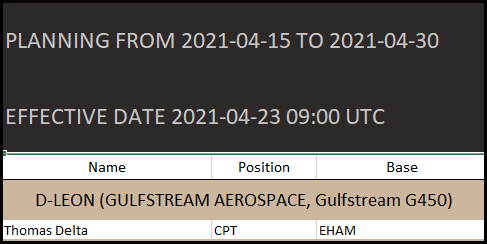
When generating a roster printout in Crew Calendar, it is possible to insert the date and hour to specify the time in the past, for which the state of the roster will be printed. That date will appear as an Effective Date timestamp on the generated Excel document.
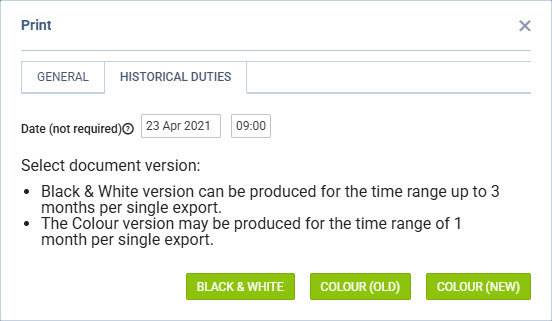
Once you click on the print icon in the pop-up window, you may insert the date and hour in ‘hh:mm’ format. It is not obligatory but once inserted and the COLOR (NEW) button is hit, the generated document will show the state of the roster for the specified time in the past, and that time will be shown as ‘Effective Date’.
The time inserted will appear as UTC.
Please note that the Colour version may be produced only for the time range of 1 month per single export.