This feature is still in beta. Please study these instructions carefully.
If you don’t see this feature in your account, please contact Customer Support to activate it.
We are gradually granting access to the upcoming features of our new Automatic Crew Rostering module, one by one.
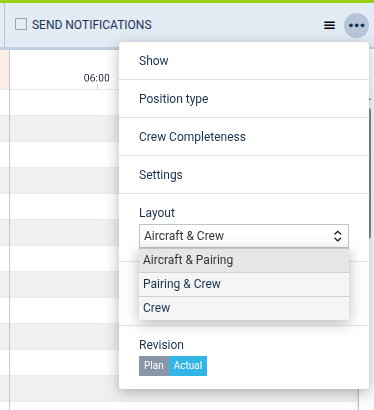
The automatic crew rostering functionality will be available in the Crew Timeline view, after selecting “Aircraft & Pairing” layout in the three-dots menu in the upper right corner:
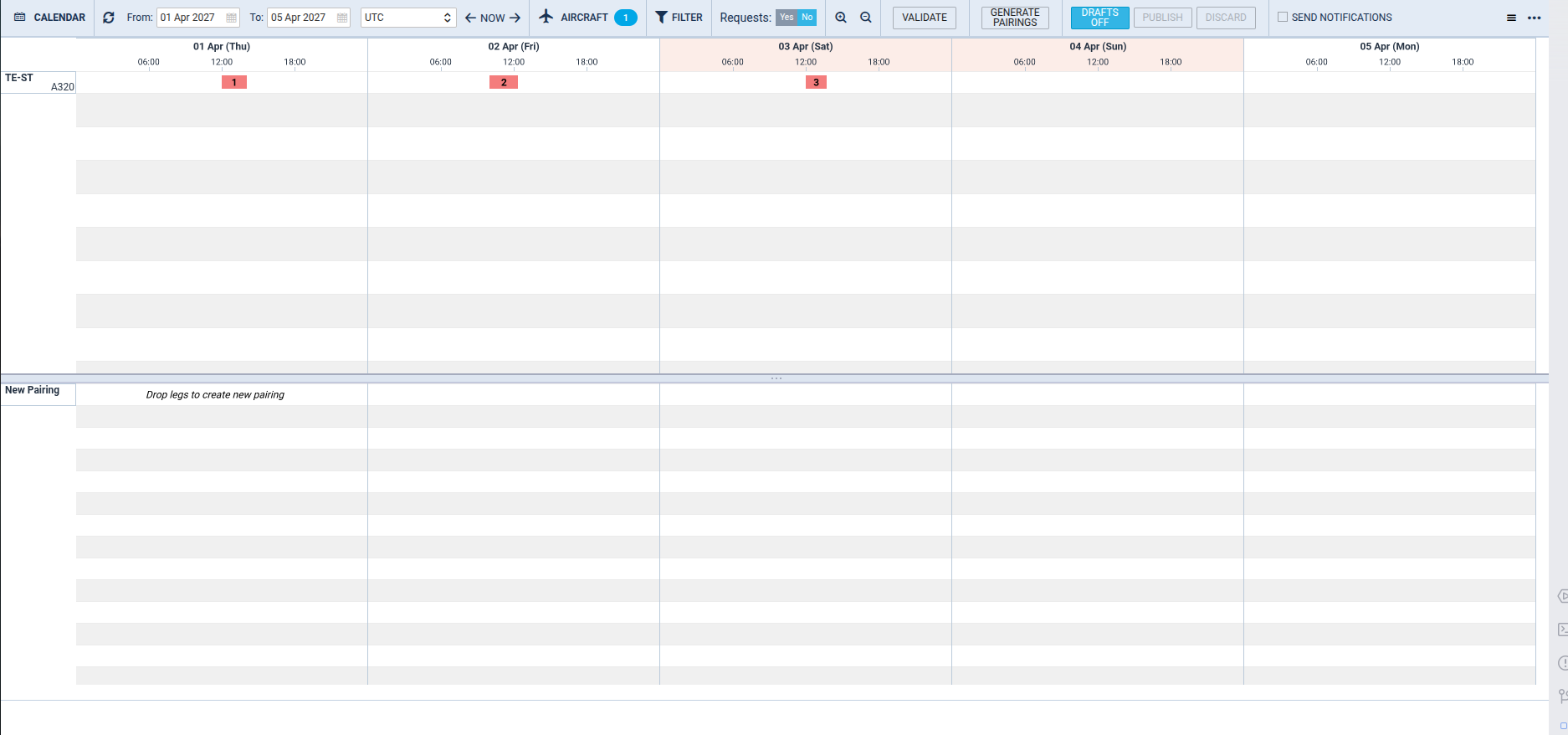
The top half will now be the usual “timeline” view, while the bottom half will display individual pairings. If you have not used this feature before, the bottom half of the view will be empty.
Manual pairing management
Pairings can be created manually, using existing legs (flights) in the system. To start creating a new pairing, drag and drop any leg from the “Aircraft” panel (top half) to the “Pairing” panel (bottom half). The pop-up window will appear, in which you can select the positions that will be covered by this pairing. Here you can select any number of cabin, cockpit or other positions.
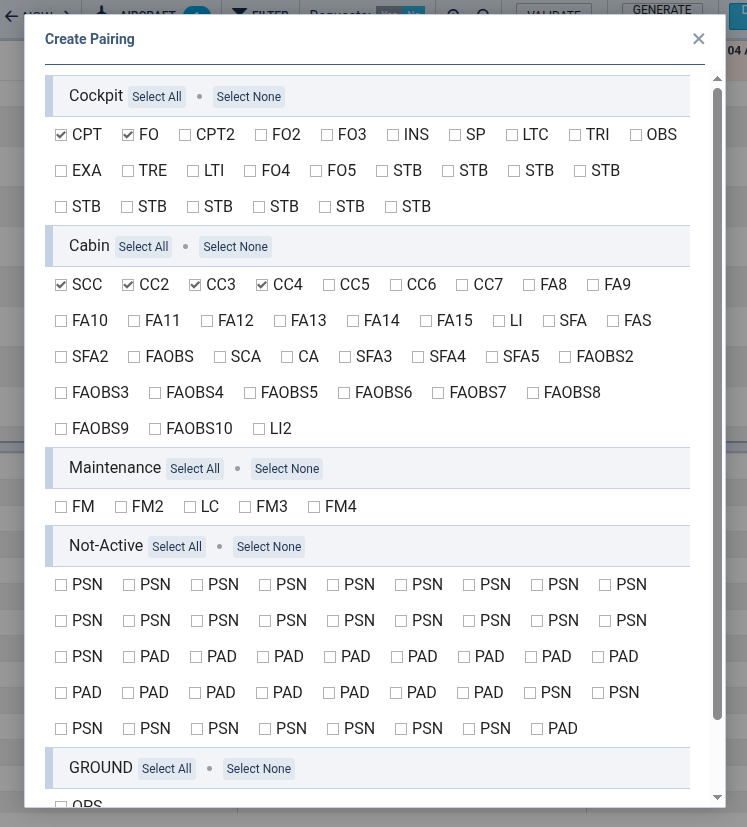
After selecting the subset of positions, the pairing will appear in the added row in the “Pairing” panel (bottom half). Each pairing will occupy a separate row, and you can add additional legs to each pairing.

Please note that if you create more than one pairing including the same leg and the same positions, the system will mark them as invalid and the explanation can be inspected by hovering the mouse over the red dot.
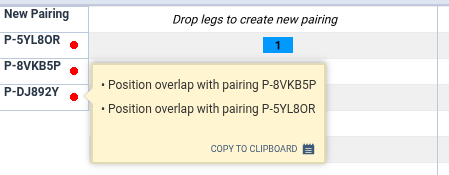
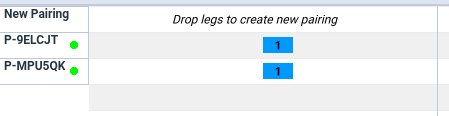
However, you can multiple pairings with the same leg and different positions, e.g. one for cockpit and one for cabin. In general, each leg can appear in multiple pairings as long as positions assigned to different pairings do not overlap.
Automatic pairing generation
To generate pairings automatically for a given time interval, click on Generate Pairings button in the top bar.
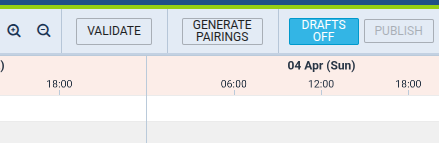
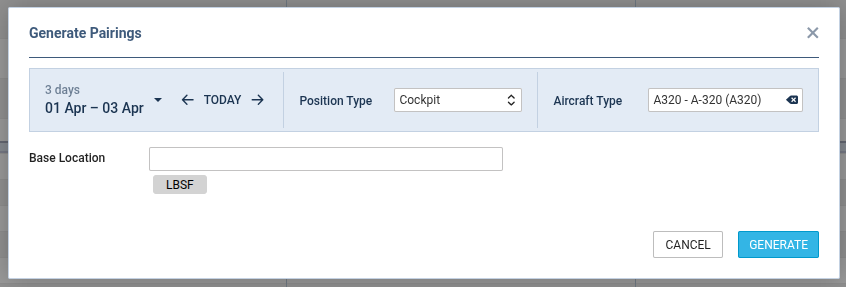
In this window, you can select a time interval for which the pairings should be generated, a position type (currently only Cockpit and Cabin are supported) and the aircraft type. Pairing generation algorithm will try to accommodate all flights assigned to the selected aircraft type.
A very important field in this window is the “Base Location”. This will be an airport where each generated pairing must start and end. It will be pre-filled based on your main base location, but please make sure this field contains an airport (or multiple airports) where you frequently commence and end your activities — otherwise it might not be possible to generate pairings.
The generated pairings will appear in the bottom part of the view, just like the pairings created manually.
Manual crew assignment
List of positions in each pairing can be inspected and assigned to specific crew members by right-clicking on the pairing identifier and selecting “Edit crew composition”.
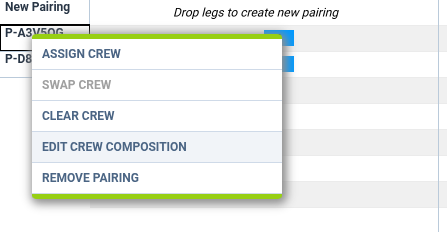
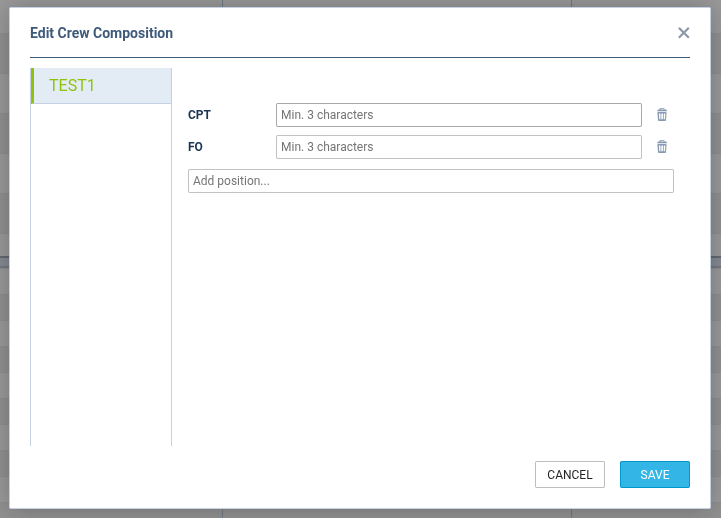
This will open a pop-up window in which you can add a position to the pairing, remove an existing position, or assign a crew member to the specific position by entering their crew code. After clicking Save, the changes will be persisted in the pairing.
An alternative method is the “Assign Crew” feature which can be selected using the same pop-up menu as before. Here, another pop-up window will open, displaying a list of all crew members rated for the positions included in the pairing, together with color-coded information on individual crew members’ validity checks. If the crew member violates their long-term FTL limits, their endorsements have expired, or in case of insufficient currency, they will be highlighted in red.
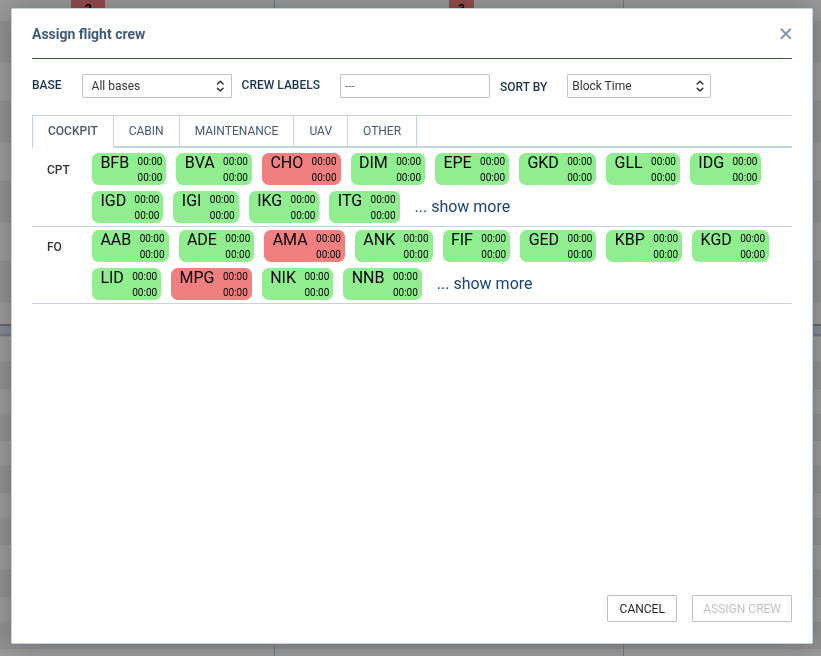
Selecting the crew member in this pop-up window and confirming with “Assign Crew” button will replace any crew member previously assigned to that position.
Operations for individual pairings
There is a number of other pairing management features available. By right-clicking on each individual leg, you can
-
remove the leg from pairing (if it is the only leg in pairing, the pairing itself will be deleted as well),
-
move the leg to a new pairing with no positions (if it is the only leg in pairing, the old pairing will be removed), or
-
copy the leg to a new pairing with no positions.
On the other hand, by right-clicking on the pairing’s identifier, you can
-
assign crew, as described above,
-
delete the pairing, or
-
clear all the crew assignments for the pairing.
Operations for multiple pairings
Multiple pairings can be selected at once, either by selecting several individual pairings (by clicking them one by one while holding the CTRL key), or by selecting a contiguous range of rows (by clicking the first and then the last of the range while holding the SHIFT key).
If multiple pairings are selected, the only available options are currently: Clear Crew and Remove Pairings.
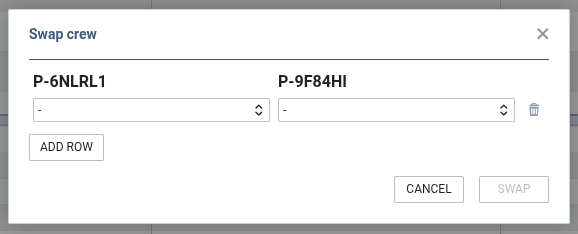
Additionally, if exactly two pairings are selected, you can swap individual crew assignments between them by using the Swap Crew feature.