

⚠️ This page is a documentation of a feature still in testing phase. It will be expanded in the future. For more information we recommend contacting Customer Support. ⚠️
Pairings - User Documentation
1. Overview
A pairing in Leon is a planned sequence of duty for one crew slot: a chronological chain of flight legs and positionings that together form the work a crew member (or full crew) will perform. Pairings are first built independently from people, then crews are assigned to them.
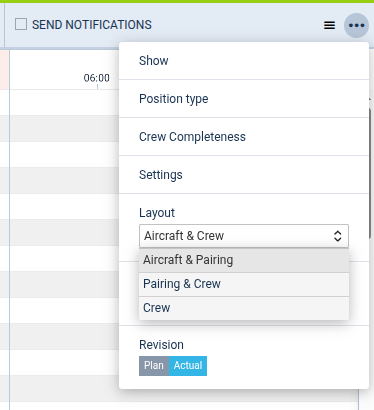
The Pairings feature lives inside the existing Crew Timeline view. A new third timeline — Pairings — has been added between the Aircraft and Crew timelines. The view always shows two of the three timelines; the user picks which two from a selector available under the three-dots (…) menu of the Crew Timeline. Available combinations are:
-
Aircraft & Crew (the original view)
-
Aircraft & Pairings
-
Pairings & Crew
The whole feature can be turned on or off per operator with a feature toggle by Customer Support - you may contact us to turn it on for you.
2. The Pairings timeline
2.1 Layout
-
Each row represents a single pairing. Rows are sorted chronologically by the start time of the pairing's first leg; pairings starting at the same moment are then sorted alphabetically by
name. -
The left-hand column shows the pairing's
name. -
A row displays every flight leg and every positioning that belongs to the pairing.
-
Bar styling matches the Crew timeline so the two views read consistently:
-
flights are blue,
-
positionings use the dedicated positioning colour.
-
2.2 Base time on the timeline
The pairings timeline respects the operator's configured base time, the same way the Aircraft and Crew timelines do, so all three line up correctly side by side.
2.3 Filtering the view
The Pairings timeline can be filtered by crew positions and by position type, so the planner can narrow the view to, for example, only pairings that contain a Captain slot, or only pairings that include a specific rating.
2.4 Pairing details on the Crew timeline
When the Crew timeline is shown, the lower bar of a crew row (very bottom of the screen) also surfaces the relevant pairing details — so a planner can see the pairing context for a given crew member without switching views.
2.5 Highlighting a pairing's crew on the Crew timeline
Selecting option "Sort by pairing" on one or more pairings highlights the people assigned to those pairings on the Crew timeline. This makes it easy to see which crew members are committed to a given duty block.
3. Creating pairings
3.1 Manual creation
A planner can create a new pairing manually, choosing the legs that belong to it while holding Ctrl button, then right-clicking on any selected leg and choosing Create Pairing option.
3.2 Drag & Drop creation
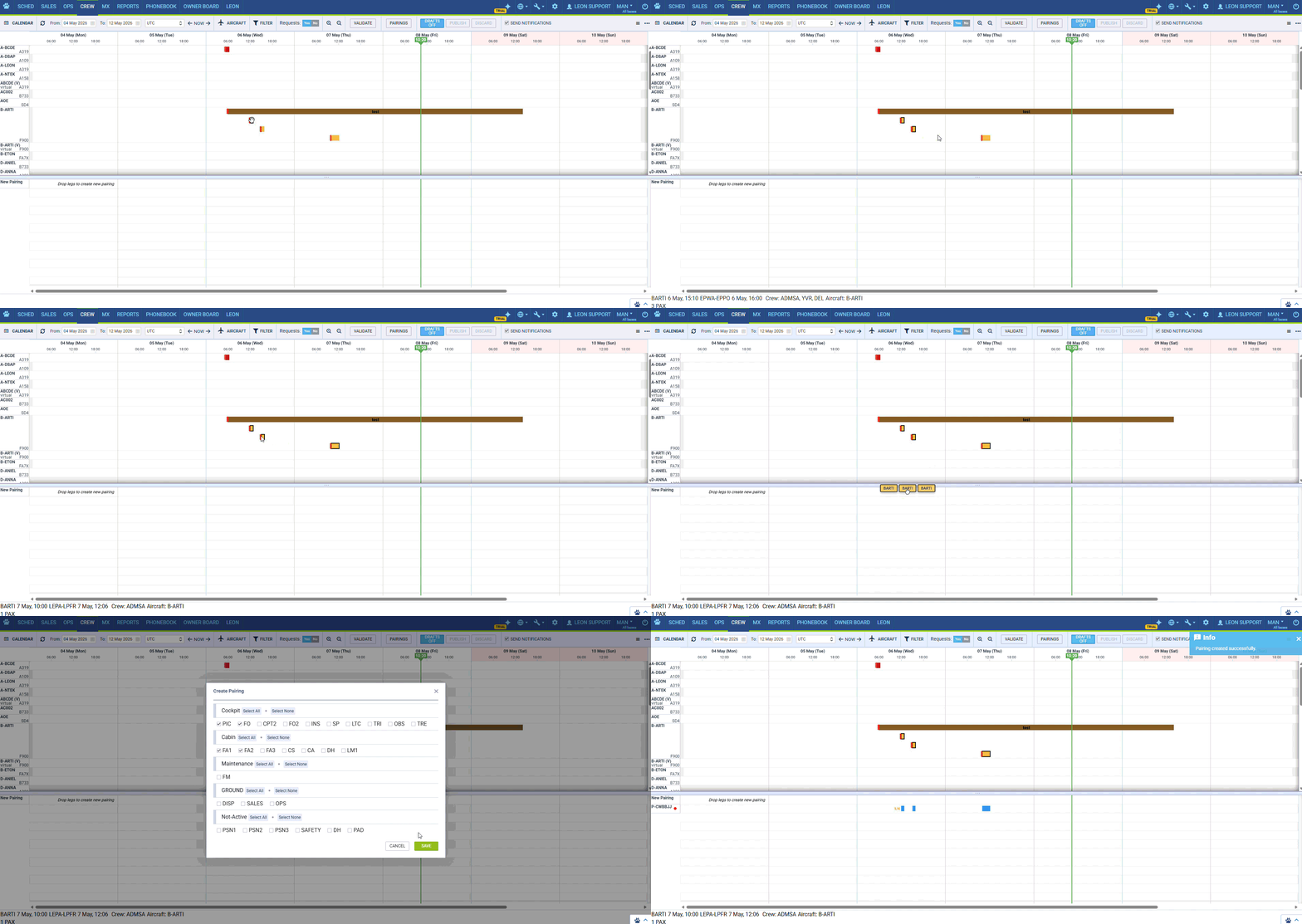
A new pairing can also be created by drag-and-drop directly on the timeline — drag a leg (or multiple legs - see § 6.9) from the Aircraft panel down into the Pairings panel. A pop-up window appears asking which positions (cockpit, cabin or other) the new pairing should cover. After confirming, the pairing appears as a new row in the Pairings panel.
3.3 Creating pairings on selected aircraft tails
When generating pairings, the planner can restrict generation to chosen aircraft tails (registrations) instead of the full fleet.
3.4 Aircraft type suggested from the fleet
In creation/generation dialogs, the Aircraft type field auto-suggests values from the operator's own fleet, so the planner does not have to type them blindly.
3.5 Base selection at generation time
When generating pairings, the planner picks the base(s) at which each generated pairing must start and end. Base time is honoured on the resulting pairings. Note that this base setting only affects where the generated pairing itself starts and ends. It does not filter or prioritize which crew members are proposed during Assign Crew, crew home base is not currently considered in that step.
3.6 Default set of positions on a new pairing
When a new pairing is created, the default set of crew positions is taken from the default crew numbers for the aircraft type configured in Fleet settings — so the planner does not have to set them manually for the typical case.
4. Auto-generation of pairings
4.1 Auto-generation tool
An auto-generation tool is wired into Leon and reachable from the Pairings UI - the Pairings button is positioned in the upper row, between Validate and Drafts On/Off buttons. Then select Generate Pairings option.
4.2 Settings in the Generate Pairings dialog
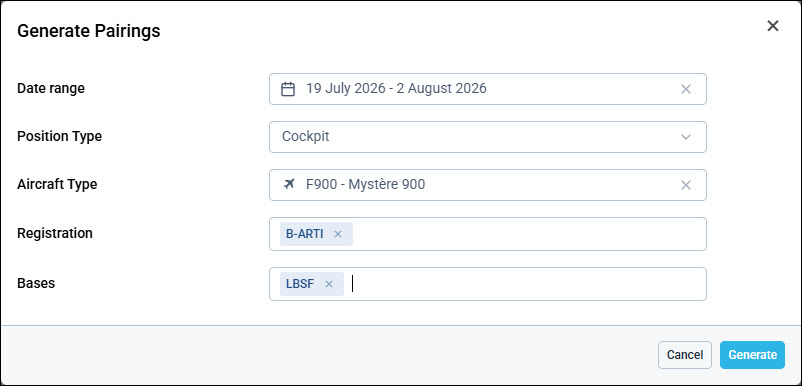
The Generate Pairings dialog lets the planner shape the run before launching it. Available fields:
-
Time interval — the date range for which pairings should be generated.
-
Position type — currently only Cockpit and Cabin are supported.
-
Aircraft type — the algorithm will try to accommodate all flights of the chosen aircraft type.
-
Registration - option to select aircraft based on the selected aircraft type
-
Base Location — the airport(s) where each generated pairing must start and end. Pre-filled from the operator's main base; multiple airports can be entered. Make sure this field lists the airports you actually start and end activity from — otherwise the algorithm may not be able to generate any pairings.
-
Max layover [hours] — the longest gap allowed between two consecutive activities in a pairing. Pre-filled from General Settings > Crew planning > Pairing settings; can be changed for this run only. Maximum 72.
-
Max pairing length [hours] — the longest total duration of a pairing. Pre-filled from the same settings; can be changed for this run only. Maximum 168. Max layover cannot exceed this value.
4.3 Handling of generator output
Generated pairings appear correctly on the timeline and behave like manually created ones — they can be edited, validated and assigned crew in exactly the same way.
4.4 Re-running Generate Pairings for an overlapping period
Re-running Generate Pairings for a period that already contains pairings does not delete or overwrite the existing rows — new pairings are created alongside the old ones. Any resulting leg + position overlap is flagged invalid (red dot, § 7), so the planner can spot and clean up duplicates manually.
5. Editing pairings
5.1 Adding legs
-
From the right-click menu: a planner can add an existing flight leg to an existing pairing through the context menu, selecting Add To Pairing.
-
By drag-and-drop: a leg dragged into a pairing is added; if the planner has already configured crew assignment behaviour, crew is attached to the new leg automatically.
-
A general "add a leg to a pairing" flow is supported on both the timeline and from leg-level actions.
5.2 Removing legs
A leg can be removed from a pairing through the timeline. The flow uses a selection mode plus a contextual menu to make multi-leg removal predictable. If the leg being removed is the only leg in its pairing, the pairing itself is deleted as well.
5.3 Editing positions on an existing pairing
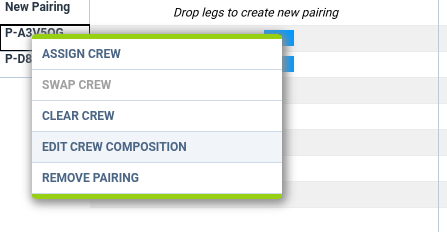
The set of crew positions on an already-created pairing can be edited (added, removed) without rebuilding the pairing from scratch. Right-click on the pairing's name and pick Edit Crew Composition. In the dialog you can add a position, remove an existing position, or assign a crew member to a specific position by entering their crew code. Click Save to persist the changes on the pairing.
Positionings that belong to the pairing appear in the dialog as separate tabs, alongside the flight legs. Tabs are marked with an aircraft icon for flights and a bus icon for positionings. On a positioning tab you can add or remove crew members for that positioning.
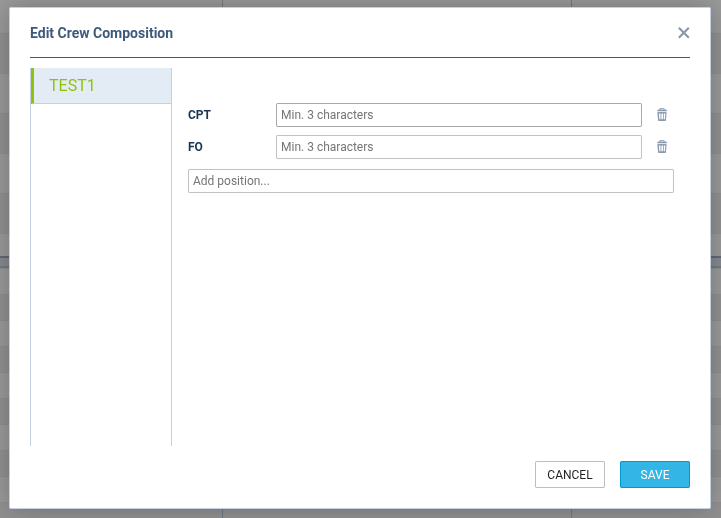
Save requires a consistent crew composition across the pairing: the same crew members must be present on every activity in it, flights and positionings alike. If they are not, the dialog blocks the save — this requirement cannot be overridden.
5.4 Copy to a new pairing / Move to a new pairing
-
Copy to a new pairing takes selected legs from an existing pairing and creates a fresh pairing from them, leaving the original untouched. The new pairing starts with no positions — add them via Edit Crew Composition (§ 5.3). Useful when a sub-sequence should become its own duty without rebuilding it from the flight list.
-
Move to a new pairing does the same, but the selected legs are removed from the source pairing and placed into the new one (also with no positions). If the moved legs were the only legs in the source pairing, the source pairing is removed as well.
5.5 Deleting a pairing
A pairing can be deleted in one action; the legs return to being unassigned.
6. Crew assignment
6.1 Manual assignment
Crew members can be assigned to a pairing manually from the Pairings view by right clicking pairing's name and selecting either Assign Crew (quick) or Edit Crew Composition (precise — see § 5.3 for the dialog mechanics).
6.2 Automatic crew assignment
The mechanism that automatically assigns crew to pairings is available from the Pairings UI (Pairing button → Assign Crew). It proposes and assigns crew for all required positions on the pairing.
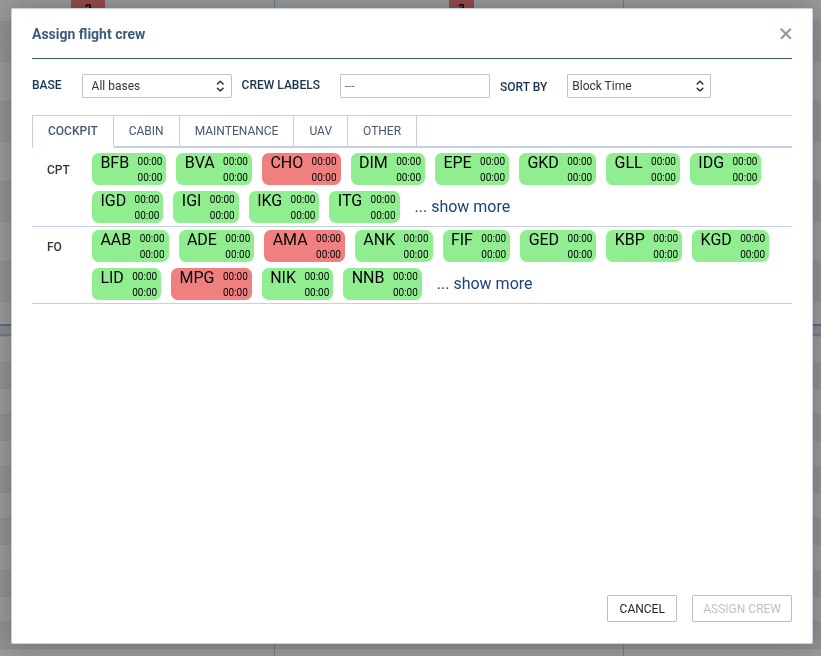
The Assign Crew dialog lists every crew member rated for the pairing's positions, with colour-coded validity — a candidate is highlighted red if they violate long-term FTL limits, have expired endorsements, or have insufficient currency. This highlighting is informational. A candidate shown in red can still be assigned, the automatic mechanism itself does not block the assignment based on these flags, so results should be reviewed before being confirmed. Selecting a candidate and clicking Assign Crew replaces any person previously assigned to that position. The engine selects candidates by cycling through the list of crew rated for the pairing's positions, distributing assignments roughly evenly across a planning run rather than ranking candidates by any other criteria. There is currently no weighting or configuration available for this selection, for example there is no option to prioritize crew based at the pairing's base, minimize positioning flights, or balance flight hours beyond this natural cycling effect.
6.3 Assign Crew with positioning support
The Assign Crew flow takes positionings into account: when crew has to be repositioned to start a pairing, those positioning legs are part of the assignment proposal and end up linked to the pairing.
6.4 Candidate list in Add to pairing
The crew list in the Add to pairing dialog is filtered to crew members already in current pairing's positions.
6.5 Removing a crew member from a pairing
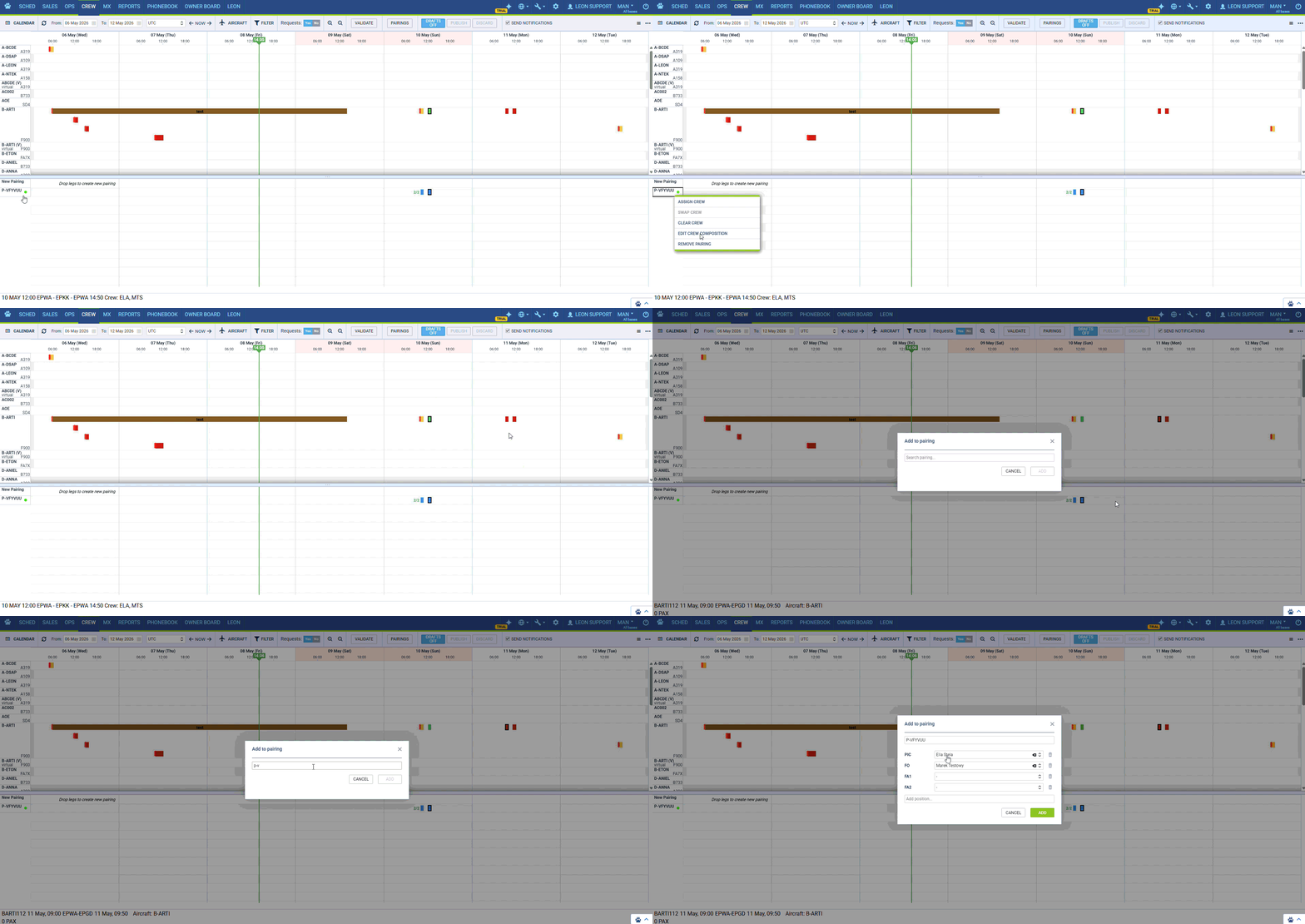
A single crew member can be removed from a pairing without touching the rest of the crew, by first right-clicking on crew member's flight in their roster, then selecting Remove From Pairing.
6.6 Clearing all crew from pairings
A pairing's crew can be cleared in one operation, returning the pairing to an unassigned state. To do that, right-click pairing's name and select Clear Crew.
6.7 Swap Crew
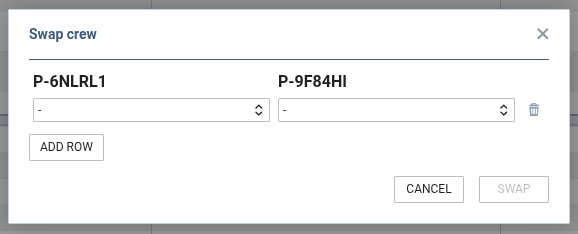
Two crew members can be swapped between pairings (or positions) directly from the Pairings view. Ctrl-click two pairing names and select Swap Crew (see § 6.9 for multi-selection mechanics).
6.8 Live refresh after Assign Crew
After running Assign Crew on a pairing, the pairings timeline refreshes automatically — no manual reload is required.
6.9 Selecting multiple pairings
Multiple pairings can be selected at once:
-
CTRL-click — pick individual pairings one by one.
-
SHIFT-click — pick a contiguous range by clicking the first and the last row.
When two or more pairings are selected, the right-click menu is restricted to Clear Crew and Remove Pairings. With exactly two pairings selected, Swap Crew is also available (see § 6.7).
7. Validations during pairing composition
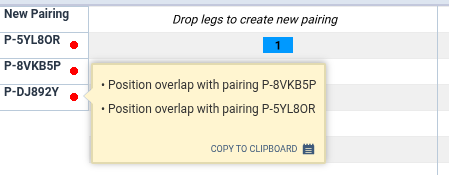
Leon validates pairing/crew correctness at several points so that planners catch problems while they build the duty, not afterwards. When a pairing fails validation it is marked with a red dot in the Pairings panel; hovering over the dot reveals the reason.
-
Position validation in Edit Crew Composition: the editor flags missing or incompatible positions in the crew composition.
-
Crew validation in Edit Crew Composition: the editor flags issues at the crew-member level (e.g. a person not allowed for the role).
-
Position-overlap validation when creating a pairing: prevents creating a pairing in which crew positions overlap incorrectly.
-
Existing-crew validation when creating a pairing: while a pairing is being created, Leon checks it against crew that is already booked elsewhere.
-
Crew-occupancy state on a pairing: a pairing shows whether its crew is fully assigned, partially assigned, or empty.
-
Validation when adding legs to a pairing: when the planner adds a leg, Leon validates that the leg is compatible with the rest of the pairing.
8. Positions on a pairing
A pairing carries a concept of crew positions (not just "crew members"). In day-to-day use this means:
-
a pairing visibly carries its required positions,
-
assigning, removing and validating crew always happens against a specific position,
-
automatic assignment fills positions individually rather than the whole crew at once.
This unlocks position-aware validation and minimum-crew handling described in the next sections.
Because a pairing carries positions, the same flight leg can appear in more than one pairing at the same time — as long as the positions on those pairings do not overlap. For example, one pairing can cover the cockpit positions on a leg while a separate pairing covers the cabin. Two pairings that share both a leg and a position are flagged invalid (§ 7).
9. Positionings (repositioning legs)
Positionings created as part of building a pairing are returned as drafts on the pairing data, so the planner can see and review them before they are committed. Positioning handling during the Assign Crew flow is described in § 6.3.
Positionings on a pairing can be added, edited and removed directly (§ 9.1–9.3), and a positioning does not have to carry crew.
9.1 Adding a positioning to a pairing
Right-click a pairing's name and choose Add Positioning. The standard positioning pop-up opens — the same one used on the Crew Calendar / Timeline. Every crew member already assigned to the pairing is pre-selected in the crew list; if the pairing has no crew yet, the dialog opens with nobody selected. A positioning can be saved with or without crew. Once saved, it appears on the pairings timeline in the same colour used on the crew timeline.
9.2 Editing a positioning
Right-click an existing positioning to open it for editing. It is edited under the same rules as when it was created. Adding or removing a crew member on the positioning may invalidate the pairing (red dot, § 7).
9.3 Removing a positioning
Right-click a positioning and choose Delete. This removes the positioning completely from the system and detaches it from the pairing.
9.4 Positionings in crew operations
Positionings stay consistent with the pairing's crew across all crew flows:
-
Assign Crew assigns crew to the pairing's existing positionings as well, not only its flight legs — both for manual runs and during auto-generation.
-
Clear Crew empties a pairing's crew without deleting its positionings.
-
Deleting a pairing also removes its positionings.
-
In Edit Crew Composition, each positioning has its own tab where its crew can be edited. The composition must match across the whole pairing before the dialog allows saving.
9.5 Validation
Pairing validation runs everywhere a positioning can change — including edits made outside the Pairings timeline. Changing the crew on a positioning raises or clears the pairing's red dot (§ 7) accordingly.
10. Minimum crew per aircraft type
In Fleet → aircraft type → Crew positions, a position can be marked Exclude from Crew Completeness. On the Pairings side this means only non-excluded positions are pulled into a new pairing's default position set, and the pairing's crew-occupancy state (§ 7) reaches "complete" once those positions are filled — extra/optional roles can still be added afterwards without changing the indicator. This is how the operator declares its minimum crew per aircraft type for pairing creation and crew assignment.
11. Note for API integrators
The word rosterize has been removed from the names of the operations that back the Pairings feature. End users do not see this directly, but external consumers of the Leon API should update their integrations accordingly.