

Crew Planning
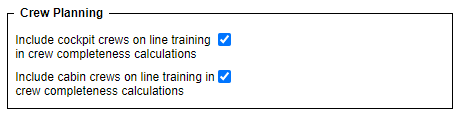
The below options are available in the ‘Settings’ > ‘General Settings’ > ‘Crew planning’ tab:
-
Include cockpit crews on line training in crew completeness calculations
-
Include cabin crews on line training in crew completeness calculations
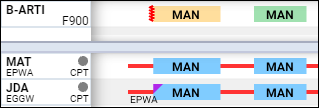
It is possible to exclude a crew member assigned to ‘Line Training’ / ‘Line Check’ from the basic crew assigned to the flight.
Once the first two options are selected, assigned to a flight crew undergoing ‘Line Training’ / ‘Line Check’ will not affect the color of the flight indicating the crew composition in the ‘Crew Timeline’.
As presented in the example, the aircraft is set to a minimum cockpit crew of 2. On the first sector, one of the crew is assigned to the ‘Line Check’ duty (indicated by the purple triangle) therefore the first of the sectors is highlighted yellow, indicating the partial crew assignment. The second sector is highlighted green indicating full crew composition since there is no training assigned.
Selecting the third option will activate the possibility to acknowledge changes in OPS and in the crew mobile app.
Instructor recognised by
This setting decides how Leon checks that an instructor is on board when a crew member flies a line training leg. It affects line training validation only.
Two options are available:
-
Instructor position (default) — a crew member must be assigned to an instructor position (for example LTC or LTI) on that leg. This is how the check has always worked.
-
Instructor rating — it is enough that a crew member assigned to a pilot position (CPT or FO) holds a matching instructor rating on the aircraft type of that leg.
The Instructor rating option is useful when your instructors normally fly as CPT or FO. Previously they had to be assigned twice — once as a pilot and once on an instructor position — to clear the warning, which could send incorrect crew data to integrated flight planning systems.
If no instructor is recognised on a leg with a crew member on line training, Leon shows a warning when the flight is saved in OPS.
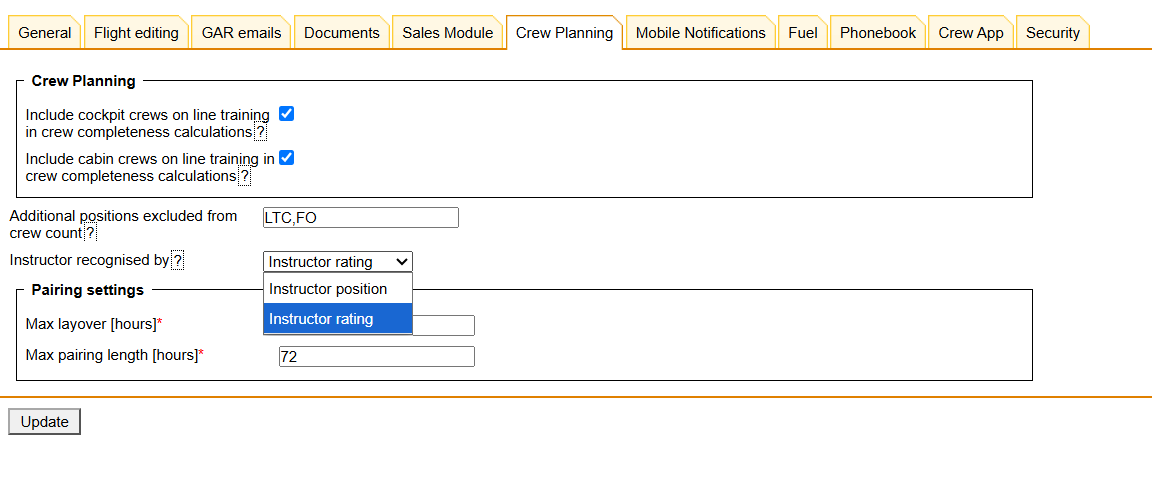
Pairing settings
These two settings control how the pairing generator builds rotations. They apply to the Beta Crew Pairings feature.
-
Max layover [hours] — the longest gap allowed between two consecutive activities within one pairing. Default: 24, maximum: 72.
-
Max pairing length [hours] — the longest total duration of a single pairing. Default: 72, maximum: 168.
Max layover cannot be longer than Max pairing length. Both values are validated when saved.
The values set here are used as defaults in the Generate Pairings dialog, where they can be overridden for a single run.
Higher values let the generator build longer rotations, but they also make the calculation take noticeably longer.
