

This functionality is created as part of the process of adhering to the Regulation (EU) 2016/679 of the European Parliament and of the Council of 27 April 2016 (General Data Protection Regulation).
It is now possible to permanently anonymise and delete Users from Leon.
The process is as follows:
-
Go to Settings > Users.
-
Edit an User you wish to permanently delete.
-
Mark an User as deleted by unticking both checkboxes in the 'Account restrictions' section of the profile: 'Can log into Leon' and 'Active', and click the 'Update' button.
-
Edit the same User again. Click on the ‘Permanently delete & anonymize data’, which is located at the bottom of the Edit User page.
-
You should get a pop-up window with the following message: 'Do you want to permanently delete & anonymise data for this contact? This action is irreversible!'. Clicking 'OK' will permanently delete the User data.
Once the User has been deleted, the following areas will be affected:
-
User Profile will be permanently deleted from both Settings > Users and the Phonebook.
-
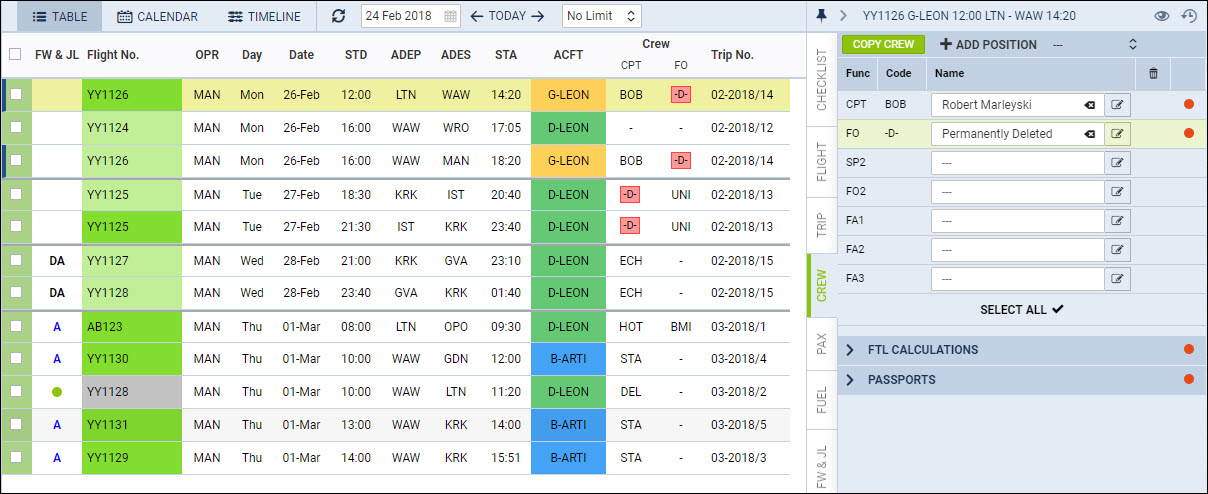
If the user was assigned to any operation (Flight, Positioning, Office), instead of User Code, there will be a letter -D- and in the Tab CREW, you will see Permanently Deleted instead of a Name.
-
Deleted User will show as -D- in the reports that show Flights with this Crew Assigned, for example Custom Flights List Report.
To check who permanently deleted a user, you can use a button CHECK PERMANENTLY DELETED USERS in the top-right corner - insert the deleted user's code and click on the ‘CHECK’ button
IMPORTANT!
Anonimizing an User is permanent and irreversible. Once the User data has been deleted, it cannot be reverted.