Two-Factor Authentication
Two-factor authentication (2FA) is an optional security feature available to all users. In addition to standard login credentials (operator code, login, and password), it requires a 6-digit authentication code to complete the login process, adding an extra layer of protection to user accounts.
Resetting the password invalidates the current 2FA pairing. The user must re-pair their device using the link provided with the new password.
Enabling Two-Factor Authentication
-
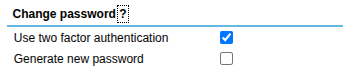
Go to your user profile (full edit view), tick the Two-factor authentication checkbox, and save the page:
-
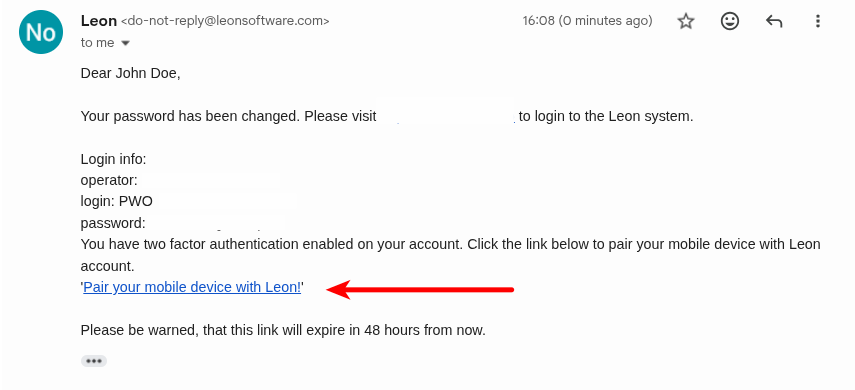
Check your work email — you'll receive a message from Leon containing a new password and a link to pair your mobile device with Leon via Google Authenticator or other authenticator app.
-
Download Google Authenticator (available for iOS and Android) or a compatible TOTP app and set up your account.

-
Use the "Pair your mobile device with Leon!" link from the email to scan the QR code and link the app to Leon.
-
Log in as usual. When the authentication code prompt appears, enter the 6-digit code generated by your app.
Important: Make sure your mobile device's clock is correctly set and synced with an internet time server. Any time discrepancy will cause authentication to fail.
Enabling 2FA for All Users at Once
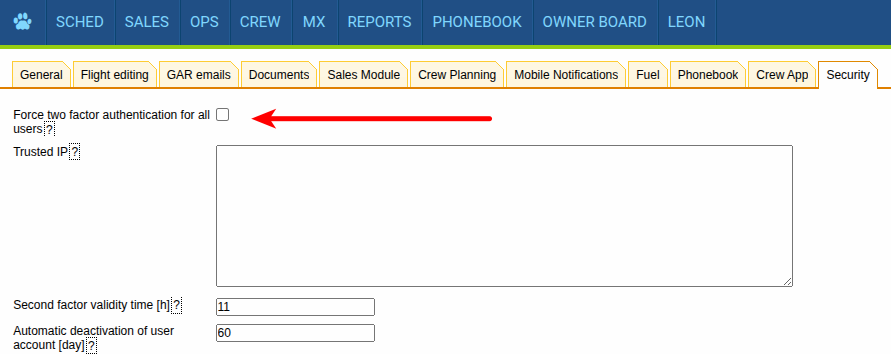
Administrators can enforce two-factor authentication across all user accounts globally. To do this, go to Settings → General Settings → Security tab and enable the Force two-factor authentication for all users checkbox. This option is disabled by default.