

Positionings
Table of Contents
The transferring of a non-operating crew member from one place to another, at the behest of the operator, is an important thing in aviation industry. In Leon you can add positioning duties and assign crew in 2 easy ways.
Positionings in Schedule
You can add Positioning by clicking 
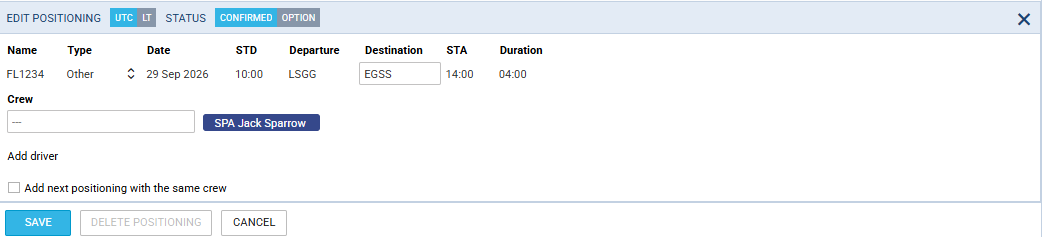
When a new window shows, enter details such as: Name, Type, Date, STD, Departure, Destination and STA. Duration will calculate itself.
Clicking on Crew field allows you to select designated crew member from a drop-down box, or type-in his/her name or a code.
When adding Positioning duty from Table, it is possible to add it as an Option - it will appear in stripes, as all options in Leon.

Positioning duties added from a section Crew > Duties (selected from the bottom of the duties list) also appear in Table. If there is a note inserted (in Crew > Duties), then those duties appear on white background as 
The right-hand filter contains 2 tabs:
-
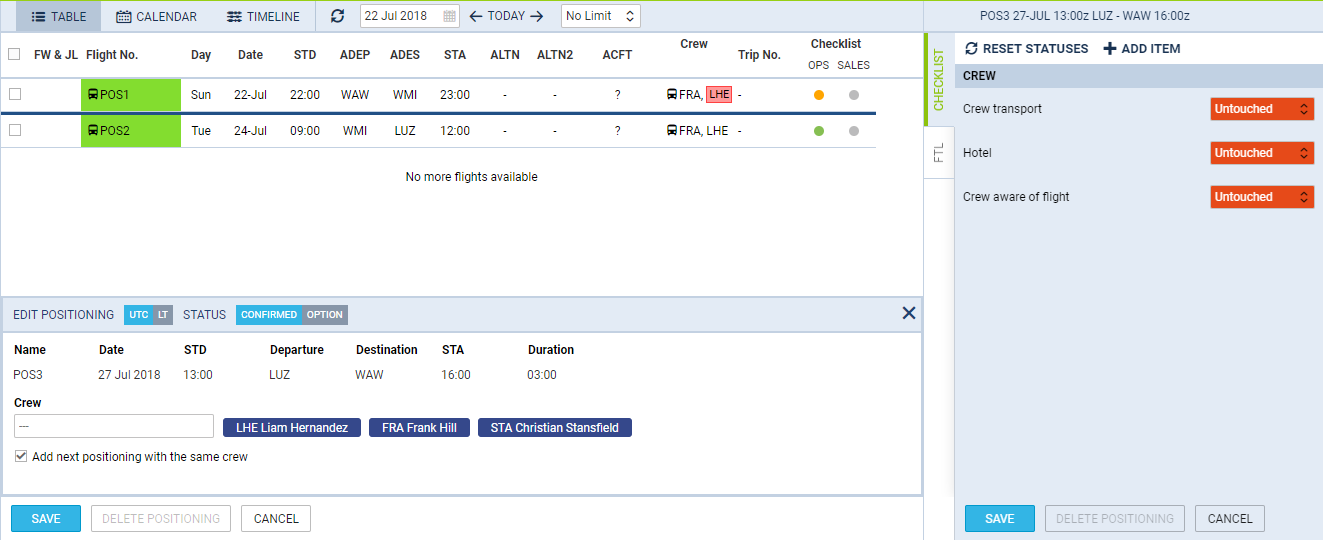
Checklist - default items are: Crew aware of flight, crew transport & hotel. You can manually add more items by clicking a button ADD ITEM.
-
FTL - FTL Calculation Summary showing most important FTL regulations displayed in 2 columns: Limit & Actual.
Multiple Positioning sectors
To add multiple Positioning sectors you have to:
-
Click on ‘NEW POSITIONING’ button and start inserting the details of the positioning as you normally would, including the crew.
-
Make sure that

checkbox is ticked.
-
Click ‘SAVE’ to finish the process of adding the first Positioning sector. Leon will save the first sector and automatically populate the ‘NEW POSITIONING’ entry for the following sector with the existing Crew assigned. You can add or remove Crew at any time. The checklist on each new Positioning will reset to

In order to save the last Positioning, untick the checkbox and click on ‘SAVE’. If the last Positioning has already been added and the “NEW POSITIONING’ window populated, just click on ‘CANCEL’.
It is not possible to add extra positionings to the ones that are already saved. In such case you need to add new positioning and follow the process.
FTL details for a crew member
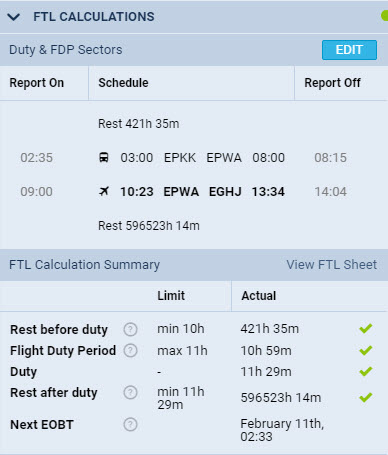
In the New Positioning window, each crew member row has an FTL column. The icon in that column opens the FTL details for that crew member, with Duty & FDP Sectors on the left and FTL Calculation Summary on the right, the same view as the FTL Details option for an activity in the Crew Calendar.
The icon stays inactive until Departure, Destination, STD and STA are filled in. For a positioning that has not been saved yet, and for a crew member added before the positioning is saved, the window opens in read-only mode. Reportings can be edited once the positioning is saved.