

Handling Requests
Table of Contents
In Handling requests section in the Admin Panel, there 4 tabs where you can set this functionality up.
Settings
Here you can set up basic items, such as:
-
Operator name - name which shows in the HR email.
-
Test settings - when ticked, a test-mode is turned on and HR email will be sent to the logged user’s email address.
-
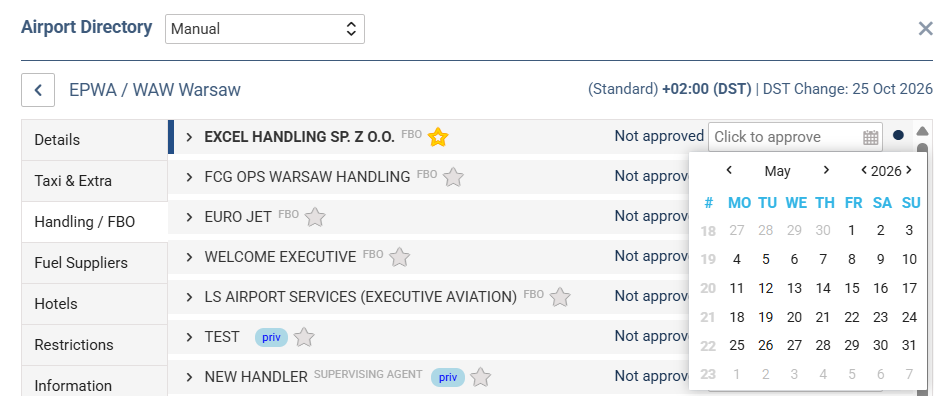
Approval date of handlers - insert an email address where the HR email should be sent, if the approval date of handlers expires in less than 14 days. Approval date of handlers can be defined in Airport Directory.
-
Matching flights - tick the checkbox if options should be included by default.
-
Callsign - in a case, you would want to use different callsign style for your flights in your Handling Requests, than in other parts of Leon, you can override this setting here. Choosing Flight Number means, that no changes will be made.
-
Handling requests status changes - tick items, which should affect HR checklist item’s status (the status will show as '?')
-
HR emails - insert default email address/addresses, as well as additional details (SITA, phone number, FAX, default HOTAC details or footer).
-
Handling requests status changes - do the same as the above per a BASE (set up in General Settings panel).
-
Attach documents by default - mark which documents should be always attached to each HR email.
Sending handling requests emails always concerns only the airport to which the email is sent. This airport will be in BOLD letters in table SCHEDULE in Handling Request email
Handling Requests are available from Handling tab in OPS Checklist (when you click on the status-dot in Flights List section).
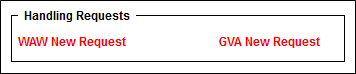
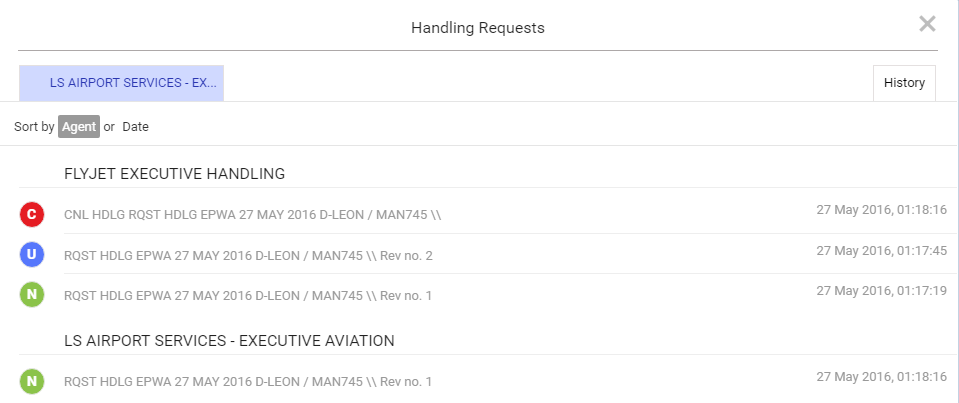
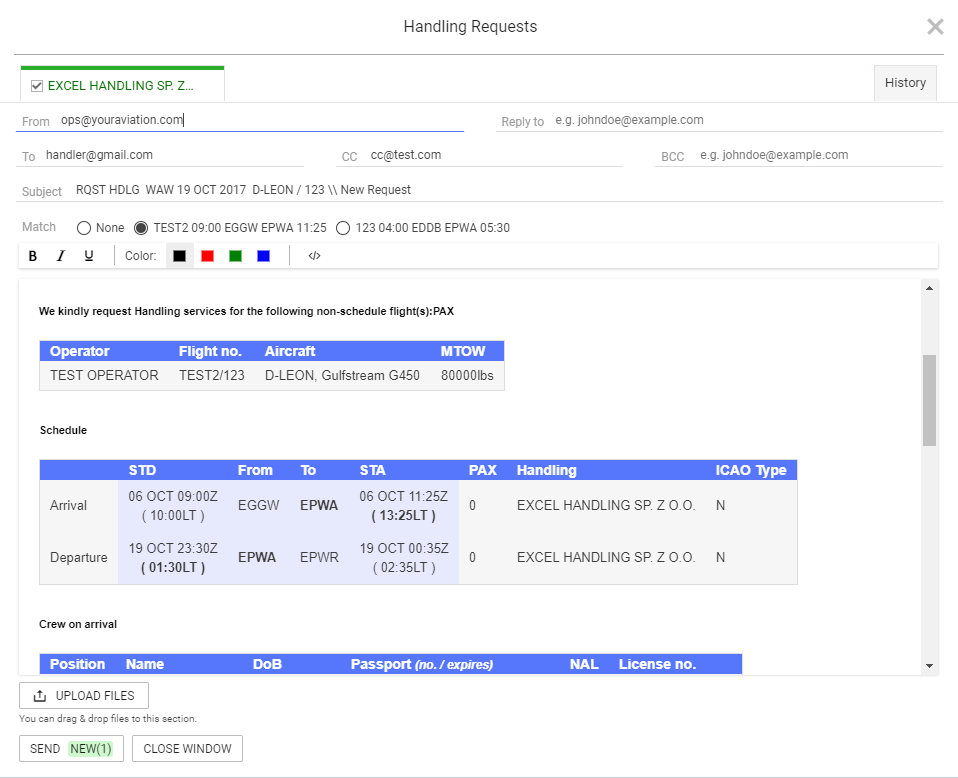
Clicking on one of the links will open Handling Request email window and also it will give access to HR History. Handling Request window is fully editable. Let’s use EPWA airport as an example (see screenshot on the right).
The date included in the Handling Request email subject is in LT of the airport to which the HR is sent.
You can see that HR gives you an option to connect and disconnect flights to schedule in HR email. Suggested flights are matched by the registration of an aircraft. Matching can be done at any stage of the process i.e. if you sent an email with option None (no connection), you can always send an update with the leg connected. You can also disconnect a flight and send an update.
If you are sending HR to ADEP, Leon will suggest matching 2 flights from before departure time. If you are sending HR to ADES, Leon will suggest matching 2 flights in the future. This includes “Options”.
You also see that when sending HR email to a handling agent at the airport EPWA not only there are details about the arrival flight to EPWA, but also details about the next departure flight from EPWA
Handling Request SEND button corresponds now with the tabs in Handling Request message window. This means that apart from word “SEND” there are:
-
Status of Handling Request - New, Update, Cancel and variations, i.e. if you are sending an Update and Cancellation button will display: “SEND CANCEL (1) UPDATE (1)”.
-
Number of identical requests - this is a number in the bracket, i.e. if there are 2 Update emails sent to 2 different Handlers button will display following information: “SEND UPDATE (2)”
It is also possible to attach and send files along with Handling Request email. This file is then visible and accessible in the History Tab.
Once handling request is sent, the status will change to 
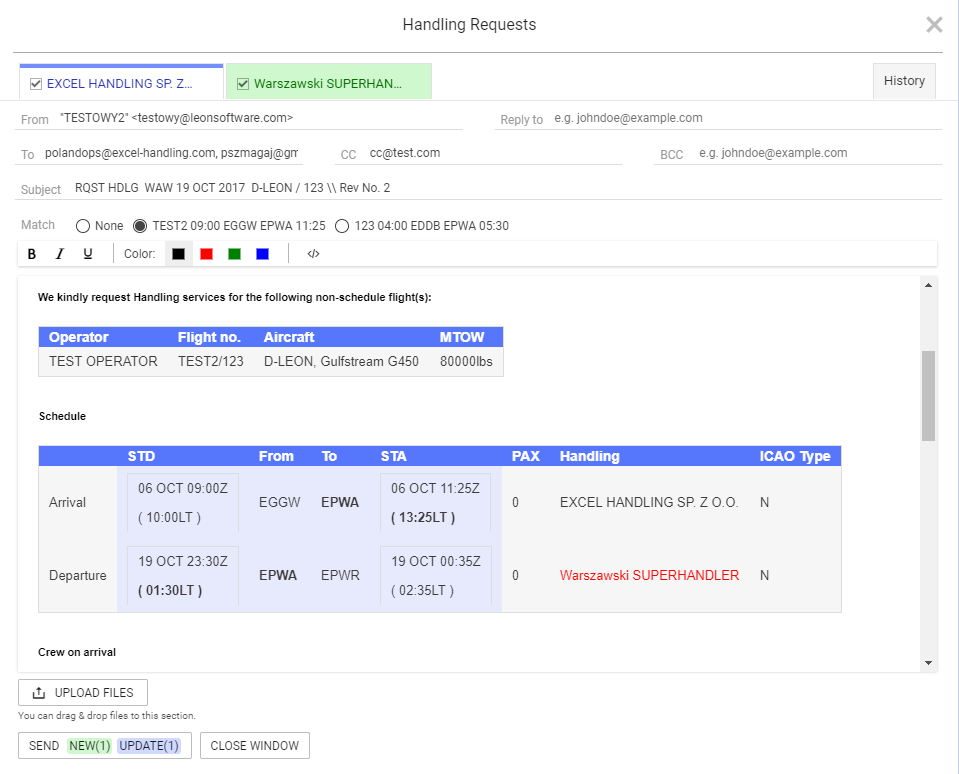
In a situation when a handling agent has to be changed on one of multiple leg trip, Handling Request facility will allow to simultaneously send Update email to old handler and new request email to a New Handler:
Cancellation email
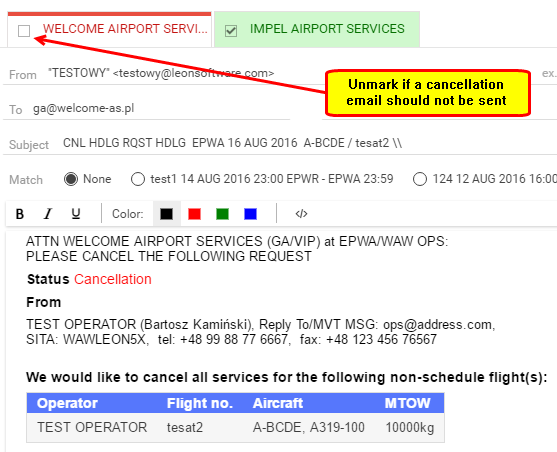
In case when one leg of a trip has to be deleted Leon will populate cancellation email ready to be sent. The title of HR email will start with CNL and the wording will clearly request the cancellation of HR facilities.
As mentioned before, the history of changes is easily accessible from History section via Handling Request link.
If you are sending emails to Handling Agents from external company email account and only want to update manually statuses in Leon, Handling Requests panel will automatically update the information to EPWA Show History and the status in the history section. All you need to do is to change the status and update the screen.
Clicking on the EPWA Show History will display There are no changes to this flight message. Clicking on it enables an option to send Handling email with an update.
Updating Handling Status also updates the Airport Slots to
If one leg is cancelled the status will change to 
It is possible to decide if a cancellation email should be sent or not (in order to i.e. keep slots booked) by unmarking a handling agent in a HR sheet
All the changes will update Handling Request History link. All the files attached and sent with Handling Request will also be visible and accessible in the History Tab. Handling Request with the status updated manually will have no email information and will only display a message This email wasn’t sent to an agent.
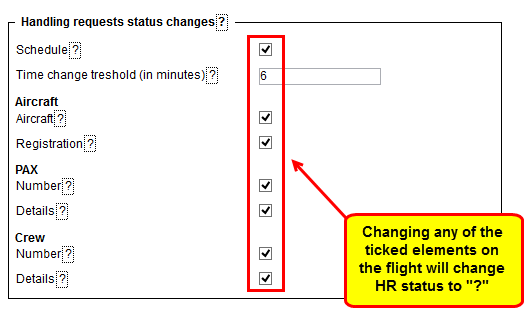
It is also possible to choose the elements of the flight that affect Handling Request the status.
In order to do it you have to go to Handling requests tab where you will find HR status changes checklist. Checklist consist of list of items as shown in the screenshot, which when ticked will affect the status and change it to
All the elements of the checklist are ticked by default. Schedule checkbox is ticked and cannot be modified.
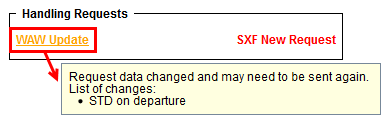
Changes to the fligt that affect the status of Handling Request, apart from changing status to
My Handling
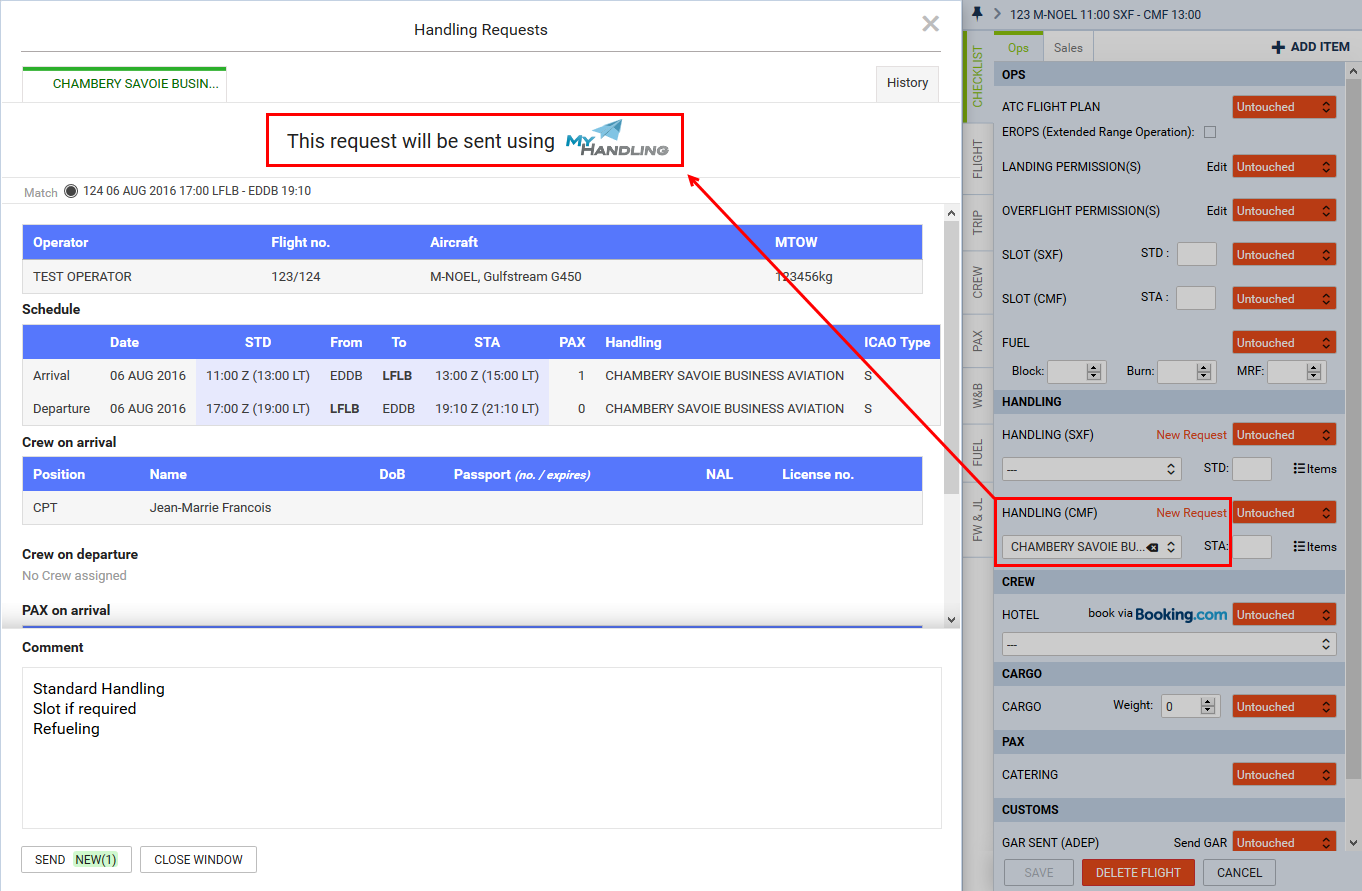
MyHandling is a different way of sending handling requests used by certain airports.
Integration process with MyHandling software is explained in the Integrations section of the Manual.
Airports using MyHandling do not receive standard email to inbox. Instead they use MyHandling application that stores every handling request sent.
Adventages of this process are:
-
A single operator can process more information and faster
-
All handling requests are grouped
-
Invoicing simplified and clarified
Sending handling requests with MyHandling is exactly the same as sending standard handling requests. Clicking on New Request opens MyHandling request widow.
There are few conditions that have to be fulfilled in order to send requests with MyHandling:
-
Airport must be using MyHandling application
-
If airport is not part of MyHandling facility, standard Handling reuest window will open
-
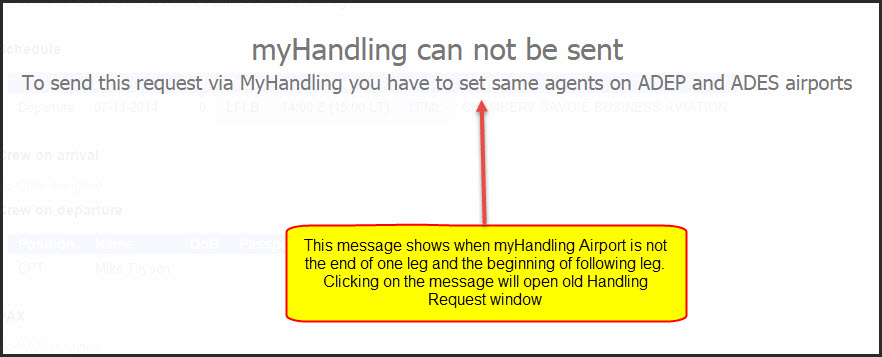
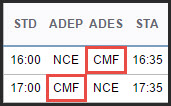
MyHandling in Leon (new) activates only when aircraft finishes one leg and starts another leg of the same trip at the same airport as shown in the example below
-
There must be the same Handling Agent assigned to both legs of one trip
-
Flight number has to be alphanumeric (no special signs)
-
If MyHandling cannot be sent, message will show on the screen. Clicking on the message will open standard handling request window
Sending Updates for the past flights is impossible via MyHandling. In such case Leon will allow you to send an Update via standard Handling Request. This is to update Checklist status automatically. Alternatively, you can send an Update from external email and update the status in Leon manually. You can also log the changes via MyHandling application/website.
Requests send via MyHandling will show in Handling request history tab as they show in standard Handling request history.