

API Keys
API Keys panel allows you to create a Leon API key directly from the interface in order to obtain or modify different kinds of data from Leon for the purpose of internal operator integrations.

This panel allows to generate a Refresh Token (API Key), which is a special kind of token that can be used to obtain a renewed access token which allows programmatically accessing a protected resource. Access tokens are attached to API requests. More information can be found in the documentation (https://apidoc.leonsoftware.com/).
The token can be generated only by admins in Settings -> API keys page.
How to generate a token
-
Click the

-
Enter the name, description, and the usage purpose of the API key/Refresh token.
-
The Usage purpose field is mandatory, requires min 200 characters, and contains the API Key Usage Terms under the
icon, which explain the purpose and correct applicability of an API Key
-
-
Select resources which can be accessed by using the token. Next to each resource name there’s a question mark; hovering over it displays details of the particular resource.
-
Select the tail(s) for which the data should be exported. By default, API key access applies to the whole fleet.
-
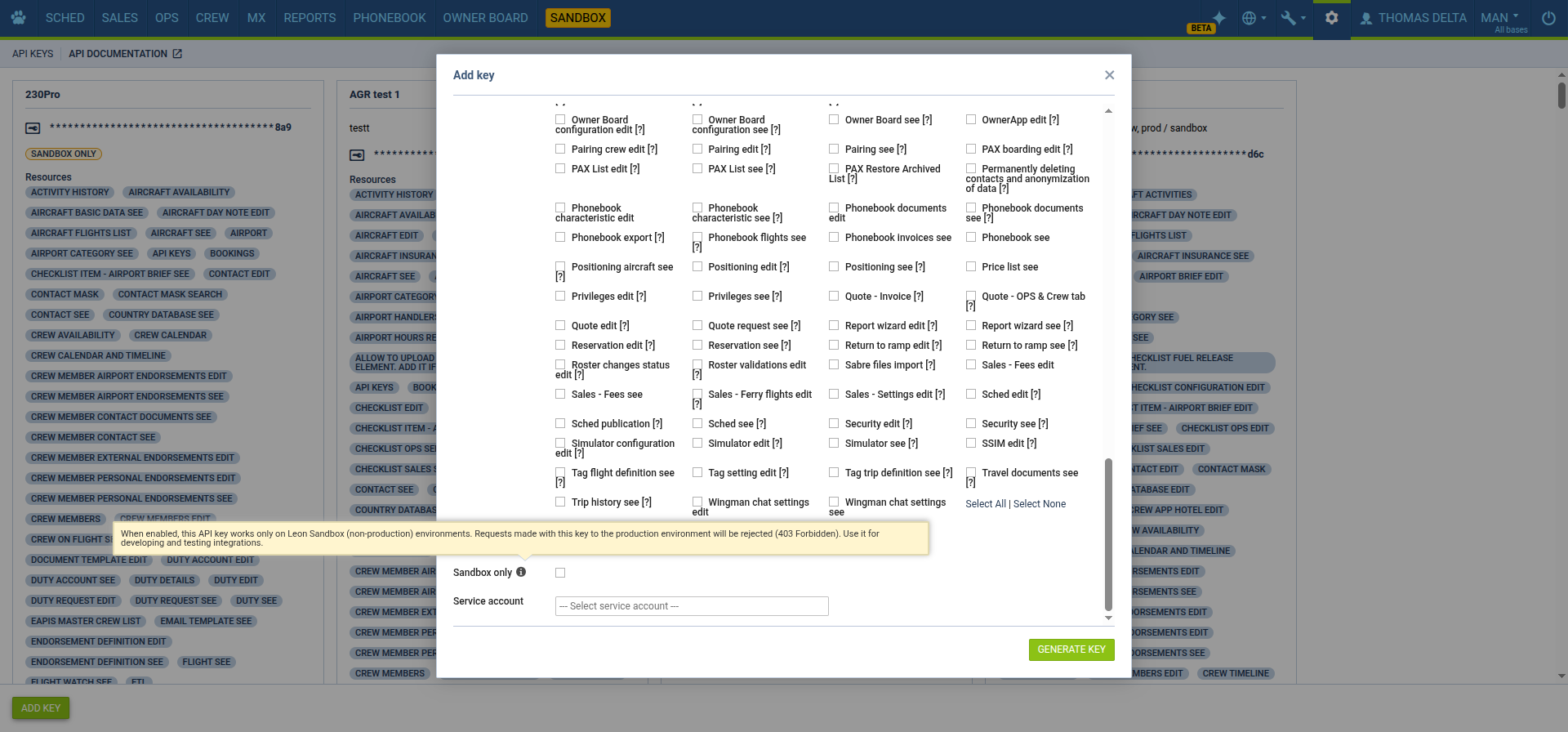
Optionally, tick the Sandbox only checkbox (displayed above the Service Account field) if the key should work only on your sandbox environment. The checkbox is unticked by default. See Sandbox only API keys below for details.
-
Select Service Account for API Key. In general, they are used to identify changes made in the system that are related to particular token use. Click for more details.
-
Click the

-
Copy the generated key and store it safely.
It is also possible to edit existing API Keys and update the Name, Description, Resources, Aircraft access and the Sandbox only setting.
Please remember that once the token is generated, it MUST be stored safely as it cannot be retrieved after the pop-up window is closed. As a suggestion, once you have key you can copy/paste it in the ‘Description’ box.
Sandbox only API keys
You can restrict an API key so that it works only on your sandbox environment. This lets you build and test integrations safely, without the risk of the same key reading or changing data on your production environment.
-
To restrict a key, tick the Sandbox only checkbox when adding or editing the key. Hover over the ℹ️ icon next to the checkbox to see a short description.
-
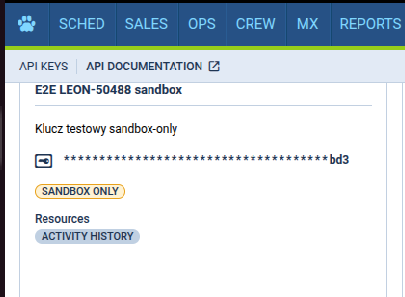
Keys restricted this way are marked with a yellow SANDBOX ONLY badge on the API keys list.
-
A sandbox only key works normally on the sandbox. If it is used on the production environment, Leon rejects the request with an access denied error (
403 Forbidden). -
You can remove the restriction at any time by unticking the checkbox in the key’s edit window. Changing other details of the key (for example its name) does not change this setting.
-
API keys created before this option was introduced are not restricted — they continue to work on both sandbox and production.
Privileges mapping in API Keys
The file below contains the mapping of Resources in the API Keys section to the relevant GraphQL Permissions in the GraphQL code
This list is subject to periodic changes.