

OPS Settings
Table of Contents
OPS Settings, which can be found in Admin Panel (Settings) > OPS Settings, contains settings that help with adding and editing flights.
Flight Editing is being gradually reworked. Settings will gradually be moved from General Settings → OPS Settings directly to the new OPS Settings page.
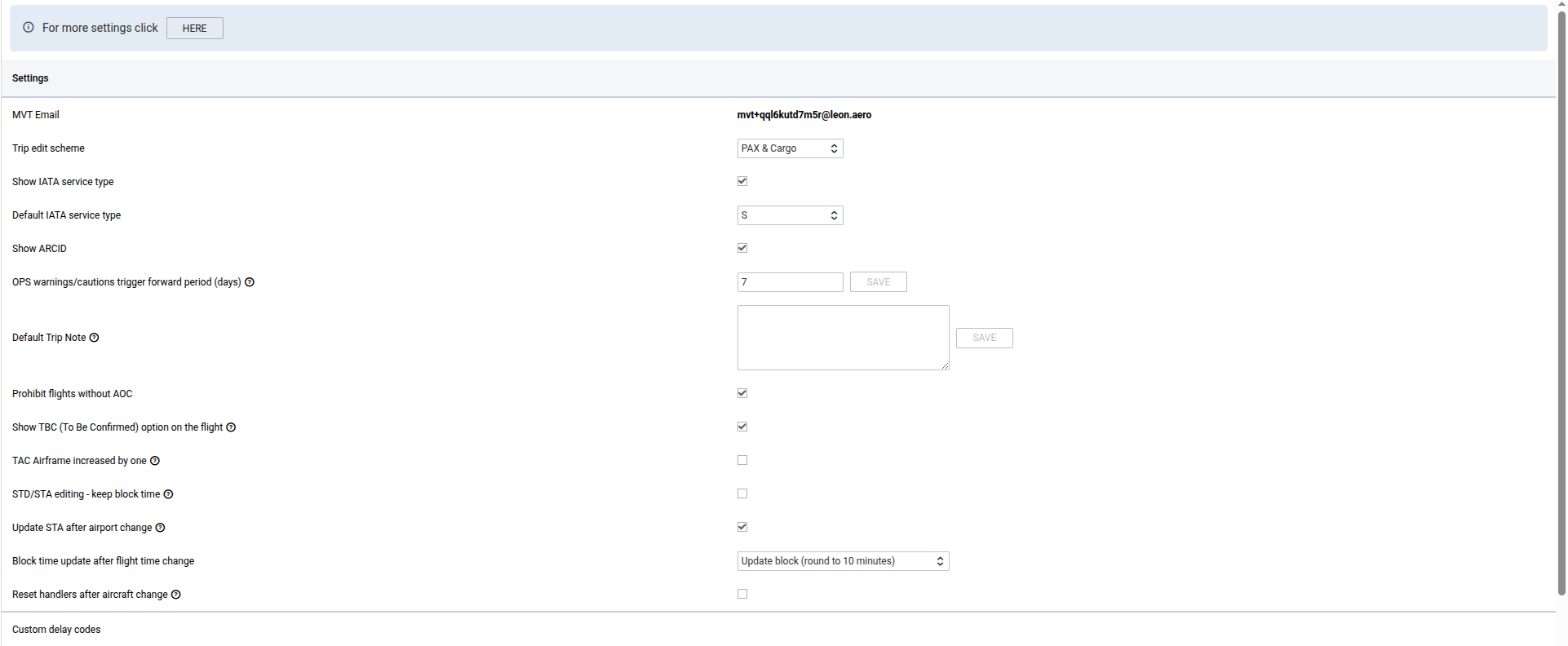
The ‘OPS Settings’ section currently contains the following subsections:
-
More settings (Shortcut to General Settings → OPS Settings)
-
General settings
-
-
Settings
-
Custom Settings:
Settings
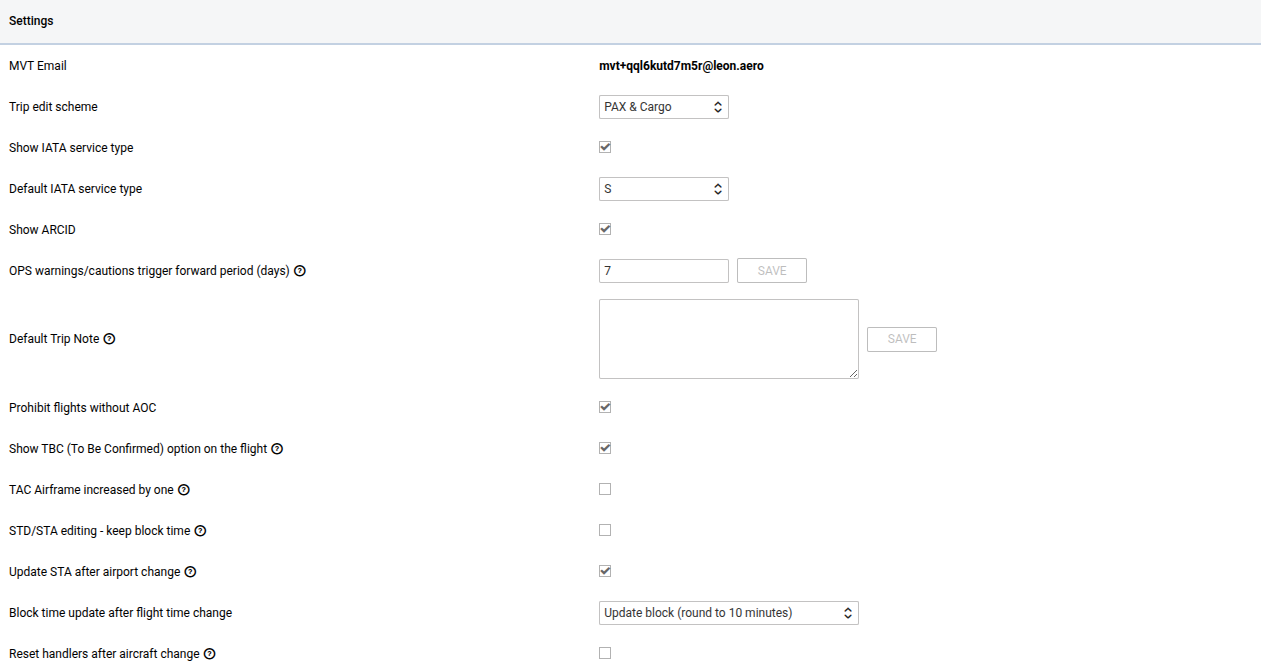
The Settings section contains the following options:
-
MVT Email - read-only field showing the mailbox address assigned to your operator for importing movement messages into Flight Watch. More details, including accepted formats, can be found here.
-
Trip edit scheme - allows setting PAX/Cargo or both as default values to be entered into the EDIT TRIP panel.
-
Show IATA service type - adds an extra field in the ‘FLIGHT’ tab on a flight in OPS, allowing the selection of the service type. More information on the functionality can be found here
-
Default IATA service type - default service type in the ‘FLIGHT’ tab on a flight
-
Show ARCID - this feature activates the display of the Aircraft Identification number within the flight details.
-
OPS warnings/cautions trigger forward period (days) - here you can define a number of days for which the warnings, cautions, and notices will be checked in the OPS section. If the value is set to 0, the checks will only be made until midnight in UTC. If left empty, there will be no limit on the timeframe.
-
Default Trip Note - A new flight is initialised with this trip note text if set. This text will be displayed in the OPS > TRIP tab > Notes.
-
Prohibit flights without AOC - if ticked, the AOC in the OPS section > tab 'FLIGHT' has to be set to other than 'None'
-
Show TBC (To Be Confirmed) option on the flight - TBC option will be available in the FLIGHT tab, and if applied on a flight, the TBC tag will appear in the flight overview:
-
OPS TABLE - TBC underneath the scheduled times
-
OPS CALENDAR - TBC will replace scheduled times
-
-
TAC Airframe increased by one - when enabled, TAC Airframe will calculate as 1, regardless of the number of landings inserted in the Journey Log.
-
STD/STA editing - keep block time - modification of STD and STA values does not affect the change of block time.
-
Update STA after airport change - when checked, the STA and flight time on a flight will be updated after airport change (ADES or ADEP), based on available calculations
-
Block time update after flight time change - it allows selecting the relevant behaviour of block time value after the flight time change in the OPS section. This setting is explained here
-
Reset handlers after aircraft change? - this function is designed to reset the departure and destination handlers when there is a change of aircraft on a flight.
General settings
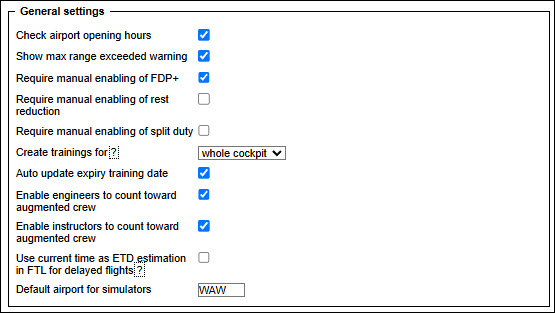
The most important ones at this stage are:
-
Check airport opening hours - Leon can monitor airports opening hours and show a warning if you try to add a flight where STD/STA are outside the opening hours.
-
Show max range exceeding warning - max aircraft range can be defined on an aircraft edition page.
-
Require manual enabling of FDP+ / Require manual enabling of rest reduction / Require manual enabling of split duty - if any of these checkboxes are selected, the corresponding features - FDP extension, rest reduction, or split duty - must be manually enabled in the flight > Crew tab after clicking the Edit button.
-
Create training for… - by activating one of the options (CPT, CPT and FO, or whole cockpit), Leon will automatically extend recency only for crew members in the specified positions.
-
Auto update expiry training date - this setting will automatically update the pilot's airport recency, given that the checkbox “Airport recency” is marked in the Airport Directory and the journey logs are filled in correctly.
-
Enable engineers to count toward augmented crew / Enable instructors to count toward augmented crew - if this checkbox is ticked, Leon will include 'INS' and engineers ratings towards in-flight rest FDP extension.
-
Use current time as ETD estimation in FTL for delayed flights - When checked, the FTL of delayed flights will be updated every few minutes to take the delay into account in ETD estimation, until the FW is filled.
-
Default airport for simulators - you can select one default airport for all simulator sessions.
Click below for a step-by-step video tutorial on the settings above, as well as instructions on how to configure and send GAR emails from Leon.