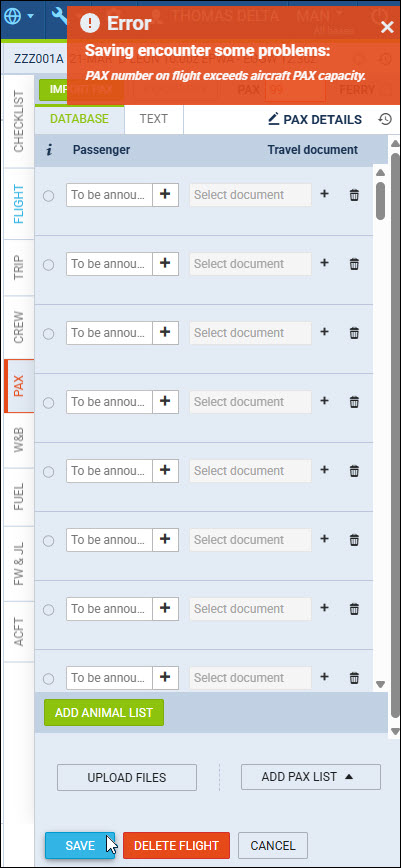
It is possible to configure the list of warnings that can be ignored when saving changes on edited flights in the OPS sections.
The option is available at the bottom of the Admin Panel > Ops Settings section:
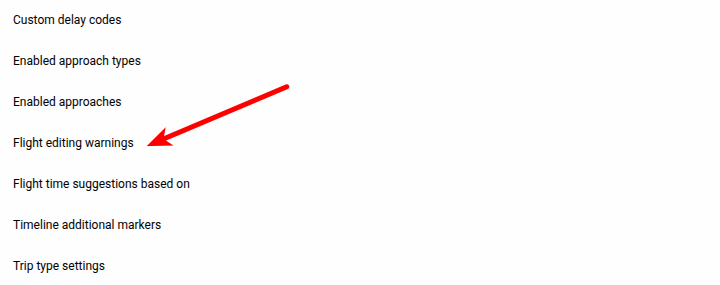
Clicking on the 'Flight editing warnings' option opens a pop-up window. At the top of the window, a Warning mode toggle lets you choose how this configuration is applied:
-
Operator — one set of rules applies to the whole operator (default)
-
Bases — rules are configured separately for each operator base.
Operator tab
In this tab, the pop-up window shows a table with the following columns:
-
Warning - the name of the available warning type
-
Enabled - indication of enabled warning. If the checkbox is ticked, the warning will apply in OPS
-
Ignorable for all - default setting.
-
If ticked, all the users able to edit a flight can save the changes, ignoring warnings.
-
If unticked, it activates a dropdown selection in the 'Ignorable for roles' column
-
-
Ignorable for roles - possibility to select groups of privileges, of which the users can save the flights ignoring the warnings
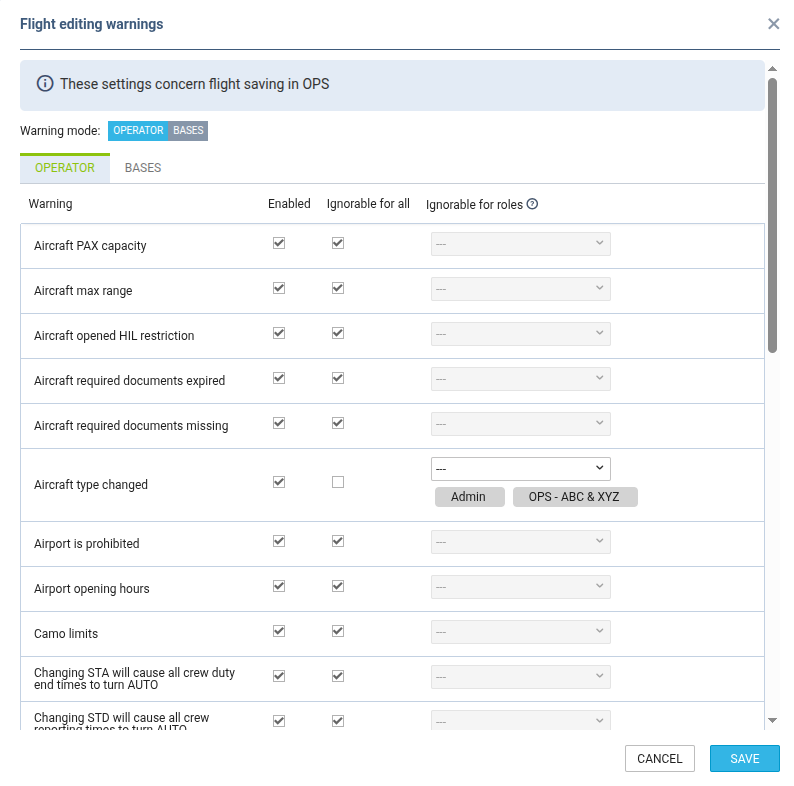
Once this configuration is saved, it will apply to OPS views and the users from the relevant groups of privileges accordingly.
IMPORTANT!
-
Currently, this configuration applies only to saving the edited flights
-
In case of Flight Support companies providing OPS services to Operators, this configuration needs to be saved on the main account instead of the connected accounts
Bases tab
In this tab, warning rules can be configured separately for each operator base, instead of one rule for the whole operator.
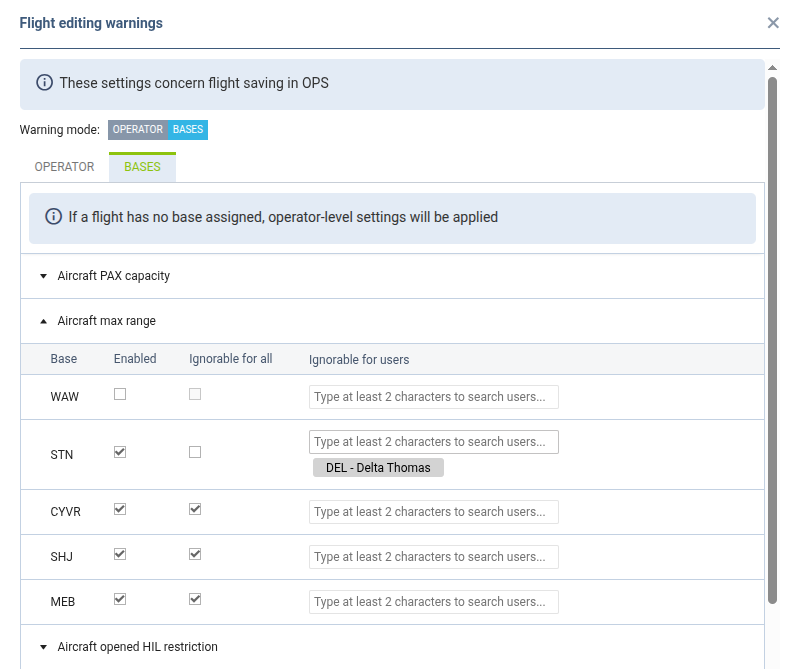
The tab shows a list of all available warning types. Clicking a warning row expands it into a panel with the following configuration, listed per operator base:
-
Base name - the operator base this row configures
-
Enabled - indication of enabled warning for this base. If ticked, the warning will apply in OPS for flights based at this base
-
Ignorable for all - if ticked, all users able to edit a flight based at this base can save changes while ignoring the warning
-
Ignorable for users - available only when 'Ignorable for all' is unticked; lets you pick specific users (only users assigned to this base can be selected) who are allowed to save changes while ignoring the warning
Changes in this tab activate the SAVE button, the same way as in the Operator tab.
Which base is used? Leon determines the applicable base from the first flight of the trip being edited. If the flight (or trip) has no base assigned, or the editing user belongs to a different operator than the one owning the base configuration, Leon falls back to the rules configured in the Operator tab.
FTL violation warning
The FTL violation warning checks whether at least one crew member assigned to the flight has an FTL exceedance, and reports it when the flight is saved. As with every other warning on this list, you decide whether it is ignorable - so it can act either as an advisory message or as a hard block on saving.
The warning is disabled by default, so nothing changes until you enable it in this configuration.
At the moment the check runs when the Flight tab is edited. Editing other tabs does not trigger it.
EXAMPLE
Below is the example created on the following criteria:
-
The logged-in user is assigned to the ‘Admin’ privileges group
-
The D-LEON aircraft PAX capacity is set to 60
-
The User’s privileges group is not listed on the ‘Aircraft Pax Capacity’ ignorable for roles selection

The user modifies the flight details. This could be something in the schedule or PAX-related information.
Upon saving, the following happens:
-
Leon displays the warning about the PAX capacity being exceeded on the flight
-
The User cannot save this flight - ‘SAVE IGNORING WARNINGS’ option is not available