

Timeline Additional Markers let you add your own reference lines to the OPS Timeline, so operationally important moments — such as a catering cut-off or a crew report time — are visible at a glance, relative to the live 'NOW' line.
The configuration panel can be found in Settings > OPS Settings > Custom Settings > Timeline Additional Markers.
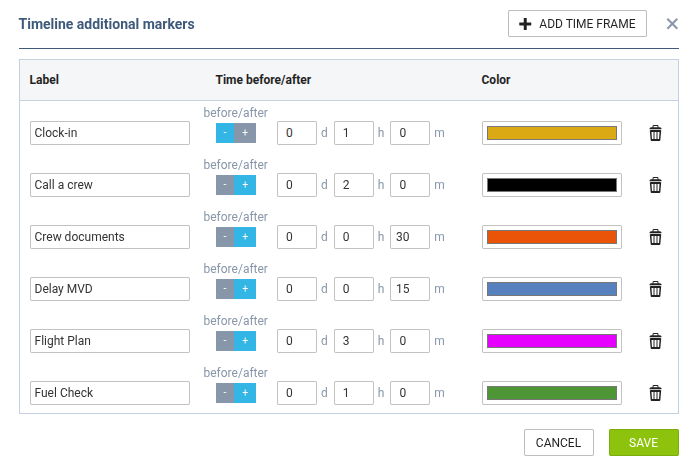
Click + Add time frame to add a new marker with default values, then fill in its details:
-
Label - the name of the marker as it will appear in the Timeline. It is mandatory, limited to 100 characters, and must be unique - Leon won't let you save two markers with the same label.
-
Time offset - define how far from the 'NOW' line the marker should appear, in days, hours and minutes, together with a toggle to place it before (-) or after (+) 'NOW'. The maximum offset is 31 days, 23 hours and 59 minutes - if 31 days is combined with any additional hours or minutes, Leon will show a validation error.
-
Color - pick the color of the marker line from the color picker.
Click the bin icon to remove a marker.
Once your markers are defined, they become available in the OPS Timeline under the '…' filter > 'Markers' section, where each one can be shown or hidden individually.
