

Avinode is the world’s largest online Marketplace for buying and selling private air charter.
The integration allows downloading quotes from Avinode into the section Requests/Quotes, exporting aircraft availability and empty legs to Avinode, including options and opportunities.
How to integrate
Before enabling this option you need to contact techsupport@avinode.com and request a special ‘Authorization key’ (it is a different key to the one you use to log in to Avinode software).
Once you have received it, click the button ENABLE and in the section ‘Configuration’ click ON, insert the Authorization key provided by Avinode and mark which aircraft schedule should be sent to Avinode.
You can also define additional settings, such as:
-
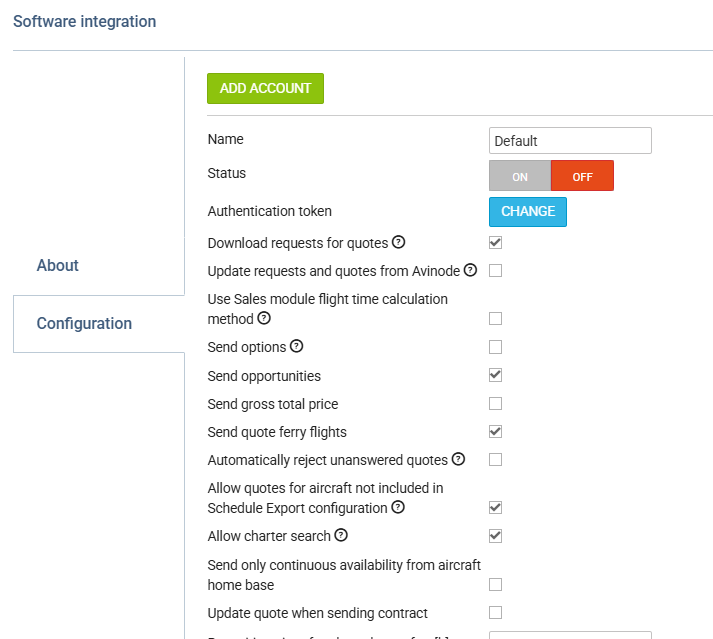
Download requests for quotes - enable automatic downloads of the quote requests into the Requests/Quotes section.
-
Allow charter search - controls whether this Avinode account can be used to search for subcharter aircraft. Enabled by default. It works independently of Download requests for quotes, so incoming requests for quotes and subcharter searching can be turned on and off separately. Switch it off if your Avinode account does not include the API-Sourcing Trips add-on - the account will keep receiving standard requests for quotes, and Leon will stop calling the Avinode endpoints your account is not authorised for.
-
Update requests and quotes from Avinode - enable automatic request status updates when accepting/declining quotes in Avinode (as a Seller)
-
Use Sales module flight time calculation method - suggested flight times will be based the default flight time calculation method selected in the Admin Panel > Sales Module > Default flight time calculation method
-
Add subcharter quotes automatically - Accepted Avinode requests will be added automatically as subcharter quotes to matching requests in Leon
-
Allow quotes for aircraft not included in Schedule Export configuration - when disabled, incoming Avinode quotes for aircraft not included in the Schedule Export list will not be created in Leon. Enabled by default, which keeps the previous behaviour. The setting applies to quotes only - the aircraft is always recorded in the Aircraft column on the requests list, regardless of this setting. One setting applies to the whole Avinode account; there is no separate per-aircraft list.
-
Send options – Non-confirmed flights (Options) will also be exported to Avinode.
-
Send opportunities - flights with the status ‘Opportunity’ (defined in OPS, tab TRIP) will be sent to Avinode.
-
Send gross total price - setting allowing send the Gross price (including VAT) iso Price to Avinode
-
Send quote ferry flights - depending on the setting, ferry legs are sent (ticked) or not sent (unticked) to Avinode when accepting the quote from Leon. In Avinode, it will be reflected in the Trips > Selling > Details > tab ‘Quoted’
-
Automatically reject unanswered quotes - accepting Avinode requests in Leon will automatically reject unanswered quotes in Avinode
-
Send only continuous availability from aircraft home base – sends aircraft availability only when the aircraft is located/repositioned to Home Base.
-
Update quote when sending contract - this setting allows sending the contract to Avinode and changing the status of the request. Once the contract is sent, the status of the request both in Avinode and Leon will switch to ‘Accepted’
-
Reposition aircraft to homebase after [h] - figure in this field indicates after how many hours the aircraft should be automatically repositioned from the destination airport of the last leg in the schedule to the aircraft’s home base, if no other activities are found in specified timeframe. This will create a short, one-minute flight in the Avinode schedule to indicate that the aircraft has been repositioned.
-
Avinode login - this field will allow inserting the default user which will be used for API connection between the Avinode and Leon
-
Export Aircraft Schedule Automatically - automatic export of the schedule to Avinode. Export occurs every 20 minutes and includes data for the next 3 months
-
Send services - allows sending the details of the following providers selected in the OPS Checklist to Avinode: Handler/FBO names and PAX Transport provider names
-
‘EXPORT AIRCRAFT SCHEDULE NOW’ button - this allows exporting schedule to Avinode at any given time.
ADD ACCOUNT allows connecting Leon account to another account in Avinode. Functionality is explained at the end of this subsection.
How it works
Export
In order to allow buyers to search available aircraft for requested trips, Avinode requires a precise aircraft schedule from aircraft operators.
Leon allows automatic schedule export to Avinode for selected aircraft. All aircraft for which the schedule is sent automatically to Avinode should be configured in Avinode for receiving data from Leon.
The first step in the export aircraft availability is integrating Leon with Avinode. This process is explained here.
If you want to receive messages after each export of flights to Avinode, type your code or the first letters of your name in the field Recipients.
Once all has been set up tick the aircraft of which flights you want to be exported.
EXPORT INSIGHTS
Before sending the data to Avinode there are steps required to be done:
-
The aircraft needs to be active in Avinode Marketplace with the status: Fully Active.
-
An API connection needs to be set up in the Avinode Marketplace for the company marketing the aircraft in the Avinode Marketplace. This company is usually the operator, but it can also be a different company (i.e. not the operator holding the AOC for the aircraft) marketing the aircraft. API Connections can only be set up by Avinode staff and are usually done by product specialists (support@avinode.com) upon request from the company marketing the aircraft.
-
The aircraft must be configured in the Avinode Marketplace to receive automatic schedule updates (i.e. Aircraft Schedule Update Type = Integrated). This can only be configured by Avinode staff and is usually done by our product specialists (support@avinode.com).
-
The company marketing the aircraft should have Activity Type Mappings configured in their Avinode Marketplace account. More information below
Export frequency
Leon sends a schedule for all configured aircraft every 15 minutes. It is also possible to make manual exports from the Avinode Add-on control panel.
What is being sent
Leon sends all activities from the time of export to the last aircraft activity in the database. Leon by standard sends all flights, reservations, and maintenance. It is also possible to send options and opportunities as regular activities.
The schedule for each aircraft has a form of a continuous timeline. Spaces between activities in the exported period are filled with special ONGROUND activities.
Activity Type Mapping – Leon Side
Aircraft activities prepared to send are mapped on codes corresponding to available Avinode activity types. However, the operator doesn’t have to configure the Avinode side with the same corresponding codes (see the section below).
There are five activity types on Leon side:
-
FLIGHT – regular trip with passengers (pax_num > 0), including ferry trips that have passengers aboard - in Avinode shows as Flight Occupied.
-
EMPTY – ferry trip with no passengerss - in Avinode shows as Empty Leg Availability.
-
MAINT – an aircraft reservation that is NOT available for charter (any status: CONFIRMED, OPTION, OPPORTUNITY) - in Avinode shows as Occupied.
-
OPTION – any trip (regular or ferry, with or without pax) where trip status = OPTION - in Avinode shows as Option Availability.
-
OPPORTUNITY - any trip (regular or ferry, with or without pax) where trip status = OPPORTUNITY; also aircraft reservation that is available for charter with trip status = OPPORTUNITY - in Avinode shows as Ferry Availability.
-
ONGROUND – an aircraft reservation that is available for charter with trip status = CONFIRMED or OPTION; also auto-generated synthetic activities for idle aircraft (gaps before first flight, no flights in period) - in Avinode shows as Onground Availability.
Activity Type Mapping – Avinode Side
Activities exported from Leon can be mapped to one of Avinode’s available statuses and therefore be subject to the search engines for trip requests and empty legs.
Empty Leg Availability
All activities mapped to this type will be considered empty leg availability and posted in the Empty Legs list in the Avinode System.
Ferry Availability
Activities mapped to this type will be considered available. This option will not post an Empty Leg as the aircraft is assumed available until occupied for the “passenger leg”. The engine will take into account the following “passenger leg” and will ensure that the aircraft has enough time to be in position for that.
Flight Occupied
Aircraft will be considered occupied and will not show when searches are performed in the Avinode System. This option should be used for all flight-related occupancy e.g. 135 trips, 91 trips, etc.
Occupied
Aircraft will be considered occupied and will not show when searches are performed in the Avinode System. This option should be used for all non-flight occupancy e.g Maintenance.
Onground Availability
Aircraft will be considered available on-ground. This option can be used to indicate transient (away from home base) availability. This will price the aircraft from the indicated airport, rather than the home base.
Option Availability
This is an “information only” type. Activities mapped to this type will be shown in the Schedule for the aircraft, but do in no way affect the schedule when searches are performed in the Avinode System as the aircraft is still considered available. This can be used for non-confirmed trips.
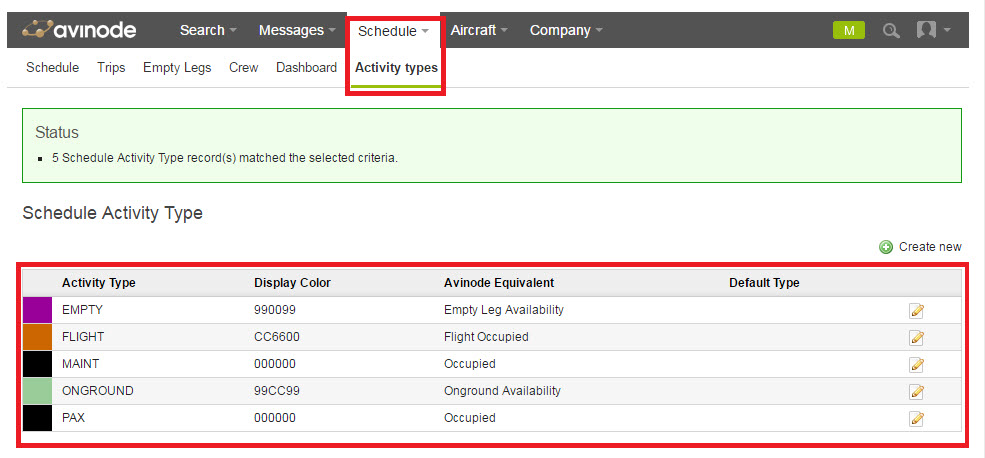
Default Avinode mapping:
-
FLIGHT – Flight Occupied
-
EMPTY – Empty Leg Availability
-
MAINT – Occupied
-
OPTION – Option Availability
-
OPPORTUNITY - Ferry Availability
-
ONGROUND – Onground Availability
Operators can manually change mapping settings in Avinode for their own purposes.
Special configuration options
Send Options
If this setting is configured Leon also exports flight options. Options have different mapped status OPTION, discriminating them from a confirmed flight. Note that reservation and maintenance options are never sent to Avinode regardless of this setting.
Send Opportunities
If this setting is configured Leon also exports flights with opportunity status. Opportunities are sent to Avinode as empty legs and they should be mapped to the “Ferry Availability” Activity Type on the Avinode side.
Continuous availability from aircraft homebase
This option changes normal schedule export and exports only one activity for each aircraft indicating ONGROUND status of the aircraft in its homebase airport. This artificial activity is only day long and the Avinode system extends this status to future times. Note that Leon in that mode doesn’t send any real activity for all aircraft.
Auto reposition availability to home base after specified time [h]
It is possible to set automatic (artificial) repositioning to the home base after each activity. If the time between the last and next activity is greater than this factor (set in hours) system will add an artificial repositioning activity lasting one minute indicating ONGOUND status from the aircraft homebase.
This option is disabled when set to 0.
Import
Here you can set up an automatic Avinode quotations download by ticking the Download quotation automatically checkbox. Once ticked, Leon will download quotations every 15 minutes.
Connecting multiple Avinode accounts
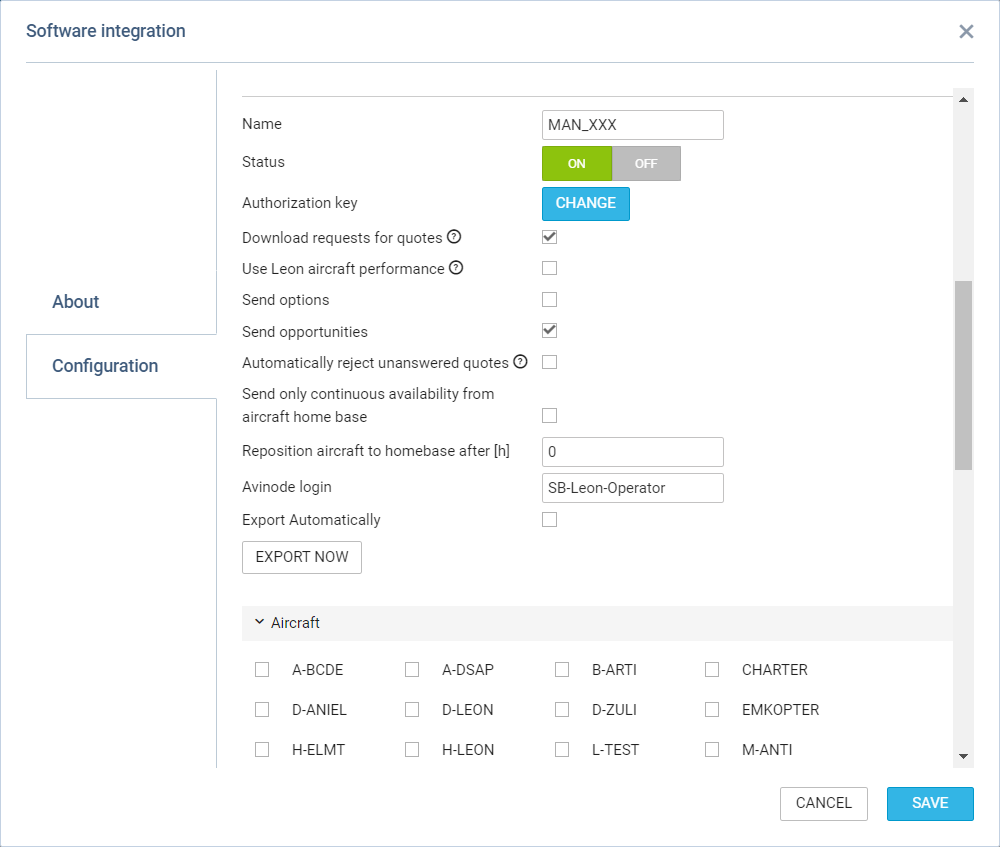
It is possible to connect multiple Avinode accounts to an account in Leon, considering one operator has configured more than one account in Avinode.
In order to connect further Avinode accounts to Leon account, the following steps are required
-
Contact techsupport@avinode.com and request an ‘Authorization key’ for the additional account
-
Contact Leon Support Team to activate the function
-
Go to ADD-ONS > Avinode integration > ‘Configuration’ tab and click on the ADD ACCOUNT button located at the top of the configuration pop-up window
-
Section for new connection should appear in the configuration pop-up window, as per the screen on the right
-
The remaining part of the configuration works exactly the same as the standard configuration
At this stage, Leon downloads the requests from Avinode accounts as well as sends the empty legs and aircraft availability to the relevant accounts.
Additionally, multiple Avinode account options are available when performing the following actions:
-
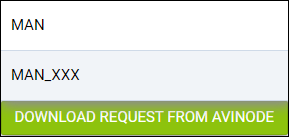
manually download the quotes from the Avinode account by clicking on the ‘DOWNLOAD REQUEST FROM AVINODE’ option, located at the bottom of the ‘Requests/Quotes’ view:
-
selecting ‘FIND SUBCHARTER/COMPARE THE PRICE’ option in the request:
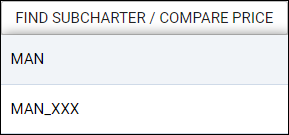
All connected Avinode accounts include the option of calculating the flight time based on the aircraft performance inserted in Avinode.