

SAFE is a computer program that includes a suite of algorithms for evaluating a range of factors influencing alertness in aircrews.
SAFE is very easy to use and will quickly identify schedules and individual pilot duties with high fatigue scores.
How it works
The integration allows pilots’ FTL duty, STB and Reserve-related data to be sent automatically, subject to configuration, or manually from Leon to SAFE.
The frequency of sending the data automatically to FRMSc SAFE can be set within the integration configuration.
Once the data is uploaded to SAFE it undergoes an immediate fatigue and alertness evaluation. You can also generate the CSV file. Generated files can be used in SAFE
How to integrate
To integrate with SAFE, you must get a license to access the SAFE model.
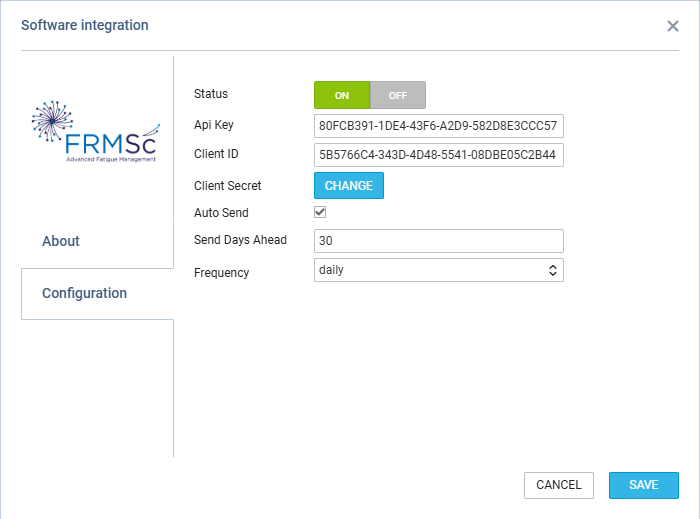
In SAFE, you need to go to the ‘Settings’ section > API where the following integration data is available:
-
API Key
-
Client ID
-
Client Secret - this needs to be generated in FRMSc > API section
-
Auto Send - option allowing to send the data automatically to FRMSc:
-
Send Days Ahead - setting the number for how many days ahead the schedules should be sent. This value includes ‘Today’ and allows for the number of days between 1 and 60
-
Frequency - possibility to select the frequency as per the below:
-
Hourly - data is sent every hour at 45 minutes past an hour, for example 00:45UTC, 01:45UTC, 02:45UTC, etc
-
Daily - data is sent on a daily basis at 03:35UTC each day
-
-
In the ‘Add-ons’ > FRMSc SAFE configuration section switch the status to ‘ON’, insert all the required integration data and save the settings to complete the integration.
Once the integration is completed successfully, Leon will start sending the data to SAFE.
Manual upload to SAFE
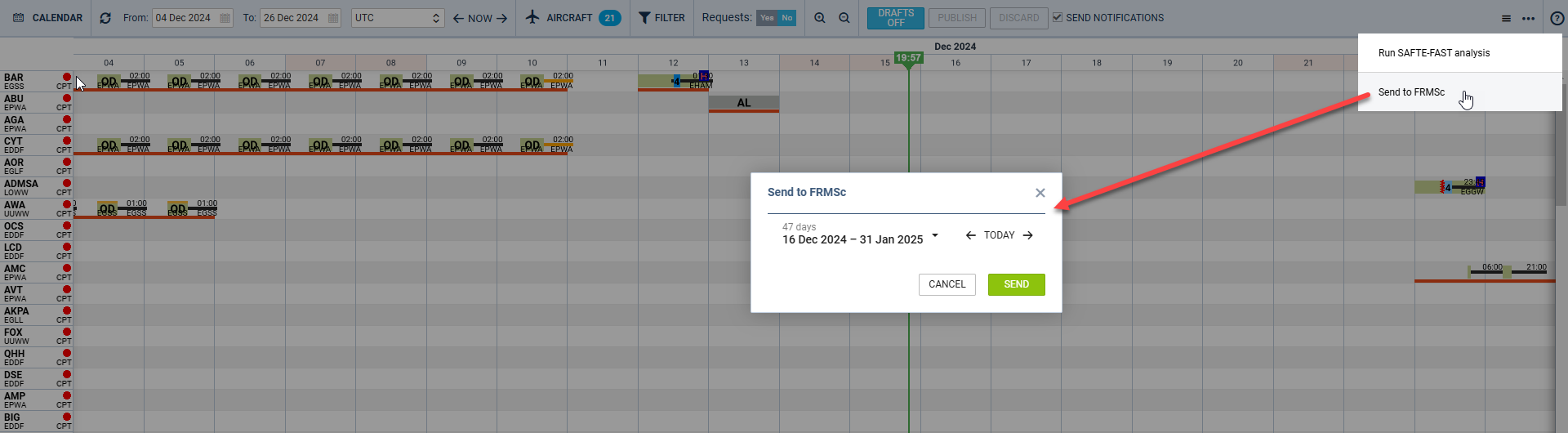
It is also possible to send the rostered data to FRMCs SAFE manually in the CREW TIMELINE.
To do it you need to:
-
Click on the

icon located in the top-right corner in CREW TIMELINE
-
Select the ‘Send to FRMSc’ option from the list
-
Select the date range in the ‘Send to FRMSc’ pop-up window
-
Press ‘SEND’ to send the rosters to FRMSc SAFE
The rosters should then be uploaded to FRMSc SAFE.