

EuroFPL is providing specialized global aviation logistics services, turbine aircraft training and mentoring worldwide, and the EuroFPL flight plan filing system.
In order to integrate with EuroFPL contact, their support dept on: support@eurofpl.eu to obtain a special login & password for the integration with Leon. Once you have received it and you have admin rights in Leon, go to Settings > Add-ons and enable the integration with EuroFPL. In the pop-up screen click INACTIVE button to activate the connection to your operator, then do the same in the field below (showing your operator code + your personal code defined in Leon) and paste + save credentials.
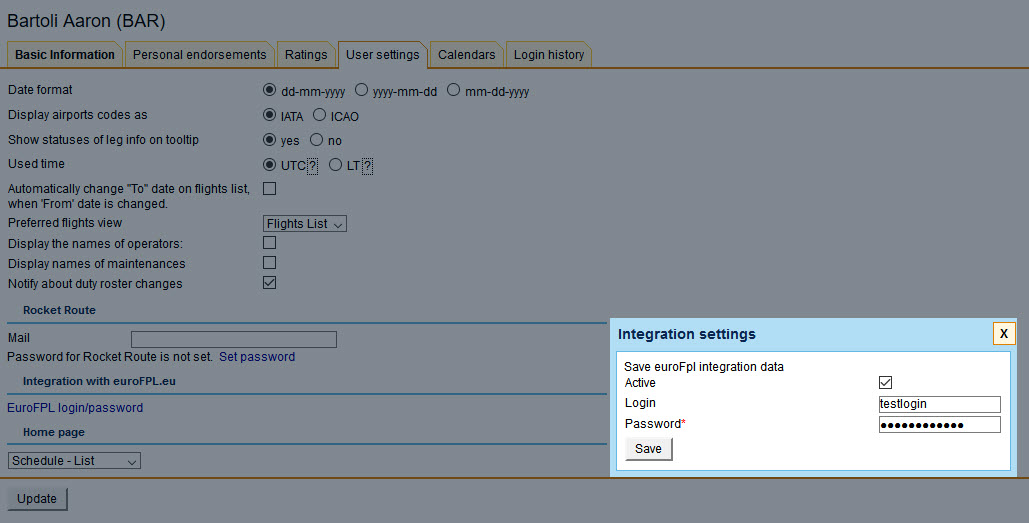
All users can integrate with EuroFPL even if they don’t have access to the section Add-ons - they can do it in their personal profile (by clicking their name in the top-right corner), in the tab User settings, where there is a link EuroFPL login/password. Click the link and insert credentials (previously received from the EuroFPL support dept).
Sending flights to EuroFPL software works in the same way as with RocketRoute. In a section OPS, you need to mark flight/flights, right-click with the mouse and select sending the flight to EuroFPL (at the bottom of the pop-up screen). A new pop-up screen will show up with the flight details, click ‘Export’ to send it out.
On the EuroFPL side you need to click Flightplan builder link, and the button load to find details of the flight exported from Leon.
If a field ‘Type of Aircraft’ shows a blank cell it means you need to add your aircraft type in EuroFPL, section ‘Aircraft Hangar’.
Data exported from Leon to EuroFPL contains the date of flight with times, flight number, aircraft registration, ADEP, ADES, ALTN, ALTN2, flight rule, type of flight, and pax number. If you export a flight again, after changes were made to it in Leon, that flight will NOT overwrite previously sent one