

SHARING THE TRIP VIA LINK
Table of Contents
It is now possible to share the trip with the broker, via link .
In order to enable this functionality, 2 steps are required to be taken.
SETTING UP
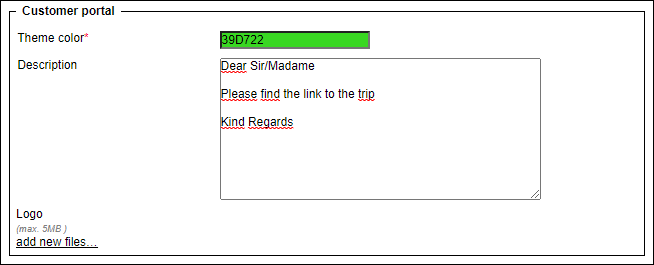
In the panel ADMIN > GENERAL SETTINGS > SALES MODULE there is a dedicated section Customer portal - insert details such as:
-
Theme colour - define a colour of the layout.
-
Description - insert body email which should be sent to the broker.
-
Logo - upload a logo which will show in the email.
-
Files - upload extra files, if necessary.
SENDING THE LINK
In the quote’s edition section, tab OPS & CREW will show details of the booked quote, including handlers, slots, permits and crew.
Firstly, click the button 
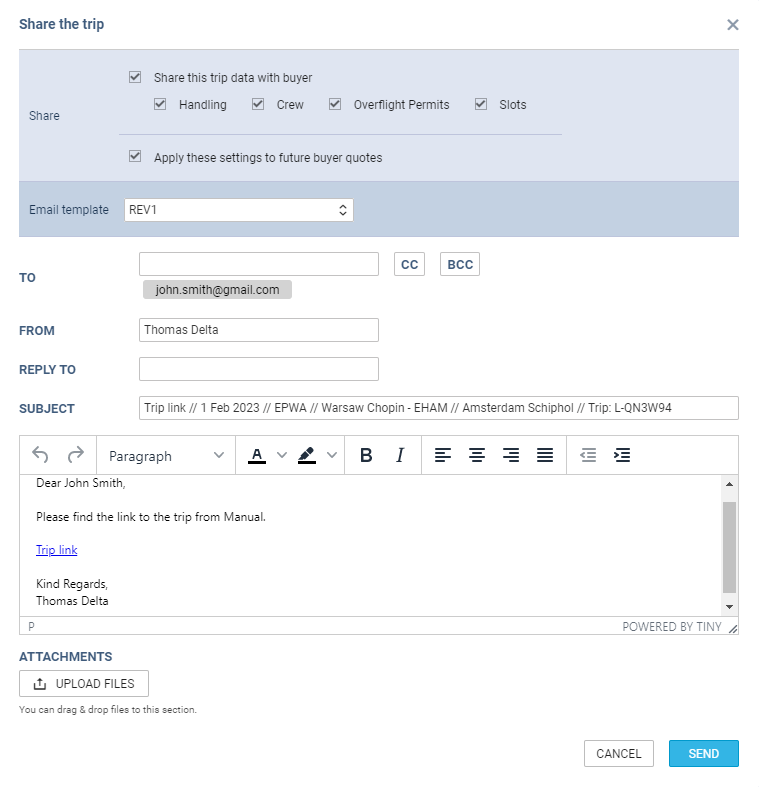
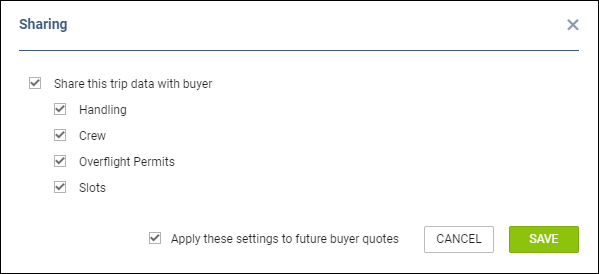
Secondly, click the button 
Once the share-trip email is sent to the broker, the status changes from 

The email sent to the broker shows as on the example below.
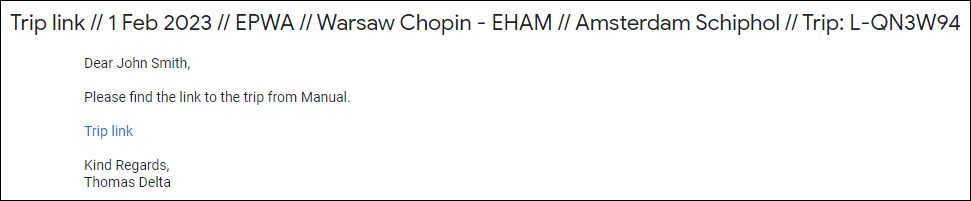
By clicking the Trip link Leon will show the below screen, where terms of service checkbox must be marked.
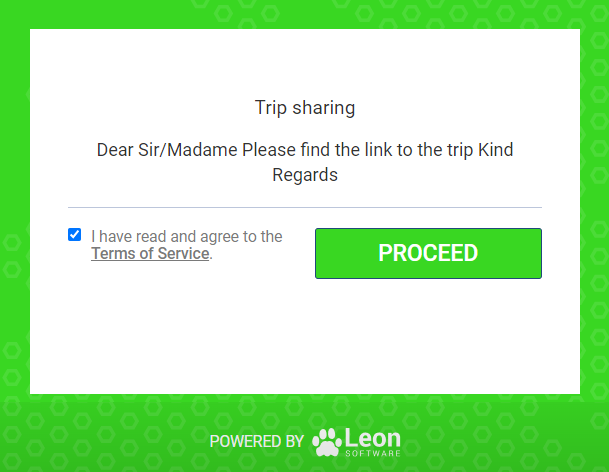
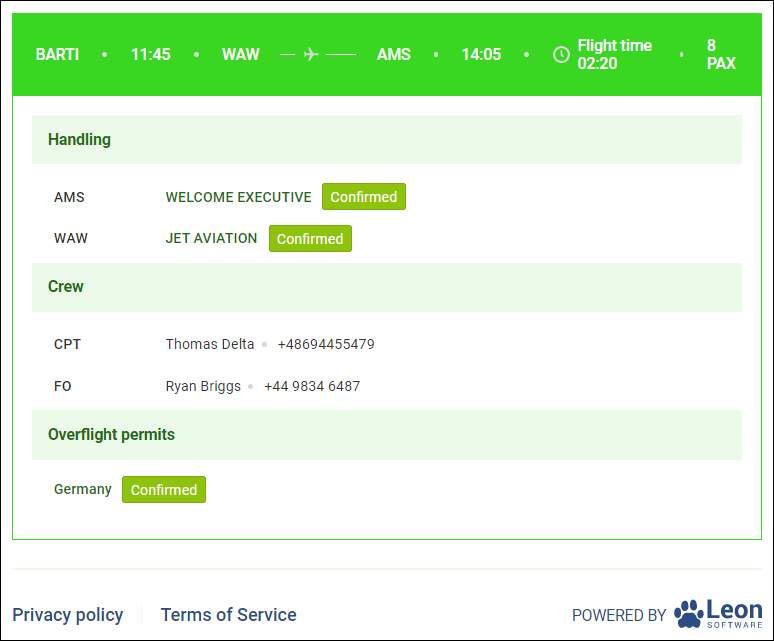
Upon clicking PROCEED button, Leon shows previously pre-defined trip details.
The email template itself can be adjusted in the panel ADMIN > EMAIL TEMPLATES - edit the template ‘Share trip link’ and amend it, if needed.