

Flight details update
Table of Contents
To check flight details select it in the calendar and click it when it appears below the calendar. Leon will show 3 tabs, each displaying different trip data.

Flight
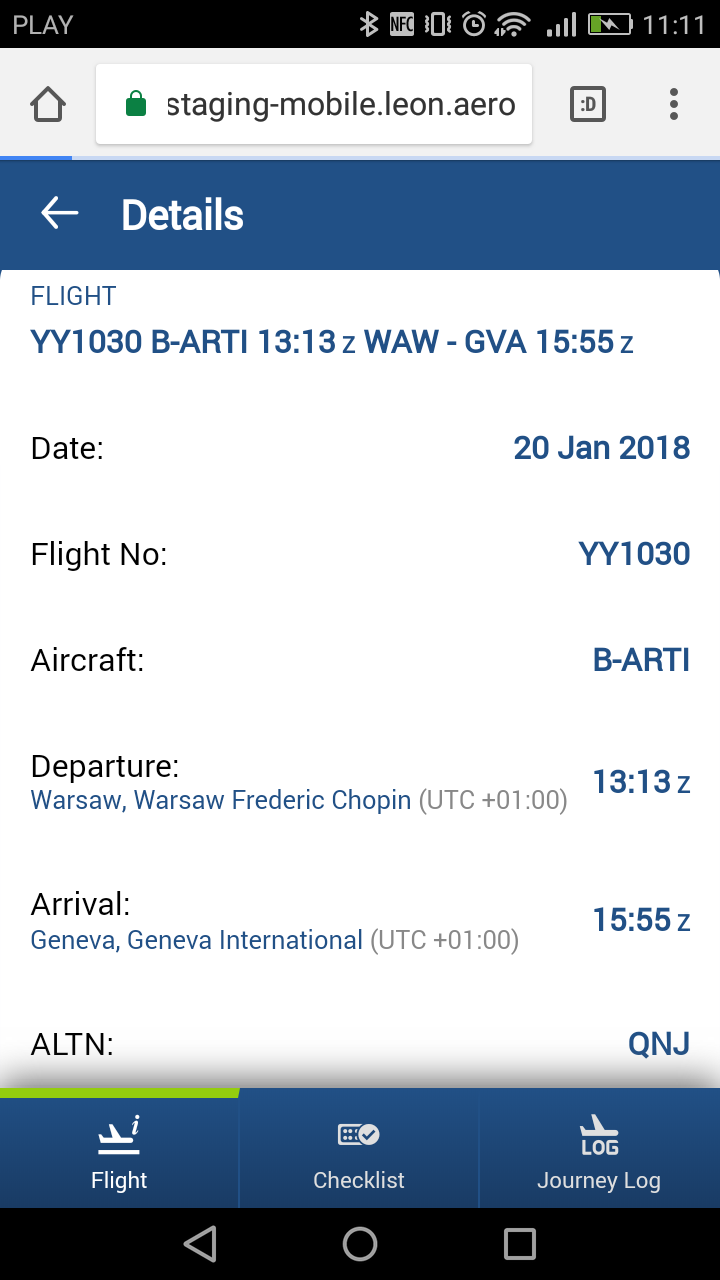
A tab Flight contains all most important flight details on top of the screen, such as:
-
Flight number
-
Aircraft registration
-
STD
-
ADEP
-
ADES
-
STA
Below Leon shows additional information:
-
Date *ADEP & ADES name & UTC difference *ALTN airports *ICAO trip type
Checklist
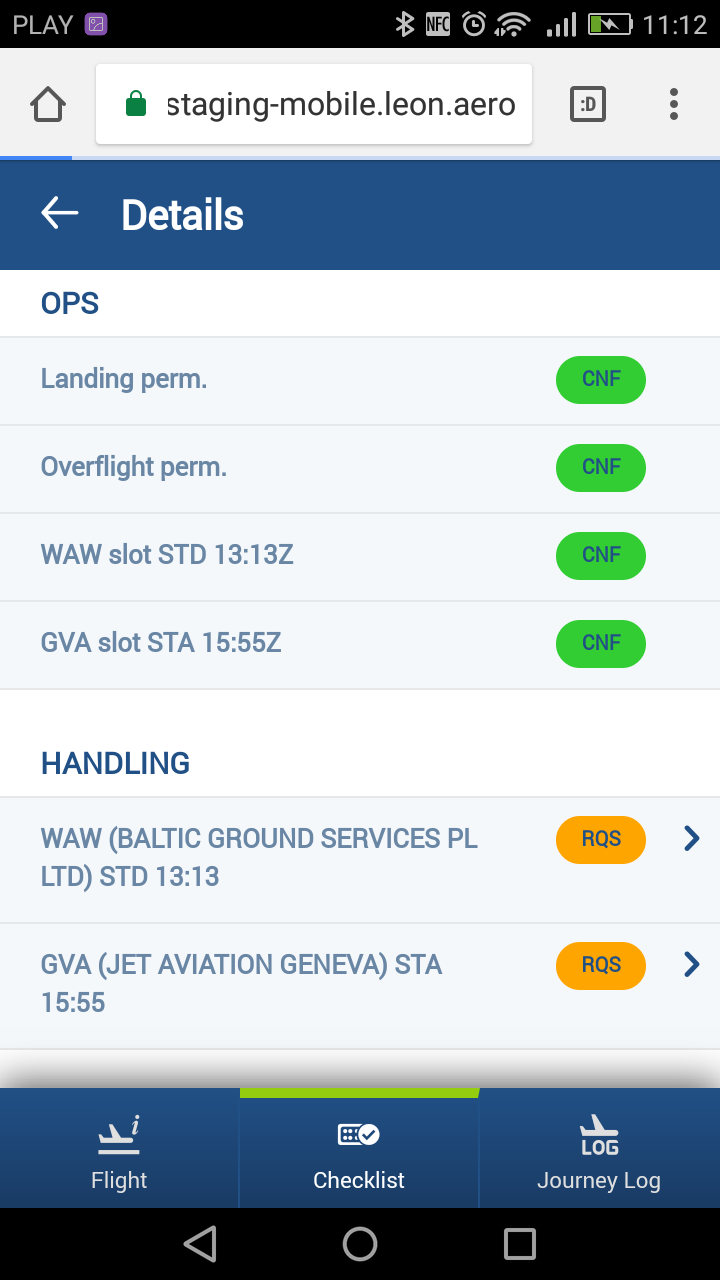
All checklist items added to the flight appear in this tab along with all notes and statuses. If notes have been added to the item, Leon shows an arrow - click it to view any extra information inserted into the checklist item.

Journey Log
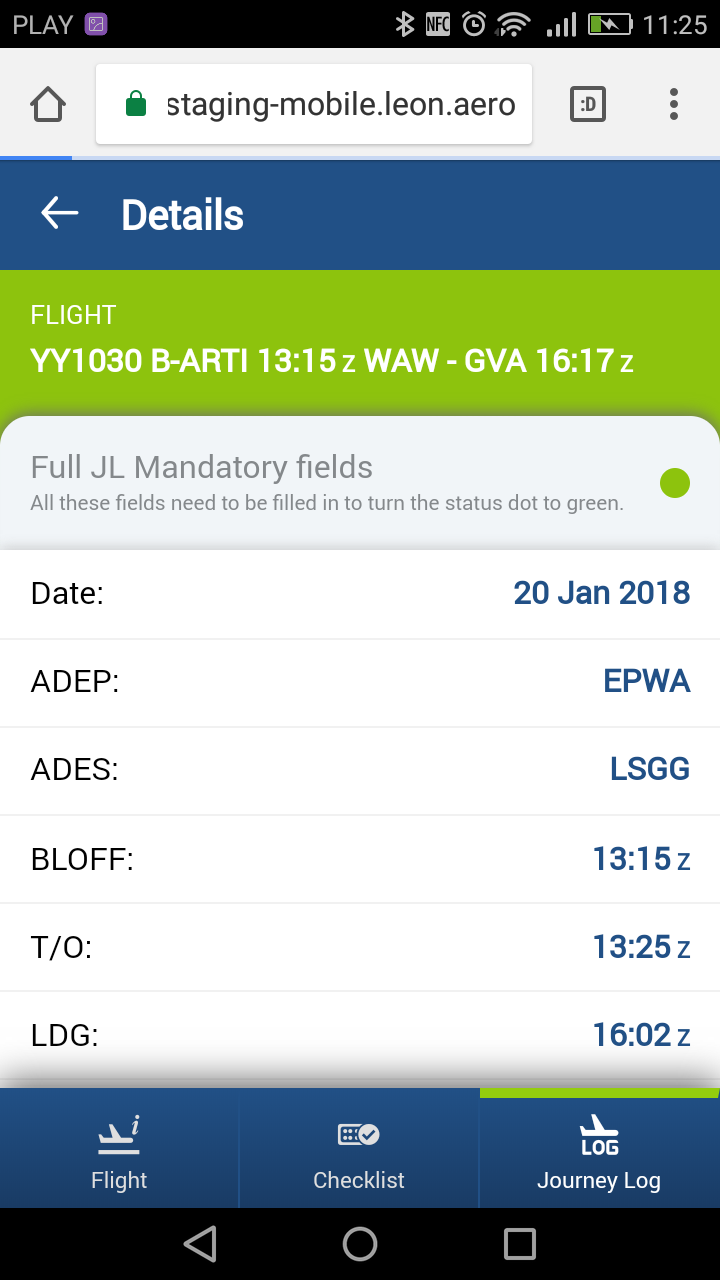
Journey Log tab shows all post-flight data previously inserted into Leon. The screen is divided into 2 parts:
Full JL mandatory fields:
-
Date *ADEP & ADES codes *BLOFF *T/O *LDG *BLON *MAX FL *Block fuel *Fuel remaining
Optional fields - all other details enabled in Leon section Settings, i.e.: uplift, pilot flying, delay code, PAX, cargo, etc…
Journey Log data can only be viewed. An option of adding Journey Log data in Leon mobile application will be added in one of the future releases