

SCHED
Table of Contents
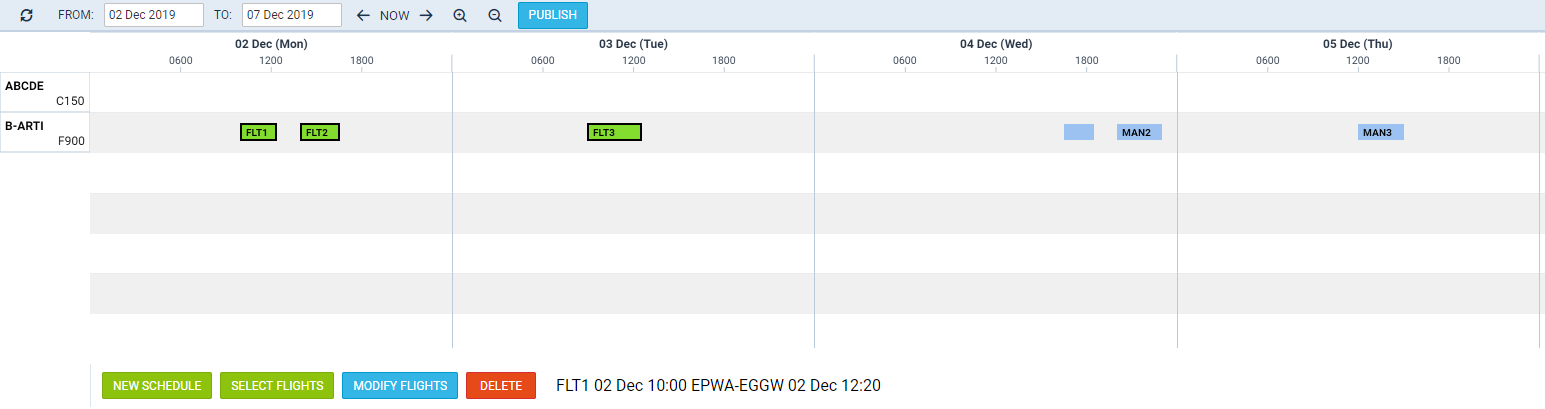
SCHED is the functionality allowing you to build and manage the schedules.
Functionality is designed with Airlines in mind. However, it still can be used by business and charter operators to build schedules if need be.
Currently, the schedules can be created on the Virtual Aircraft only. The aircraft can be switched after the schedule is published.
There are following options available:
-

-

-

-
-

NEW SCHEDULE
Unknown Attachment
In order to build a new schedule you need to perform the following steps:
-
Click on
-
Insert the timeframe of the schedule (From and To), select the Aircraft, schedule Rotation (weekly, biweekly, triweekly) and the Trip Type
-
In the Schedule section you can choose the day of each flight (1-Monday, 2-Tuesday, 3-Wednesday, etc.) as well as the flight details. After a day number is selected, an additional line below the current will show
-
Click ‘Add Schedule’ button to save new Schedule
Once the schedule is saved, the flights are displayed as blue squares - 
You can click on the flight and perform further actions, such as modifying the schedule or deleting it. You can select more than one flight by holding Shift/Ctrl buttons on the keyboard and clicking on the flights or by using
Clicking on 
New schedule is not visible to OPS teams in OPS section until the flights are published
SELECT FLIGHTS
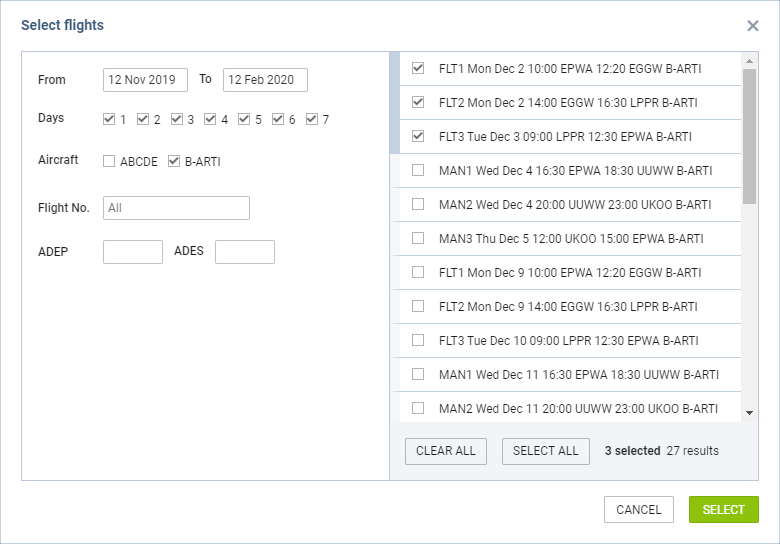
This function allows selecting flight or a number of flights for further actions.
It is possible to select flights in 2 ways:
-
Holding Shift/Ctrl key on the keyboard and clicking on the flights
-
Using
‘SELECT FLIGHTS’ option allows you selecting a number of flights from the already added schedules.
The ‘Select Flights’ window is divided into two sections:
-
Filter
-
Schedule
In the Filter section you can filter by the following:
-
Date range - selecting ‘From’ and ‘To’ dates
-
Days - selecting the days within the schedule
-
Aircraft - selecting flights on a specific aircraft(s)
-
Flight number - filtering by the specific flight number
-
Adep and ADES - searching for flights from or to a specific airport or routing
The Schedule section displays the results of the filtering. There you can select the flights that require further actions.
Once the flights are selected they‘re marked by the frame in the ’Sched Overview’ -
PUBLISH
Option
The publishing process is as follow:
-
Select flights
-
Click on ‘Publish’ button
-
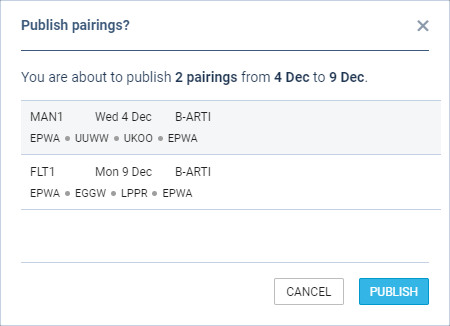
In the ‘Publish pairings?’ window Leon displays selected flights and pairings
-
Review the pairings and click ‘PUBLISH’
There is a following color coding to the flights in ‘Sched Overview’:
-
-

-

IMPORTANT!!! This option is publishing pairings and NOT single selected flights. If one flight is selected, the whole pairing for this flight will be published
MODIFY FLIGHTS
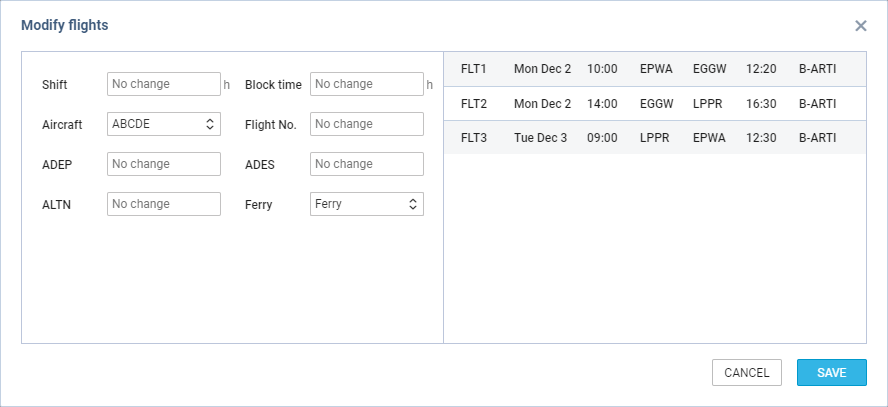
It is possible to modify selected flight or a number of flights.
In order to modify flights you need to:
-
Select the flights to modify
-
Select
-
Perform relevant modifications in the ‘Modify flights’ window
-
Press ‘SAVE’ button to save the changes
‘Modify flights’ window is divided into 2 sections:
-
Modification options
-
Selected flights
In the Modification options section you can change the following:
-
Shift - shifting schedule by a number of hours
-
Block time - changing block time to the number of hours
-
Aircraft - allows changing the aircraft
-
Flight No. - changing the Flight number
-
ADEP and ADES - changing airports of departure and arrival respectively
-
ALTN - choosing the alternative airport
-
Ferry - switching between ‘Ferry’ and ‘Not ferry’
The modifications can be made both on planned schedule as well as on published schedule. The published modifications will reflect in SCHED/OPS sections accordingly.
DELETE
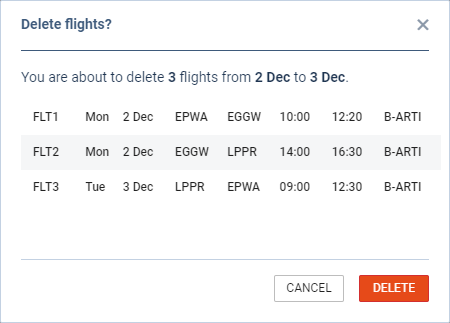
In order to delete flights or schedule you need to:
-
Select the flights you want to delete
-
Click on the
-
Review the flights in the ‘Delete flights’ window
-
Press ‘Delete’ button to confirm
It is possible to delete the planned flights as well as the published flights.
IMPORTANT!!! If the published flight is deleted in SCHED section, it will also get deleted from the OPS section.