Report Wizard - sending schedule
Table of Contents
It is possible to send schedules from **REPORT WIZARD ** to particular recipients in pre-defined periods of time. Each stored report can be sent out frequently by using this functionality. Leon will send an email with 2 files attached: Excel & PDF.
Setting up
Before sending any schedule, some setting up is required.
First step is defining email templates for this panel, in a section Settings > Email Templates. Here you need to click 
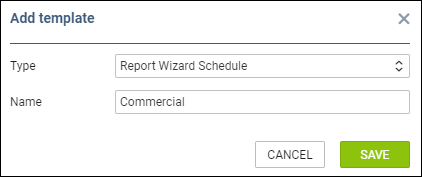
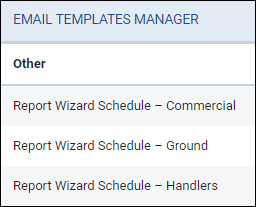
You can add multiple email templates - they all will be stored in a section ‘Other’ of ‘Email Templates’ panel.
Sending schedule
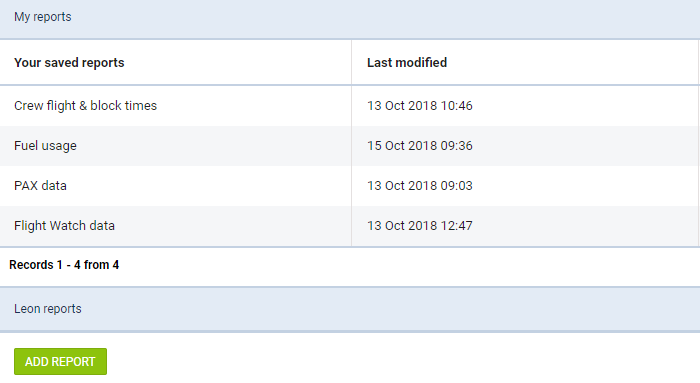
In the main Report Wizard page, edit a report that should be sent frequently and click a button 
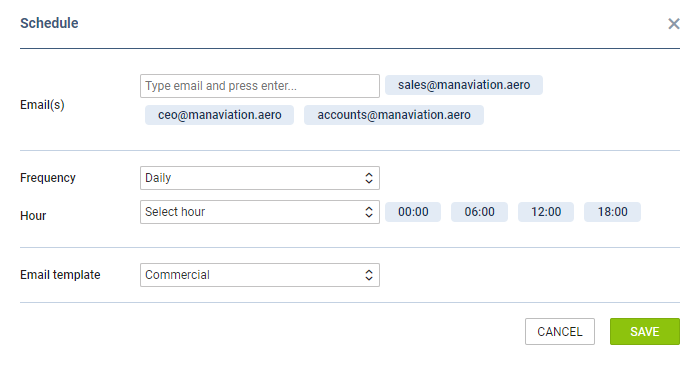
In this pop-up window you need to manually type recipient’s email address (or addresses, as it’s possible to add multiple emails).

‘Frequency’ can only be selected as ‘Daily’ for now, however it will be expanded in the future.
A drop-down Hour allows to select multiple periods of time for sending schedule (all times in UTC).

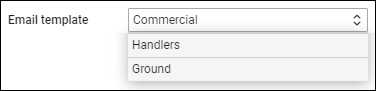
Email template drop-down box shows pre-defined templates from ‘Email templates’ section.
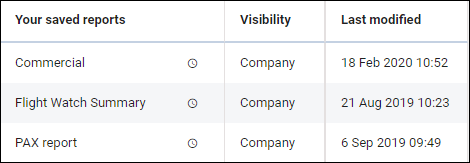
All reports with sending rules defined, in the main Report Wizard page, will have an indication of a clock-icon.