

New features in Requests/Quotes
Table of Contents
New features have been added in the ‘Requests/Quotes’ section:
-
Flight time calculations from Aviapages
-
‘Minimum day charge fee’ and ‘Short sector fee’ in ‘Aircraft fees’
-
‘Assign to’ option
Flight time calculations from Aviapages
It is now possible to download the flight time calculations from Aviapages in the ‘Requests/Quotes’ section.
Flight time calculations from Aviapages include factors such as the aircraft type, weather, distance amongst others.
In order to use this functionality, integration with ‘Aviapages’ needs to be activated in Settings > ‘Add-Ons’ section. For the integration token contact yuri.dzun@aviapages.com or nastya.pocatilova@aviapages.com from Aviapages. Once you have the token, go to the ‘Configuration’ tab in the ‘Aviapages’ integration, switch status to ‘ON’, insert the key and save.
How it works
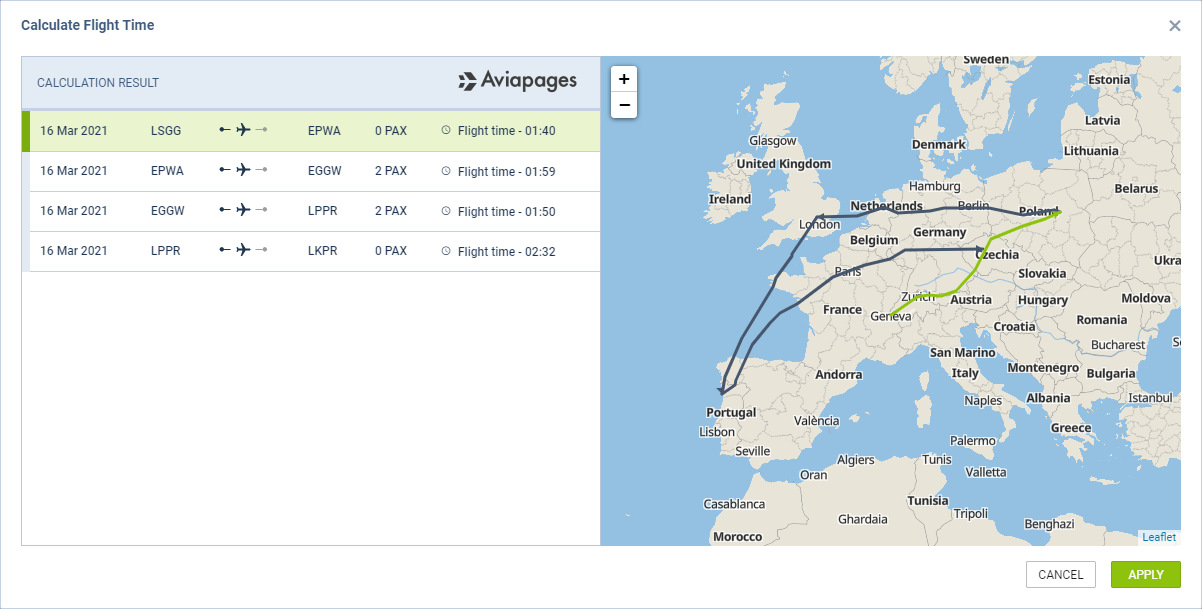
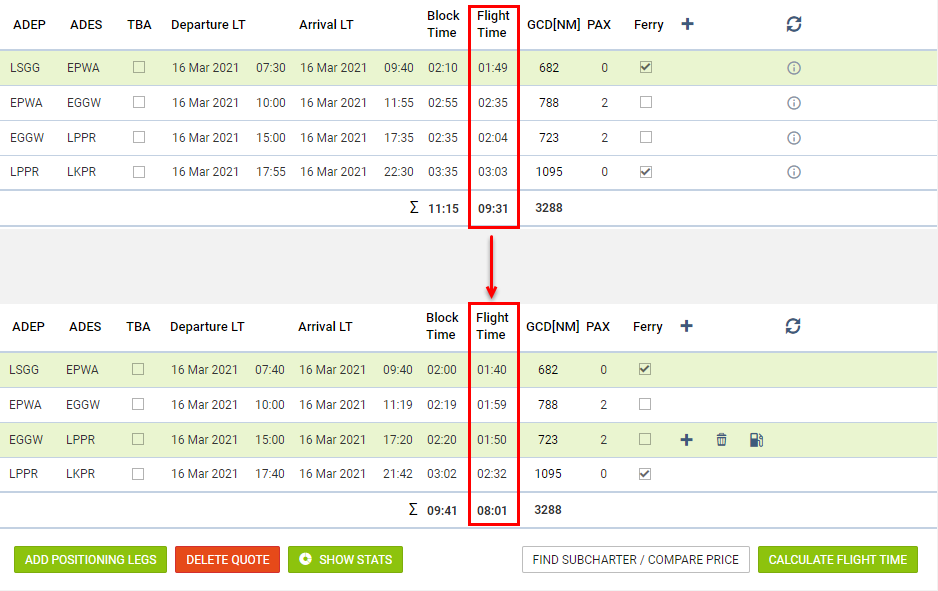
After the integration is activated, 
Clicking on
Additionally, the map of the routing will be available within the same pop-up window. Clicking on a flight within the ‘Calculate Flight Time’ window will highlight this selected flight on the map.
Clicking on 
-
Positioning legs (before and after the requested schedule) - both arrival and departure can be updated since it depends on the rotation time
-
Request added based on the Departure - arrival time will be updated
-
Request added based on the Arrival - departure time will be updated
-
Block time is automatically recalculated
Once the ‘Aviapages’ flight times are implemented, they do not update the quotation amounts automatically. Recalculation based on the itinerary is required to apply amounts according to new flight times.
‘Minimum day charge fee’ and ‘Short sector fee’ in ‘Aircraft fees’
Two new elements have been introduced to the ‘Aircraft fees’:
-
‘Minimum day charge fee’ - set fee for each day with less than a certain amount of block hours of flying selected in the threshold
-
‘Short sector fee’ - fee charged per sector shorter than the distance selected in the threshold
EXAMPLES
EXAMPLE 1
Both fees are set up as per below:

The setup means that:
-
‘Minimum day charge fee’ - daily block time shorter than 1h will be charged €200 or costs €100
-
‘Short sector fee’ - a sector with a distance shorter than 800NM will be charged €200 or will cost €100
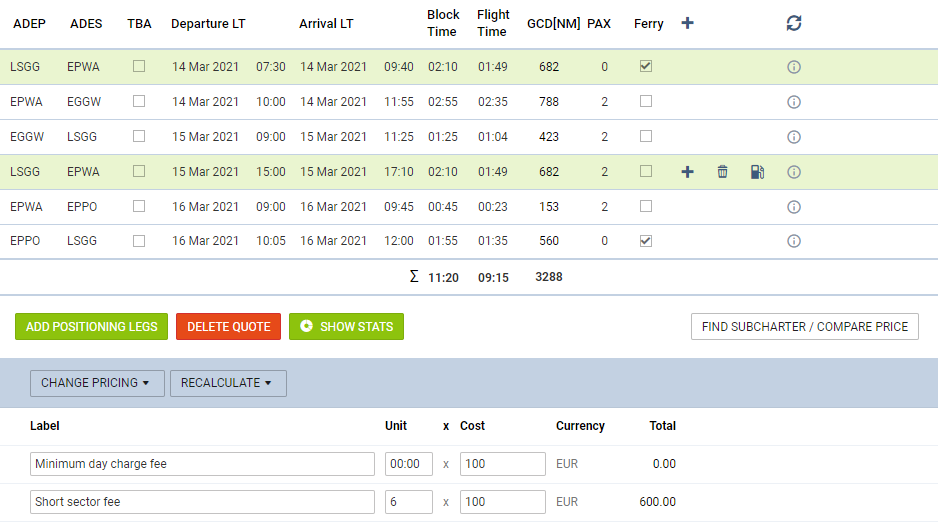
As you can see in the example in the screenshot, the ‘Minimum day charge fee’ equals €0 and ‘Short sector fee’ equals €600
The calculations are as follow:
‘Minimum day charge fee’
The trip happens over 3 days.
3 days multiplied by 1h minimum block time gives us 3h.
The actual block time over 3 days is 11:20.
Because actual block time is longer than minimum block time, the Client is not being charged.
‘Short sector fee’
Each of the flights within the trip is of a shorter distance than 800NM.
Since there are 6 sectors in total that meet the criteria, the Client is charged €600, as per below:
6 sectors x €100 cost = €600
EXAMPLE 2
Both fees are set up as per below:

The setup means that:
-
‘Minimum day charge fee’ - daily block time shorter than 4h will be charged €200 or costs €100
-
‘Short sector fee’ - a sector with a distance shorter than 600NM will be charged €200 or will cost €100
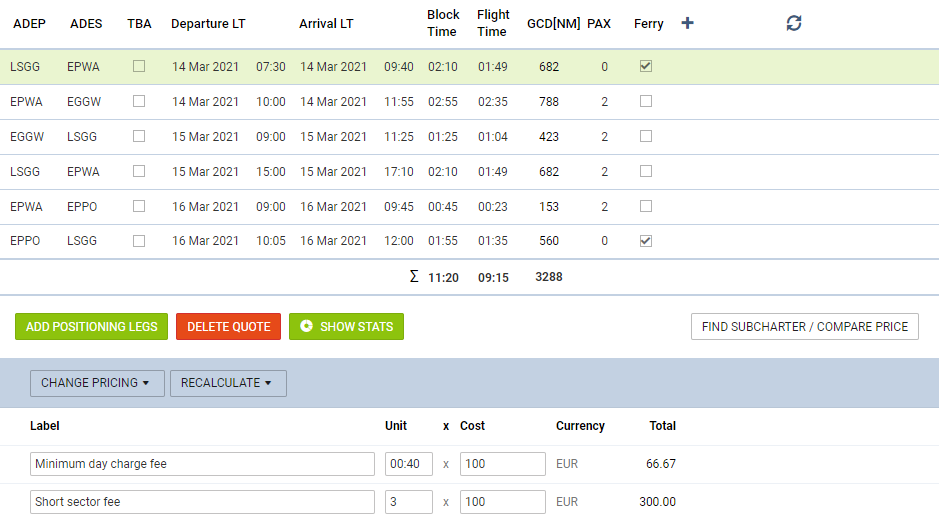
As you can see in the example in the screenshot, the ‘Minimum day charge fee’ equals €0 and ‘Short sector fee’ equals €600
The calculations are as follow:
‘Minimum day charge fee’
The trip happens over 3 days.
3 days multiplied by 4h minimum block time gives us 12h.
The actual block time over 3 days is 11:20.
Because actual block time is shorter than the minimum block time calculated, the Client is charged €66.67 for the difference, as per below:
12:00 - 11:20 = 00:40
00:40 x €100 = €66.67
‘Short sector fee’
Only 3 flights within the trip are of a shorter distance than 600NM.
Since there are 3 sectors in total that meet the criteria, the Client is charged €300, as per below:
3 sectors x €100 cost = €300
‘Assign to’ option
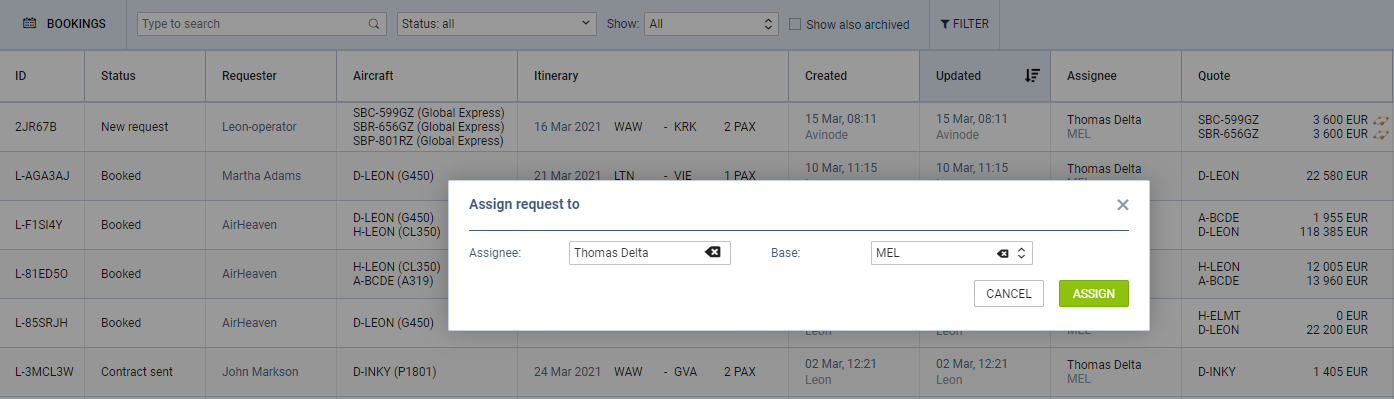
It is now possible to assign the assignee and the base directly from the main ‘Requests/Quotes’ view.
The option ‘Assign to’ is available in the menu located under the right-click of the mouse or by clicking on the ‘Assignee’ column.
Click ‘ASSIGN’ button to save the changes.